
How to View Pool Inspections


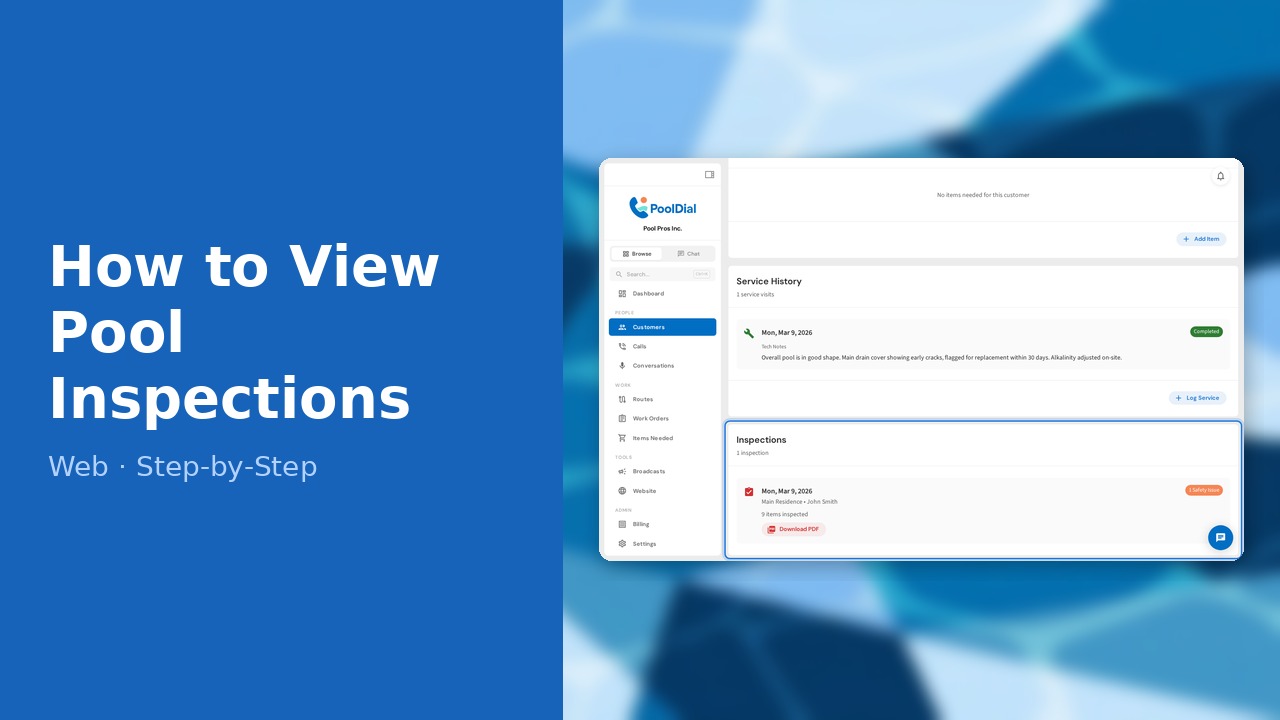
This guide walks you through how to view pool inspections in PoolDial, step by step.
This guide covers 4 steps and takes about a minute to complete.
1. Open the Customers page from the sidebar
From the left sidebar, click Customers to open your customer list.
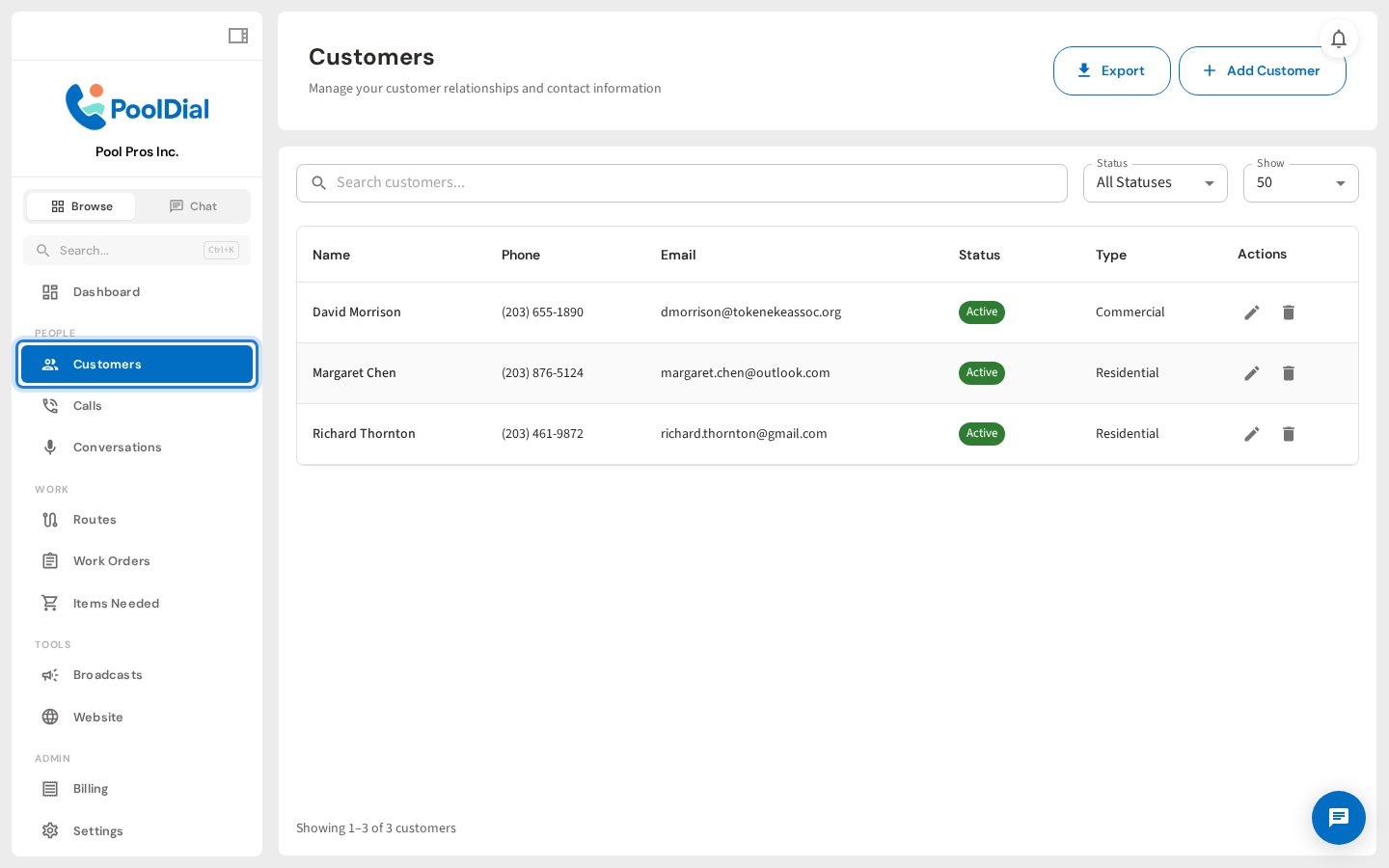
2. Click the customer to open their detail page
Click the customer whose inspections you want to review. You can also search by name or address.
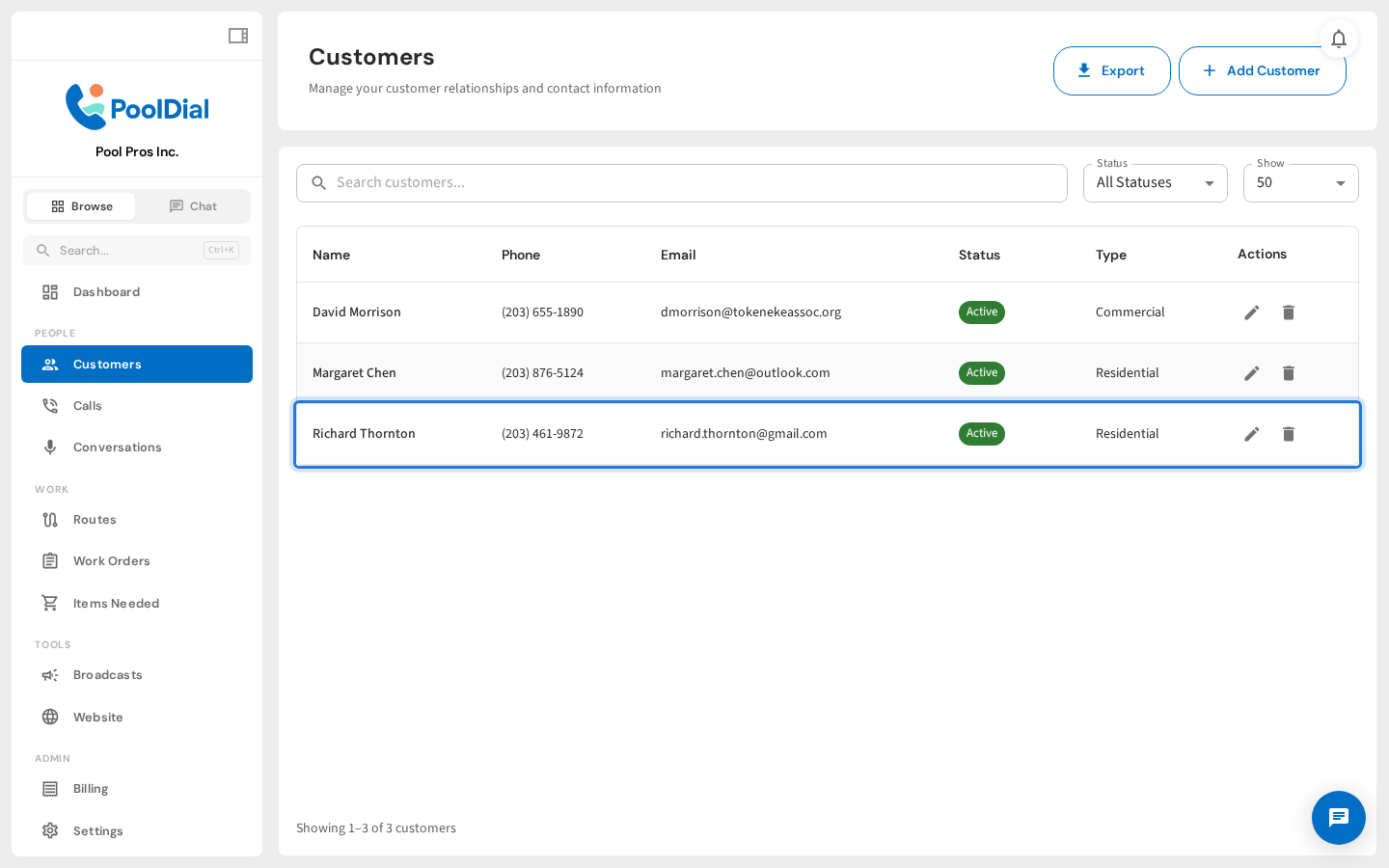
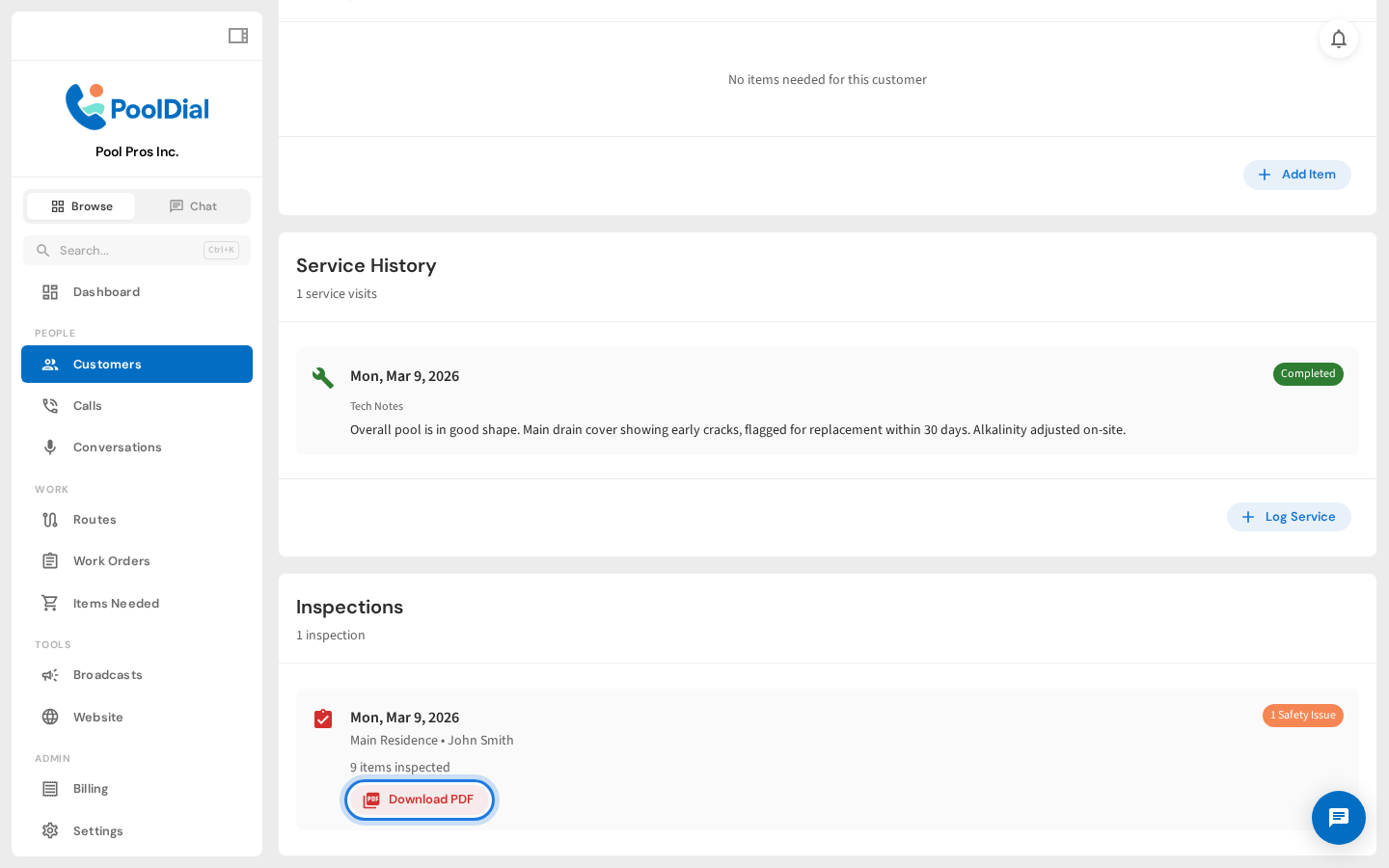
3. Scroll to the Inspections card on the customer detail page
On the customer detail page, scroll down past Service History to the Inspections card. Each row shows the inspection date, technician, property, and a status chip summarizing the findings.
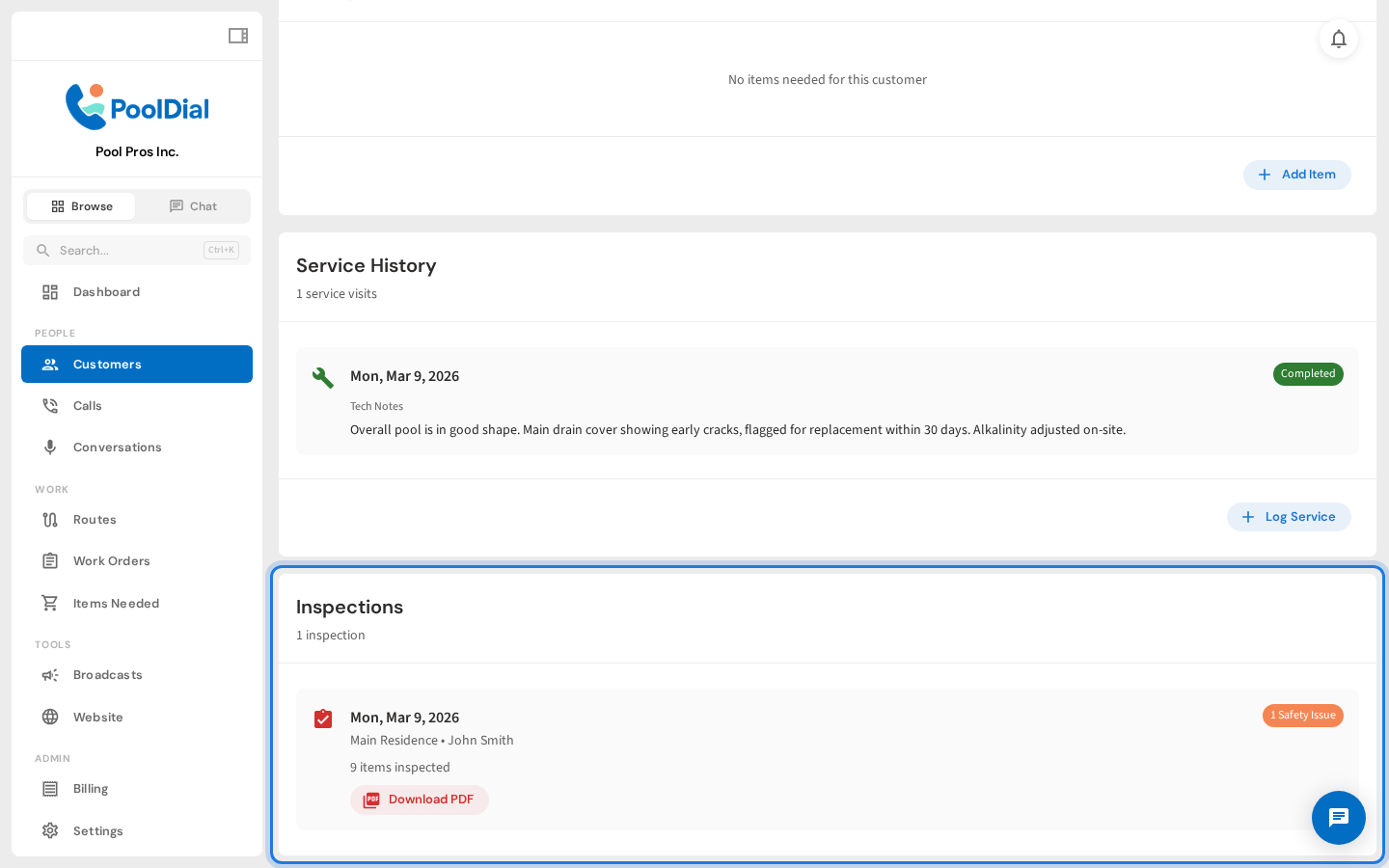
4. Click Download PDF to open the inspection report
Tap Download PDF to open the branded inspection report. PoolDial saves a copy of every inspection report PDF the moment a technician submits it from the field — so you always have a record on file.
Not using PoolDial yet?
Manage your customers, routes, billing, and more — all in one place.
Start Free Trial