
How to Complete a Pool Inspection (Mobile App)


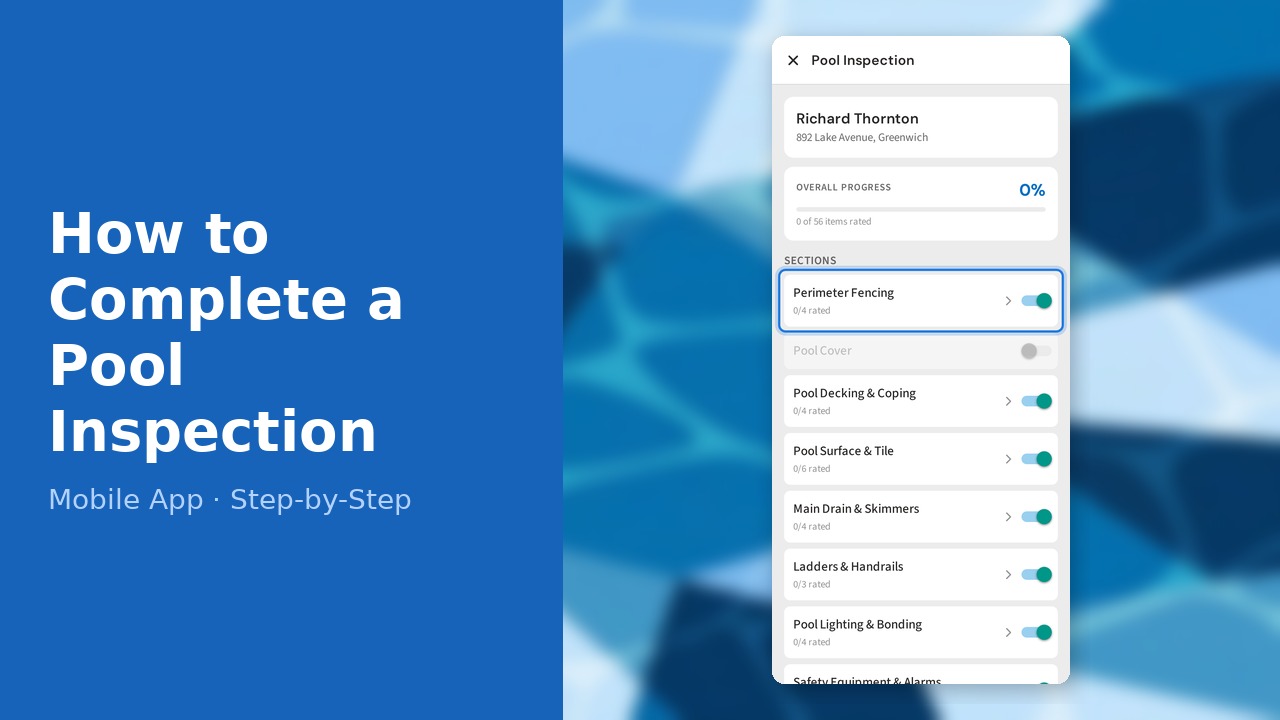
This guide walks you through how to complete a pool inspection (mobile app) in PoolDial, step by step.
This guide covers 8 steps and takes about a minute to complete.
1. Open PoolDial and view your route
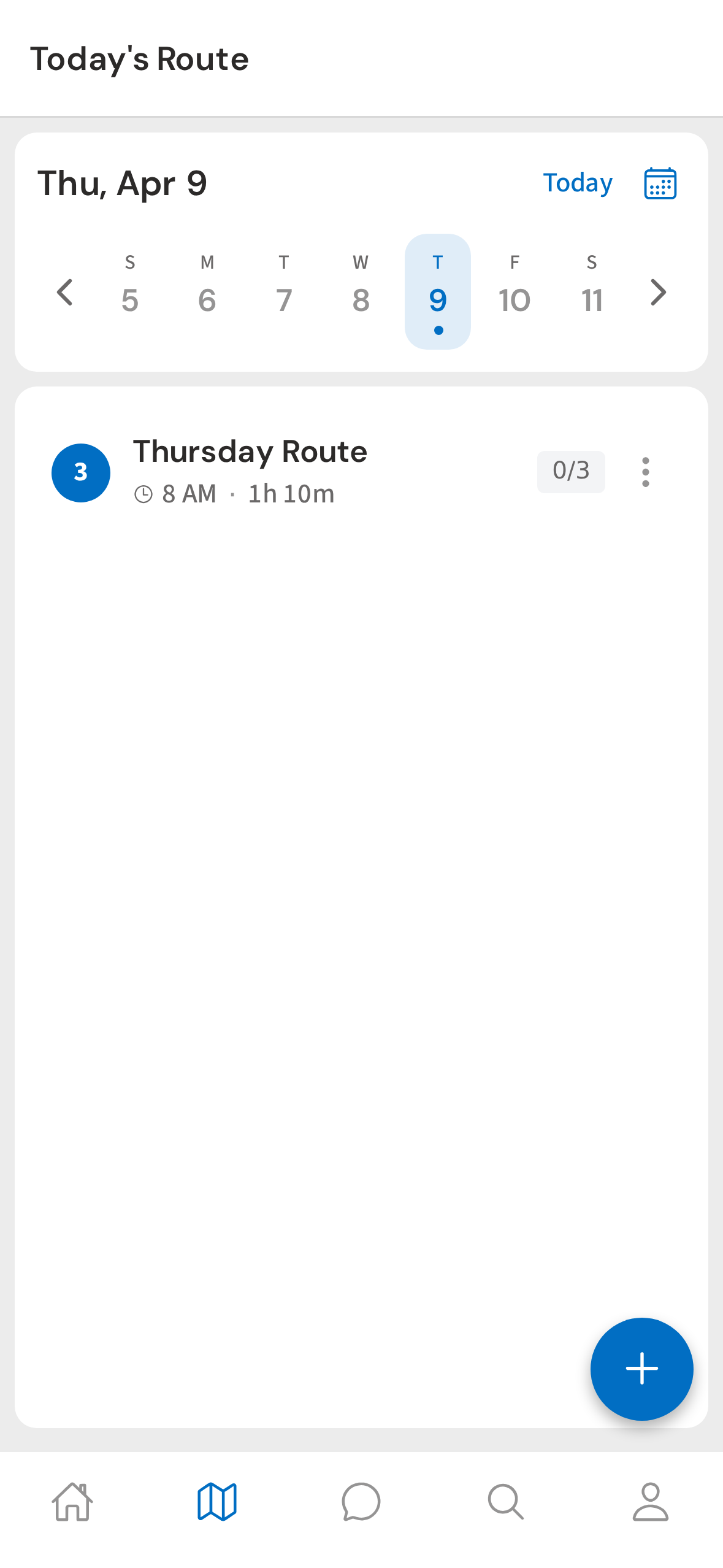
Open PoolDial on your phone and tap the inspection work order on your route. Inspections show up in your day's work just like regular stops.
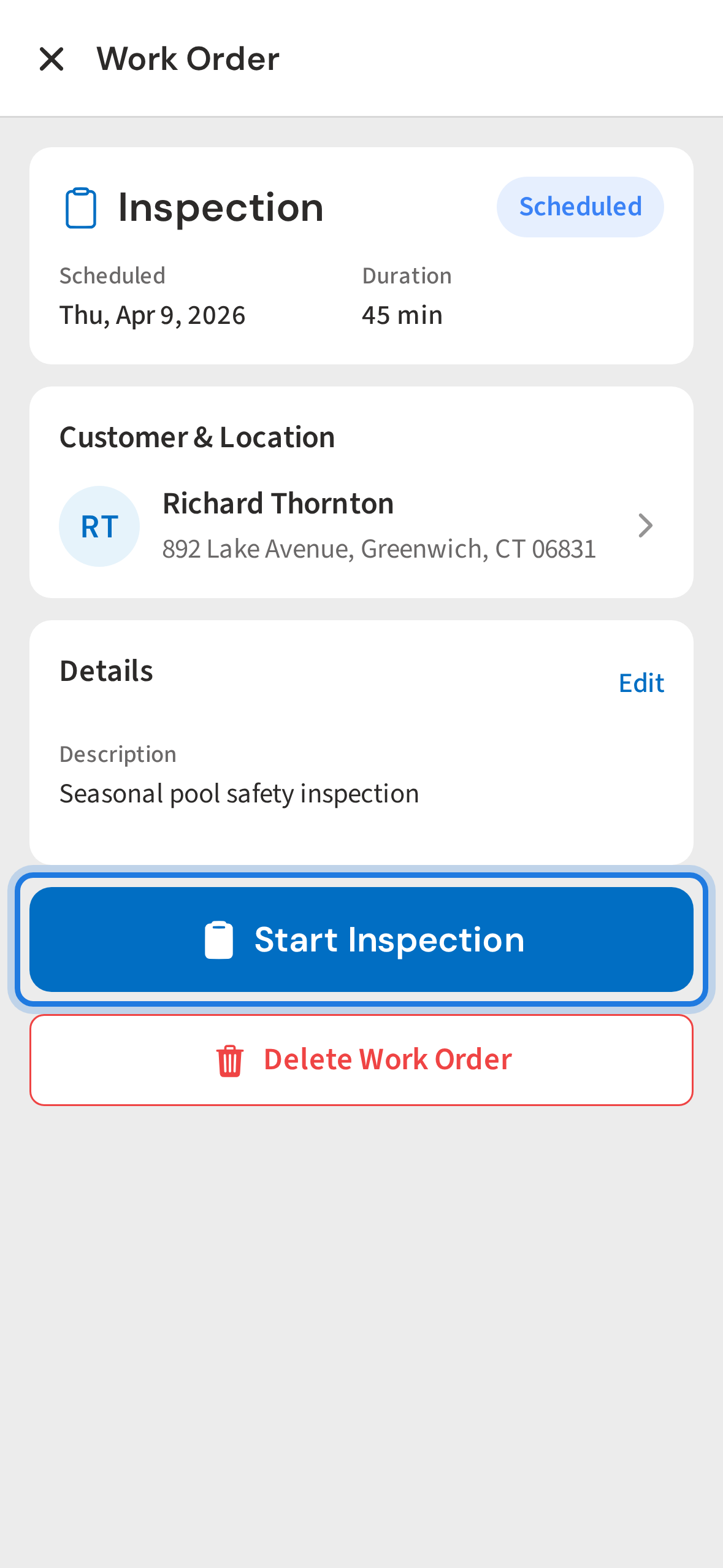
2. Tap Start Inspection on the work order
On the work order screen, tap Start Inspection. This opens the multi-section inspection checklist.
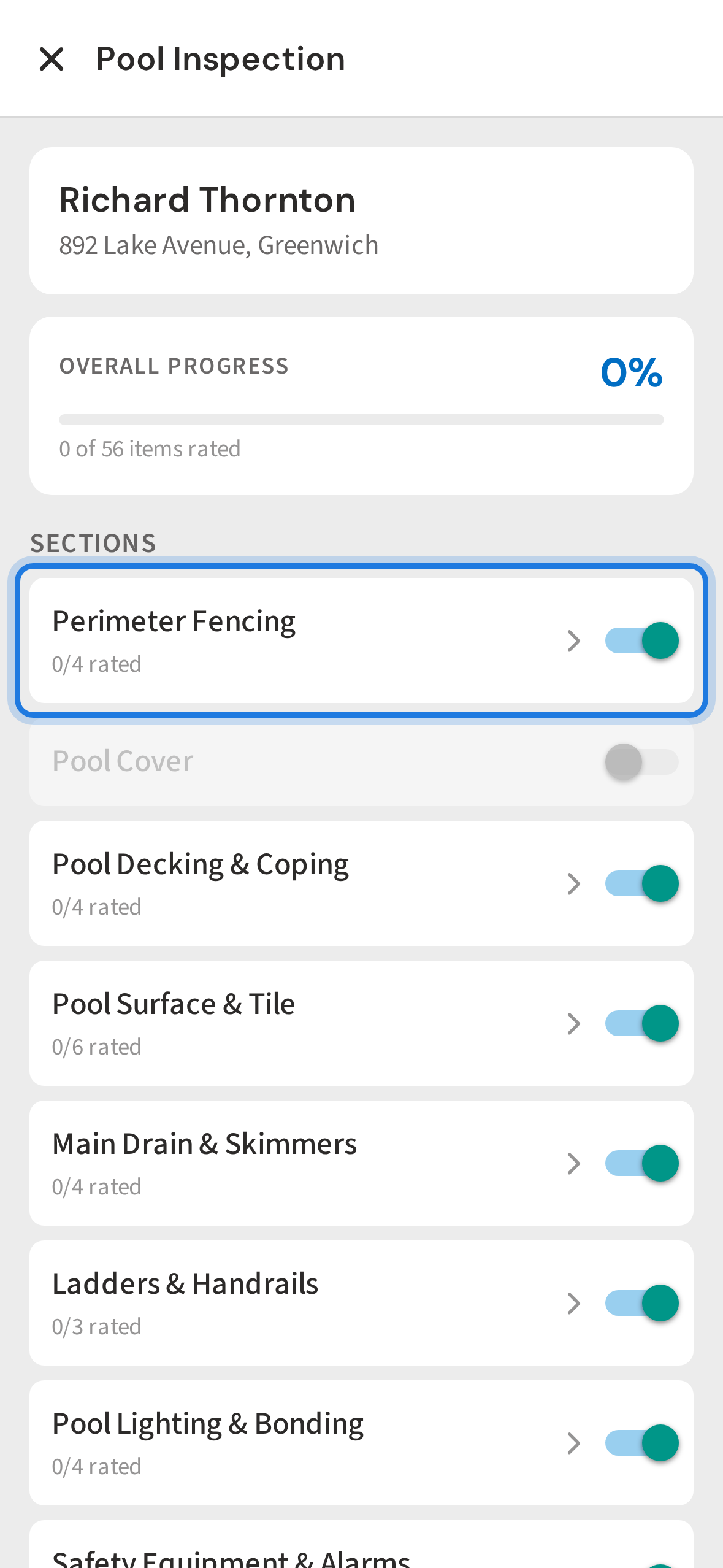
3. View the inspection overview and tap the first section
The overview shows every inspection section — fencing, equipment, water chemistry, safety, and more. Tap the first section to begin rating items.
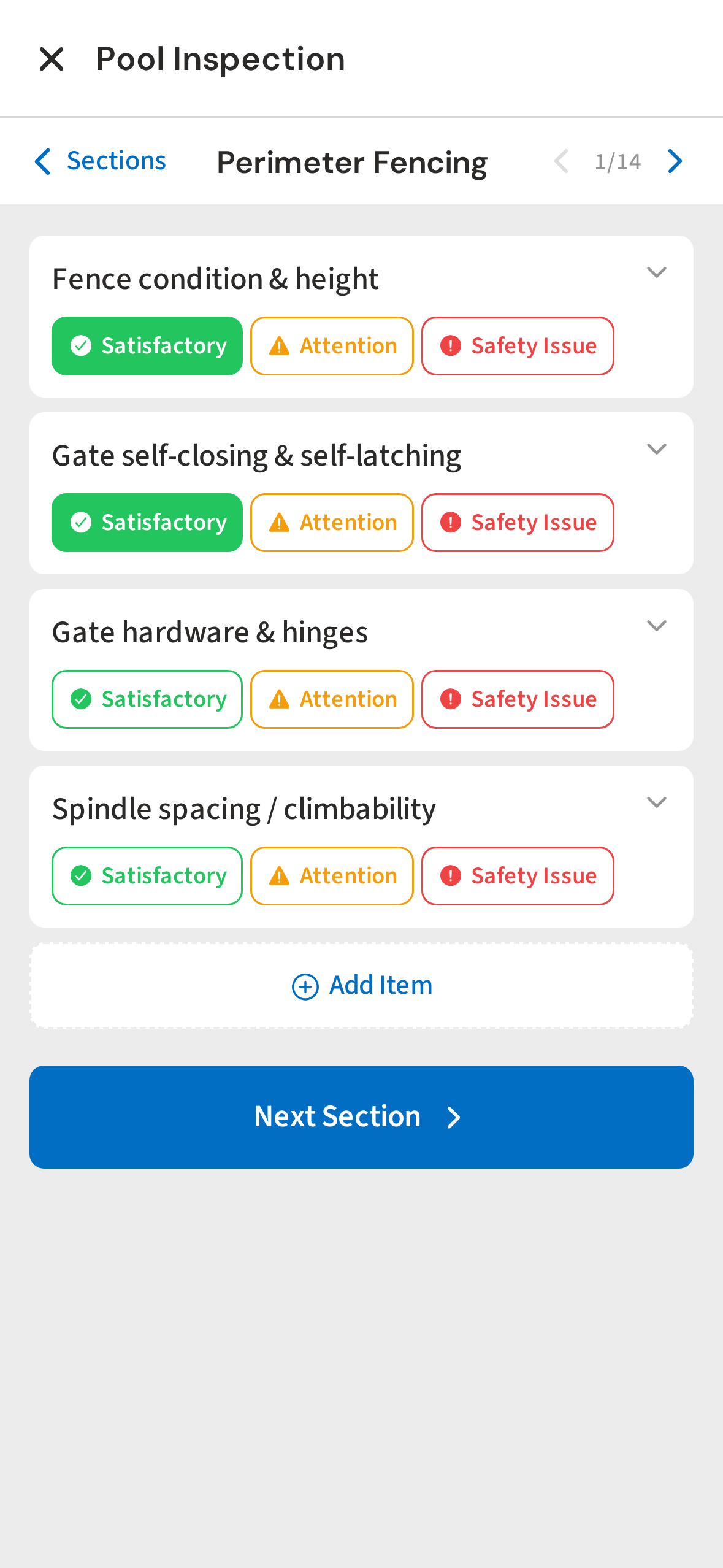
4. Rate items as Satisfactory
Each item has three condition buttons: Satisfactory, Attention, and Safety Issue. Tap Satisfactory for items that pass.
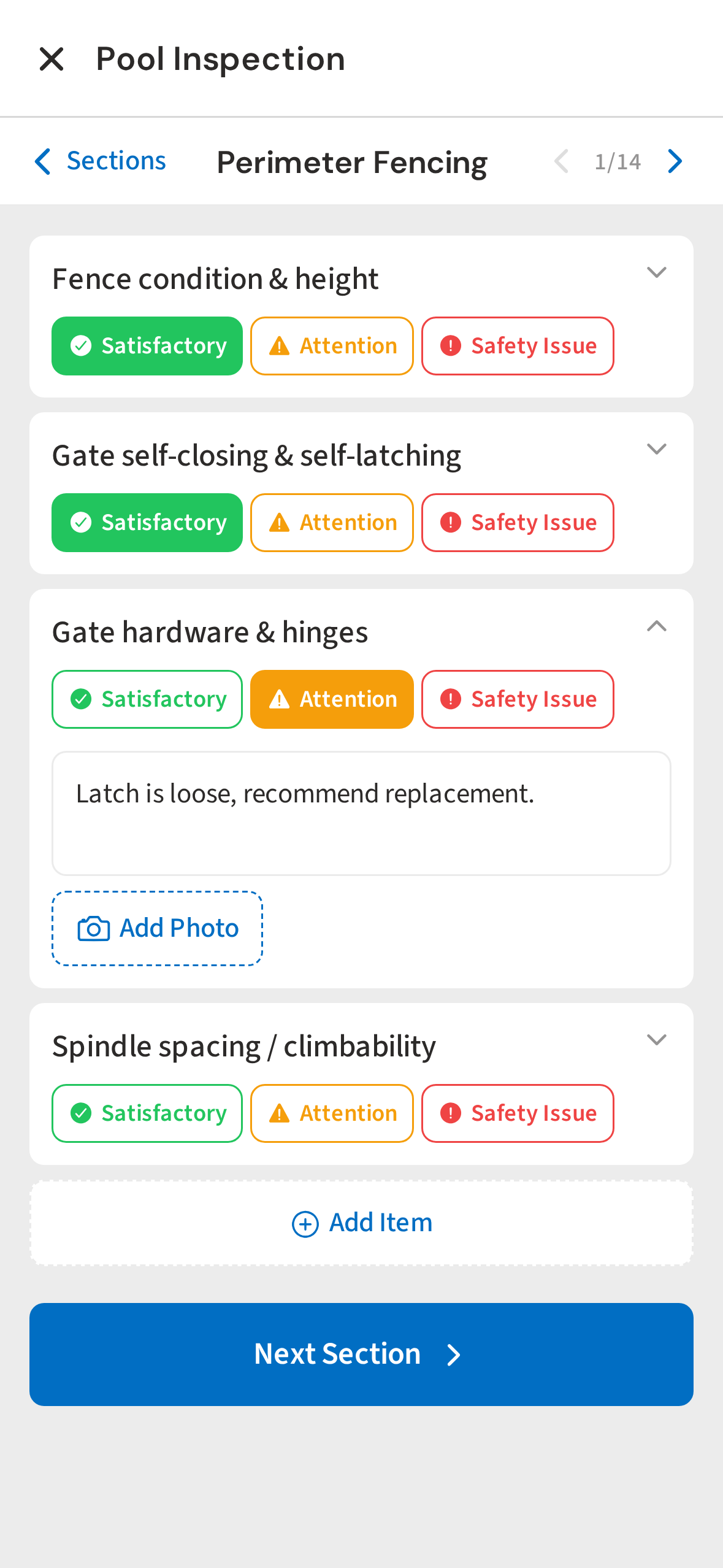
5. Mark an item as Attention with notes
When you find a problem, tap an item to expand it, type a quick note, and mark it as Attention or Safety Issue. Notes show up on the customer's report.
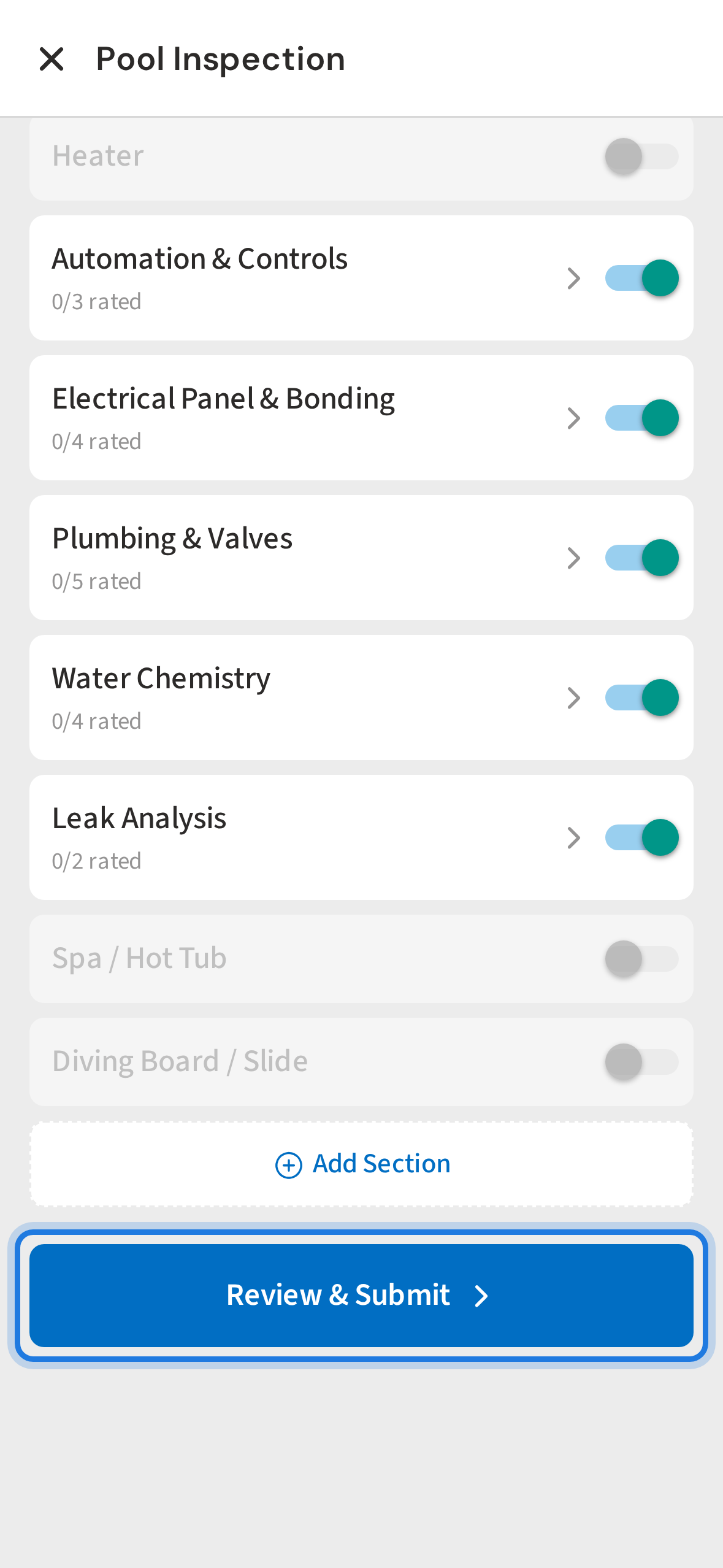
6. Tap Review & Submit when finished
When you've worked through every section, tap Review & Submit to see the full summary.
7. Review the inspection summary
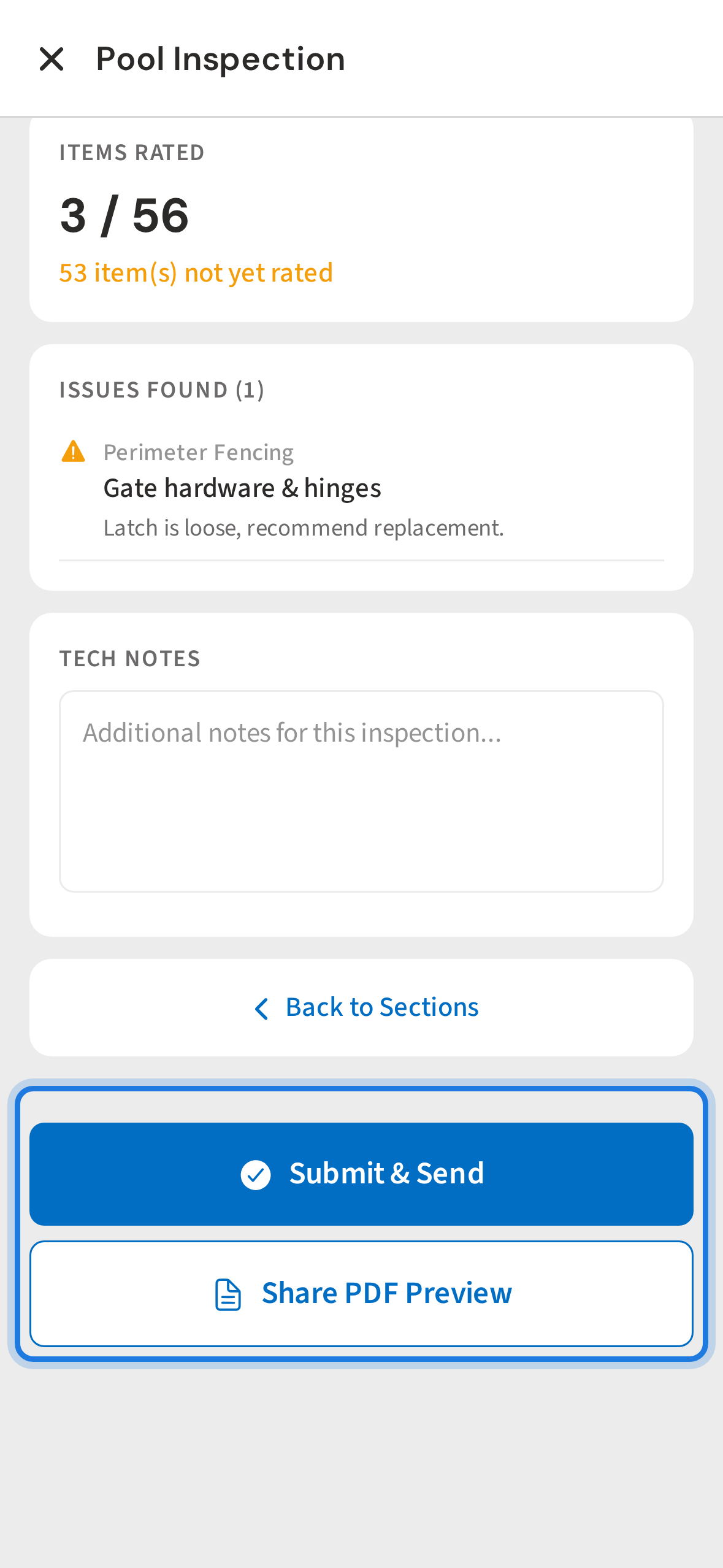
The summary lists every issue you flagged so you can double-check before sending. Add any final tech notes at the bottom.
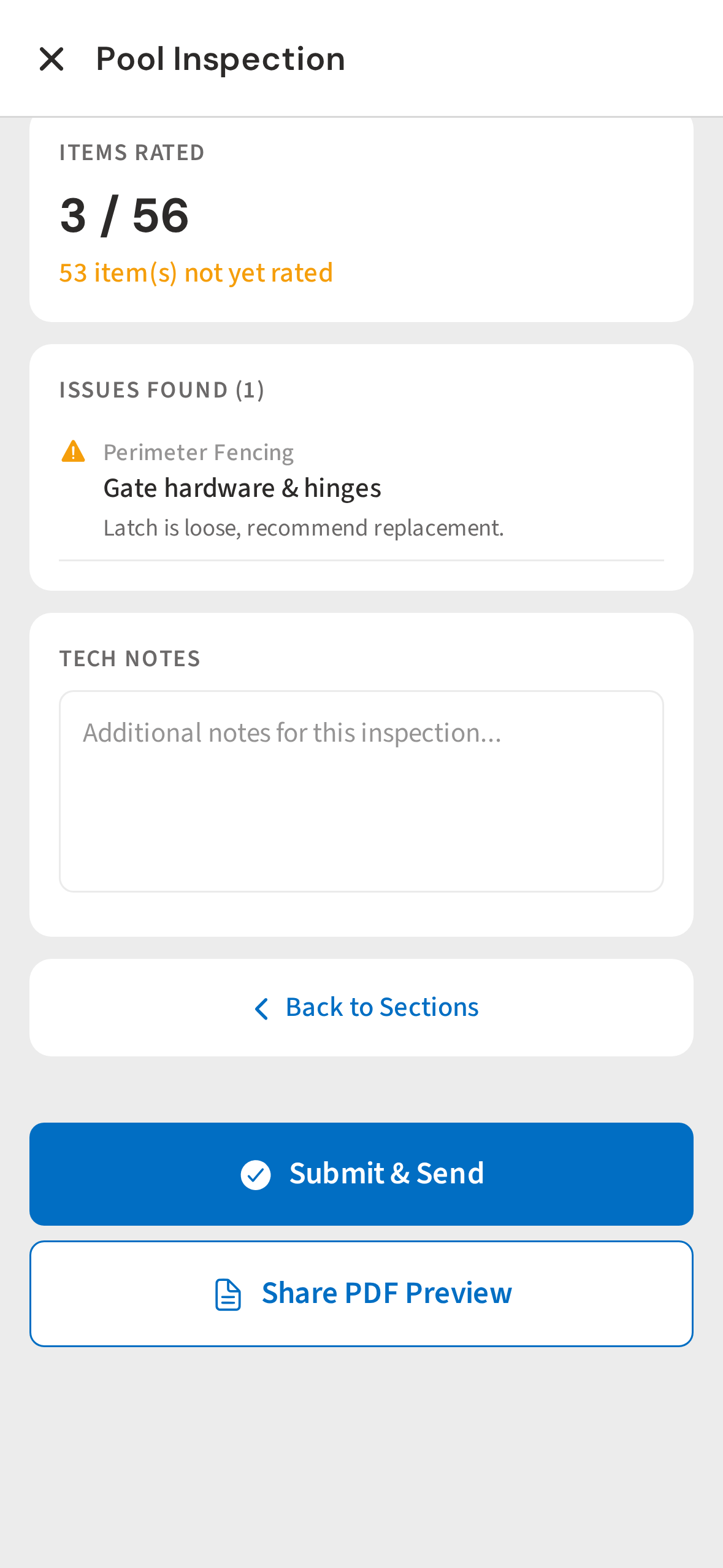
8. Tap Submit & Send
Tap Submit & Send. PoolDial saves the inspection, generates a branded PDF report, emails it to the customer, and stores it in their documents — all in one tap.
Not using PoolDial yet?
Manage your customers, routes, billing, and more — all in one place.
Start Free Trial