
How to View Customer Conversations


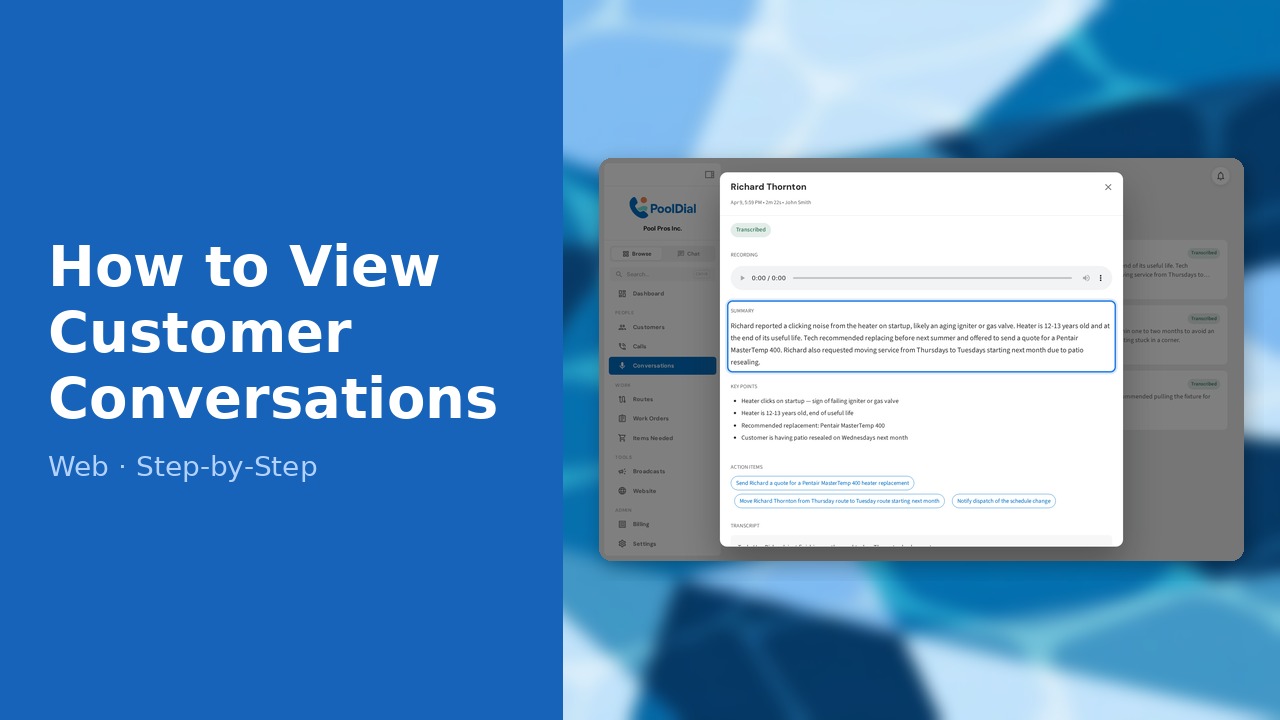
This guide walks you through how to view customer conversations in PoolDial, step by step.
This guide covers 8 steps and takes about a minute to complete.
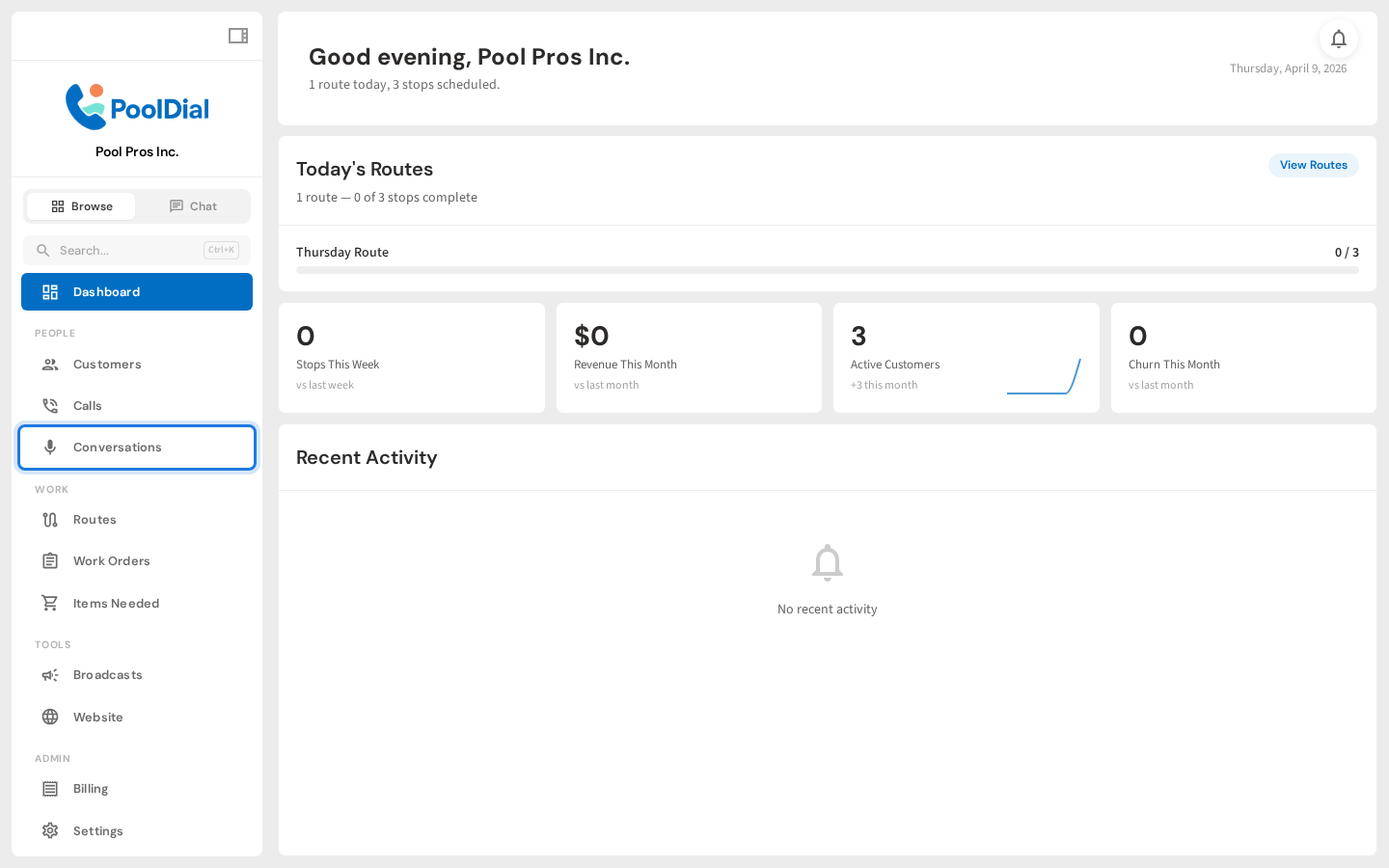
1. Sidebar -> Conversations
From the left sidebar, click Conversations. You'll find it under the same group as Calls — the mic icon makes it easy to spot. Every conversation your techs record in the field shows up here, fully searchable.
2. Conversations list page
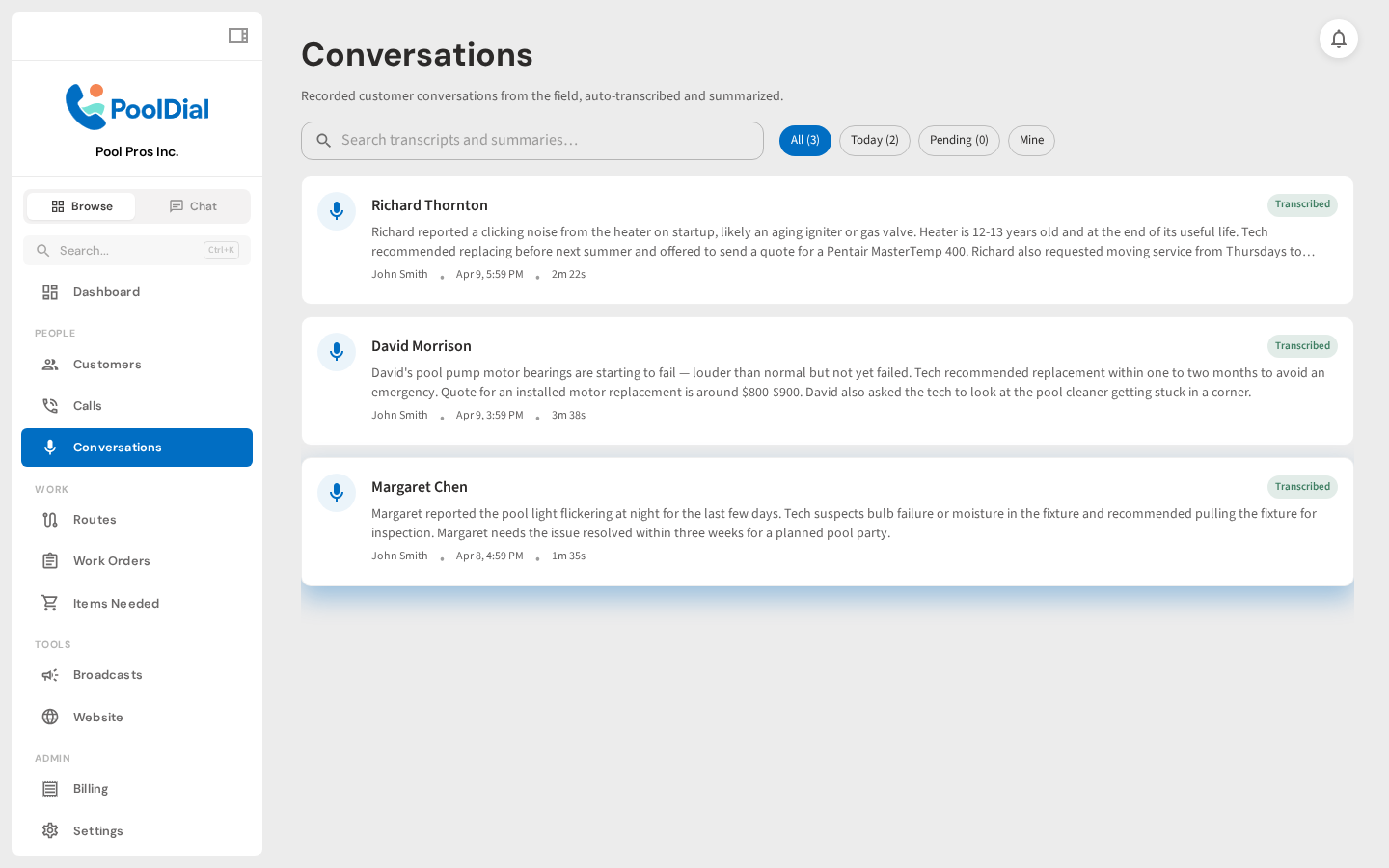
The Conversations page lists every recorded conversation across your business. Each card shows the customer name, an AI-generated summary, who recorded it, the date, the duration, and a status badge that tells you whether it's still transcribing or fully processed.
3. Filter chips on the Conversations page
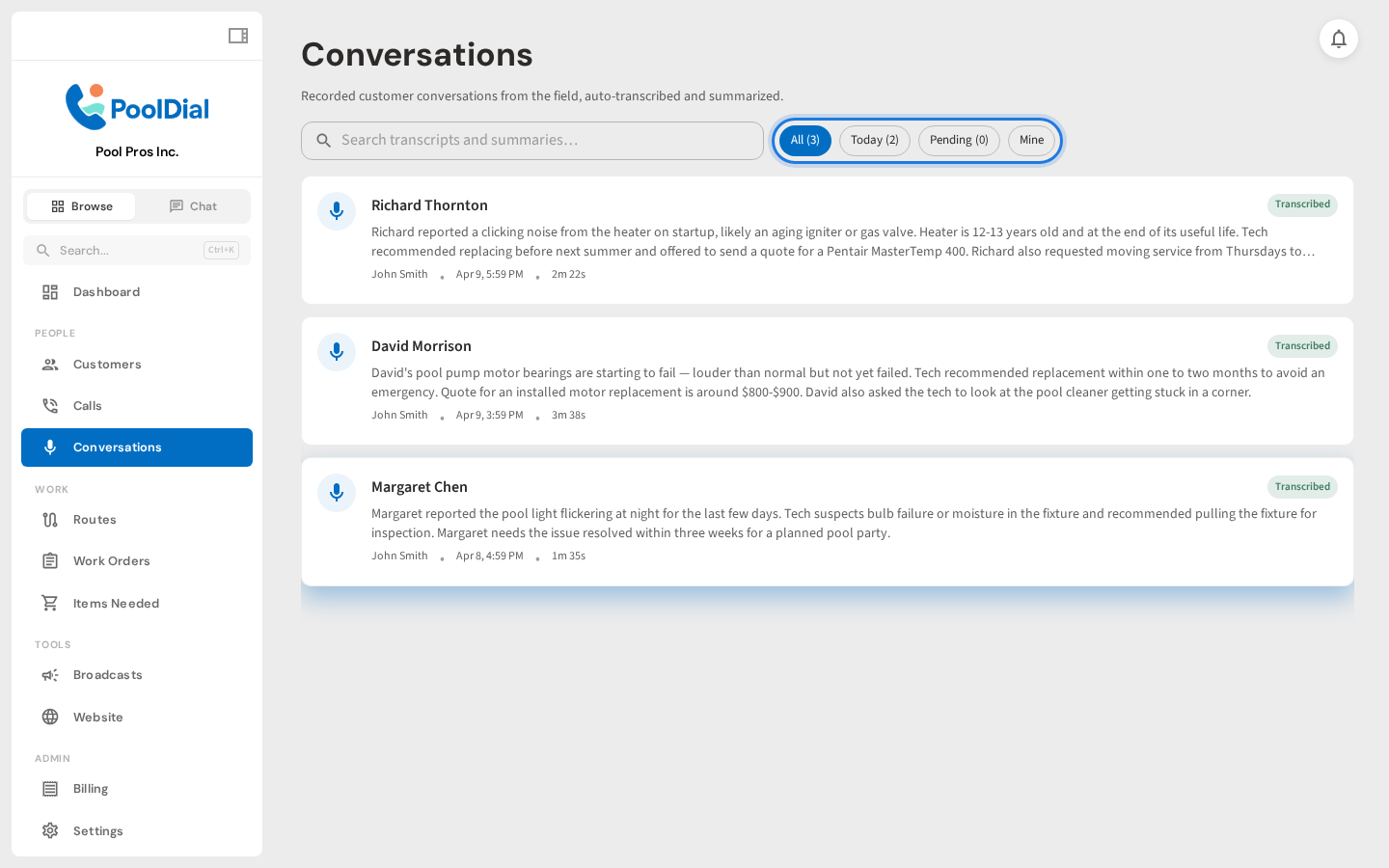
Use the filter chips on the right to narrow the list down. All shows everything, Today shows only conversations recorded today, Pending shows ones still being transcribed, and Mine shows only what you personally recorded.
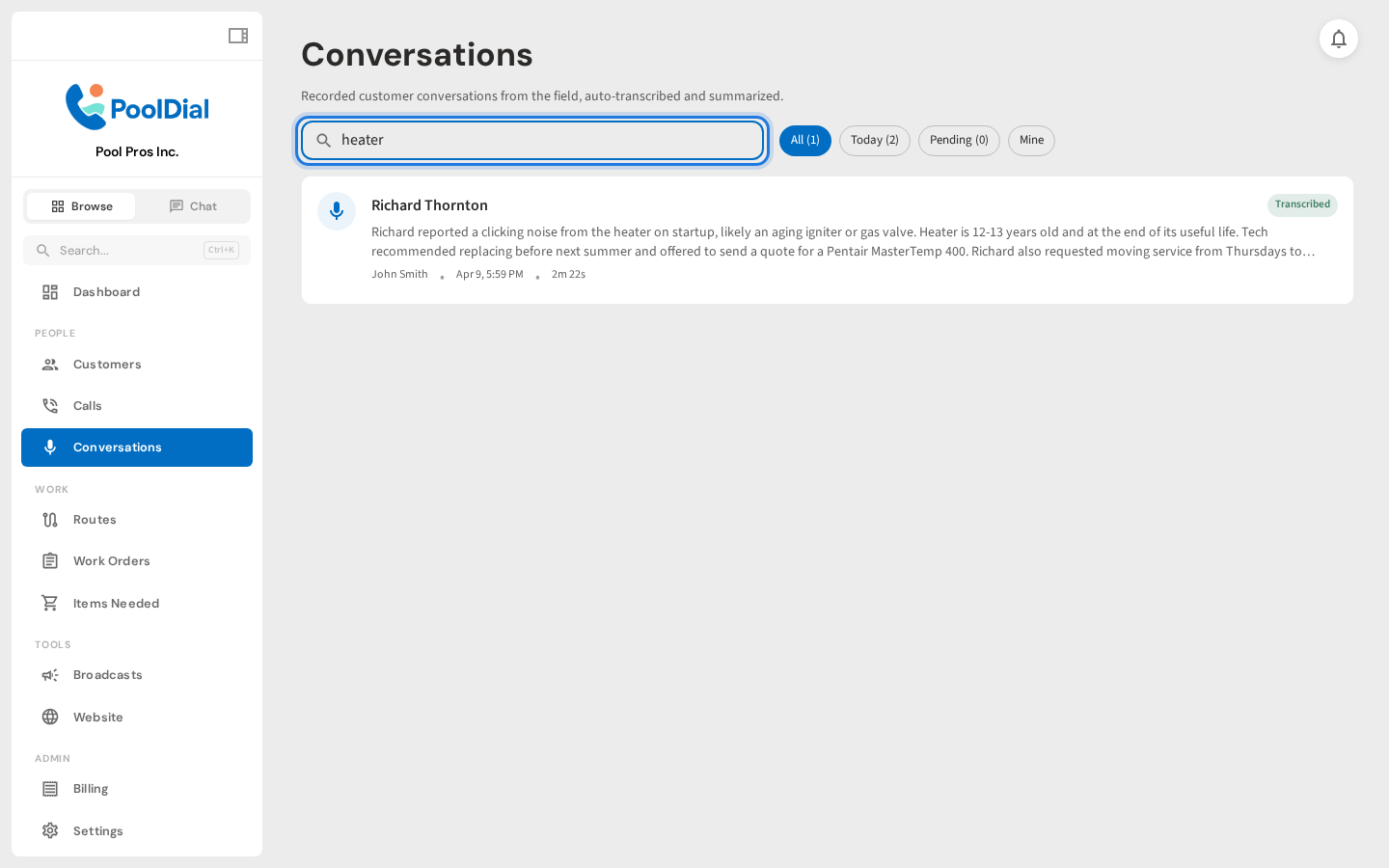
4. Search bar with query typed
The search bar runs full-text across both transcripts and summaries. Type something like heater or pump and the list narrows down instantly — perfect for finding that one conversation where a customer mentioned an issue you forgot about.
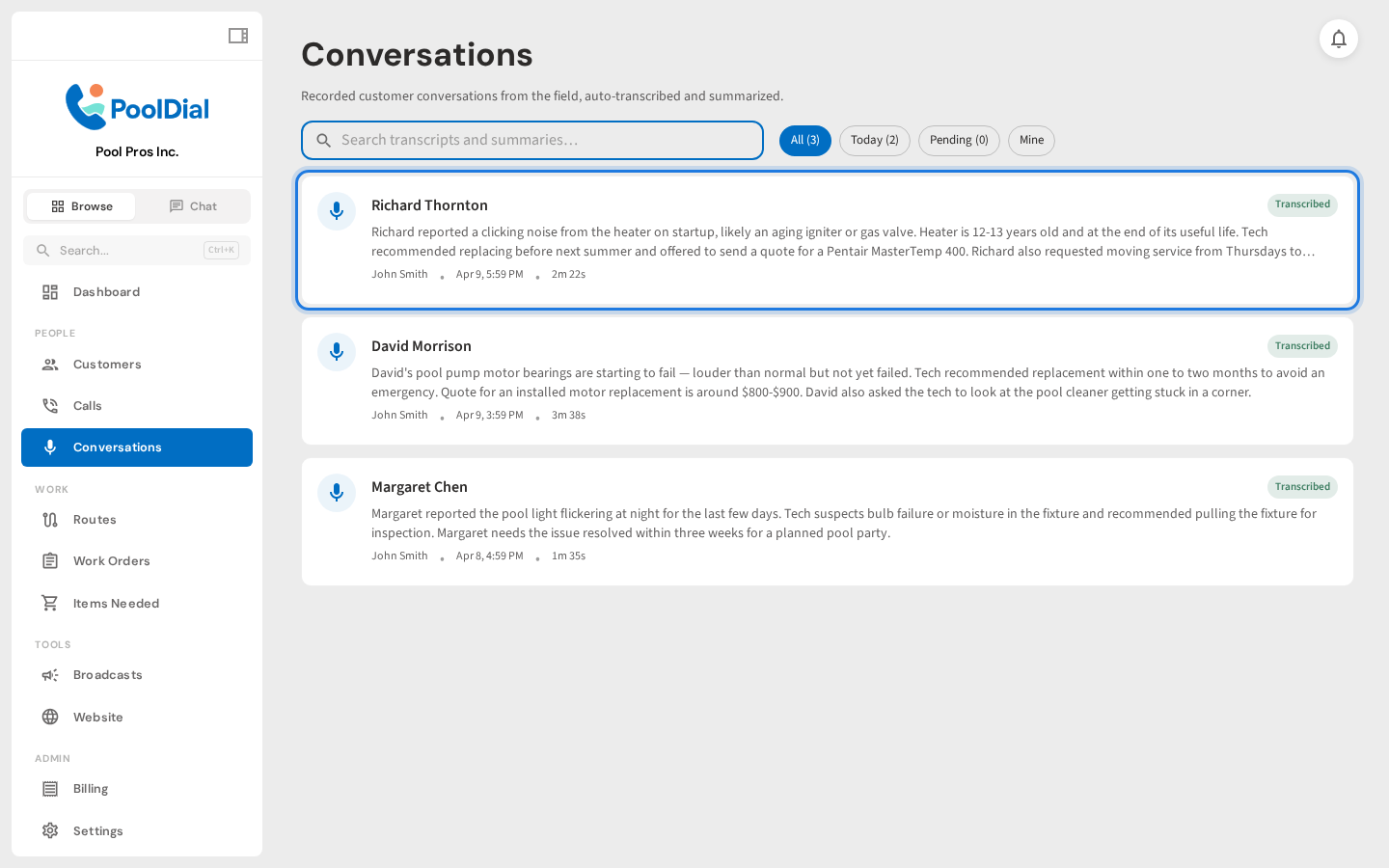
5. First conversation card highlighted
Click any conversation card to open the full detail view. Everything the AI extracted from the recording is here: the audio file, summary, key points, action items, and the full transcript.
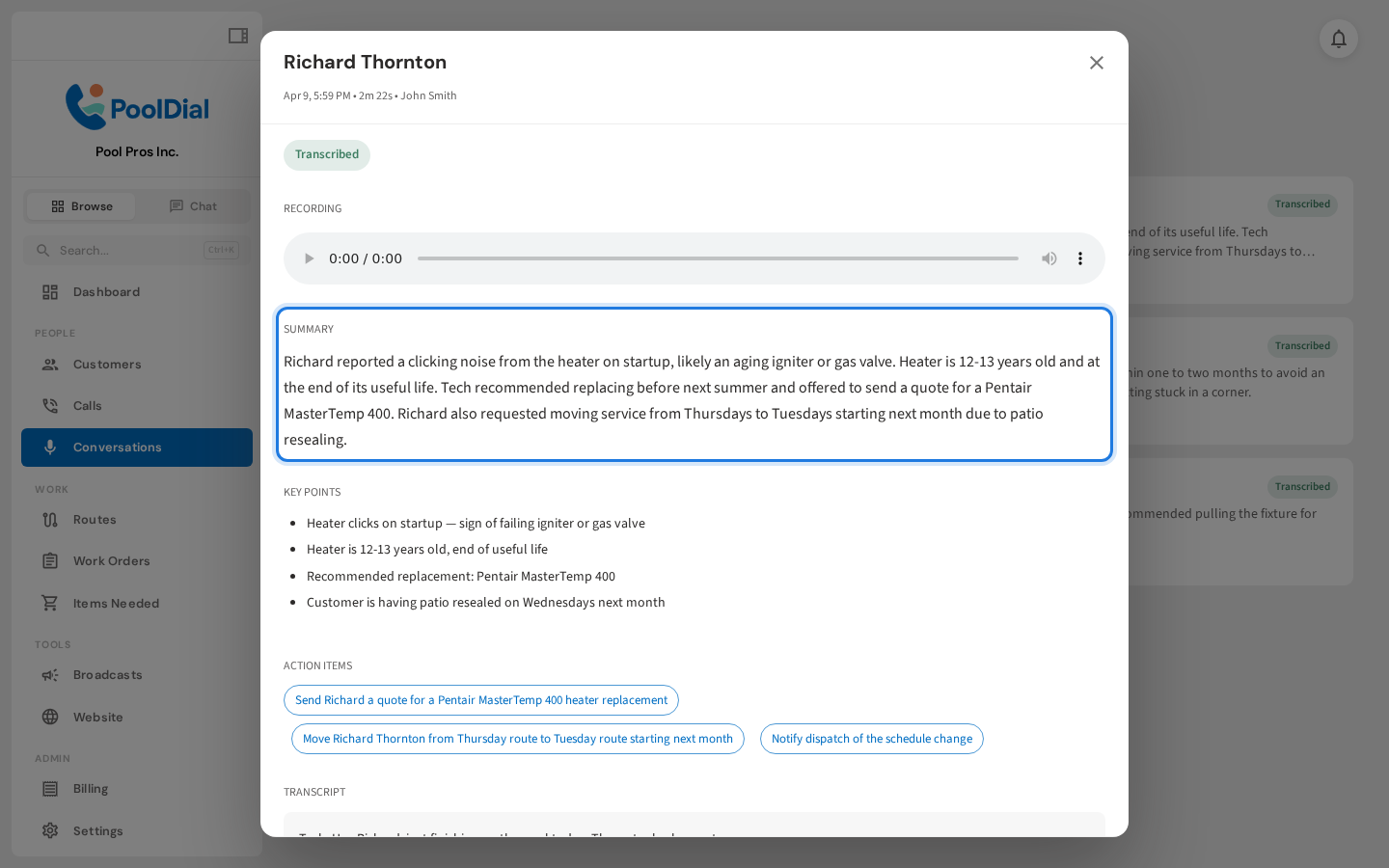
6. Detail dialog showing summary and audio player
At the top of the detail view you'll find the audio player and the summary. The summary is a 2-3 sentence recap that GPT writes from the transcript — usually enough to remind yourself what was said without listening to the whole recording.
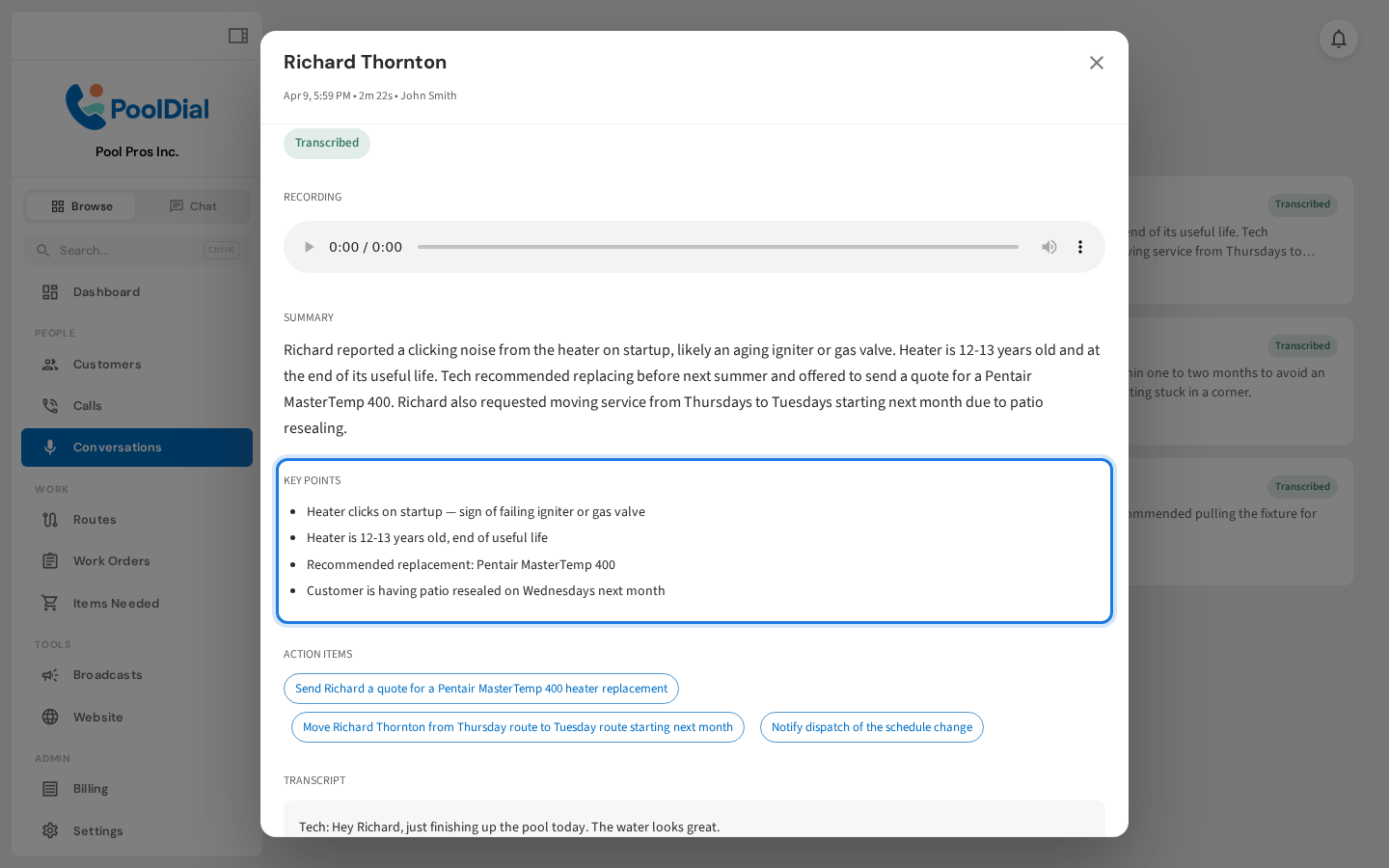
7. Detail dialog showing key points and action items
Below the summary are the key points and action items. Key points are what was discussed; action items are what needs to happen next. Both are pulled out of the conversation automatically — no manual note-taking required.
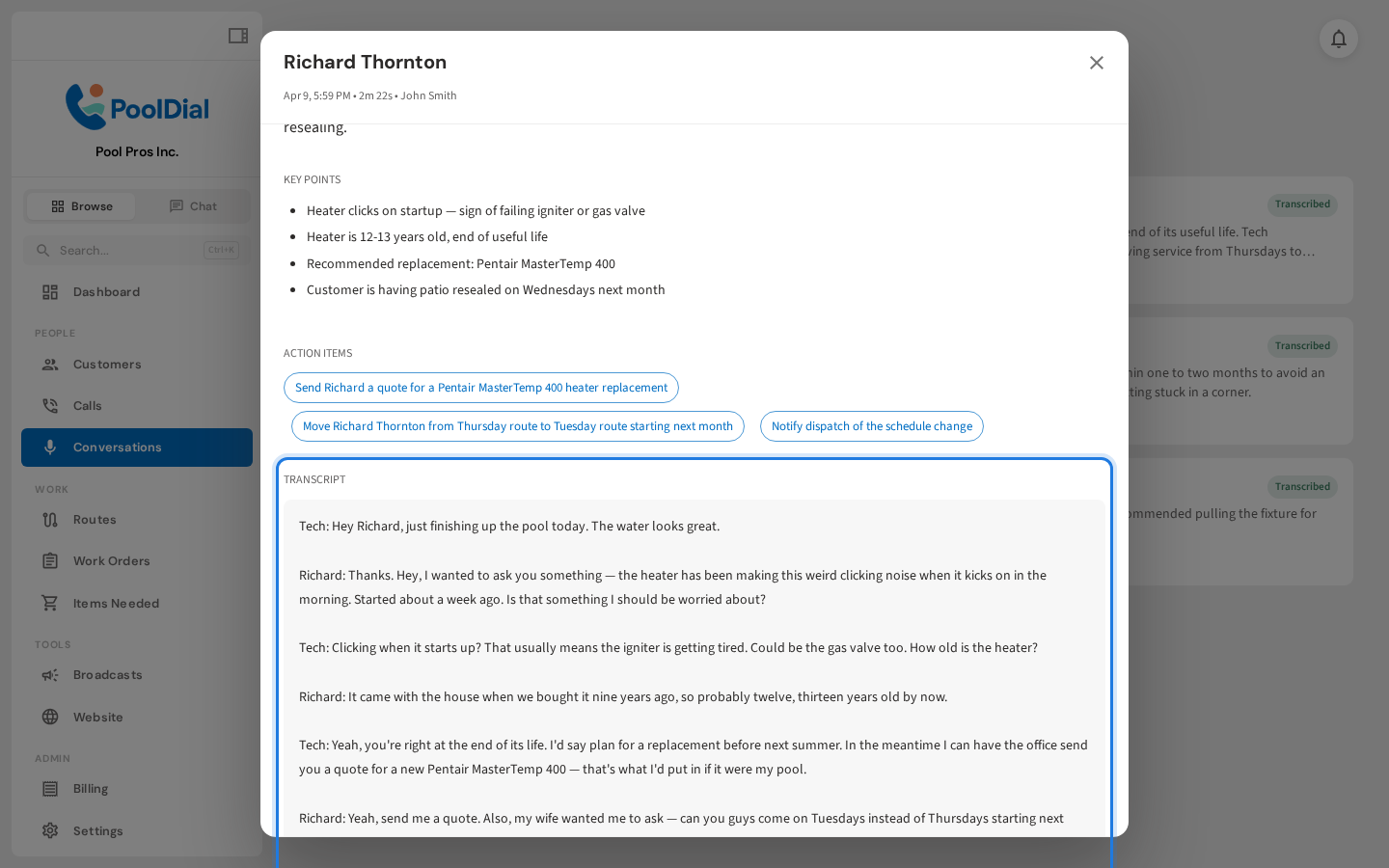
8. Detail dialog showing transcript and customer link
Finally, the full transcript is at the bottom along with a link to open the customer record. Jump straight to the customer to send a quote, schedule a follow-up, or add a service note based on what was discussed.
Not using PoolDial yet?
Manage your customers, routes, billing, and more — all in one place.
Start Free Trial