
How to Record a Customer Conversation (Mobile)

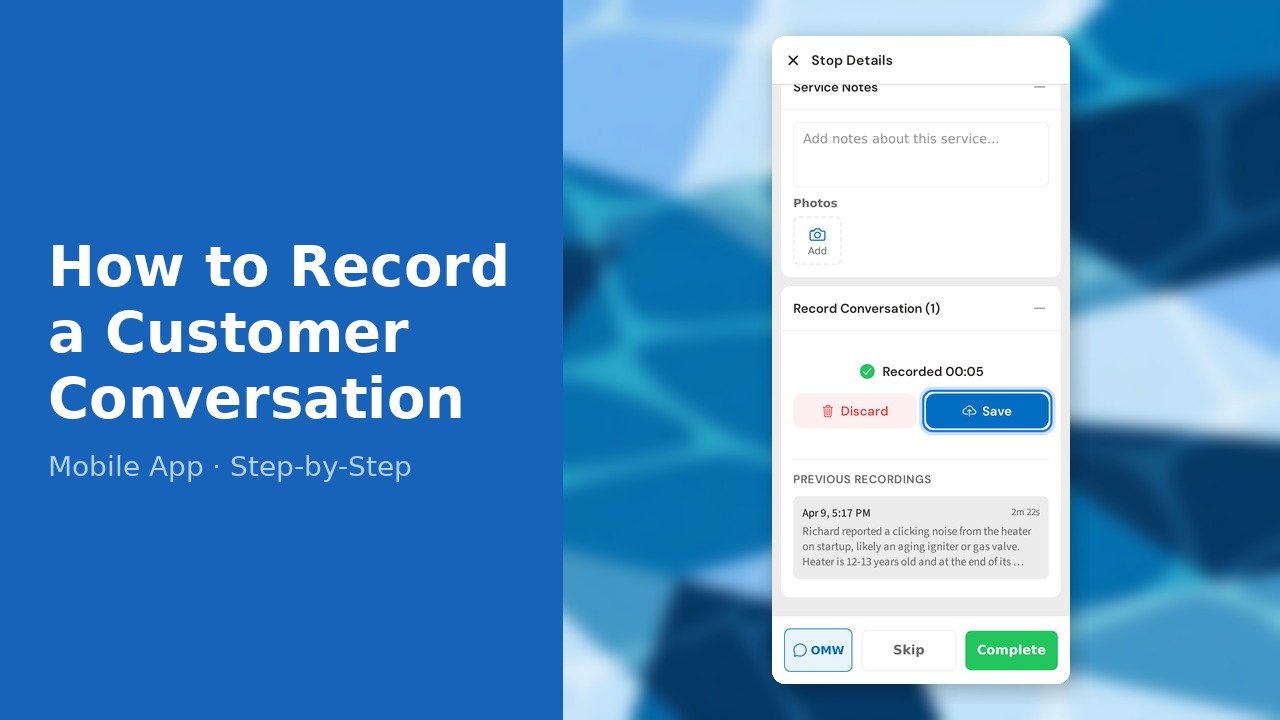
This guide walks you through how to record a customer conversation (mobile) in PoolDial, step by step.
This guide covers 11 steps and takes about a minute to complete.
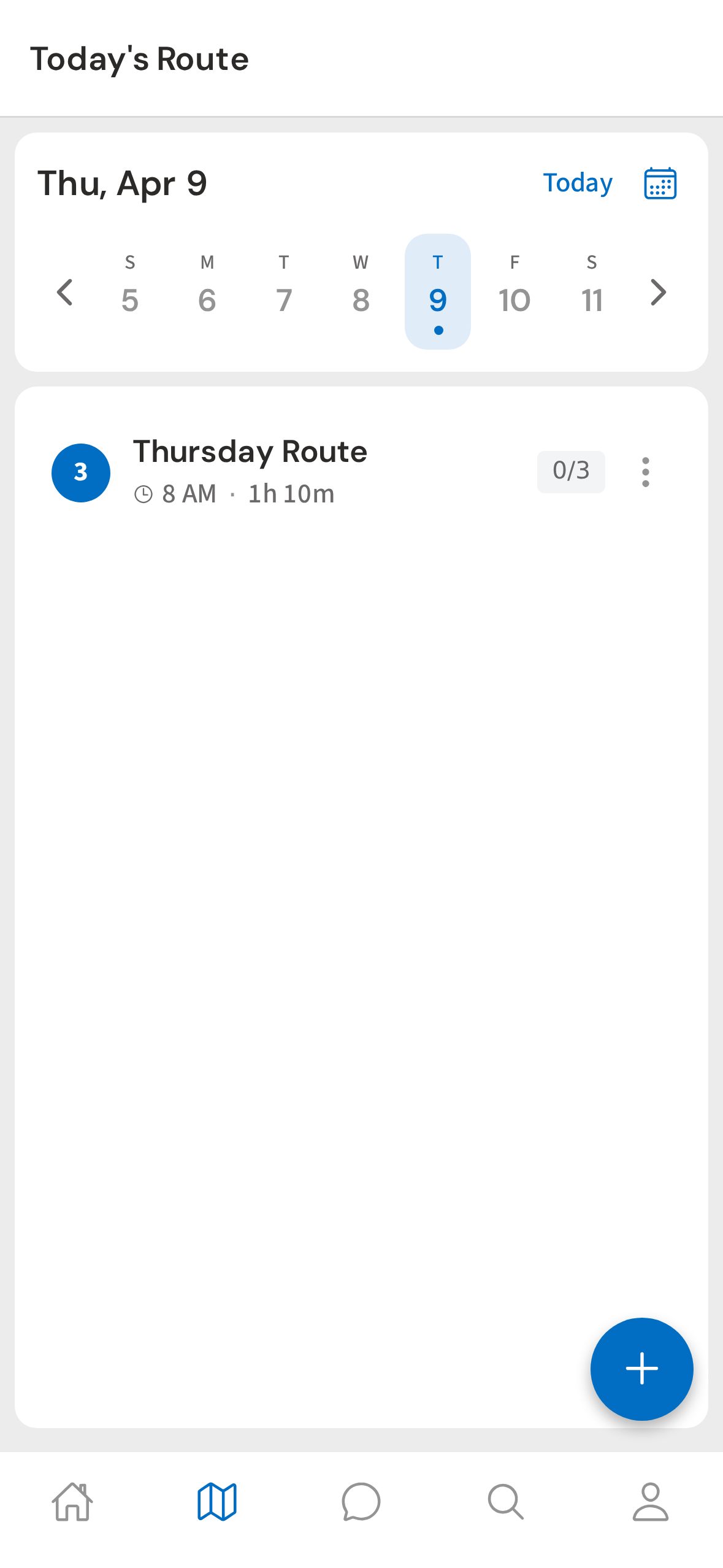
1. Today's route on the Route tab
Open the Route tab — your stops for the day are right where you left them. Tap your route to see today's stops in order.
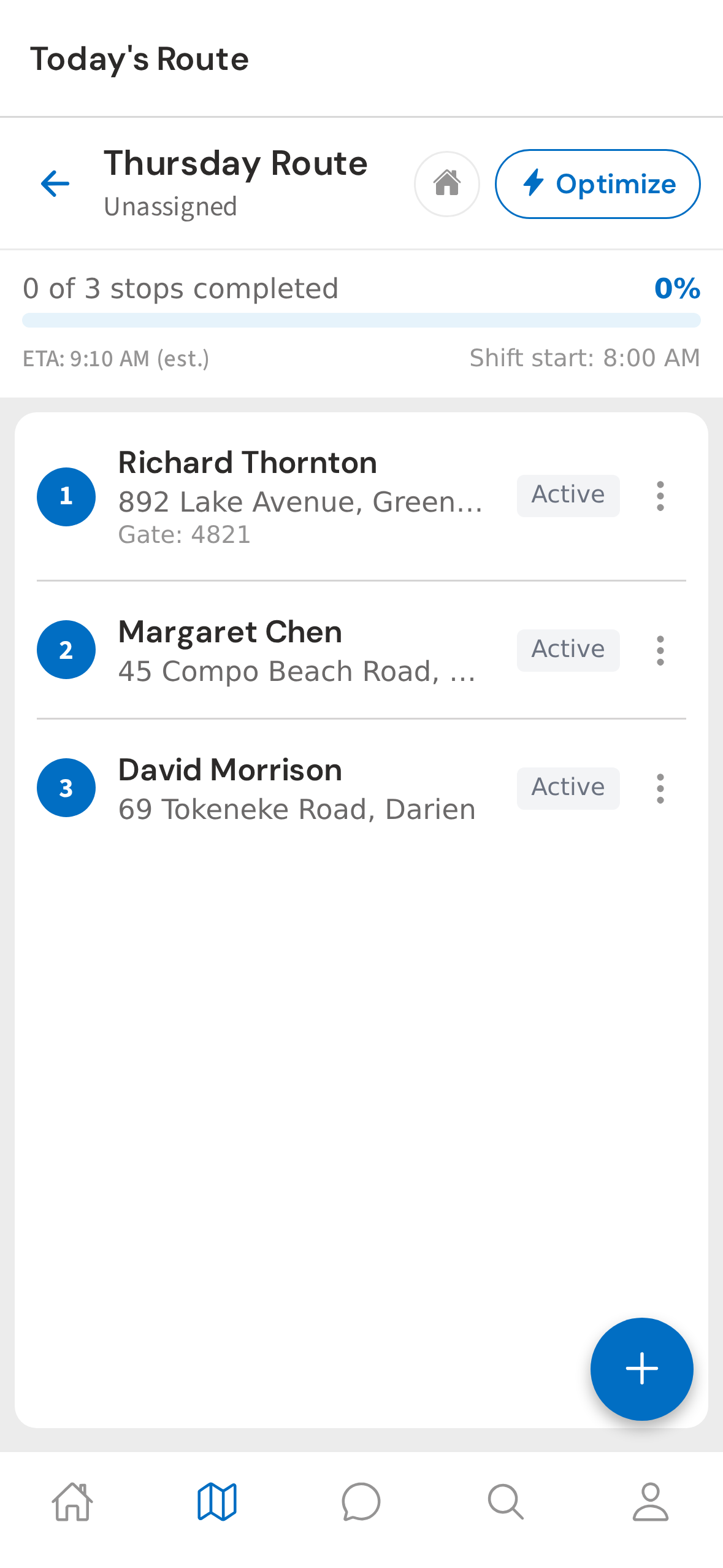
2. Stop list — tap Richard Thornton
Each stop card shows the customer, address, and gate code at a glance. Tap the stop where you want to record a conversation.
3. Record Conversation card collapsed
Scroll down past the service checklist and photos until you see the Record Conversation card. Tap the + on the right to expand it.
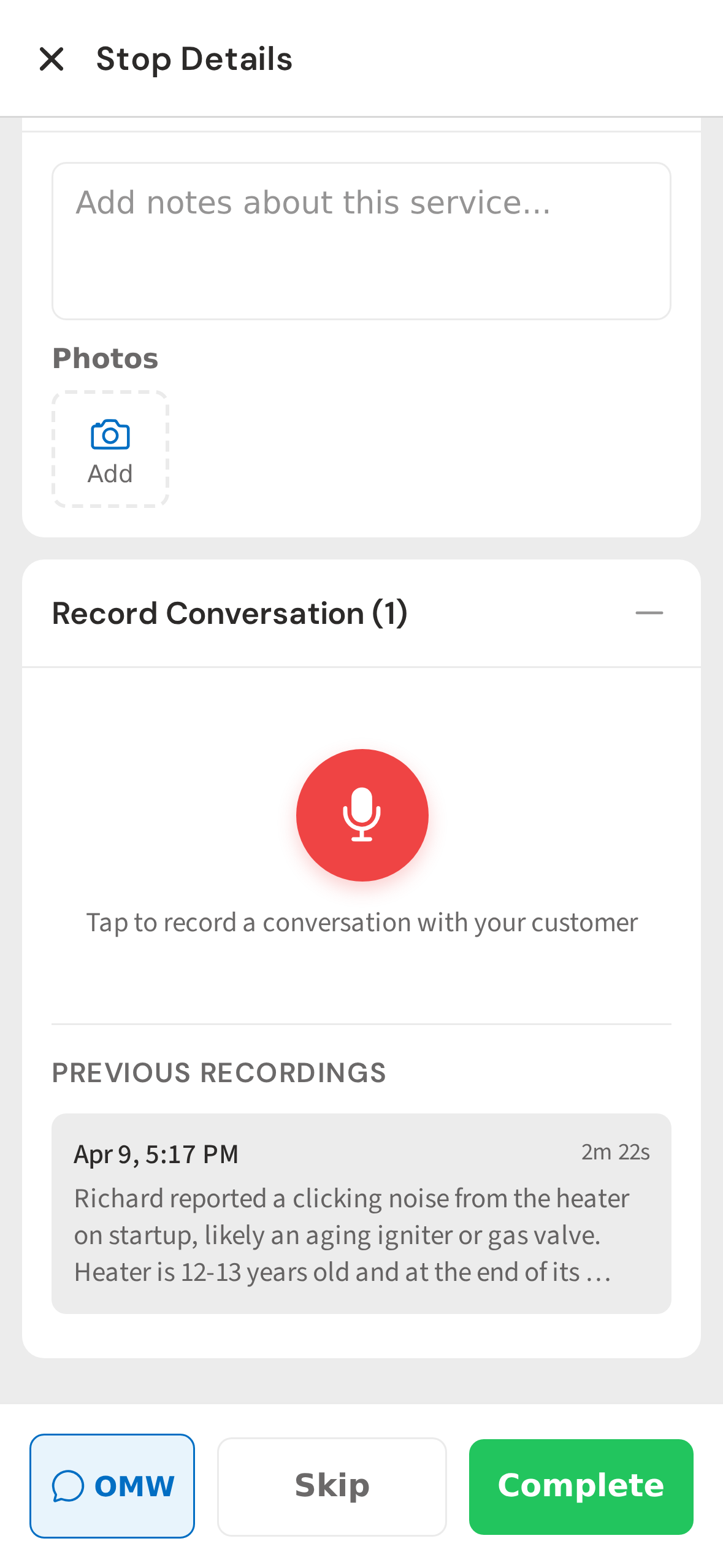
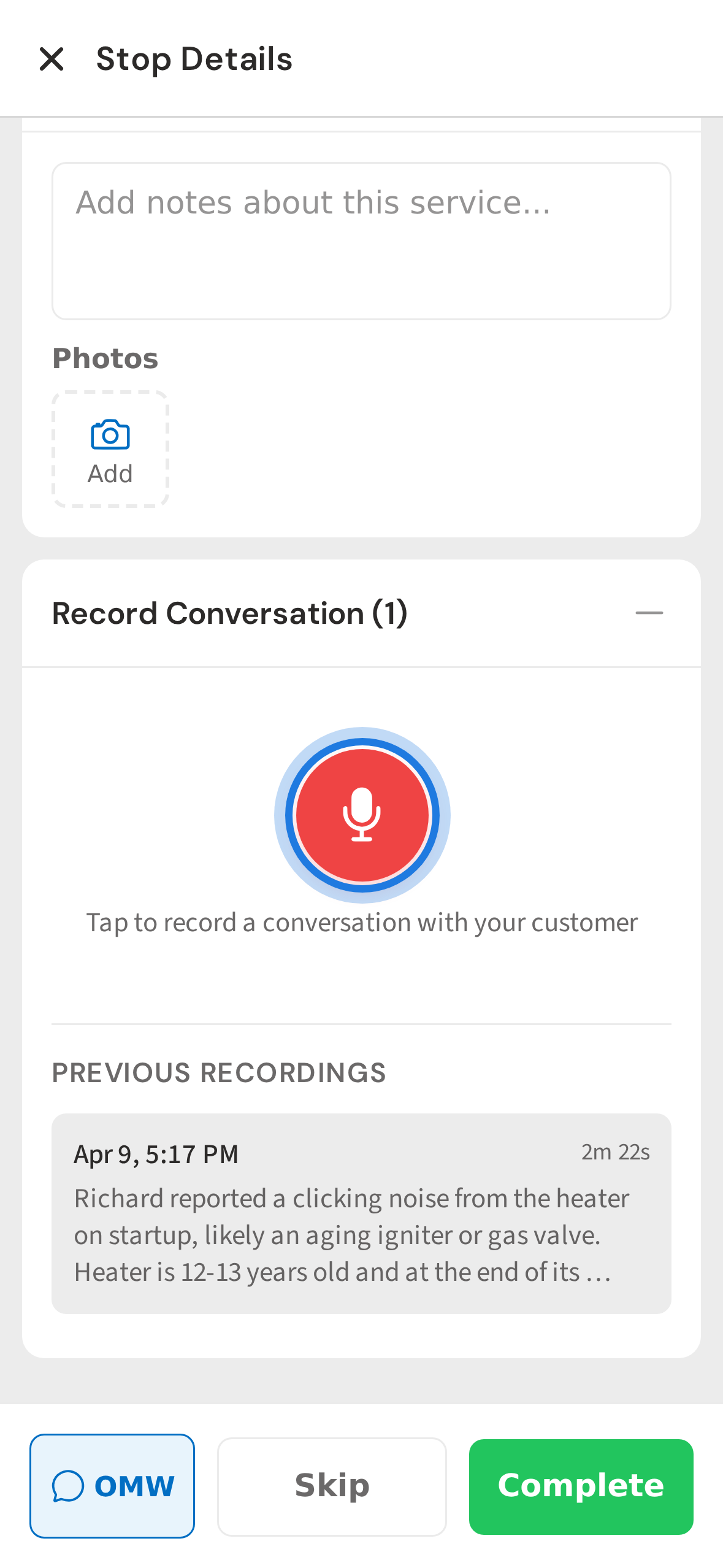
4. Idle recorder — tap the red mic to begin
Tap the big red mic to start recording. PoolDial uses your phone's microphone and keeps recording even when the screen is locked or the app is in the background.
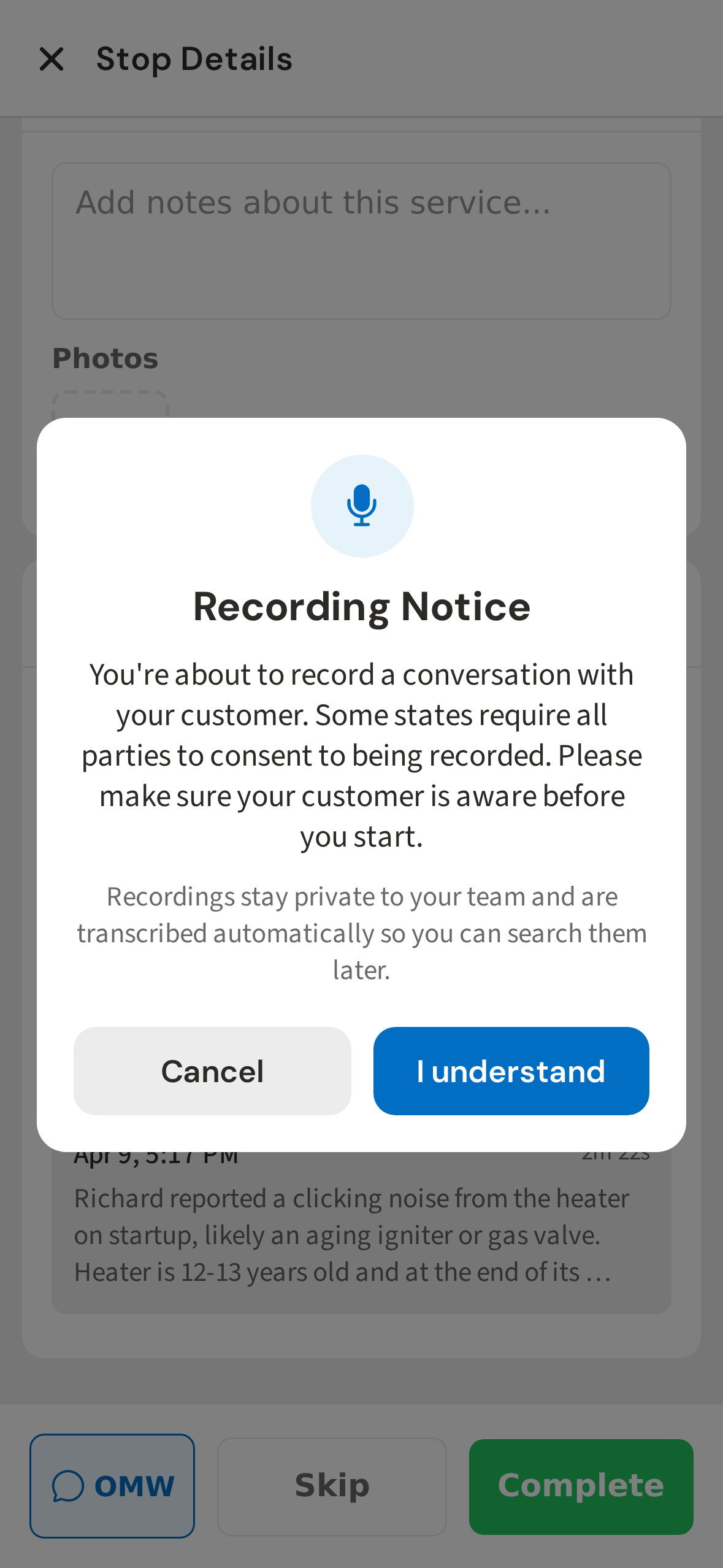
5. Recording consent modal
The first time you record, a quick reminder pops up. Some states require all parties to know they're being recorded — make sure your customer is aware before you start. You'll only see this once.
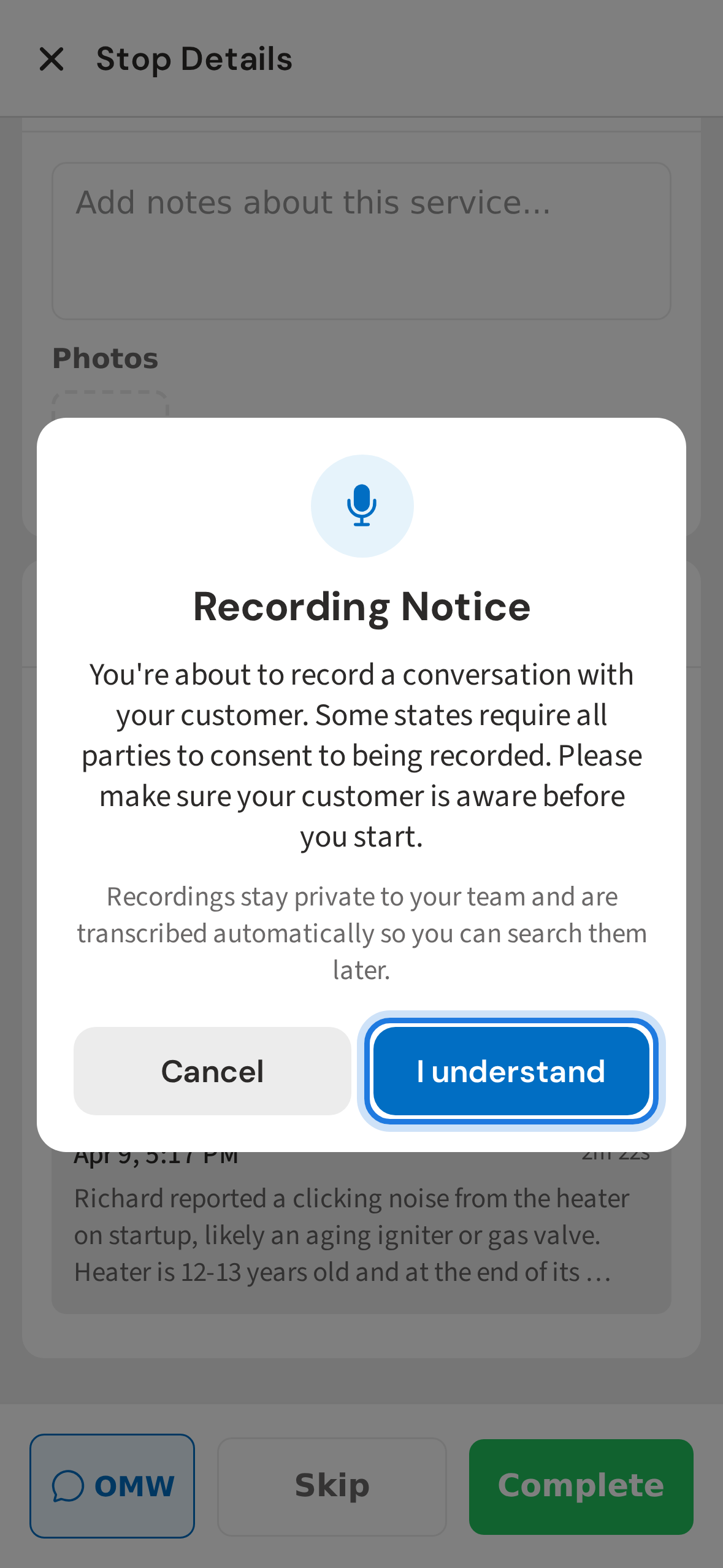
6. Tap I understand to accept
Tap I understand to accept and begin recording. PoolDial saves your acceptance so you'll never see this prompt again on this device.
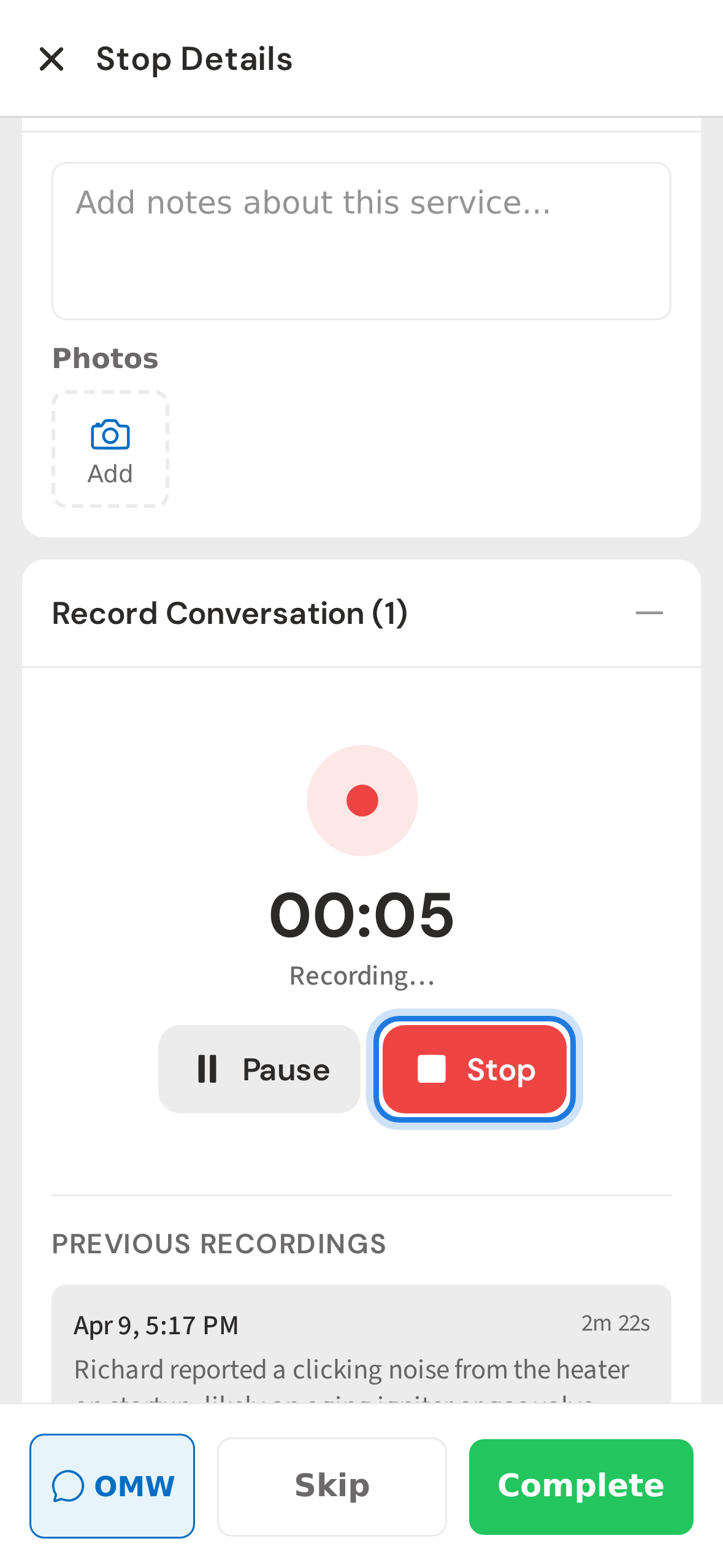
7. Recording in progress — tap Stop when done
Recording is live. The timer counts up while you talk. You can put your phone in your pocket or move on to the next task — recording keeps running in the background. When the conversation is over, tap the gray Stop button.
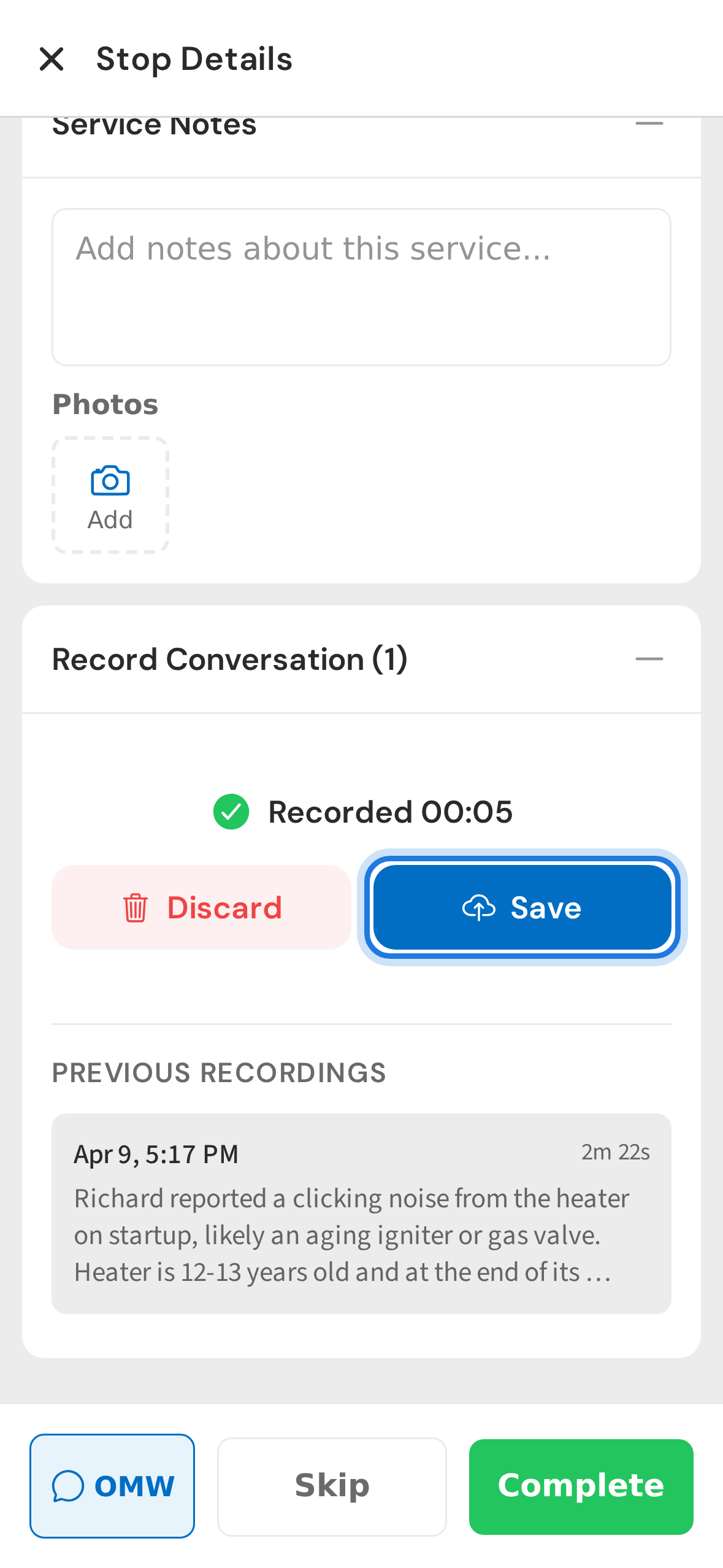
8. Recording preview — Save attaches it to this stop
Review the length of the recording, then tap Save. The audio uploads in the background and is automatically attached to this stop, this customer, and this property. You don't have to pick anything from a list.
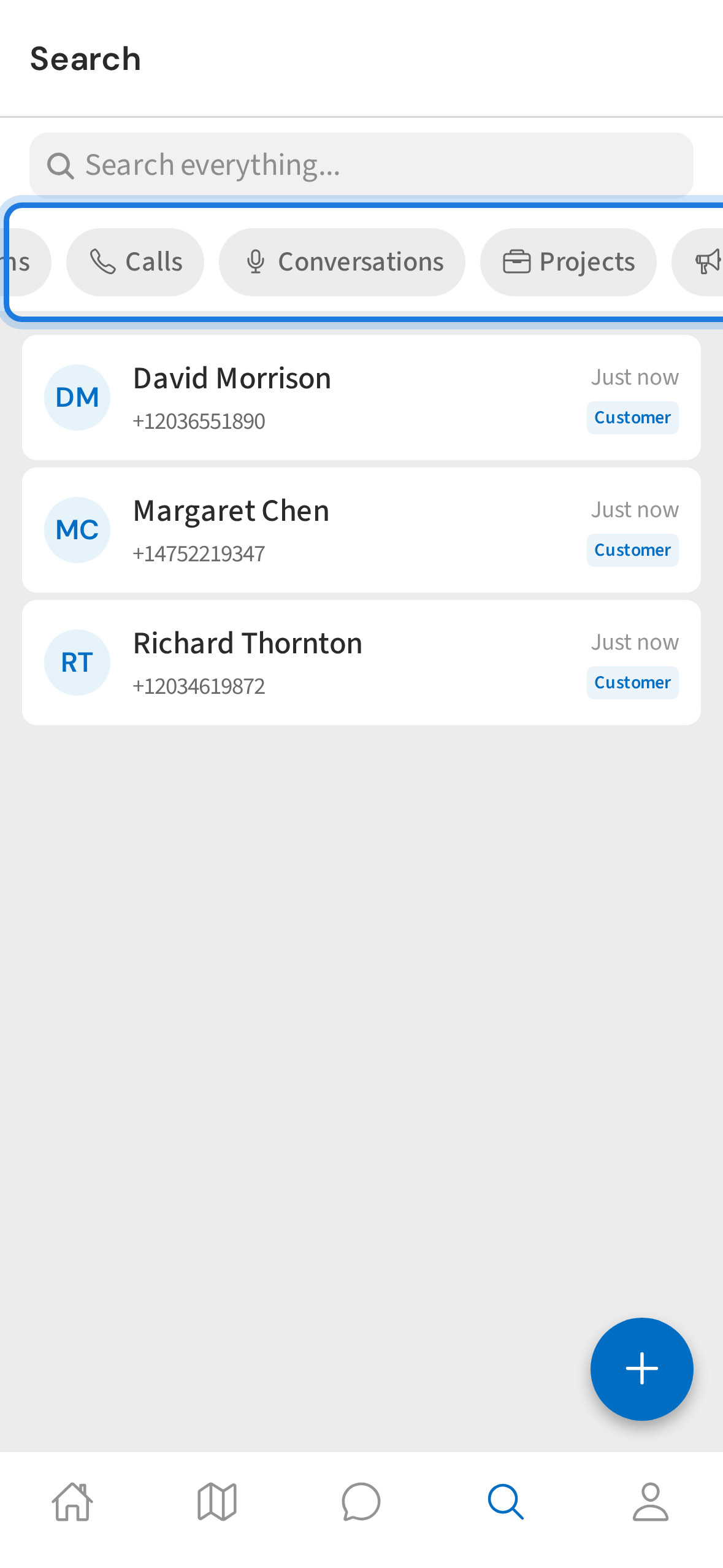
9. Search tab — tap the Conversations filter
To find any conversation later, open the Search tab and tap the Conversations filter chip.
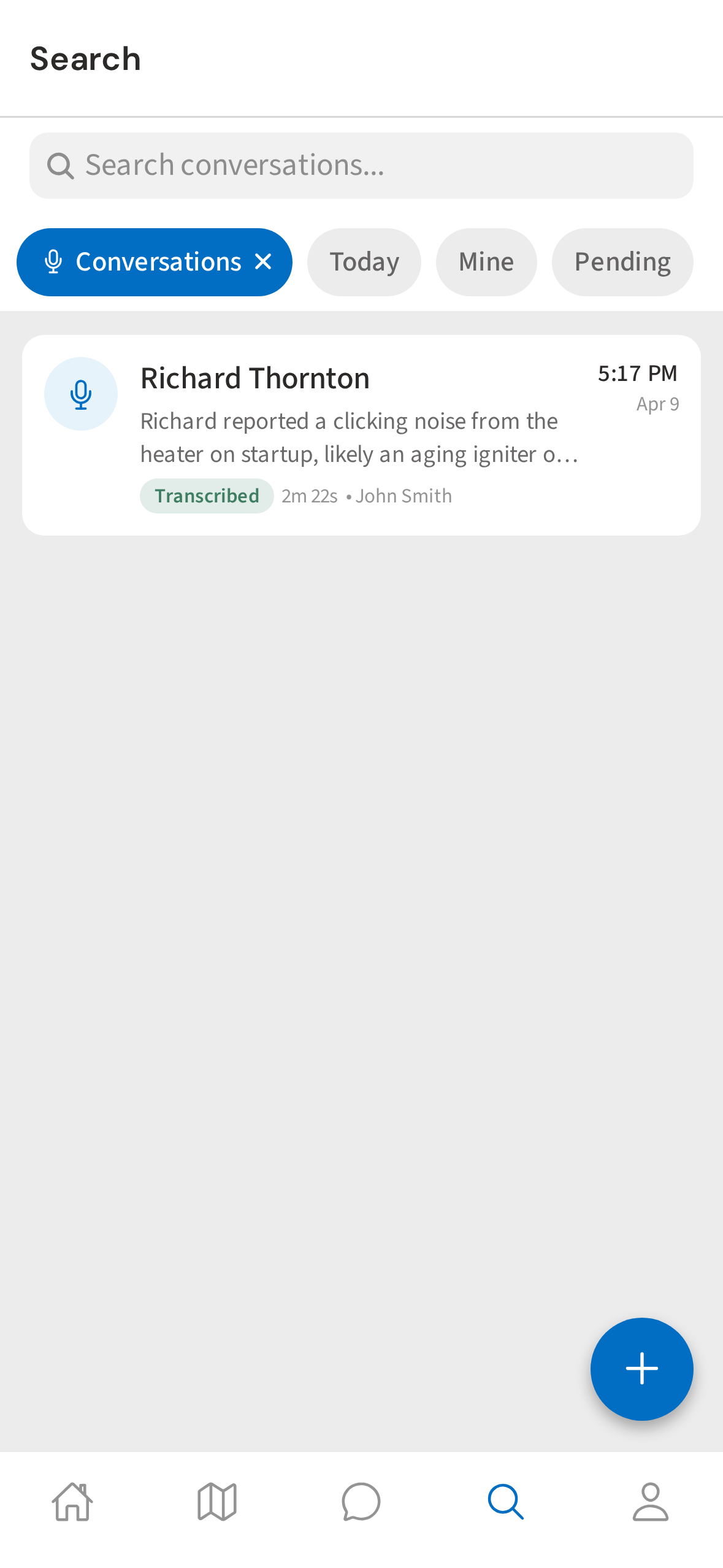
10. All conversations across customers
Every conversation you've recorded shows up here, with the customer's name, a short summary, and how long the recording is. Tap one to see the full details.
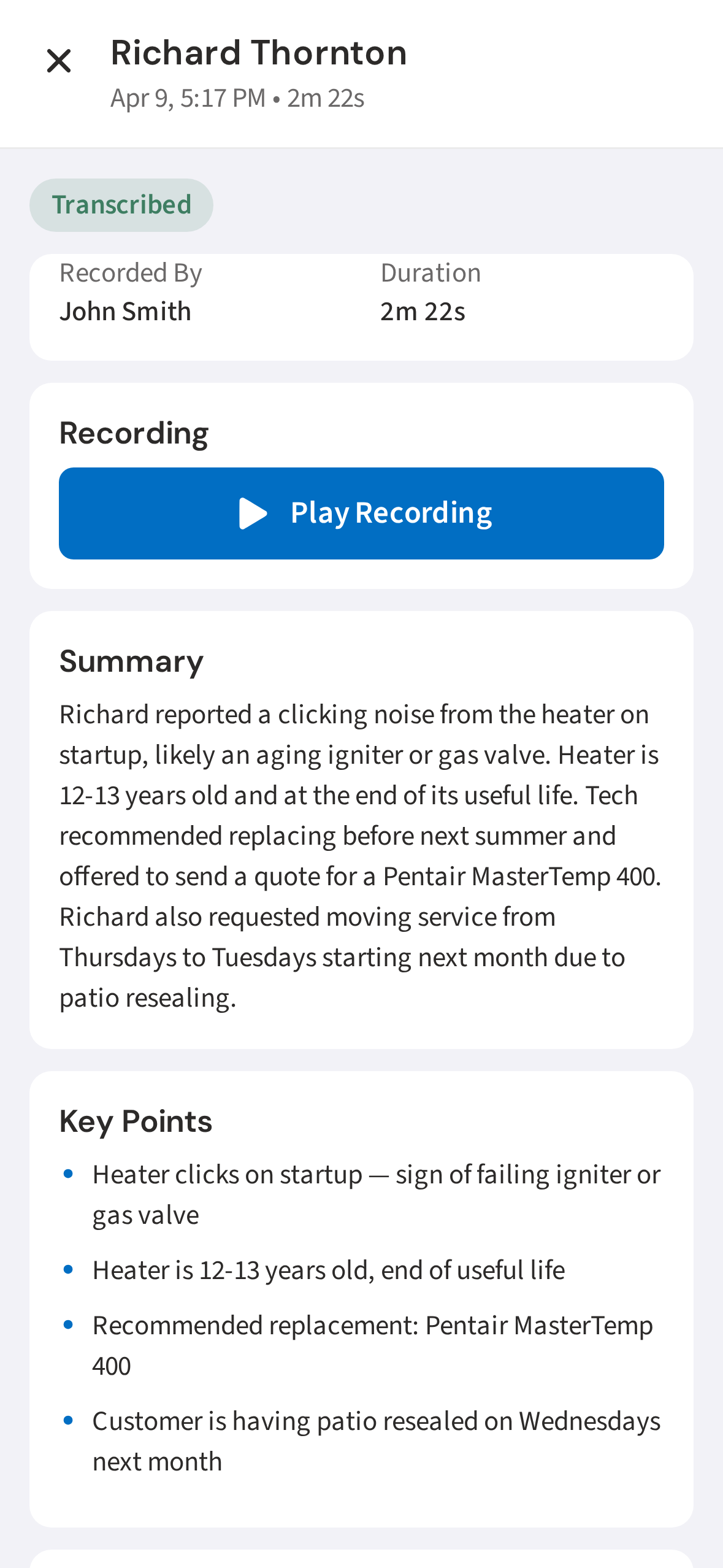
11. Conversation detail with summary, key points, and transcript
PoolDial transcribes the recording with Whisper and writes a 2-3 sentence summary, pulls out key points and action items, and gives you the full searchable transcript. Now you can ask Cody things like "What did Richard say about his heater?" and get a real answer.
Not using PoolDial yet?
Manage your customers, routes, billing, and more — all in one place.
Start Free Trial