
How to See Live Techs on the Routes Map


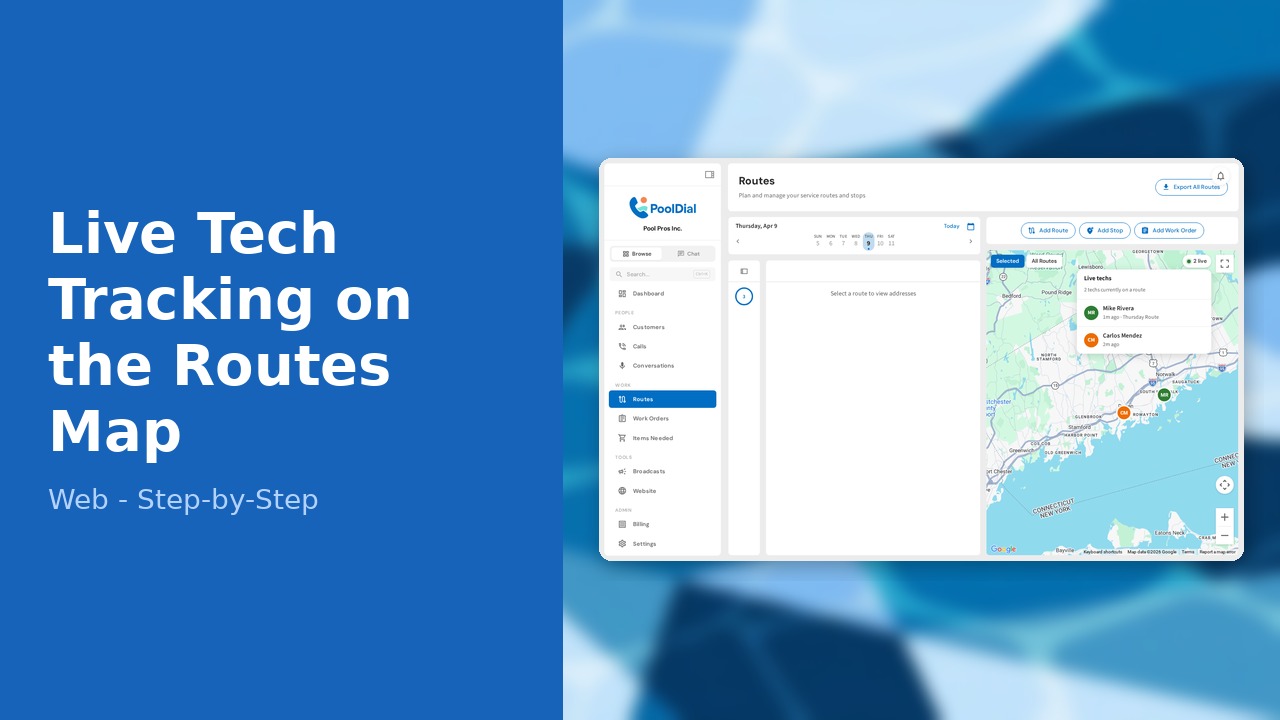
This guide walks you through how to see live techs on the routes map in PoolDial, step by step.
This guide covers 5 steps and takes about a minute to complete.
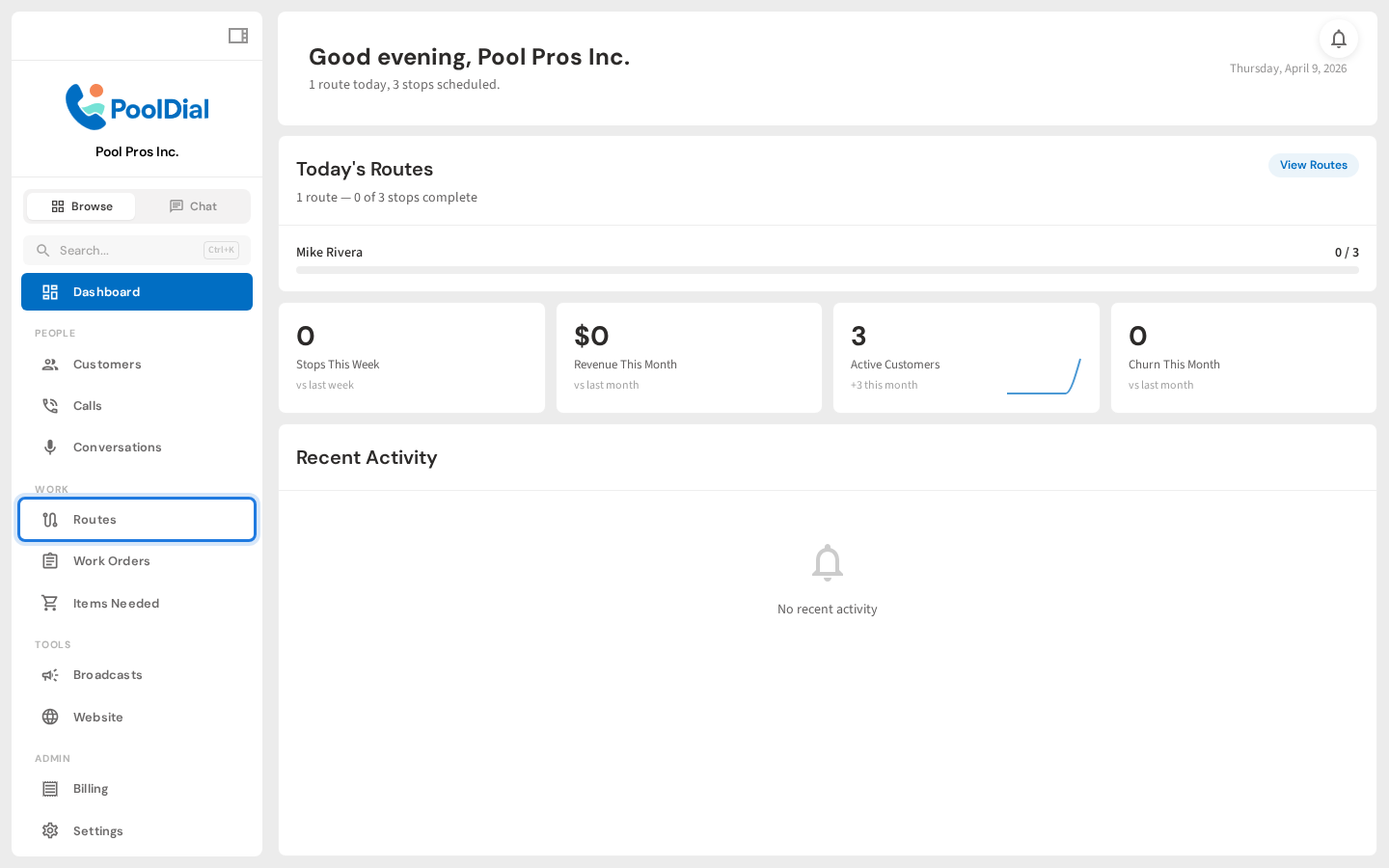
1. Click Routes in the sidebar
Open the Routes page from the left sidebar. Live tech tracking lives right on your route map — there's no separate screen to check throughout the day.
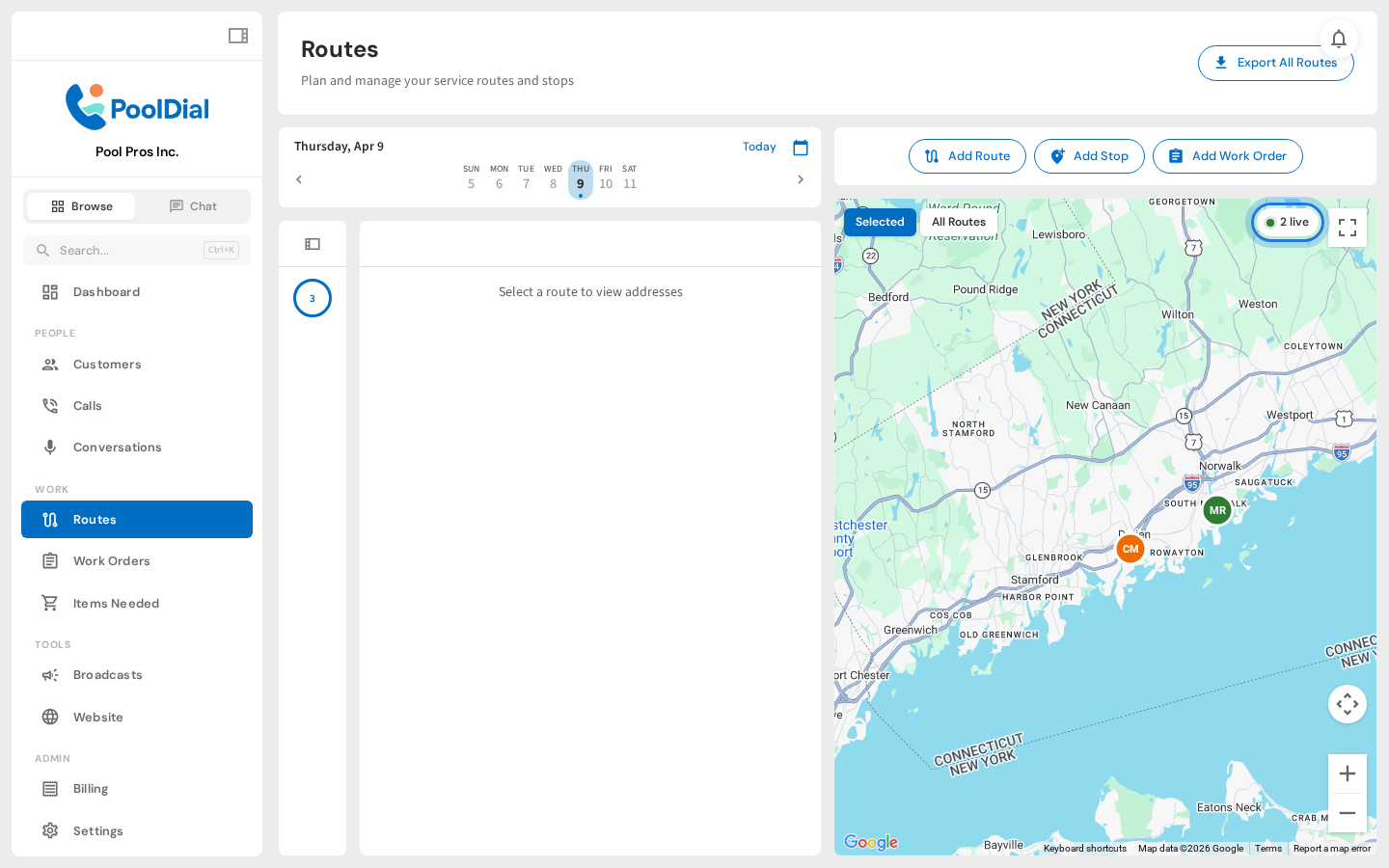
2. See the live tech indicator pill
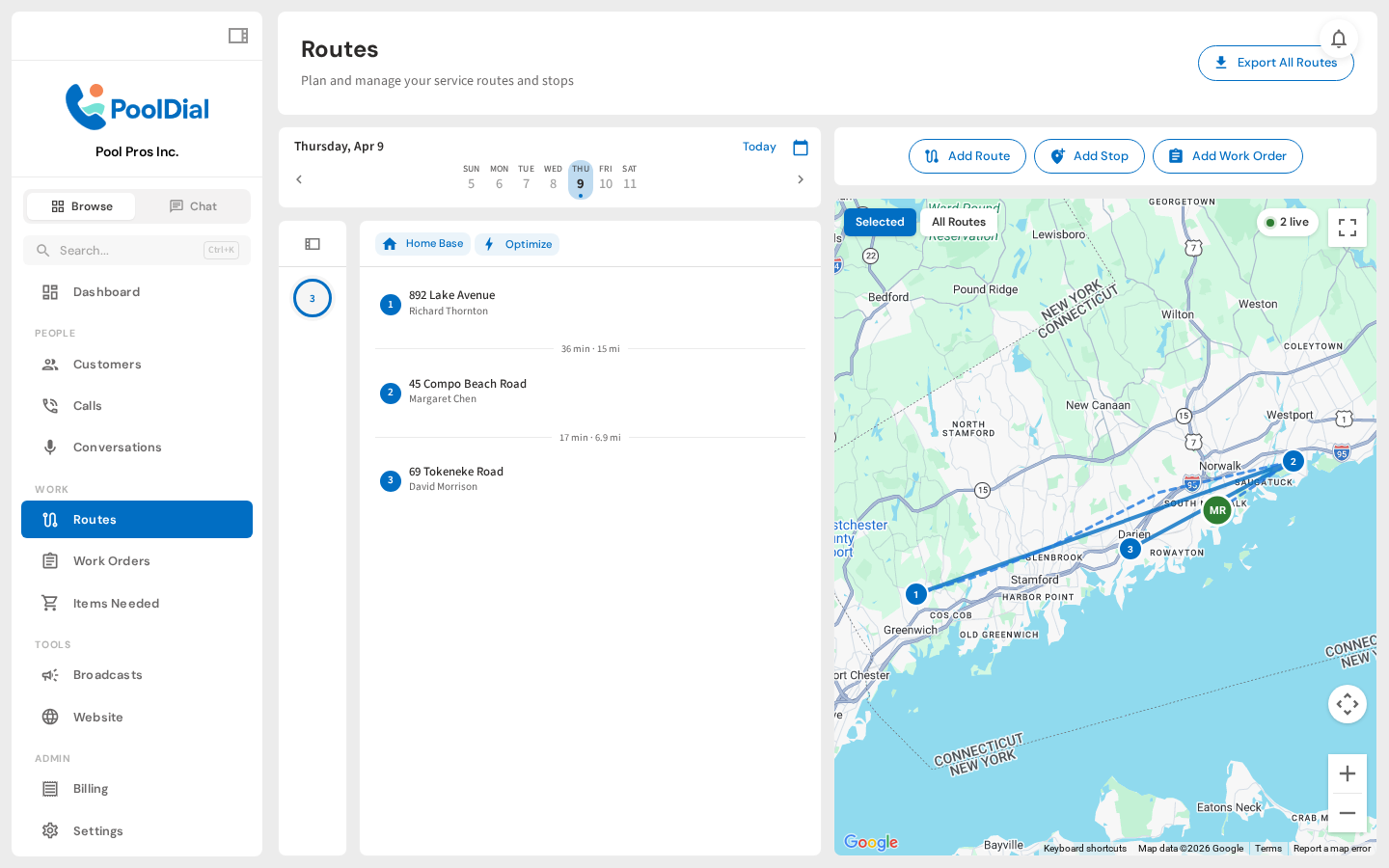
At the top right of the map you'll see a live indicator pill. The green dot means at least one tech is actively tracking, and the number shows how many people are out on routes right now.
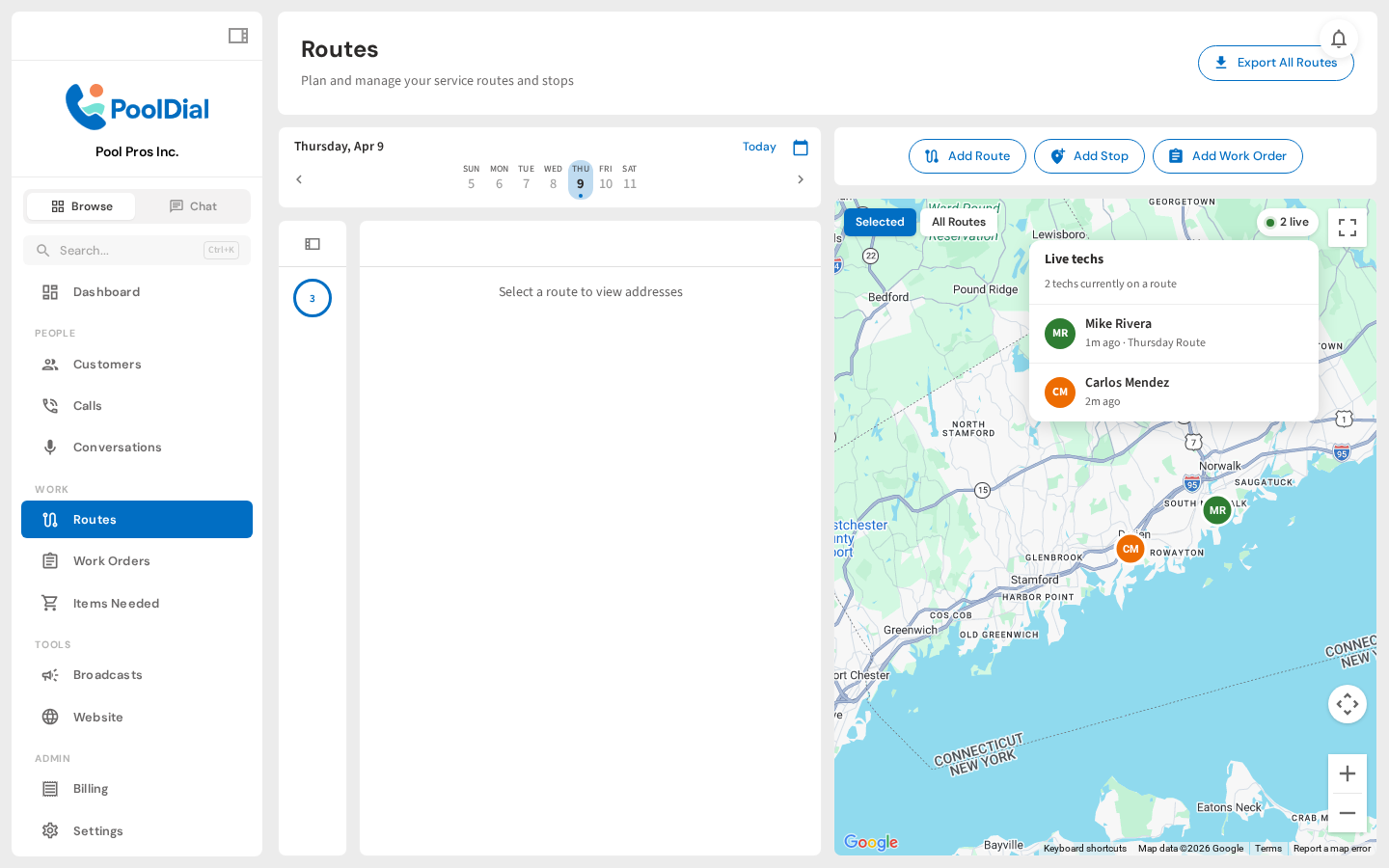
3. Open the live techs panel
Click the pill to open the live techs panel. Each tech appears with their initials, how long ago they last pinged, and which route they're running today.
4. Click a tech to pan to their location
Click a tech and the map pans right to them. You'll see a colored marker where they are and a dashed blue breadcrumb trail tracing everywhere they've been on today's route. It's the answer to "was Mike actually at the Hendersons at 10am?"
5. Switch to All Routes to see every tech at once
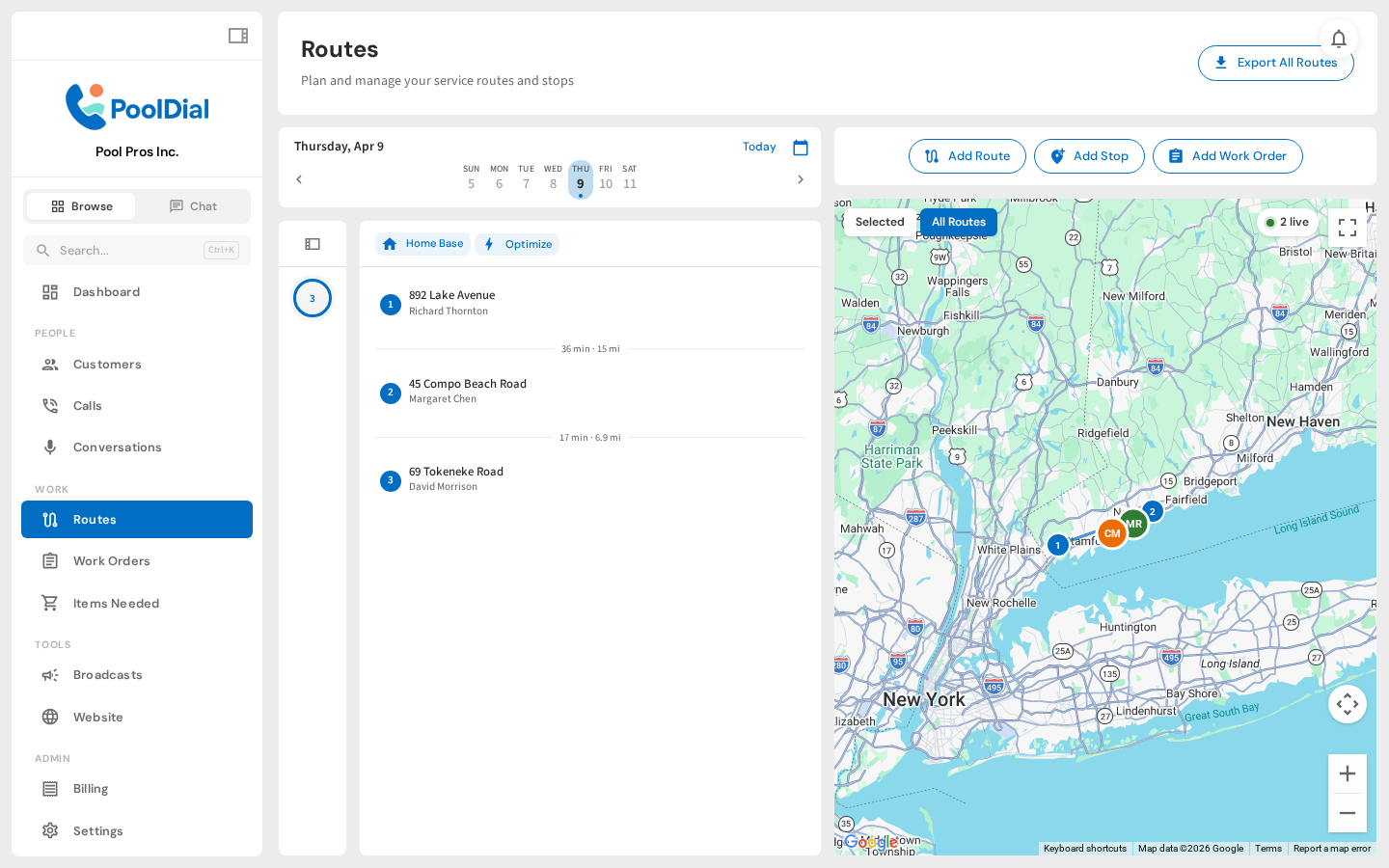
Switch to All Routes to see every tracking tech across your whole workspace on the same map. Markers update every few seconds, so you always know who's where without a single phone call.
Not using PoolDial yet?
Manage your customers, routes, billing, and more — all in one place.
Start Free Trial