How to Make WhatsApp Your Default Service-Text App (Mobile)

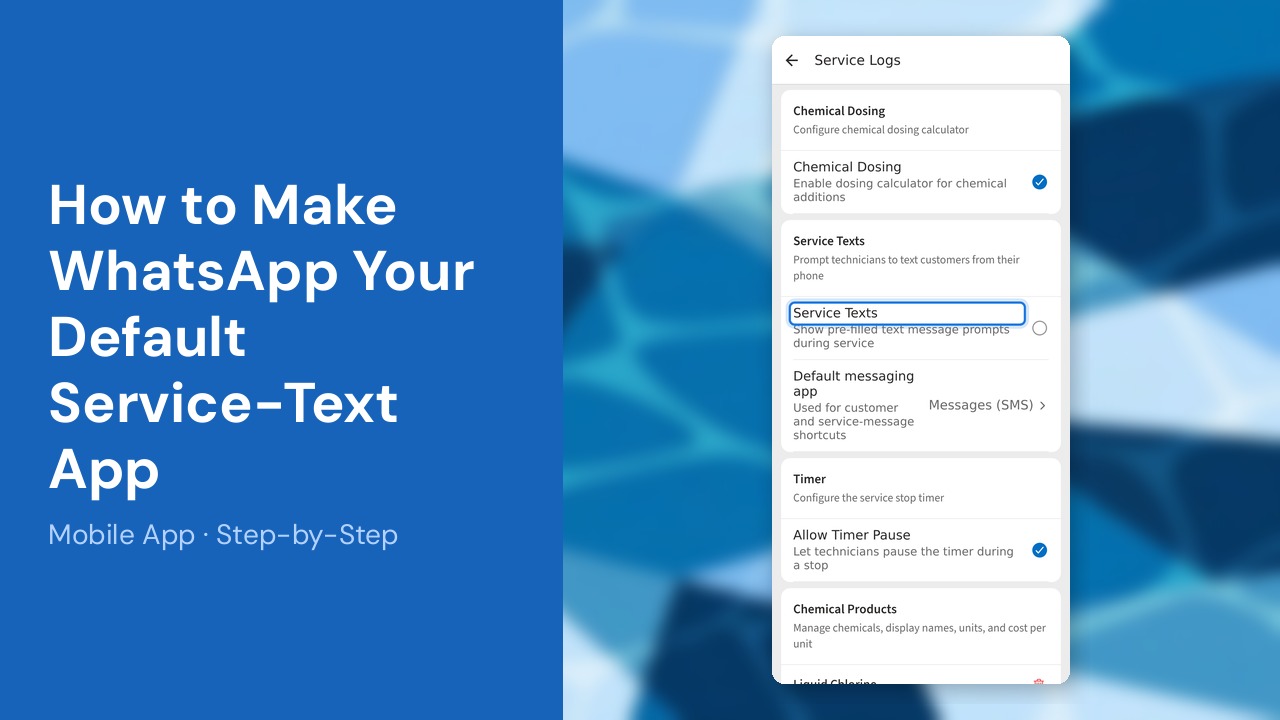
Choose WhatsApp for Pool Dial customer and service-message shortcuts while you work in the field. Pool Dial opens WhatsApp with a pre-filled message; WhatsApp must be installed and signed in on the phone.
This guide covers 5 steps and takes about a minute to complete.
Video Walkthrough
Prefer to watch? Here's a full video walkthrough of How to Make WhatsApp Your Default Service-Text App (Mobile).
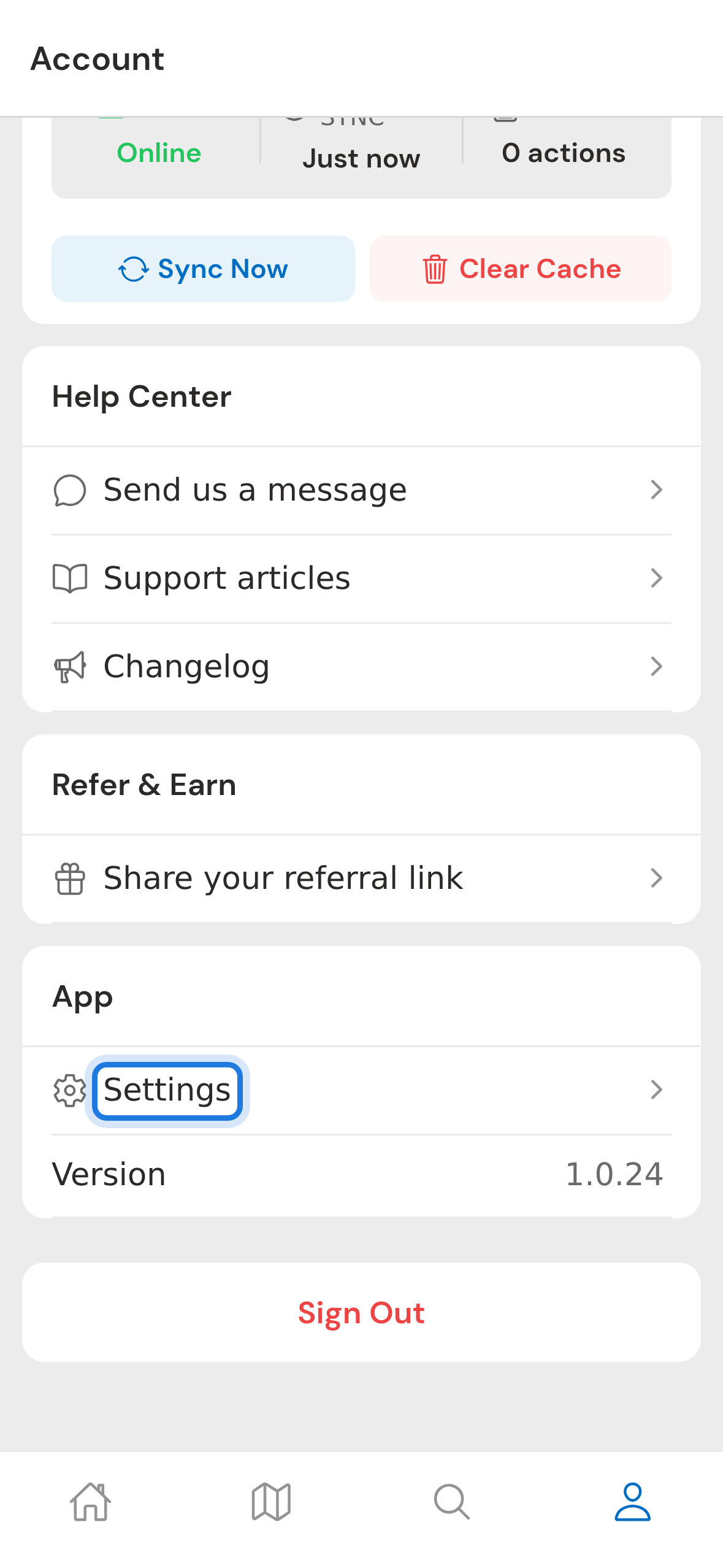
1. Open Settings from the Account tab
Tap Account in the bottom navigation, scroll to the App section, and tap Settings. Only account owners and admins can change this preference.
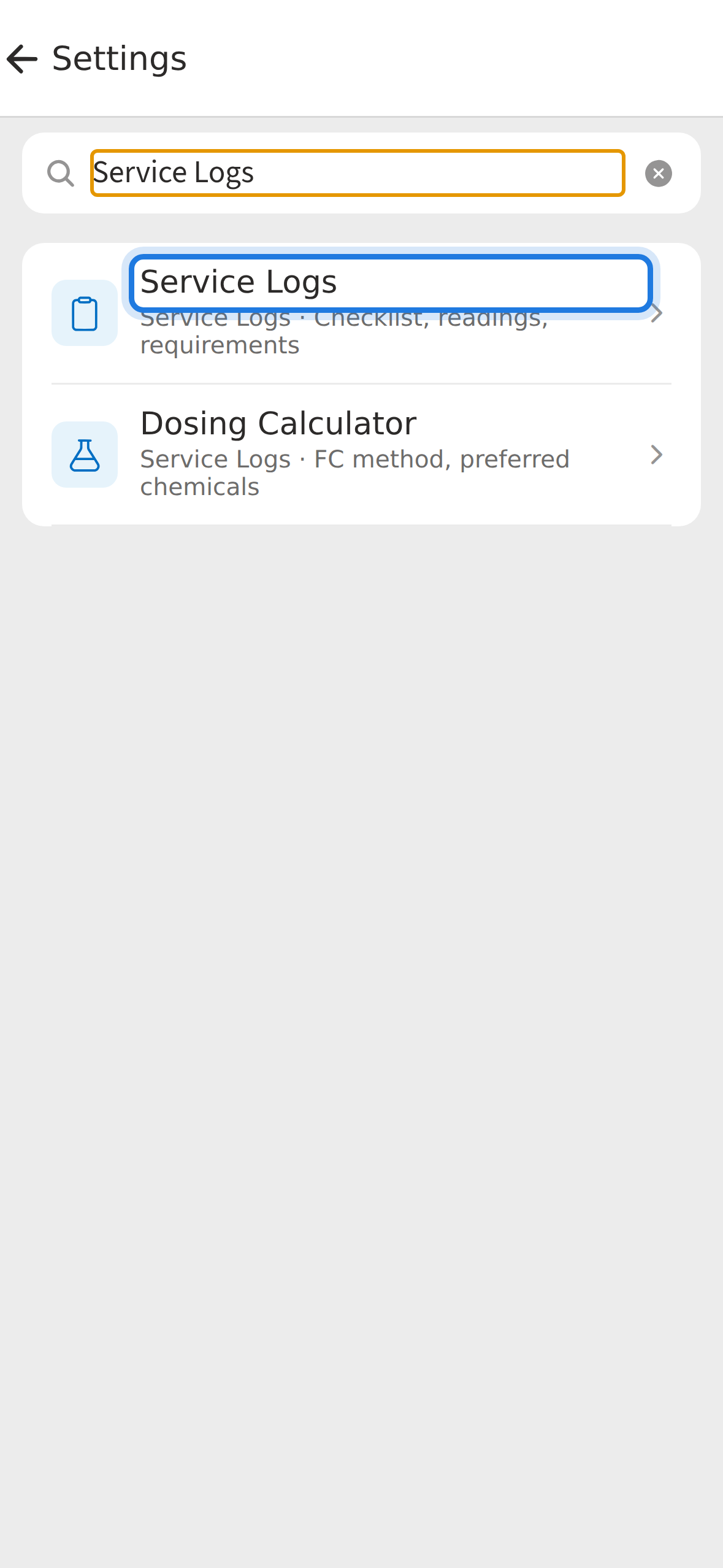
2. Open Service Logs settings
Search for Service Logs, then tap the result to open the service-log settings used by your field team.
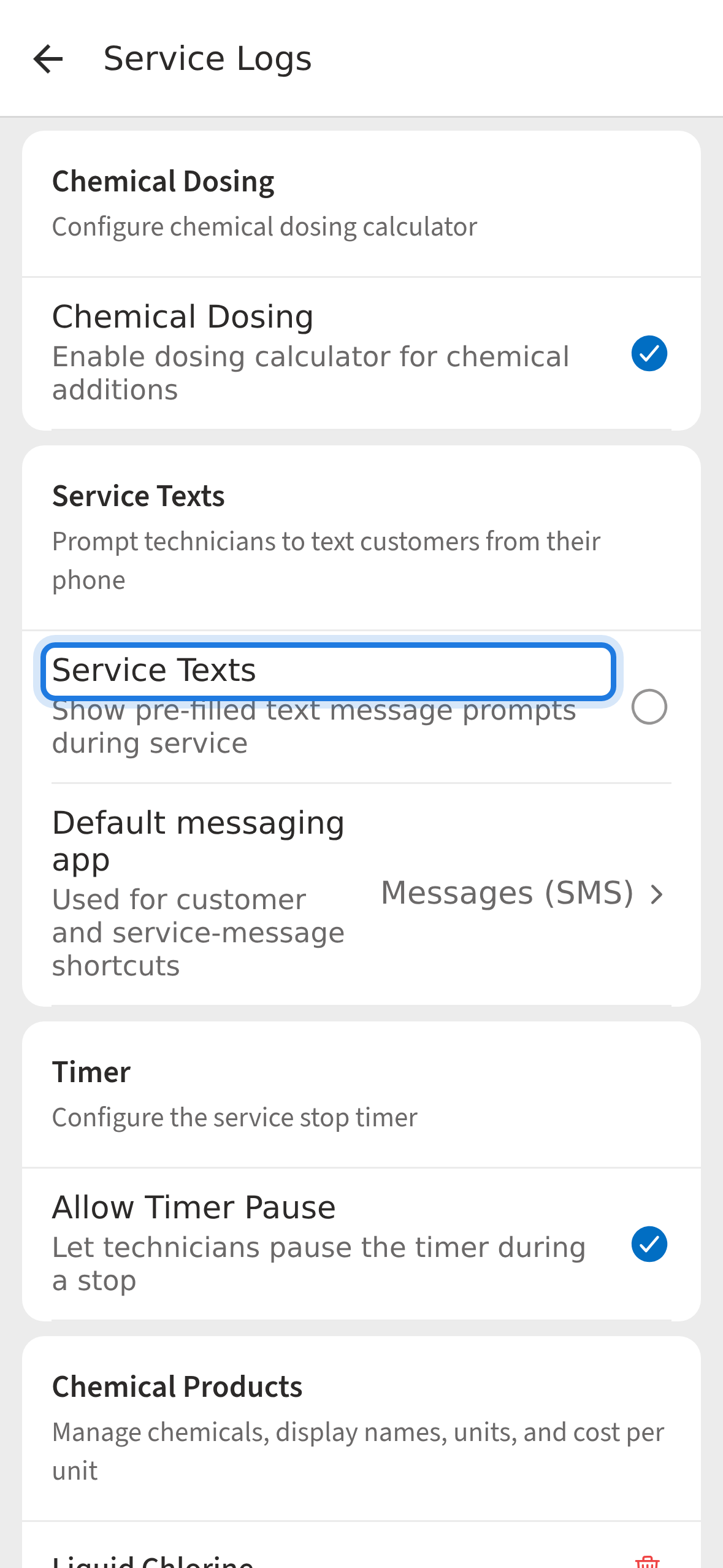
3. Turn on Service Texts
Scroll to Service Texts and turn it on. Pool Dial will show pre-filled message prompts when a technician is on the way, completes service, or skips a stop.
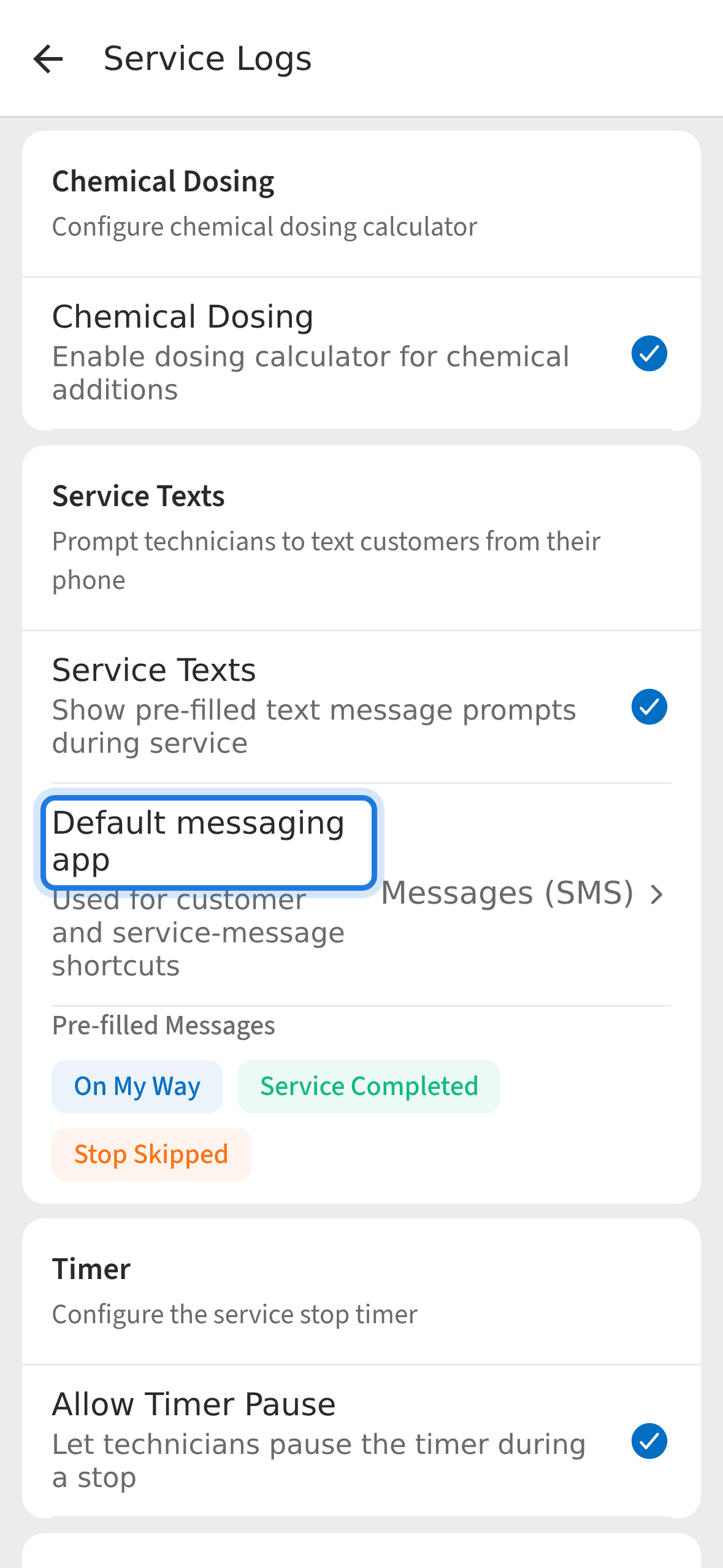
4. Change the default messaging app
Tap Default messaging app once to change it from Messages to WhatsApp. Make sure WhatsApp is installed and signed in on the phone.
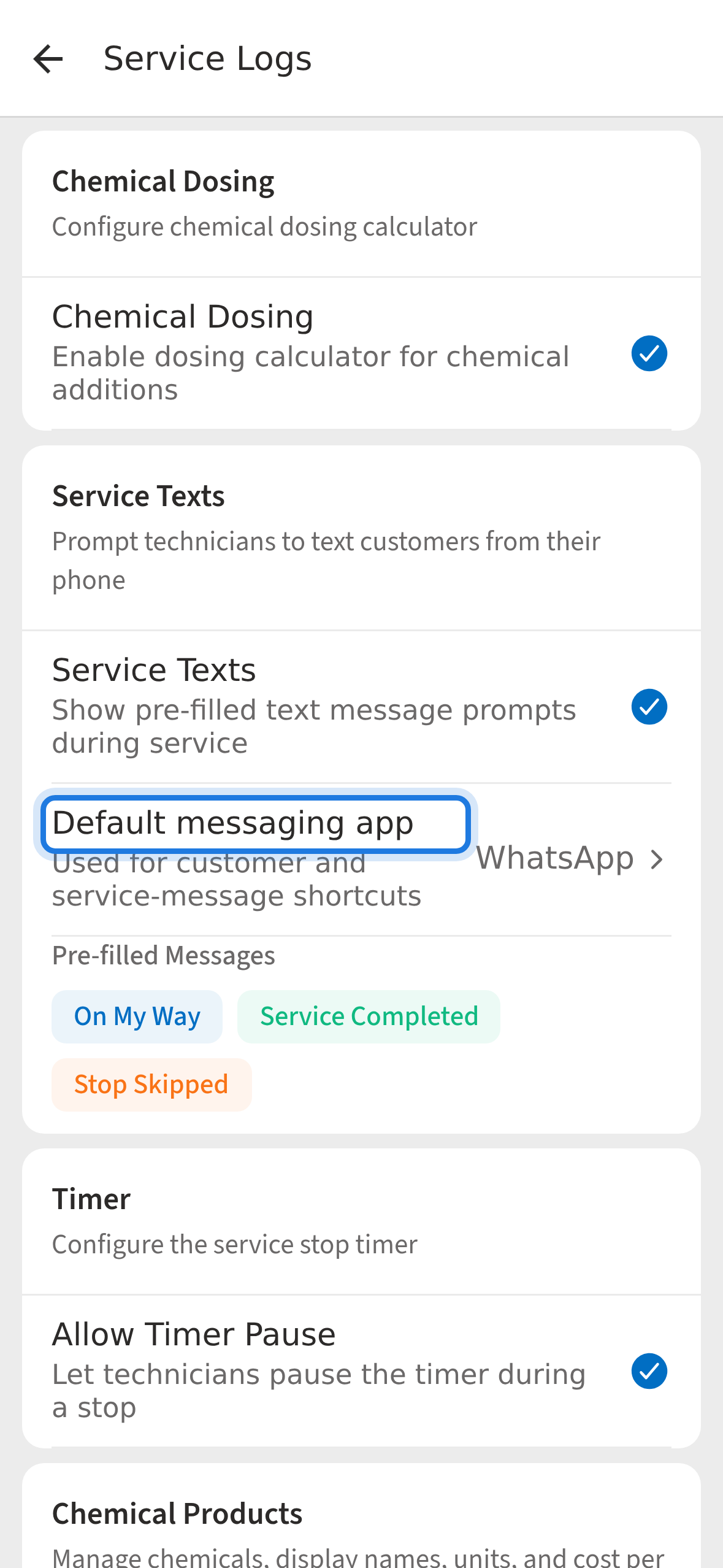
5. Confirm WhatsApp is selected
Confirm that the row now shows WhatsApp. The account setting is saved automatically and applies to customer and service-message shortcuts.
Not using PoolDial yet?
Manage your customers, routes, billing, and more — all in one place.
Start Free Trial