How to Make WhatsApp Your Default Service-Text App

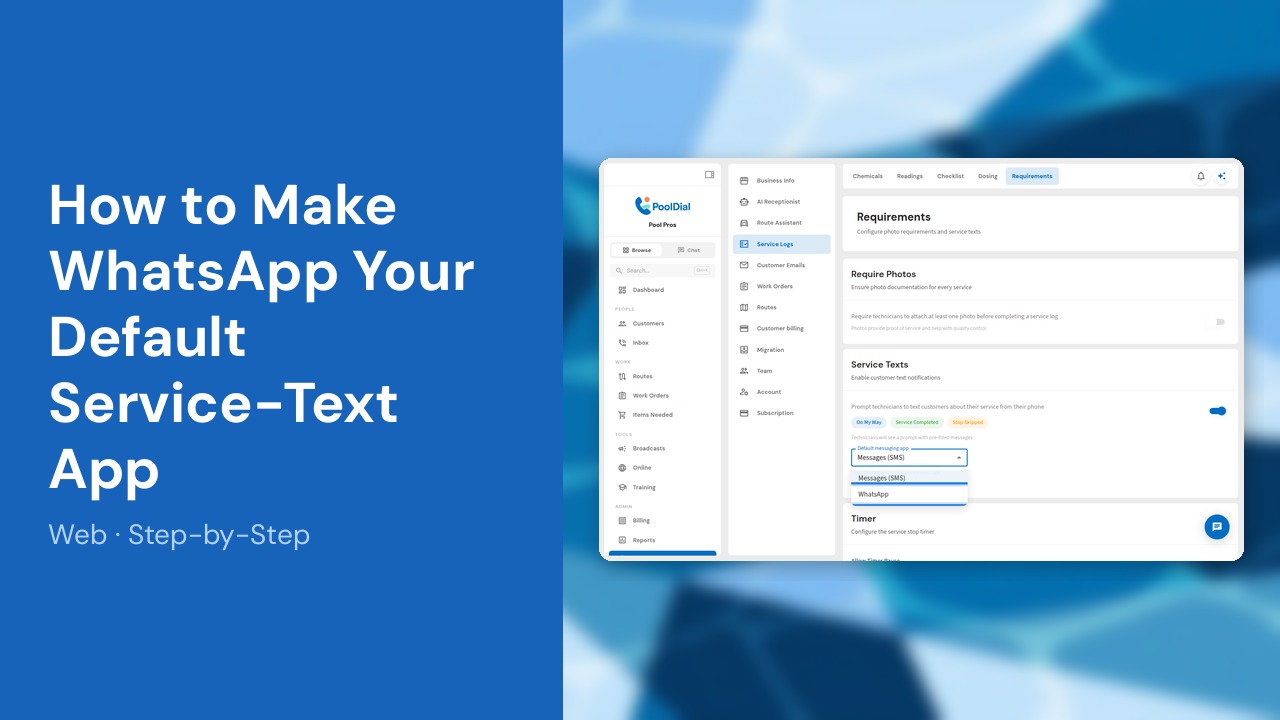
Set WhatsApp as the account-wide default for Pool Dial customer and service-message shortcuts. Technicians will still send messages from their phones, with Pool Dial opening WhatsApp and pre-filling the message.
This guide covers 4 steps and takes about a minute to complete.
Video Walkthrough
Prefer to watch? Here's a full video walkthrough of How to Make WhatsApp Your Default Service-Text App.
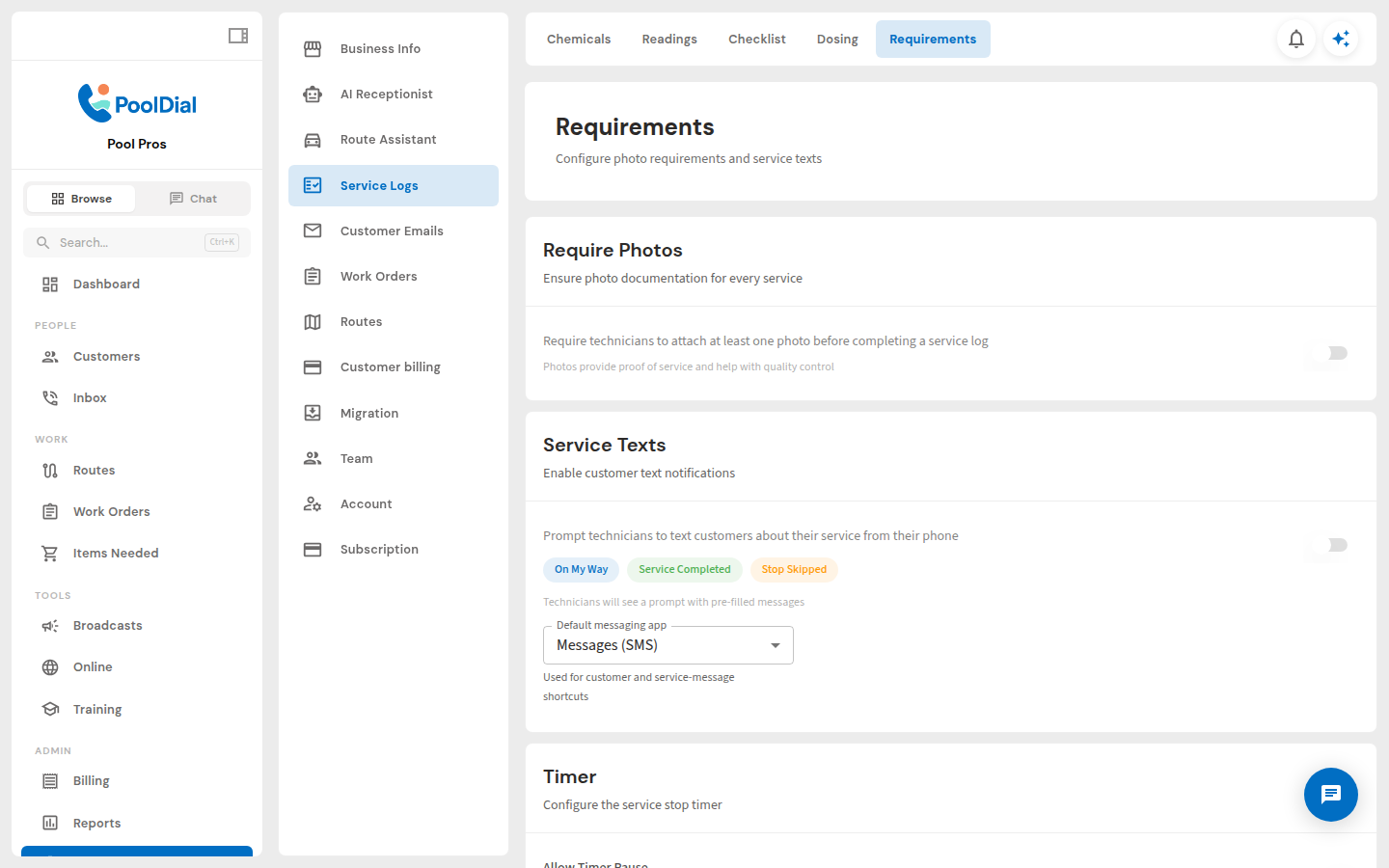
1. Open Settings and choose Requirements
In the Pool Dial dashboard, open Settings. Under Service Logs, select Requirements.
2. Turn on Service Texts
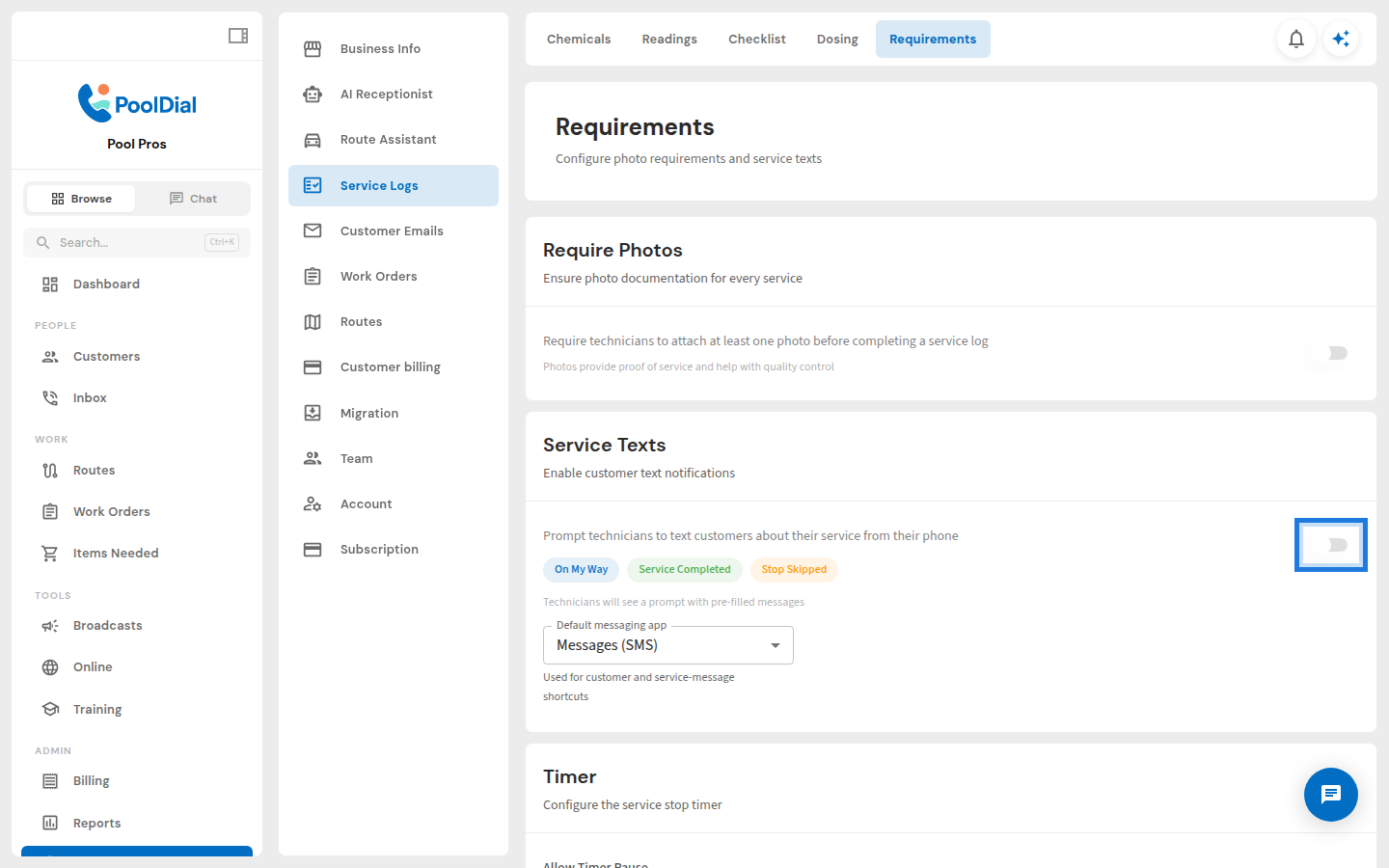
In the Service Texts card, turn on the switch. This lets Pool Dial prompt technicians with pre-filled On My Way, Service Completed, and Stop Skipped messages.
3. Choose WhatsApp as the default messaging app
Open Default messaging app and choose WhatsApp. This account-wide setting controls which app Pool Dial opens for customer and service-message shortcuts.
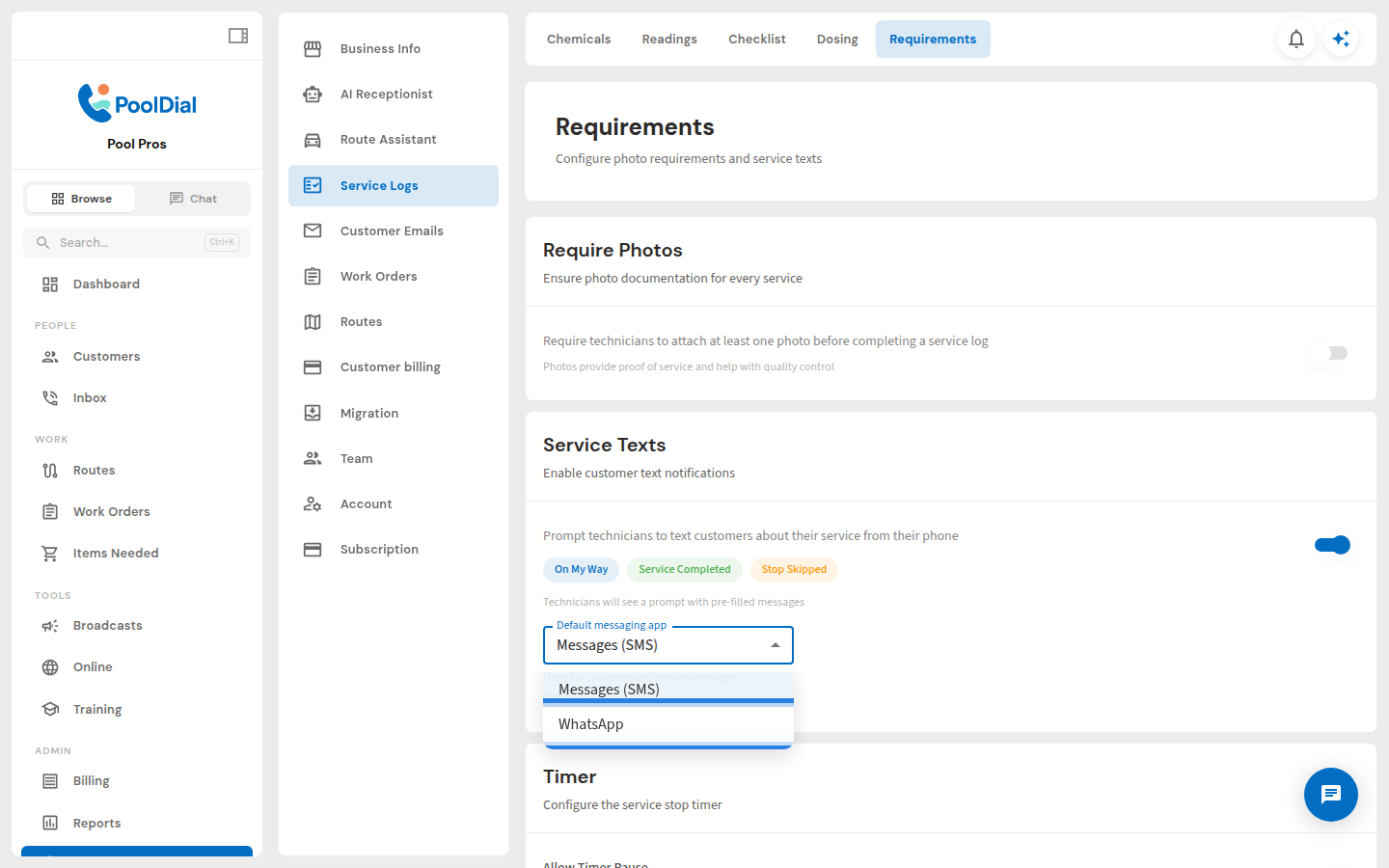
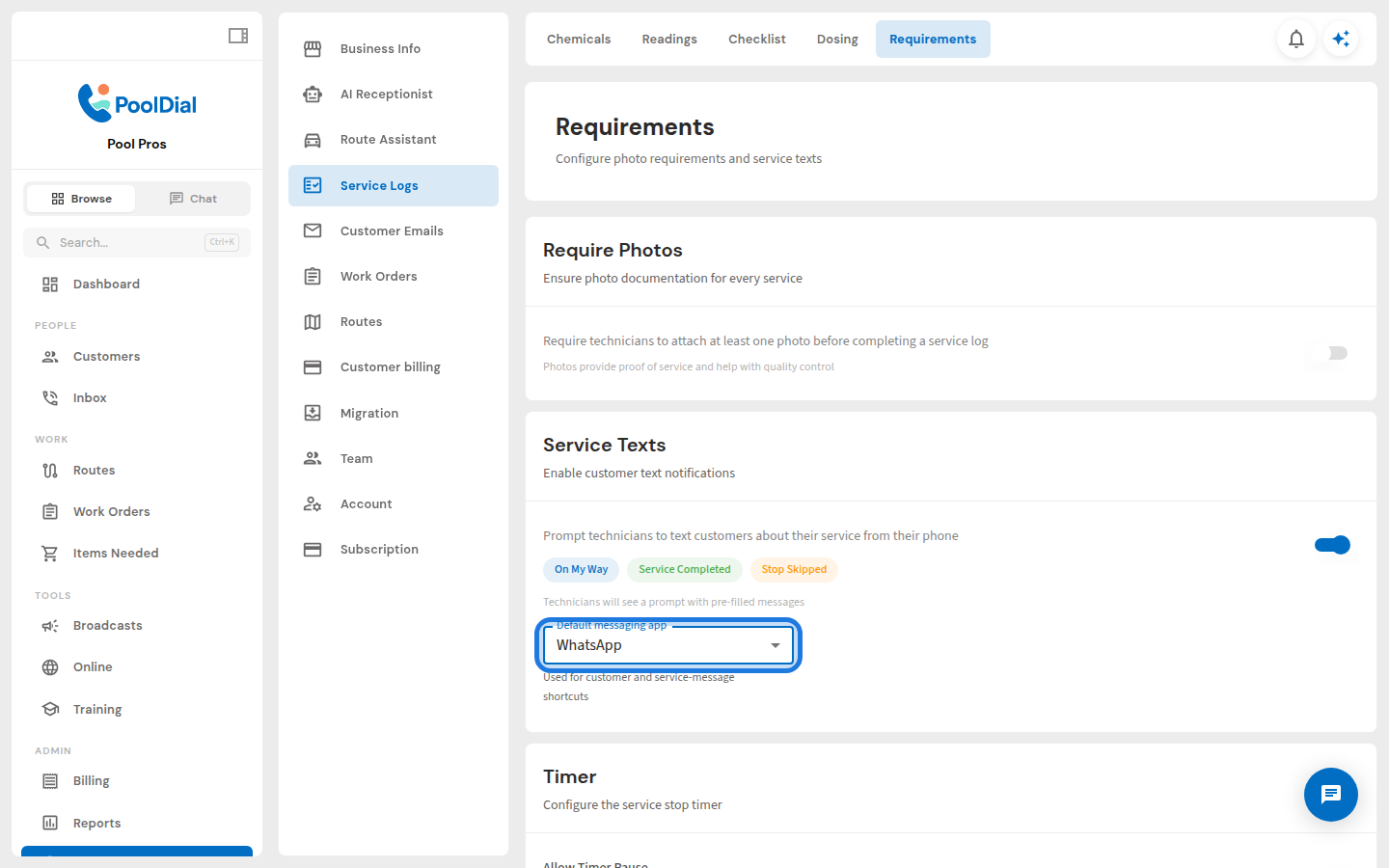
4. Confirm WhatsApp is selected
Confirm that WhatsApp is displayed as the default. Pool Dial saves the change automatically, and technicians can use the updated shortcut in the mobile app.
Not using PoolDial yet?
Manage your customers, routes, billing, and more — all in one place.
Start Free Trial