
How to Sync Invoices and Payments with Xero

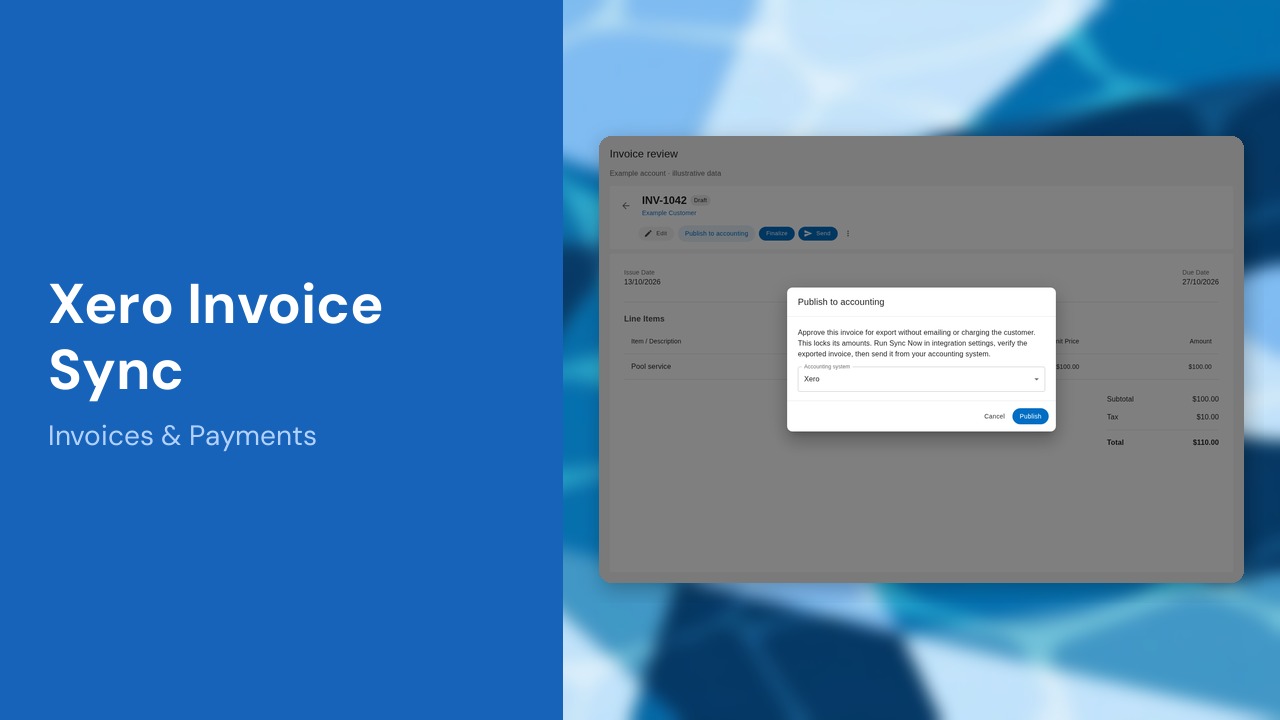
Set up Xero invoice and payment syncing in Pool Dial. Owners and admins can review accounting mappings, run a manual sync, and enable automatic sync after checking the results. Screens below use an example account and illustrative data.
This guide covers seven steps. Allow extra time to confirm accounting mappings and review your first sync.
Watch the walkthrough
This narrated walkthrough uses labeled example screens and illustrative results. It is not a live accounting test.
Watch on YouTube. The full written guide follows.
Provider reference: Xero invoice API documentation. Pool Dial does not call the provider’s invoice-email endpoint during sync; review any separate email automations.
1. Open Xero in integration settings
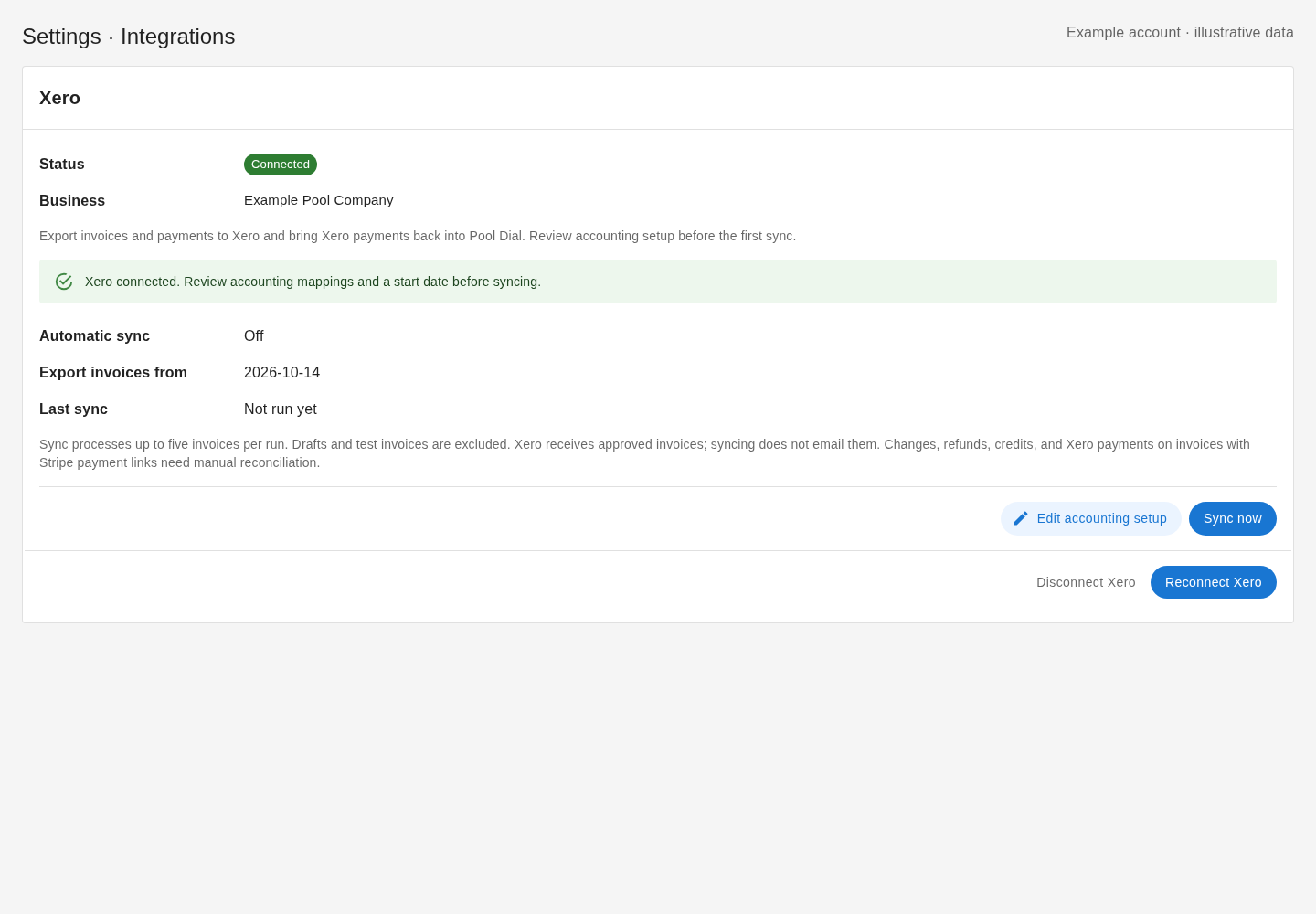
Sign in to Pool Dial as an owner or admin, then open Settings → Integrations → Xero. This guide uses an example account and illustrative results. Sync sends eligible invoices and completed payments to Xero, and checks linked invoices for payments recorded in Xero. Before connecting, confirm that your Xero country and base currency match Pool Dial. Have your bookkeeper help choose the revenue, payment, and tax accounts.
2. Connect and choose your business
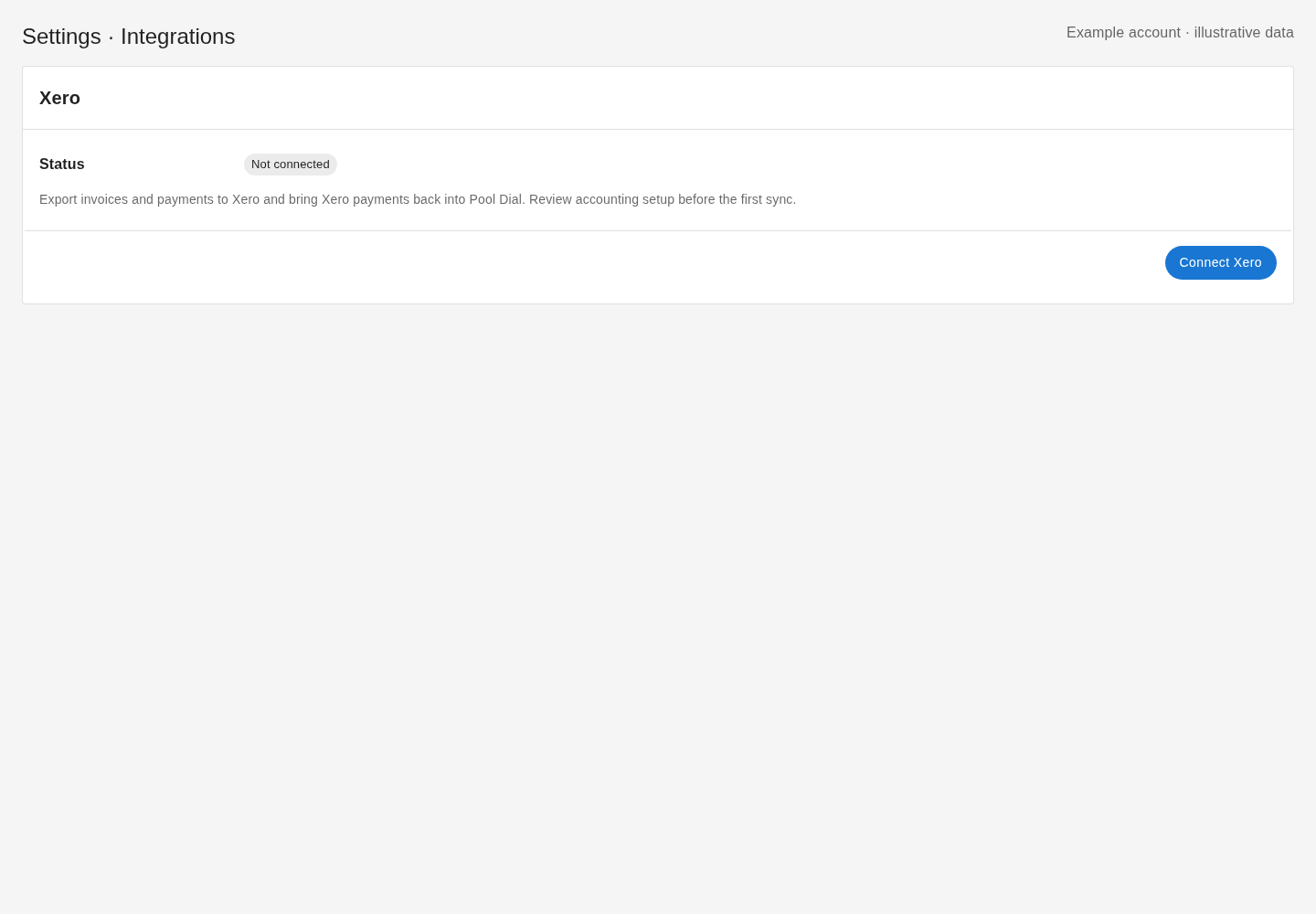
Choose Connect Xero, sign in on Xero, and authorize access. Back in Pool Dial, choose the correct business and select Save connection. If you connected before invoice syncing was available, use Reconnect Xero to grant the new permissions. Reconnect the same business to preserve existing accounting links. Never send your Xero password or app secret to support or paste it into chat.
3. Map accounts and taxes
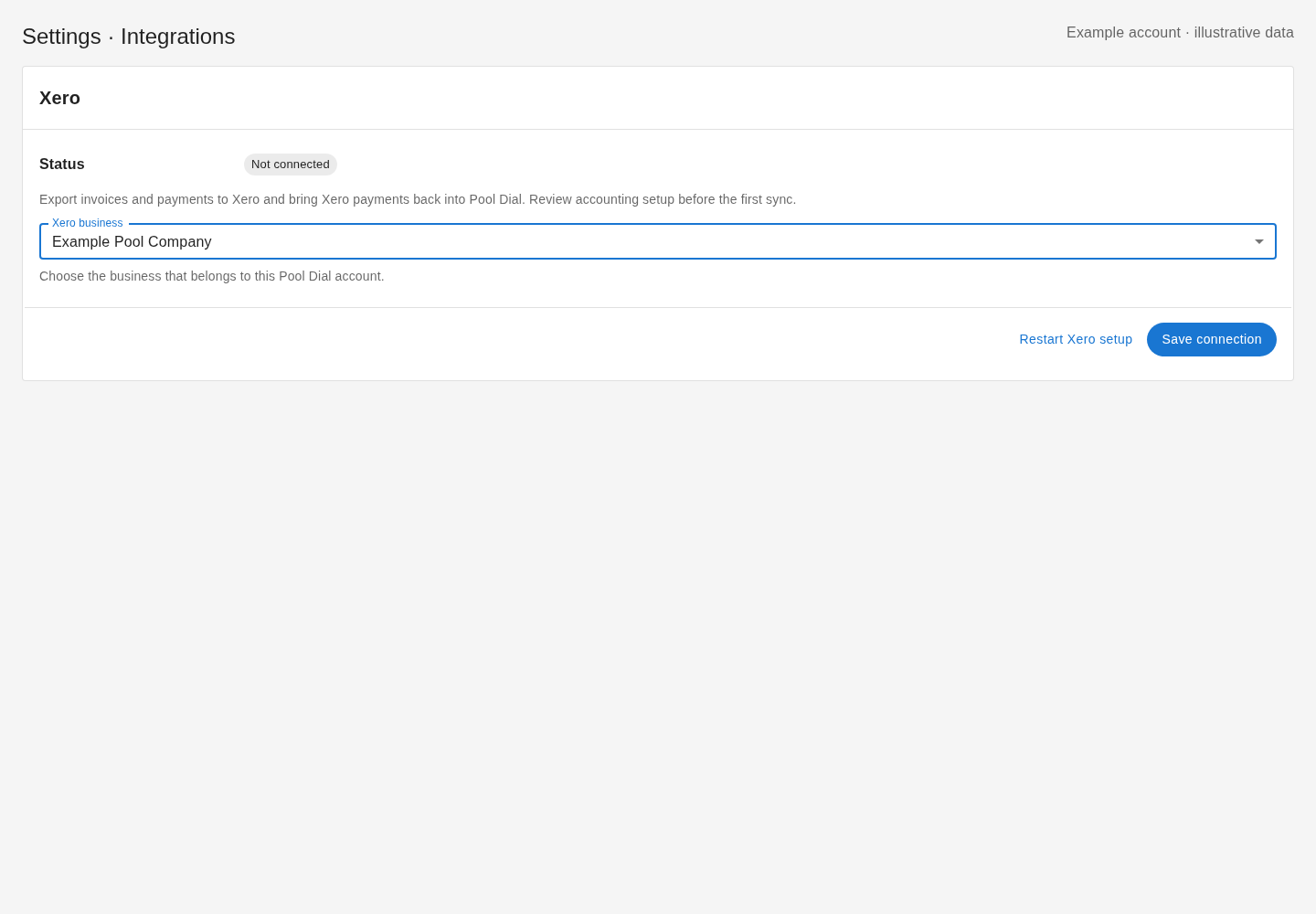
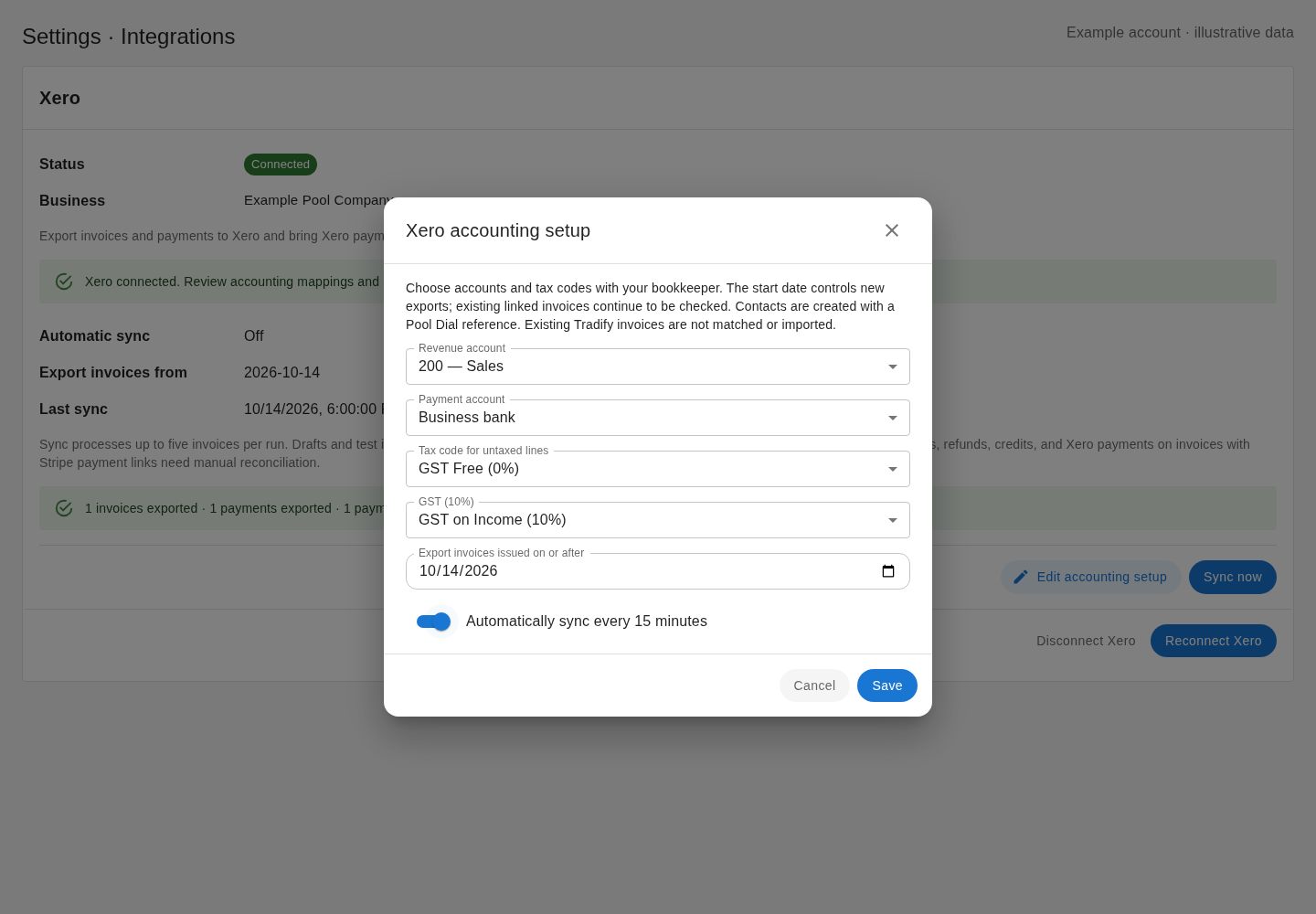
Choose Edit accounting setup. Select a revenue account, a payment-enabled bank or clearing account, a zero-rate code for untaxed lines, and the matching Xero code for each saved tax rate. The Australian GST choices shown here are examples, not account recommendations. Pool Dial uses each invoice’s saved tax amounts, including inclusive or exclusive tax. The payment account receives exported payment entries; sync does not transfer money or reconcile bank settlements.
4. Choose a start date before exporting
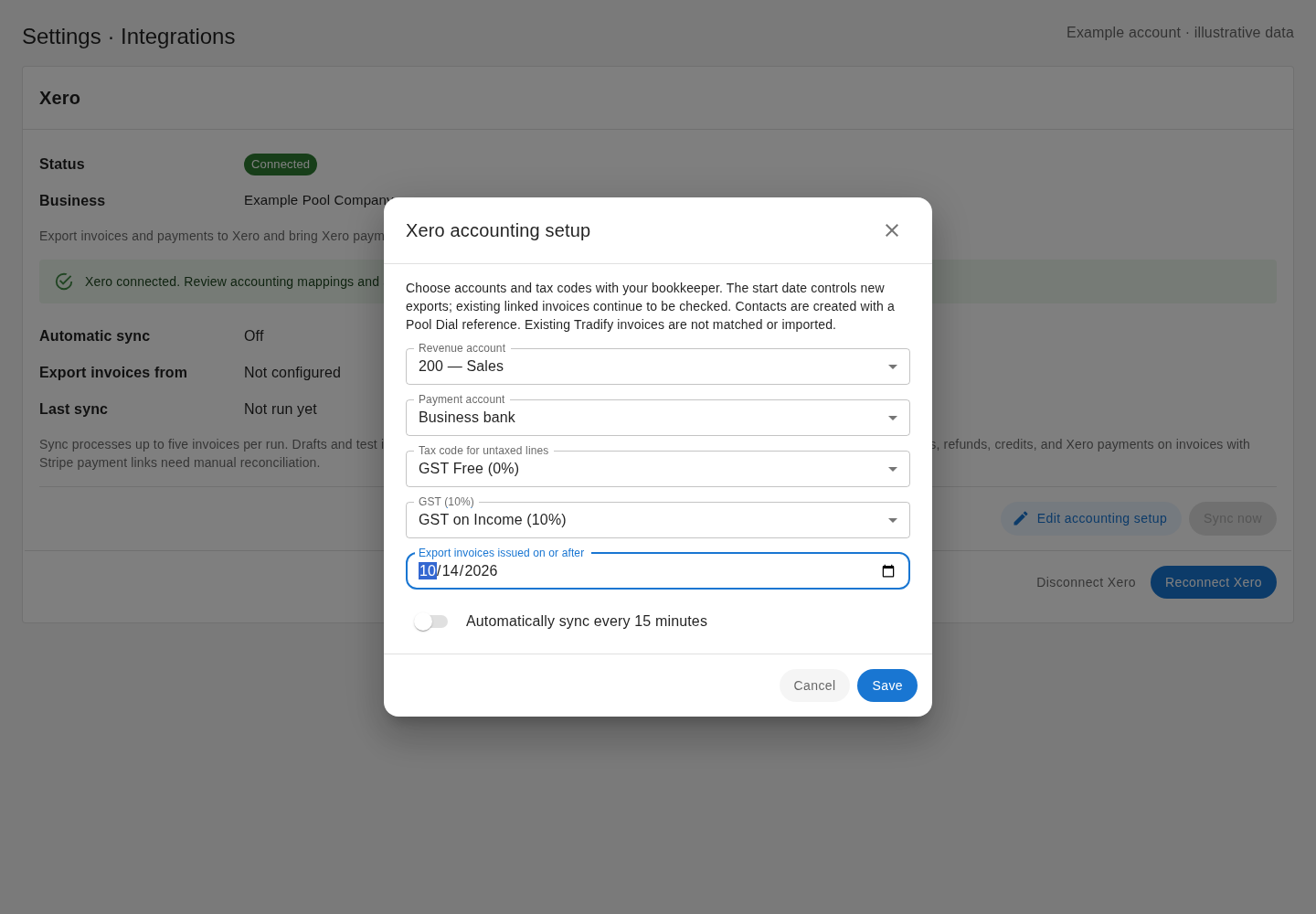
Set Export invoices issued on or after to your agreed cutover date. Leave automatic sync off for the first review, then select Save. Existing Tradify or Xero contacts and invoices are not automatically matched. Pool Dial creates contacts with a distinct reference, so plan your contact strategy with support before migrating. Choose a start date that excludes invoices already handled by your old system. Previously linked invoices continue to be checked even if you change the date.
5. Publish without emailing, then sync
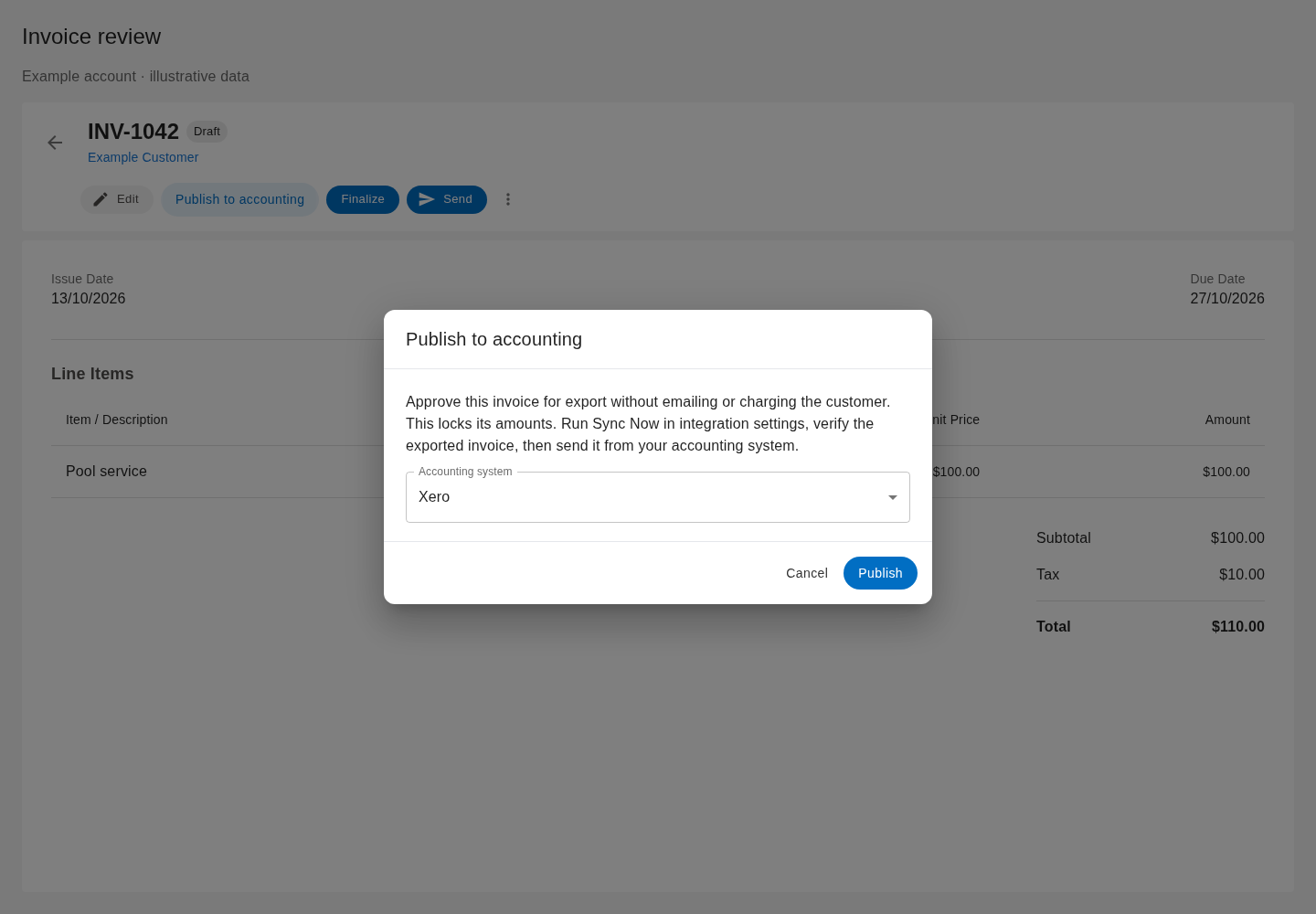
Review an unsent draft or pending invoice, then choose Publish to accounting → Xero → Publish. This locks its amounts and queues export without a Pool Dial email or Stripe charge. Its issue date must be within the saved sync window. Return to Xero integration settings and choose Sync now → Start sync. Review the result before sending the invoice from Xero. Publishing is not confirmation that export succeeded. Xero creates authorised invoices, but Pool Dial does not email them. Check any separate Xero automation before relying on automatic delivery. Start with a demo organisation and reviewed example invoice. Each run processes up to five invoices. Drafts and unapproved pending invoices are excluded.
6. Check invoices, payments, and any errors
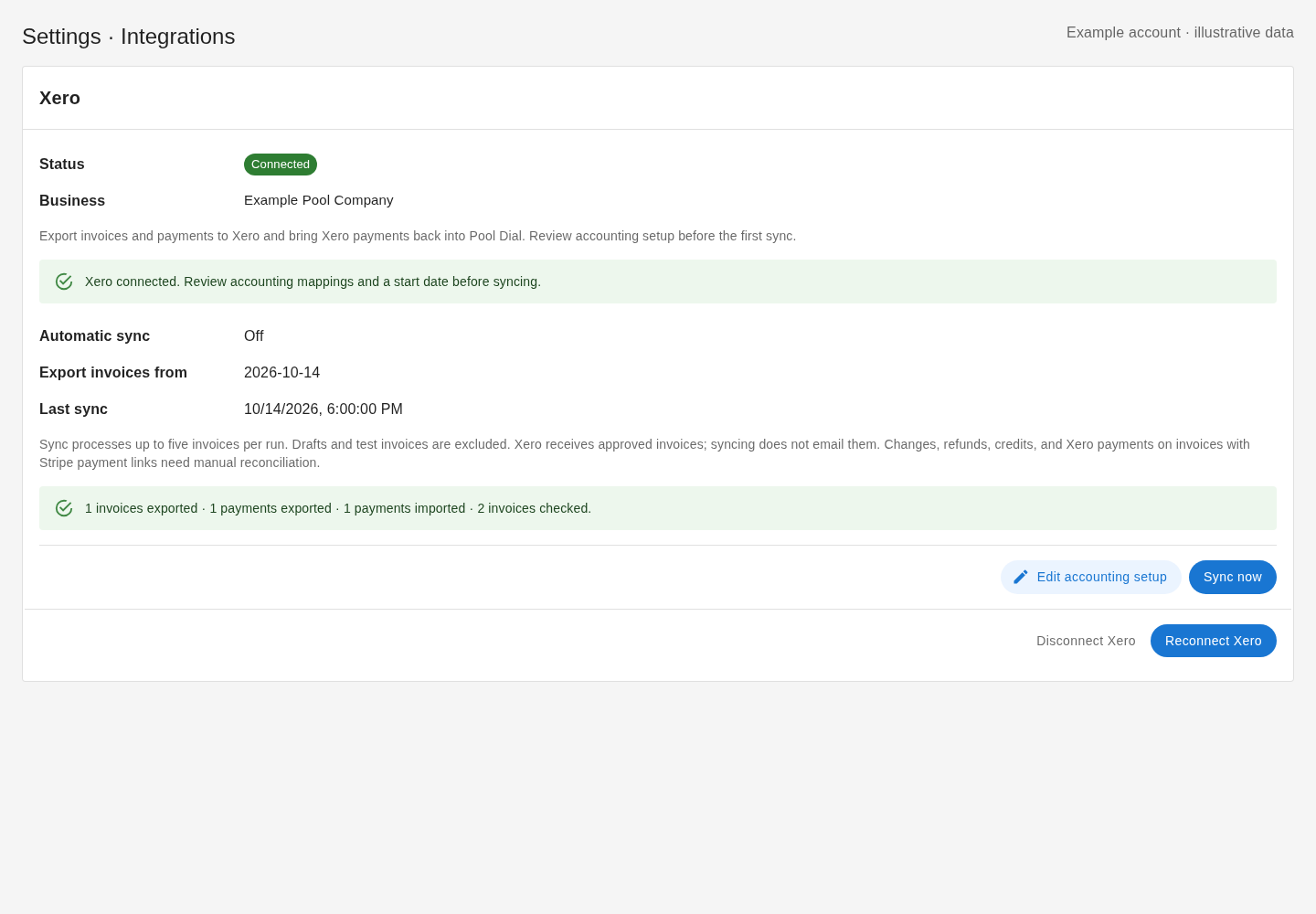
Read the result counts, then check the corresponding records in Xero. The original Pool Dial invoice number appears in the Xero Reference field. Completed Pool Dial payments export to your chosen payment account. Supported payments entered in Xero import into the linked Pool Dial invoice’s payment history and balance. Repeating a successful sync should not duplicate those linked records. If an export has an unknown outcome, stop and ask support to review it. Do not delete links or repeatedly recreate the invoice.
7. Enable automatic sync after review
Once the sample results are correct, open Edit accounting setup, enable Automatically sync every 15 minutes, and save. Larger queues need more than one run, and request limits may delay progress. Check the last result for errors. Discounts, refunds, credits, later edits, removed payments, and incoming Xero payments on Stripe-linked invoices need manual reconciliation. On mobile, open integration settings in your browser. An owner or admin can also ask Cody to run the configured Xero sync. Keep automatic sync off until the setup and first results have been reviewed.
Not using PoolDial yet?
Manage your customers, routes, billing, and more — all in one place.
Start Free Trial