
How to View Live Technician Locations


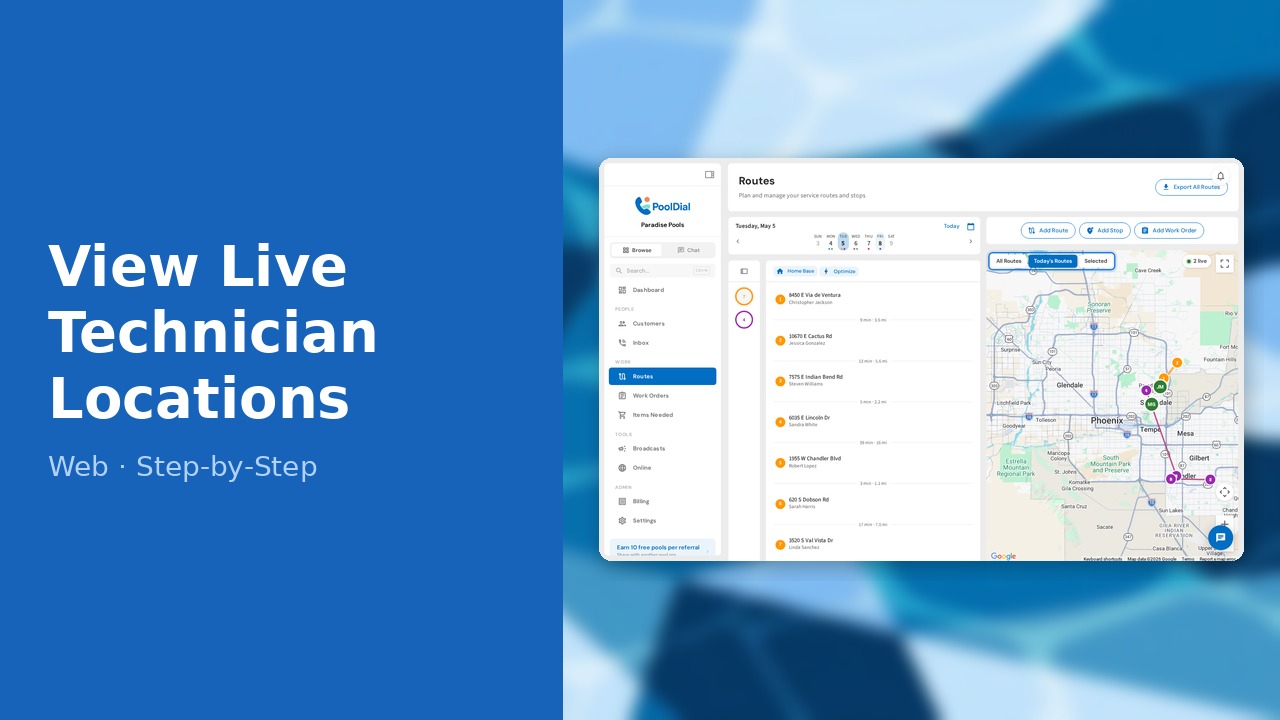
This guide walks you through how to view live technician locations in PoolDial, step by step.
This guide covers 5 steps and takes about a minute to complete.
Video Walkthrough
Prefer to watch? Here's a full video walkthrough of How to View Live Technician Locations.
1. Open Routes page
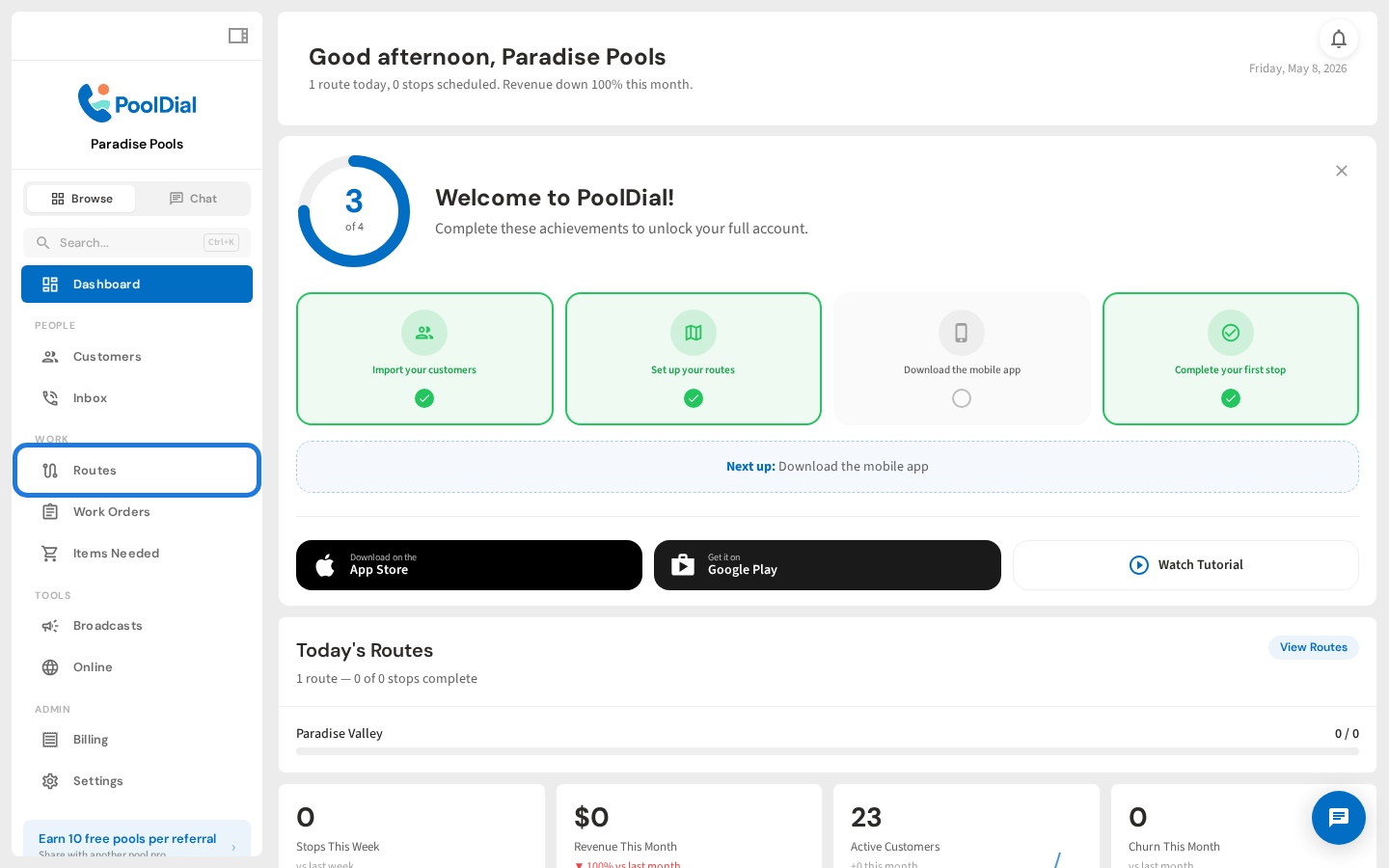
From the left sidebar, click Routes to open the routes page with the map.
2. Map view toggle buttons
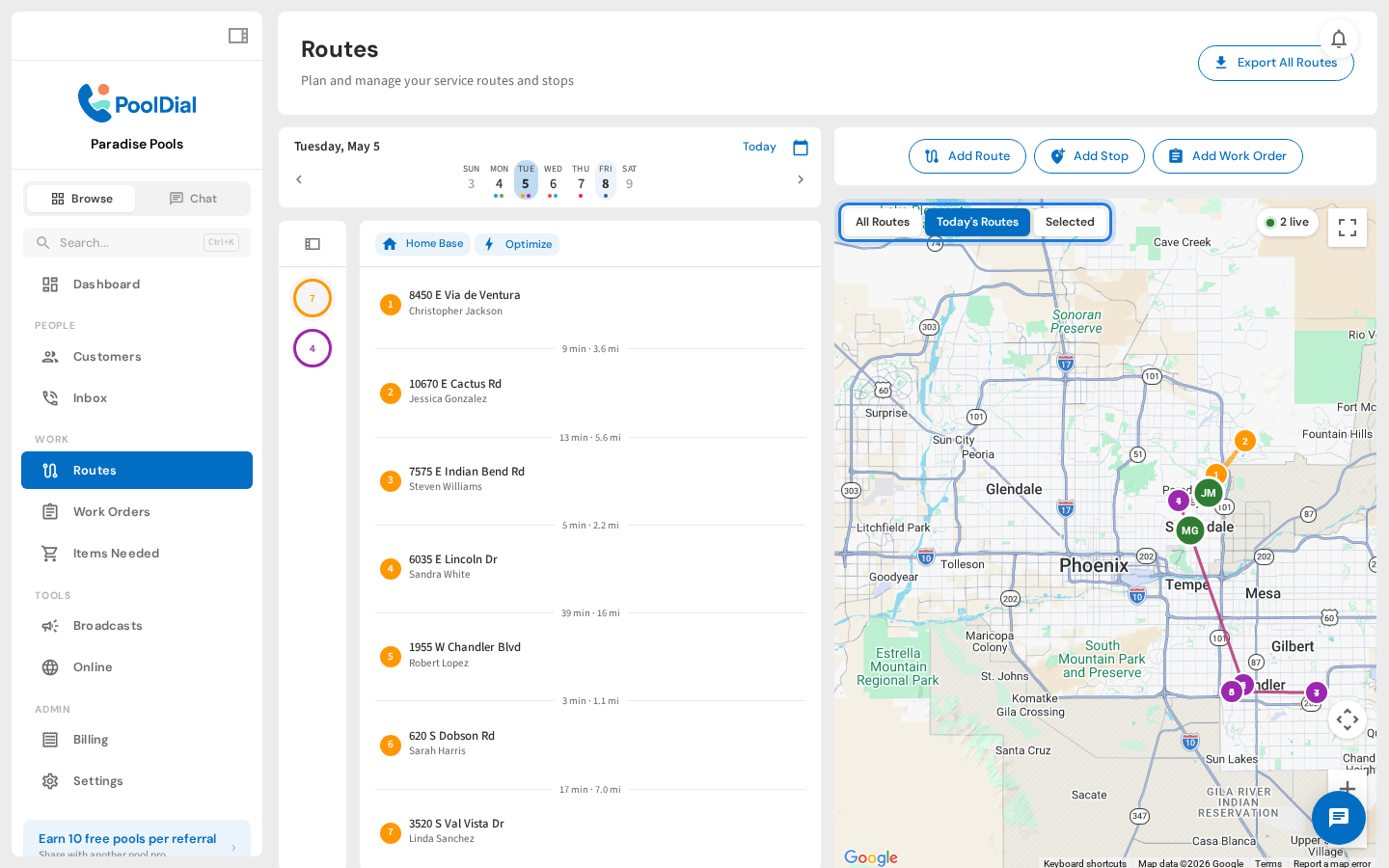
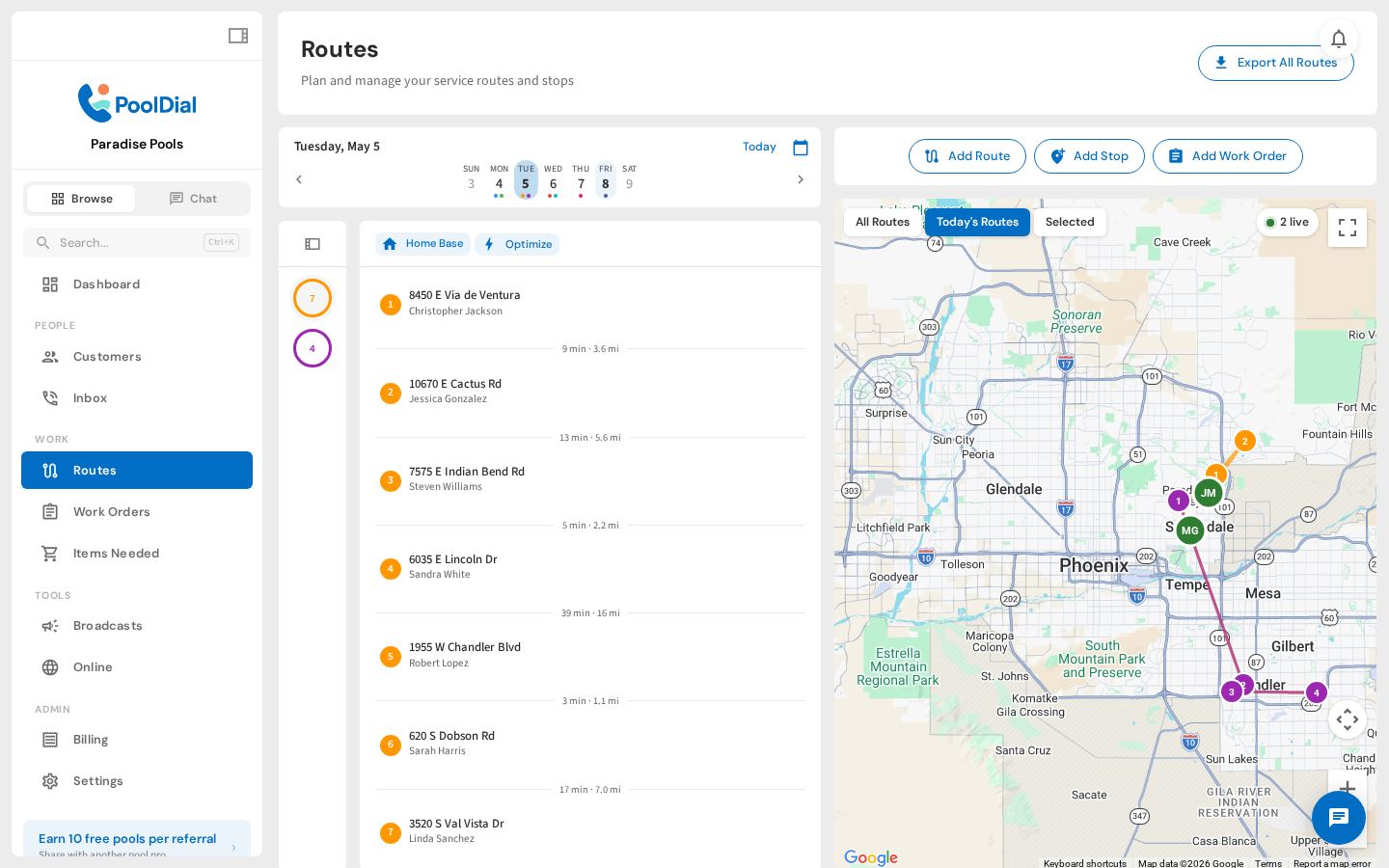
The map toggle has three modes: All Routes, Today's Routes, and Selected. Click Today's Routes to see all stops for the current day.
3. Live techs badge
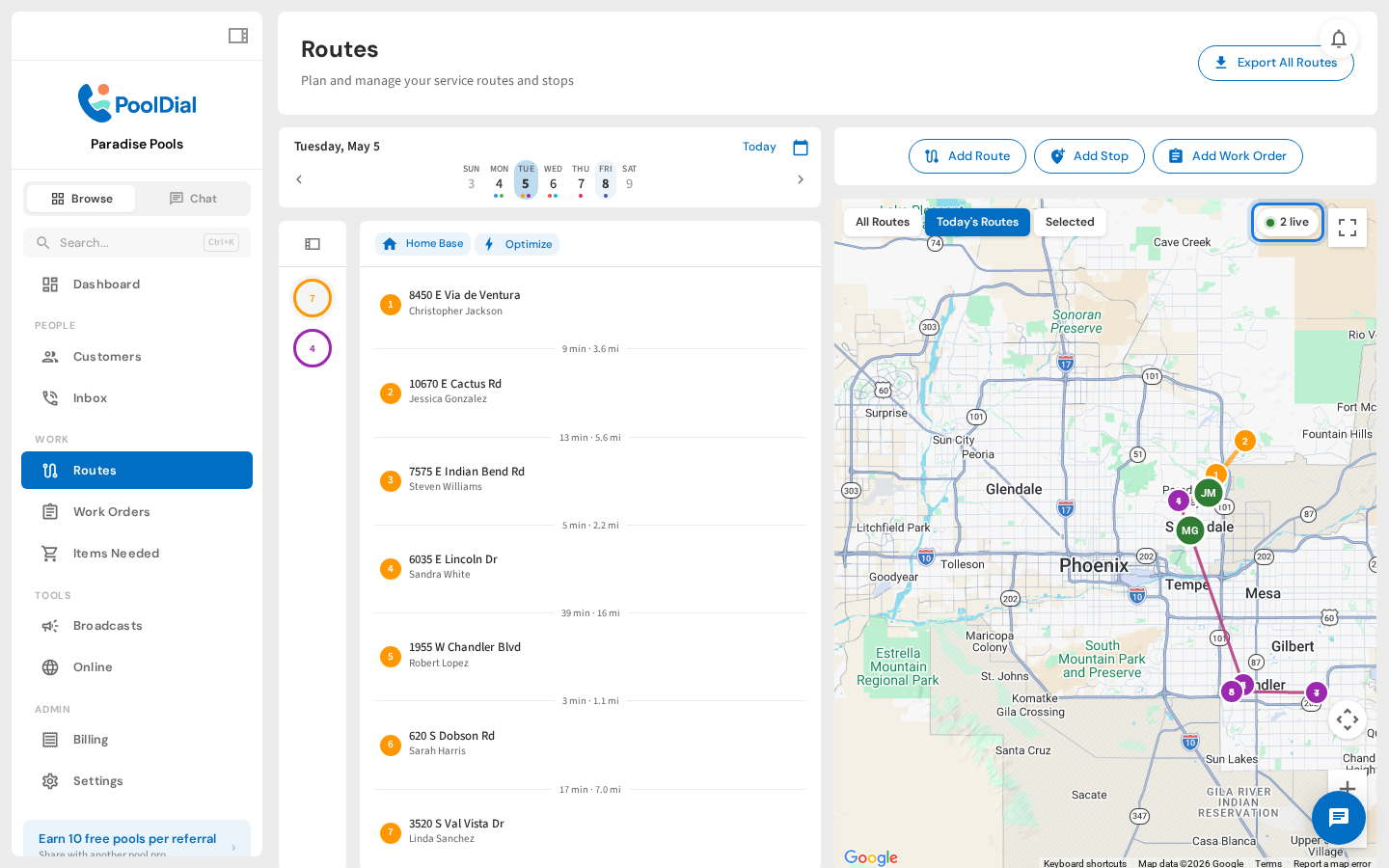
The live badge in the bottom-right corner shows how many technicians are currently sharing their location. Green means the signal is fresh.
4. Selected route view
Click on a route in the left panel to switch to Selected mode. The map zooms in to show only that route's stops and its assigned technician.
5. All Routes view
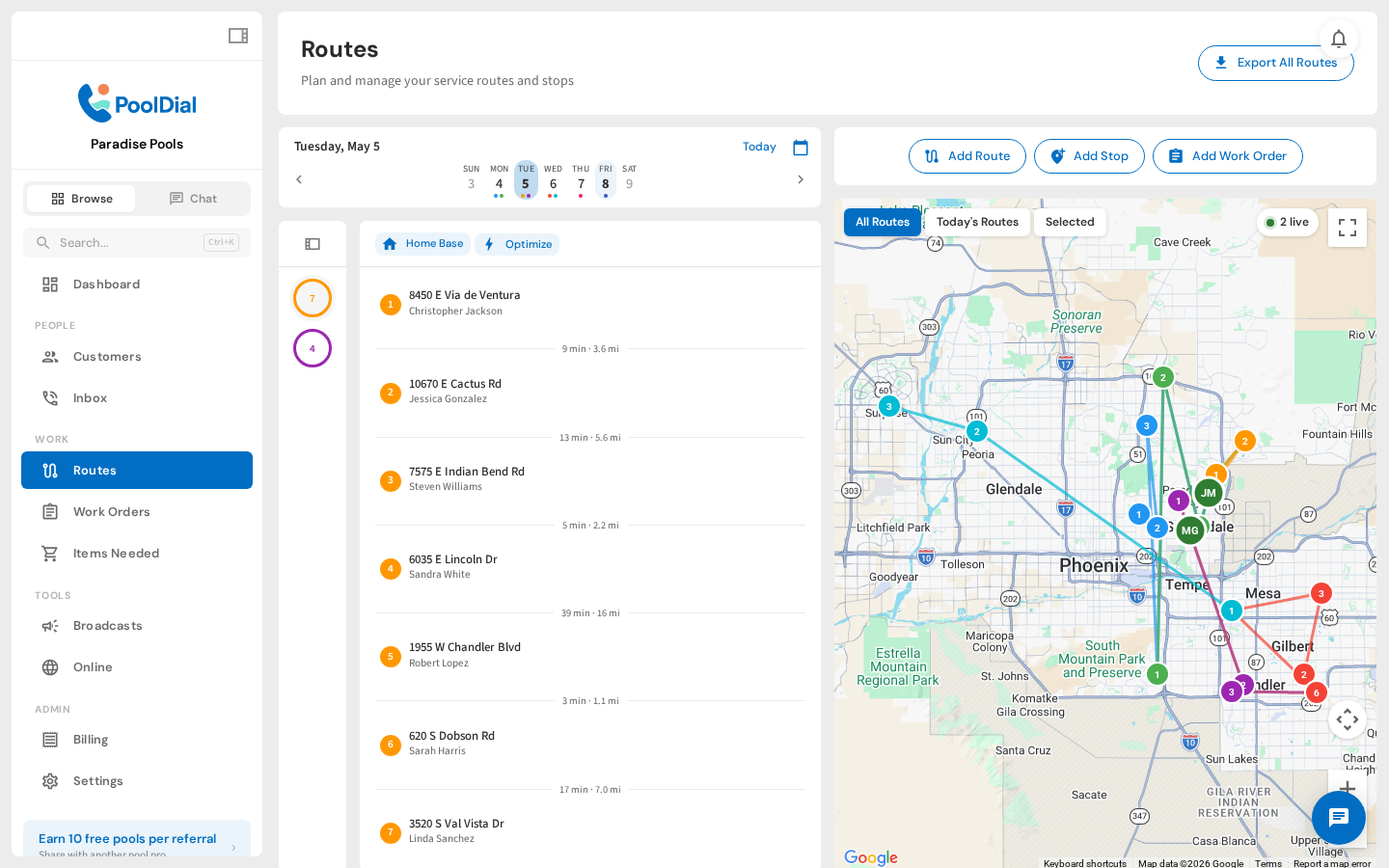
Click All Routes to see every route across all days of the week on one map. This gives you the full picture of your service territory.
Not using PoolDial yet?
Manage your customers, routes, billing, and more — all in one place.
Start Free Trial