Why Service Texts Show Your Email Instead of Your Phone Number (iPhone)

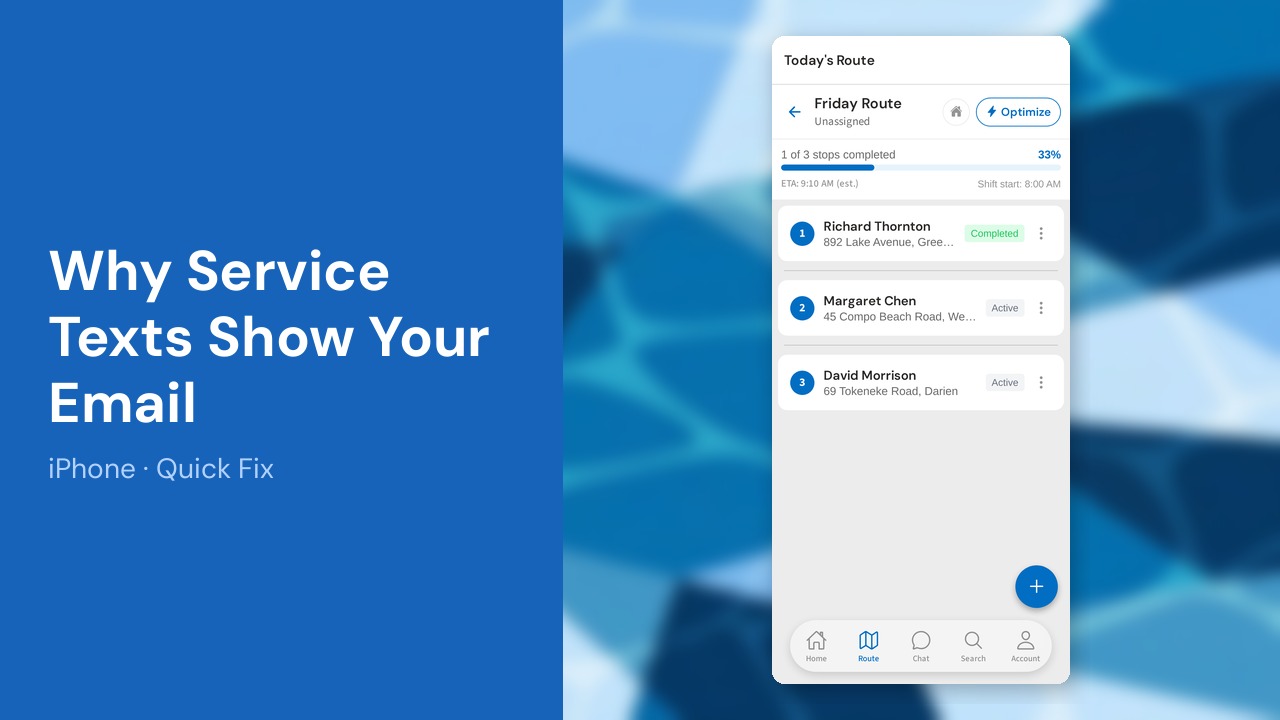
Your customer gets your service text, but it shows your email address instead of your phone number. PoolDial didn't put it there. When you tap Open Messages, the text is sent by your iPhone, and iMessage can send from your Apple Account email. One setting fixes it. Android phones always text from your number, so this only happens on iPhone.
This guide covers 5 steps and takes about a minute to complete.
1. Check which button you tap after a stop
When you finish a stop, PoolDial shows the service text. If the button says Open Messages, PoolDial hands the text to your iPhone's Messages app and your phone sends it. That is when your email can show up. If the button says Send text, PoolDial sends it from your PoolDial business number, and this setting does not matter.
2. Open Messages in iPhone Settings
Open the iPhone Settings app. Tap Apps, then Messages. On older iPhones, Messages is right on the main Settings list.
3. Tap Send and Receive
Scroll down and tap Send & Receive. You will see your phone number and any email addresses tied to your Apple Account.
4. Start new conversations from your phone number
Under Start New Conversations From, tap your phone number so it has a check mark. New texts, including PoolDial service texts, will now come from your number.
5. Clear old threads that show your email
A thread that already started from your email can keep using it. In Messages, swipe left on that customer's conversation and delete it. The next service text will start a new thread from your phone number.
Not using PoolDial yet?
Manage your customers, routes, billing, and more — all in one place.
Start Free Trial