How to Sync Invoices and Payments with QuickBooks

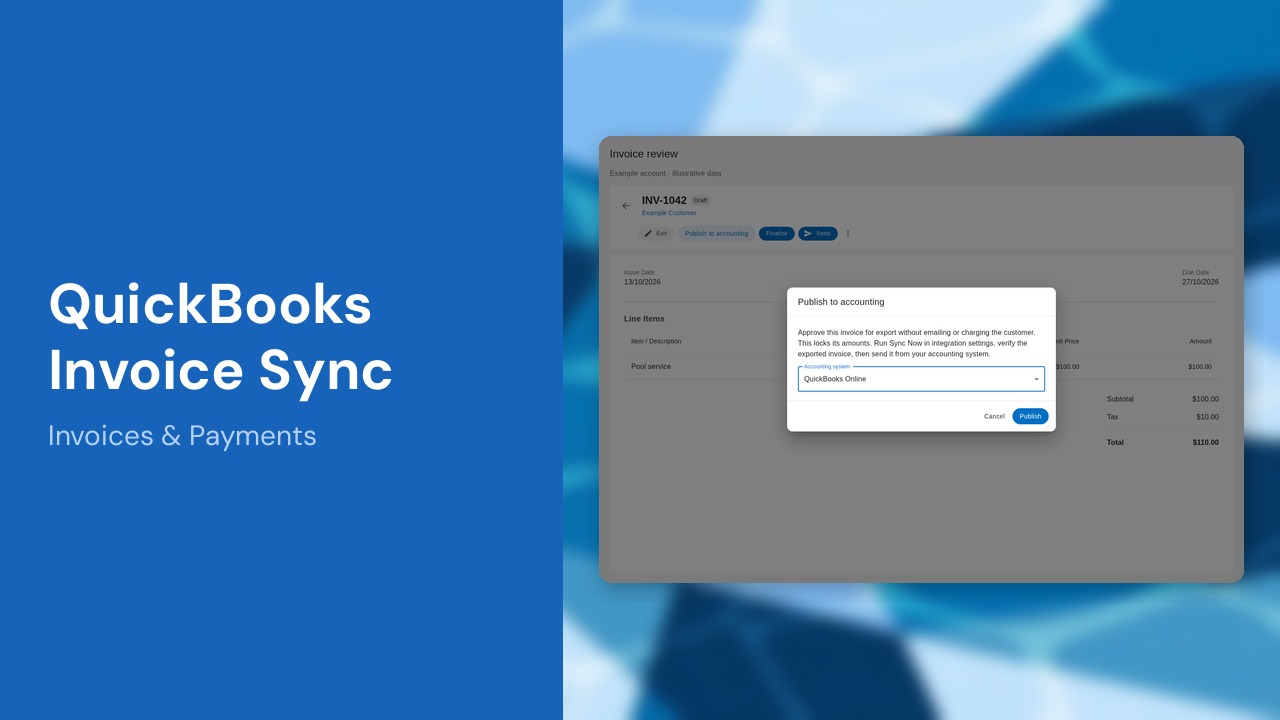
Use Pool Dial for invoice preparation and QuickBooks Online for accounting. This guide shows the setup and review steps, including how to publish without emailing your customer from Pool Dial.
Allow time to review your accounting setup and first export with your bookkeeper.
Watch the walkthrough
This narrated walkthrough uses labeled example screens and illustrative results. It is not a live accounting test.
Watch on YouTube. The full written guide follows.
Provider reference: QuickBooks invoice API documentation. Pool Dial does not call the provider’s invoice-email endpoint during sync; review any separate email automations.
1. Open the QuickBooks integration
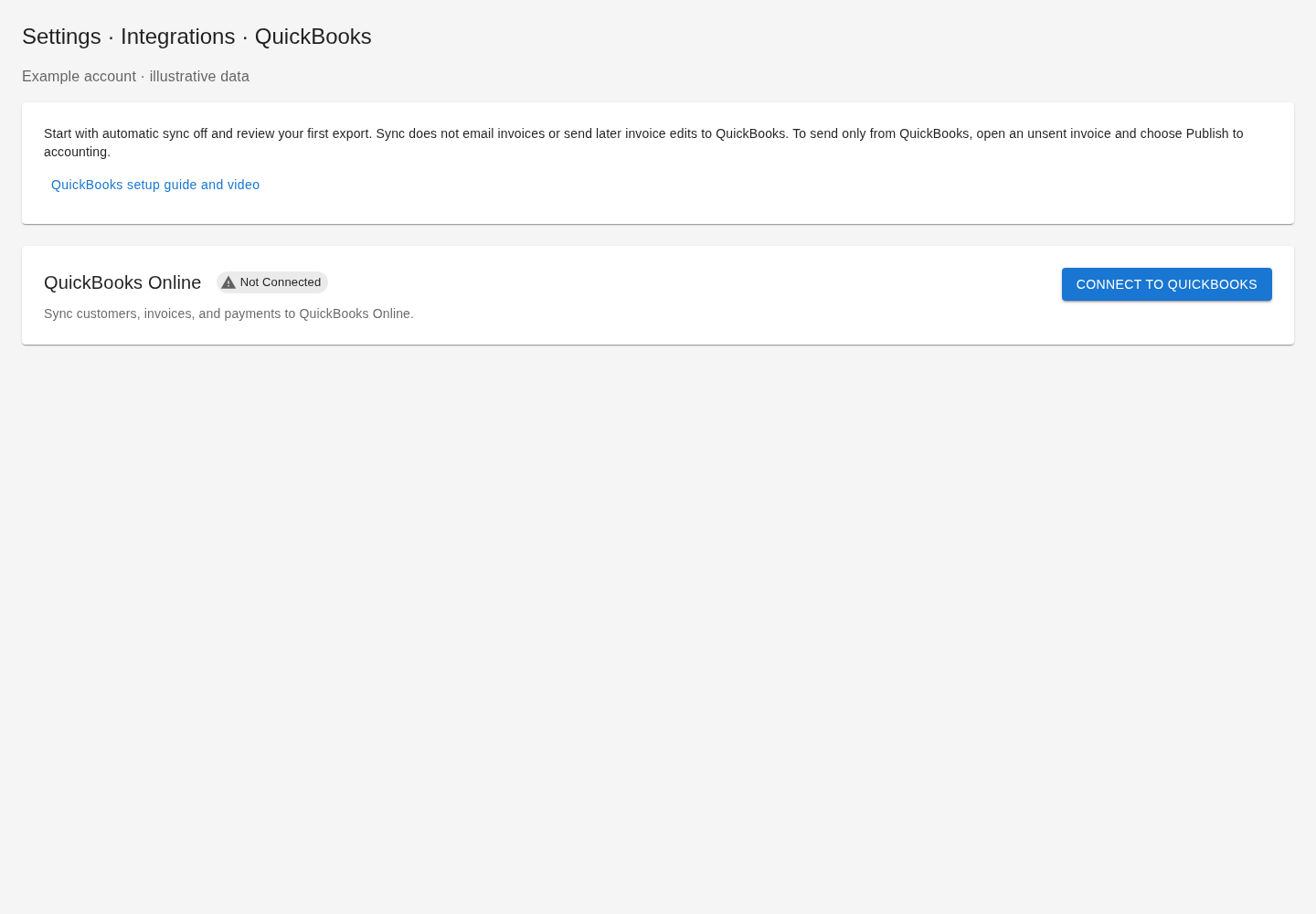
Sign in as an owner or admin and open Settings → Integrations → QuickBooks. Select Open detailed sync view for the screen shown here. This tutorial uses an example account and illustrative results. The integration connects QuickBooks Online, not QuickBooks Desktop. Confirm the company country and base currency match Pool Dial. Have your bookkeeper review existing customers and invoices before your first export.
2. Connect and review historical records
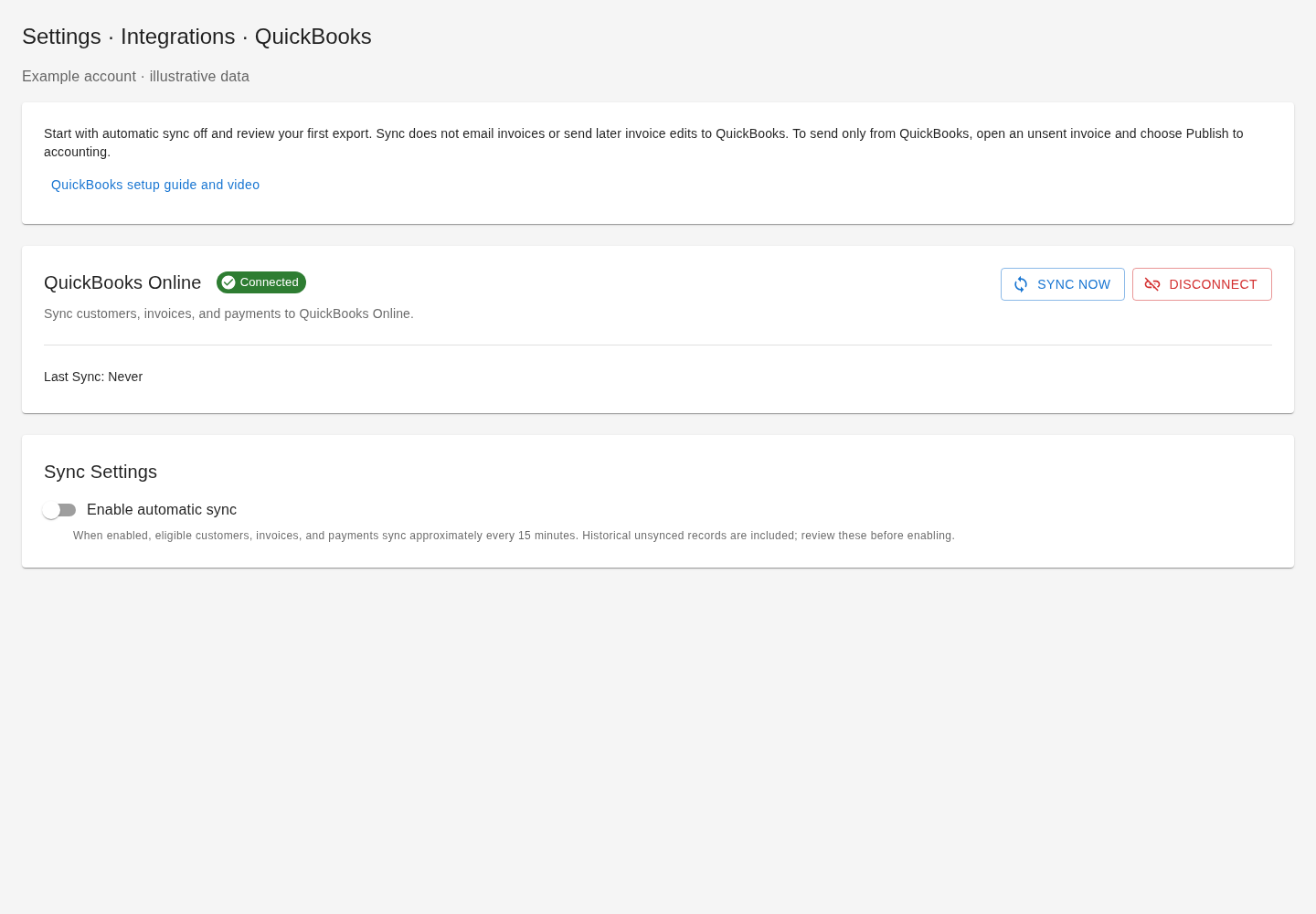
Choose Connect to QuickBooks, sign in with Intuit, select the correct company, and authorize access. New connections start with automatic sync off. Unlike the Xero integration, QuickBooks currently has no cutover-date selector. Manual sync can also export historical eligible records. Review existing invoices and customer matches with support before running it, especially when migrating from another system.
3. Check accounting and tax settings
For international companies, choose a QuickBooks service item, the zero-rate code for untaxed lines, and a matching sales tax code for each Pool Dial tax rate. UAE companies also select their VAT reporting location. Select Save accounting mappings. These Australian GST examples are illustrative. U.S. companies use the existing U.S. export path rather than this mapping panel; review tax treatment with your bookkeeper before going live.
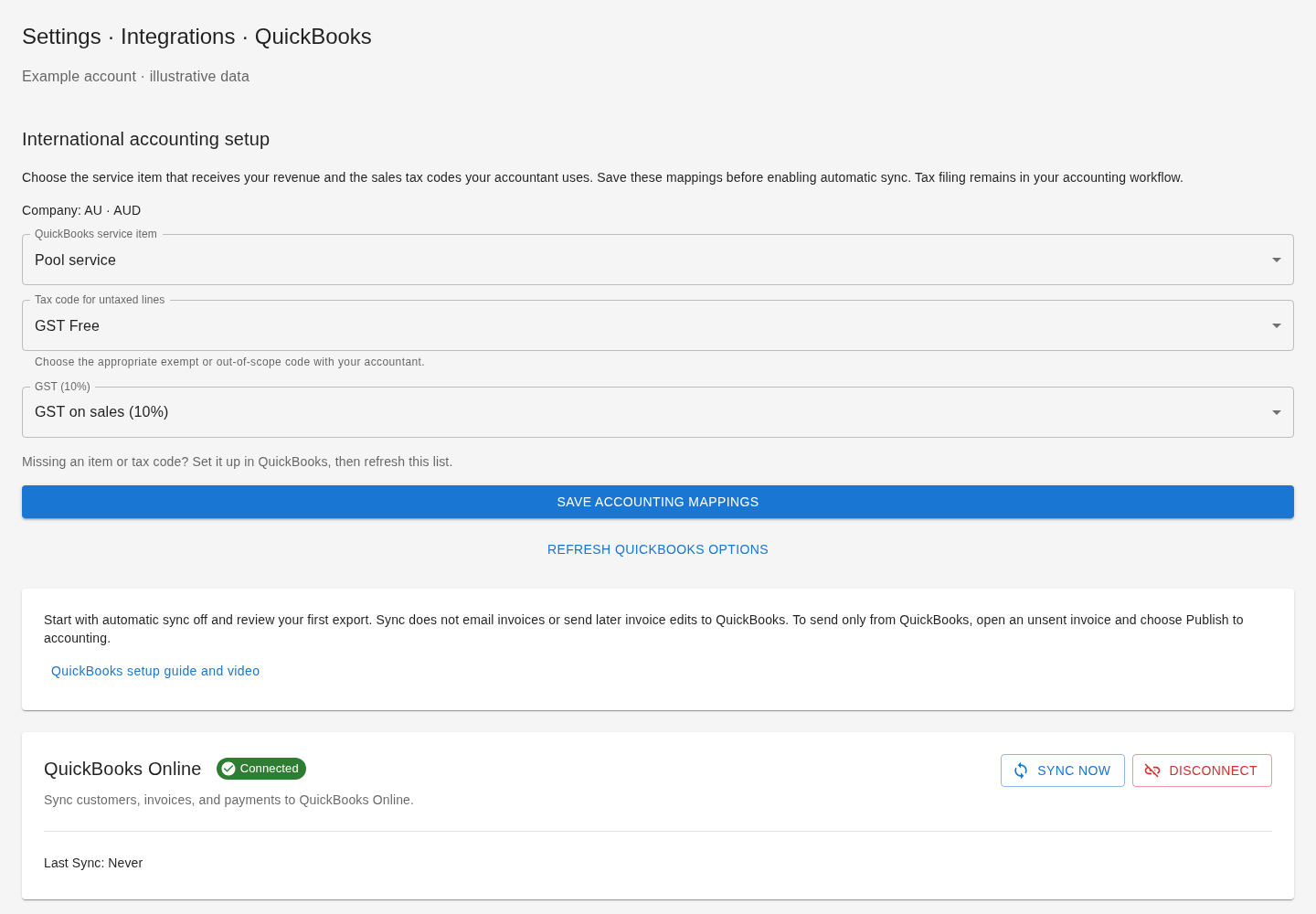
4. Review and publish an invoice
Create and review your invoice in Pool Dial. To send the customer invoice only from QuickBooks, open an unsent draft or pending invoice and choose Publish to accounting → QuickBooks Online → Publish. This approves and locks the invoice for export without a Pool Dial email or Stripe charge. Publishing queues it; it does not confirm a successful export. Published invoices use the accounting system for reminders and online payment collection. Drafts are not exported until approved.
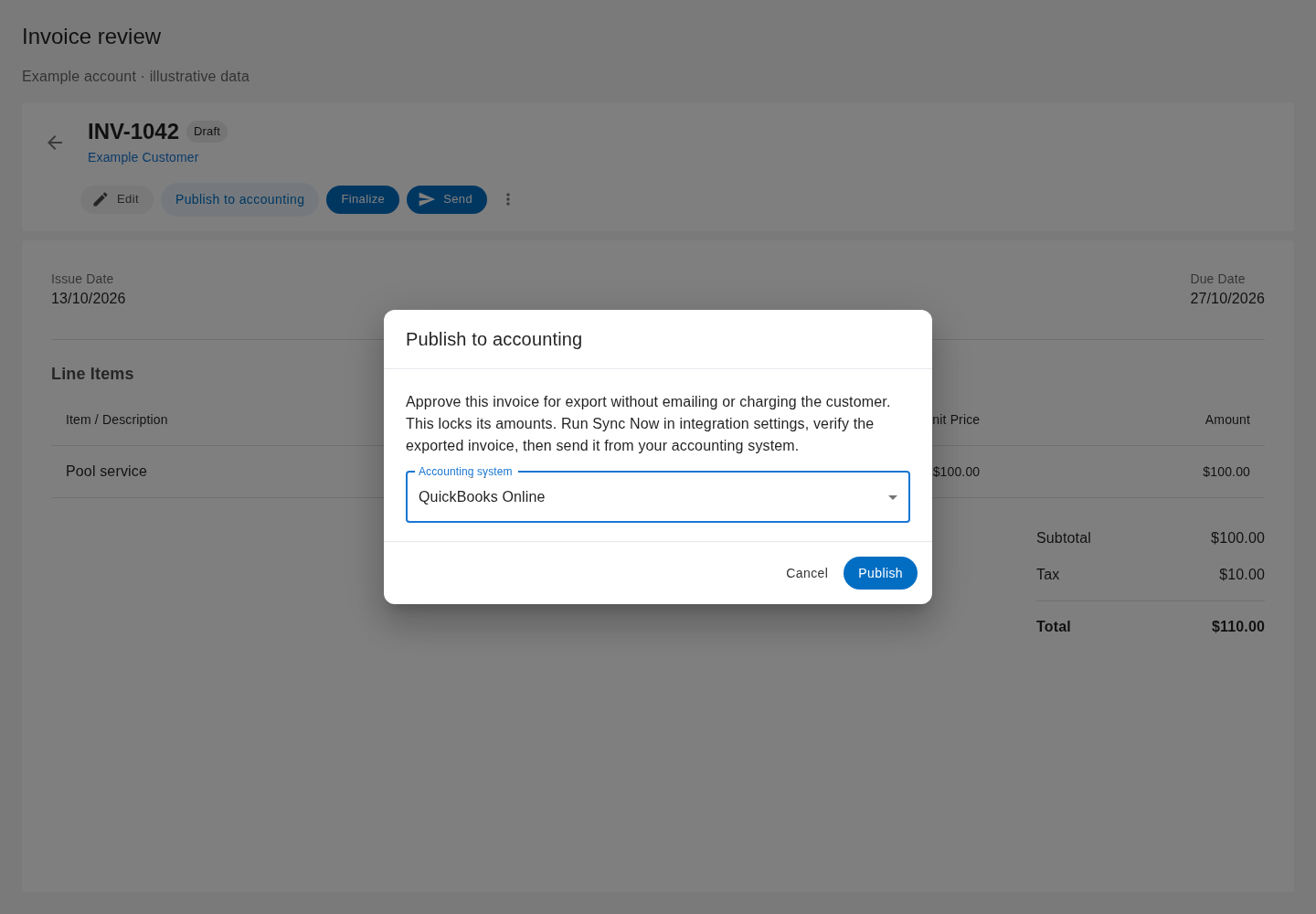
5. Sync, then send from QuickBooks
Return to integration settings and choose Sync Now. Review Recent Sync Activity for each customer, invoice, and payment. The success shown here is illustrative, not a live accounting test. Published, sent, overdue, partially paid, and paid invoices are eligible unless already linked, archived, or assigned to Xero. The batch exports up to fifty invoices. Open QuickBooks and verify the customer, line items, tax, total, and balance before sending the invoice there. Pool Dial does not call the QuickBooks invoice-email endpoint; review any separate QuickBooks email automations.
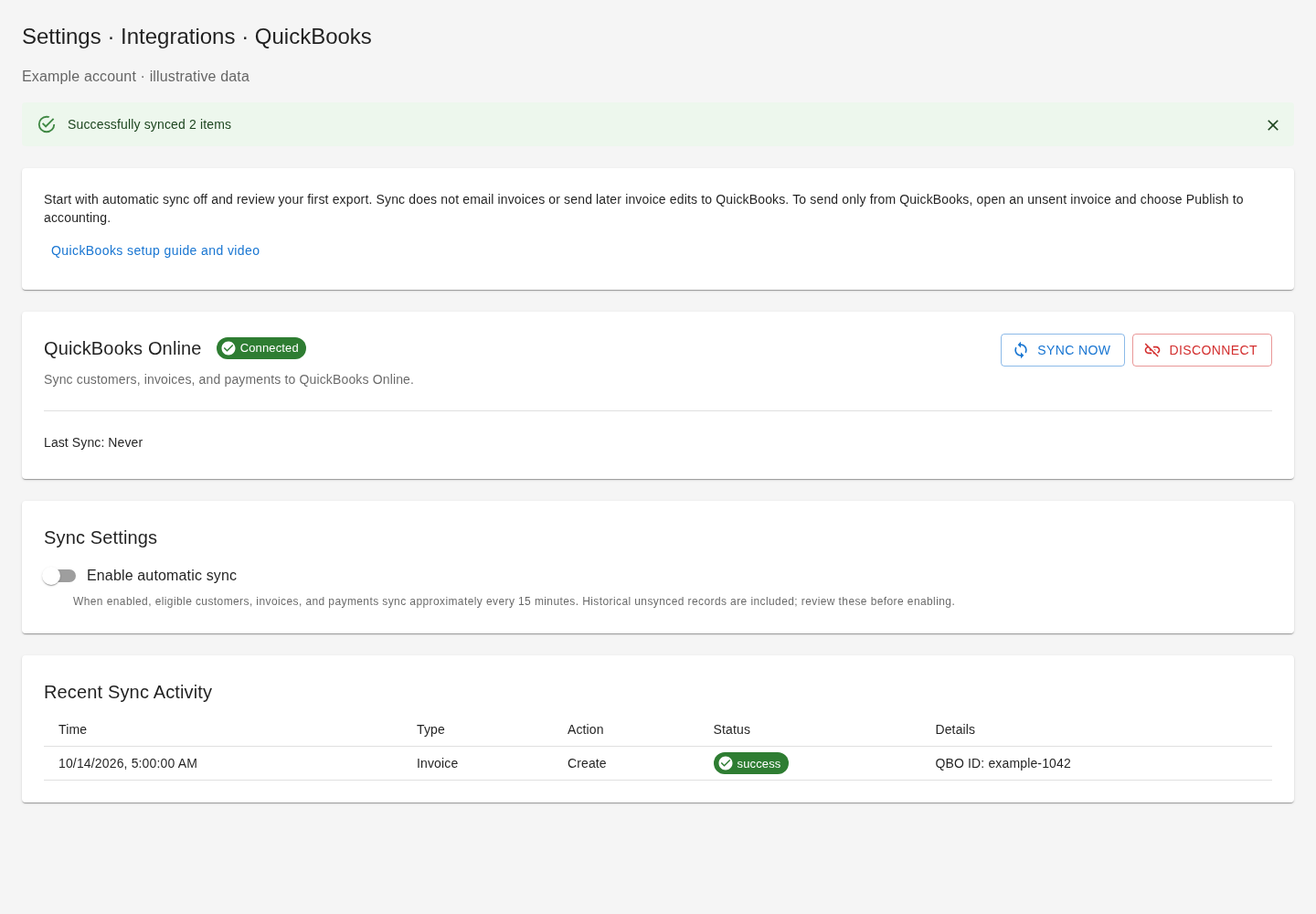
6. Enable automation after verification
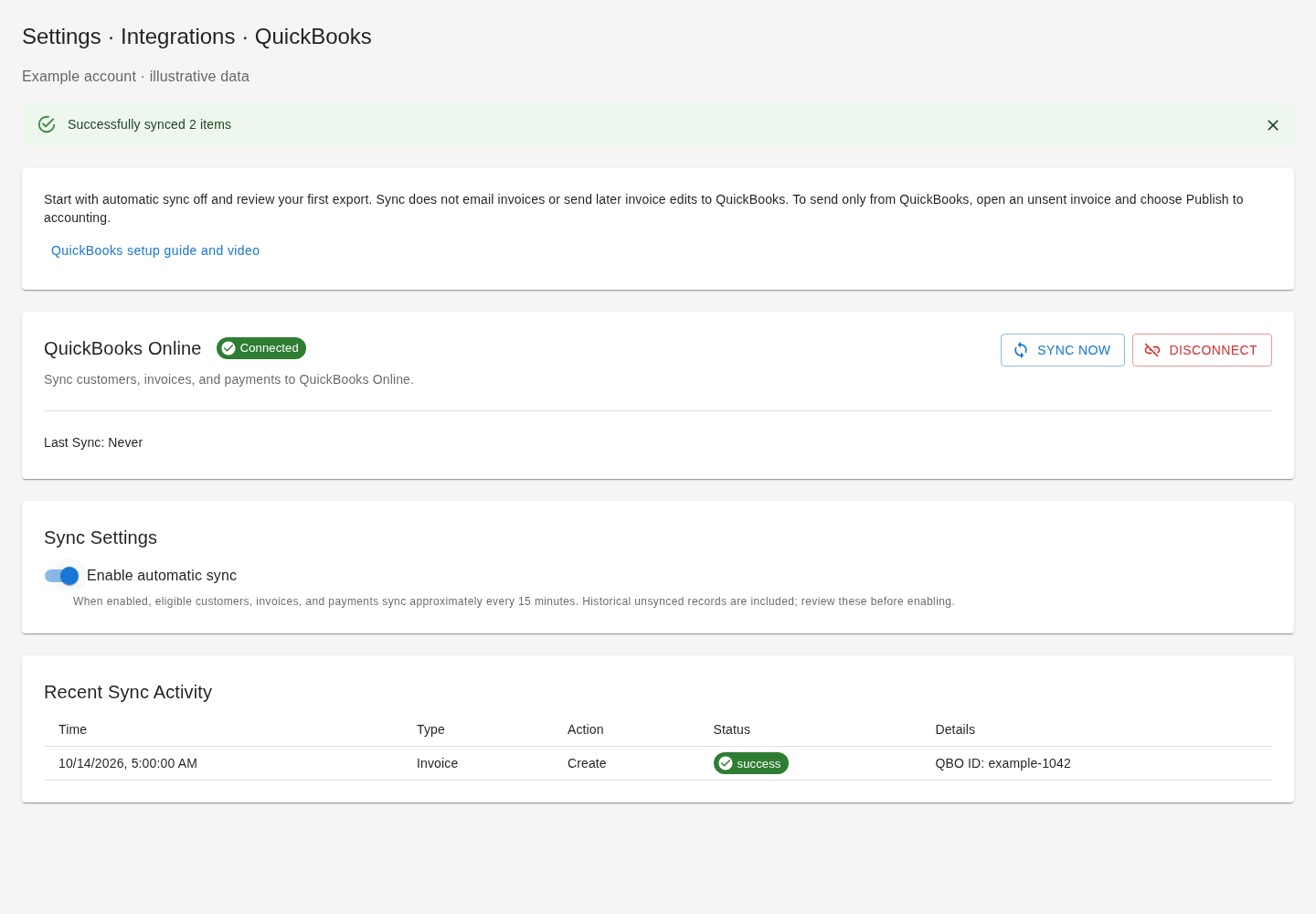
Once the first results are correct, enable automatic sync. It runs approximately every fifteen minutes. Completed Pool Dial payments export against linked invoices; this records payments rather than moving money. QuickBooks invoice webhooks can update local balances and status, but new QuickBooks payments are not imported as detailed payment-history rows. Later invoice edits, refunds, and credits are not a full two-way sync. Keep one collection workflow, reconcile differences with your bookkeeper, and ask support about errors before retrying ambiguous exports. On mobile or in Cody, you can also publish an invoice to accounting; finish setup and review in the web app.
Not using PoolDial yet?
Manage your customers, routes, billing, and more — all in one place.
Start Free Trial