
How to Edit, Void, and Delete Invoices


This guide walks you through how to edit, void, and delete invoices in PoolDial, step by step.
This guide covers 9 steps and takes about a minute to complete.
Video Walkthrough
Prefer to watch? Here's a full video walkthrough of How to Edit, Void, and Delete Invoices.
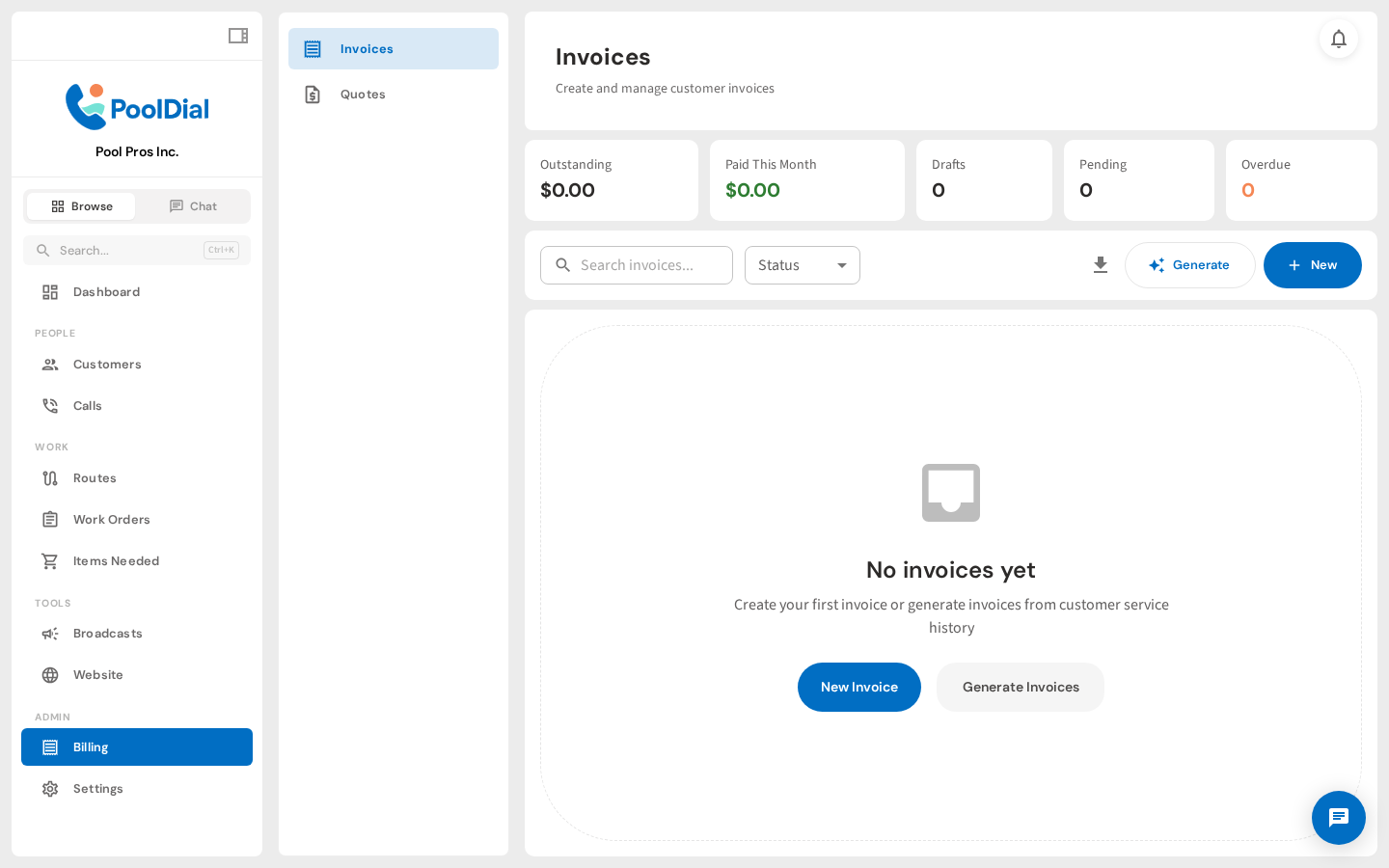
1. Go to the Billing page
From the left sidebar, click Billing to open the invoices page.
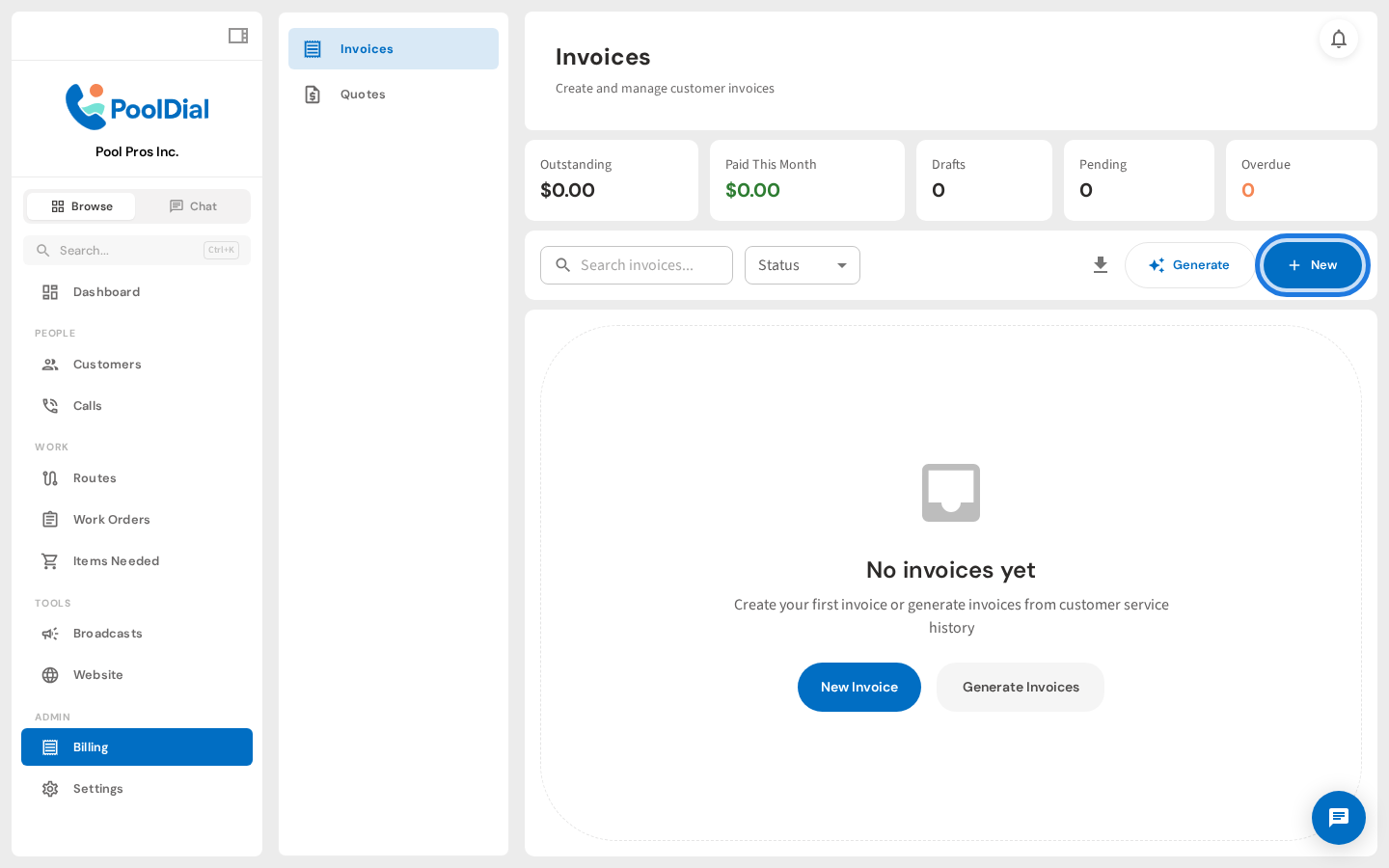
2. Click + New to create an invoice
Click + New in the top right corner to start creating an invoice.
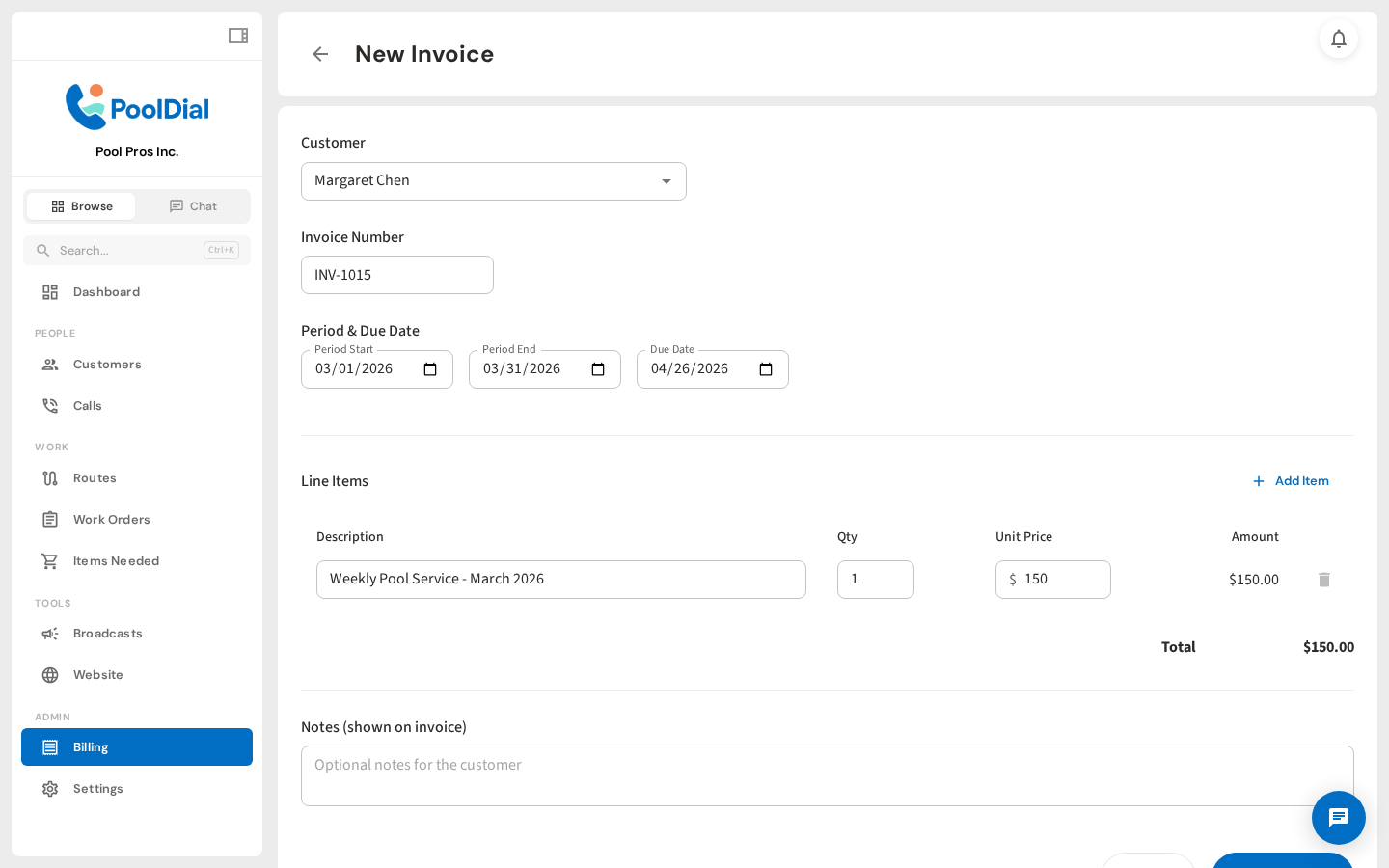
3. Fill in the invoice details
Select a customer, set the service period and due date, and add line items with descriptions and amounts. Click Create Invoice when you are done.
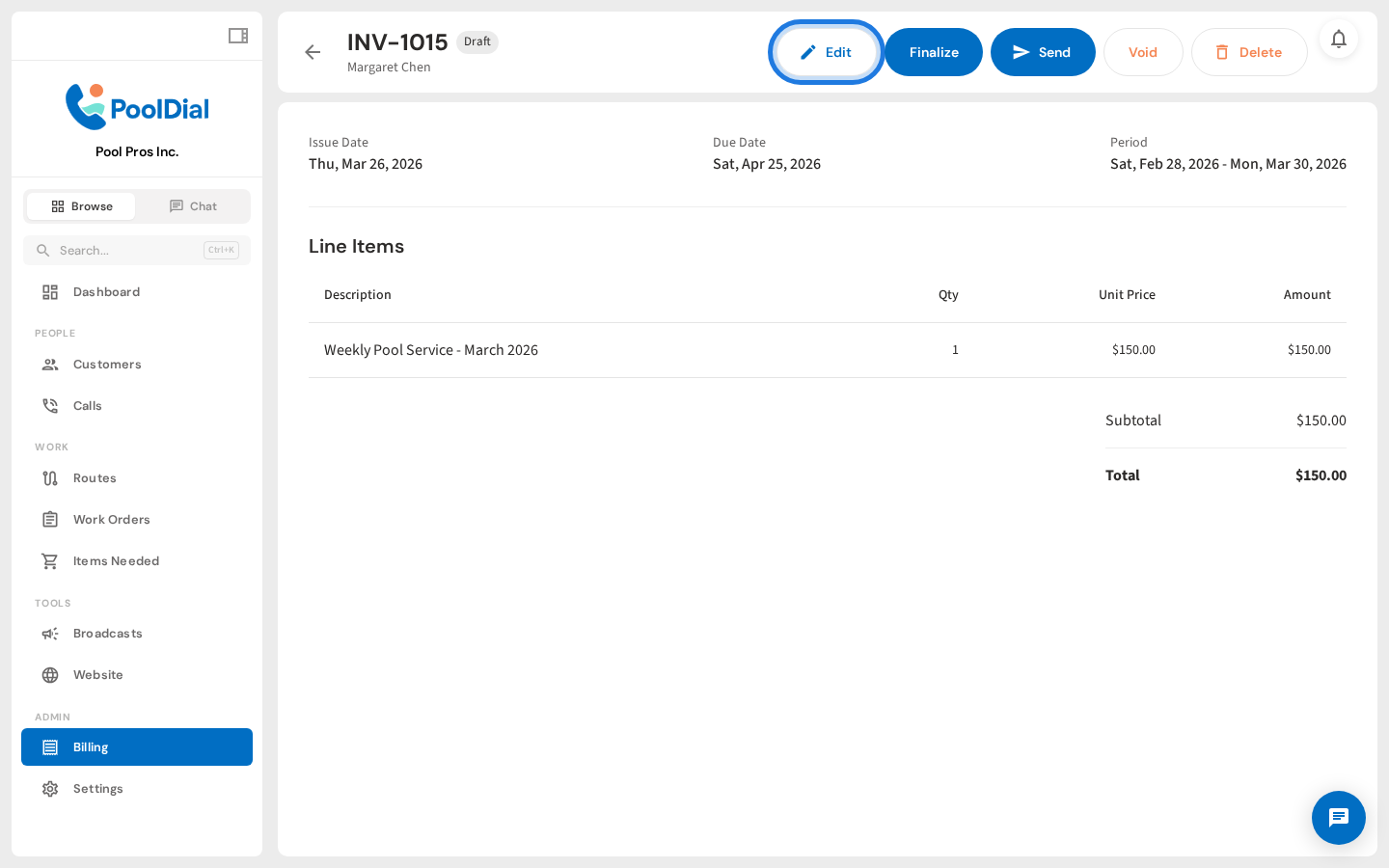
4. Click Edit on the draft invoice
Your new draft invoice appears. While it is still a draft, you can click Edit to make changes before sending.
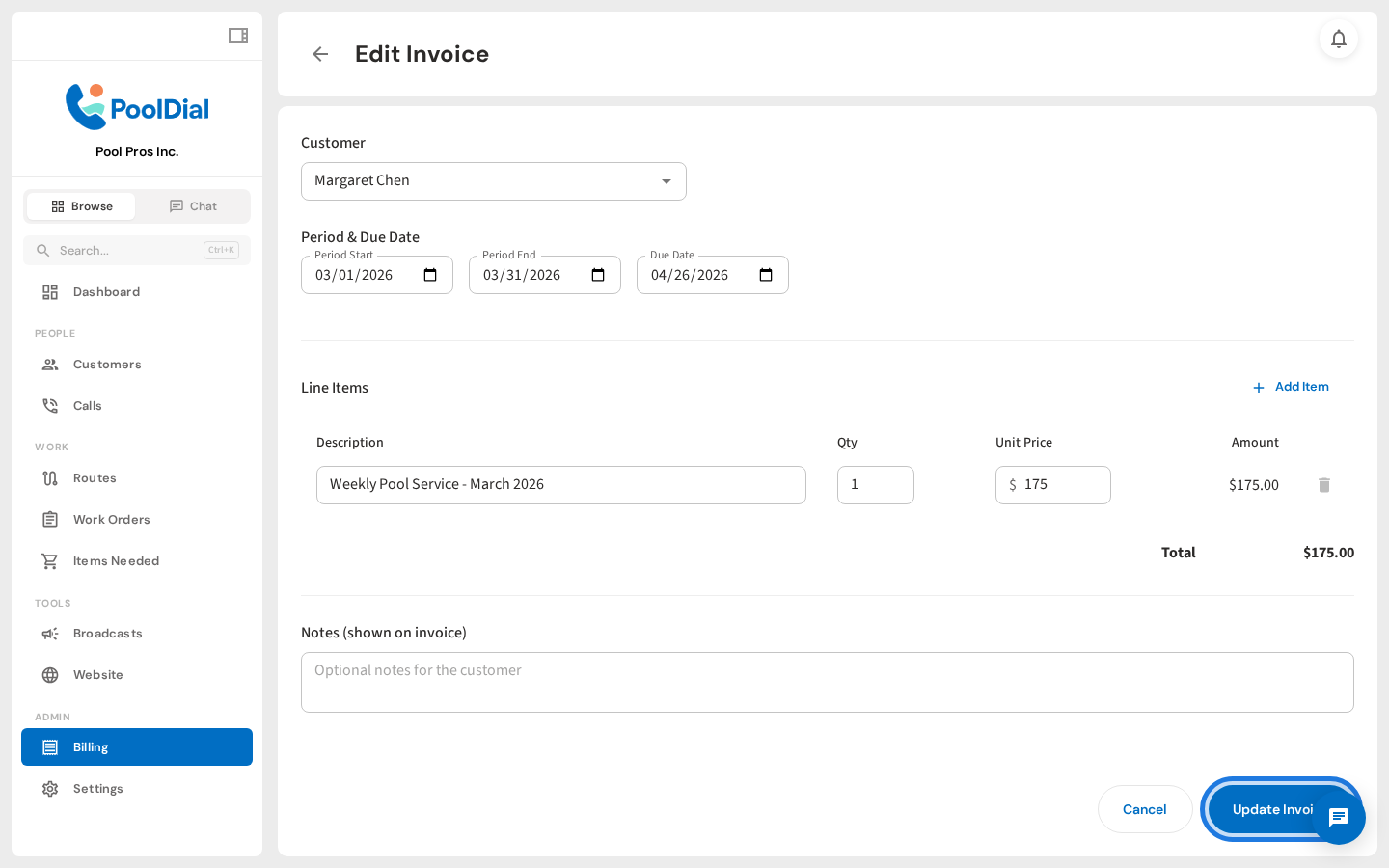
5. Edit the invoice details
Update line items, amounts, dates, or the customer as needed. Click Update Invoice to save your changes.
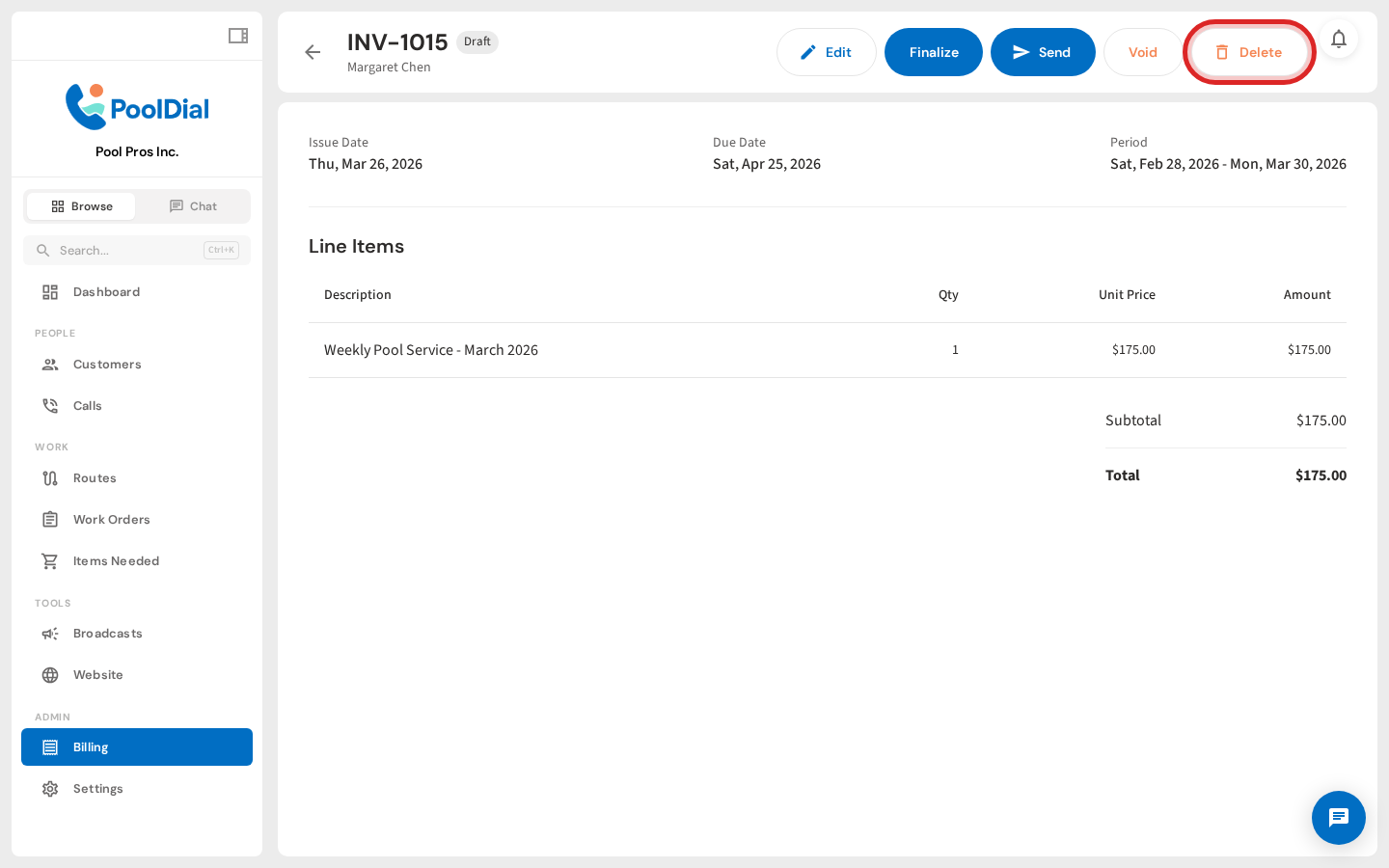
6. Click Delete to remove a draft invoice
Back on the invoice detail, you can see the updated amount. If you created a draft by mistake, click Delete to permanently remove it. Only drafts can be deleted.
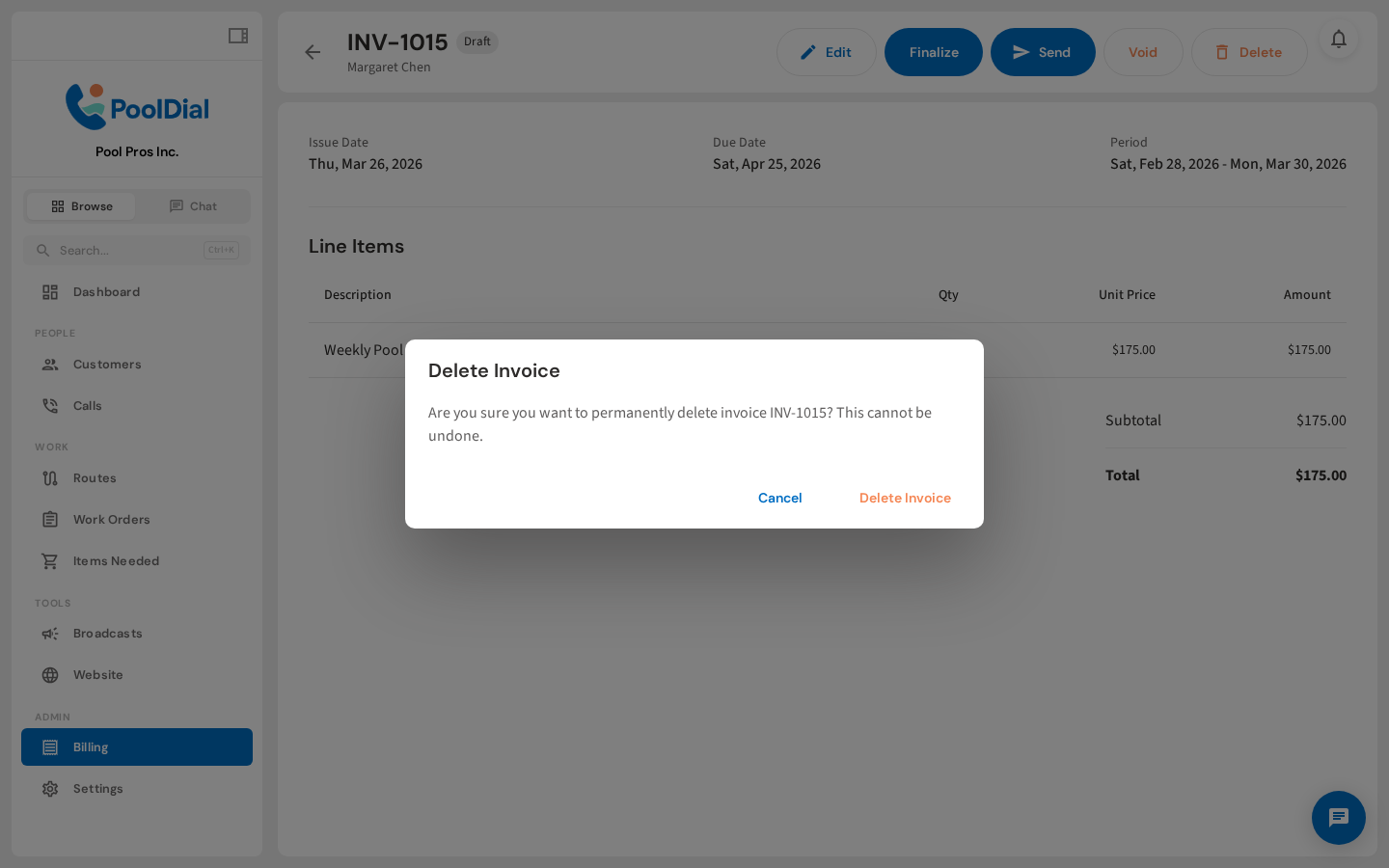
7. Confirm the deletion
A confirmation dialog appears. Click Delete Invoice to permanently remove the draft from your account.
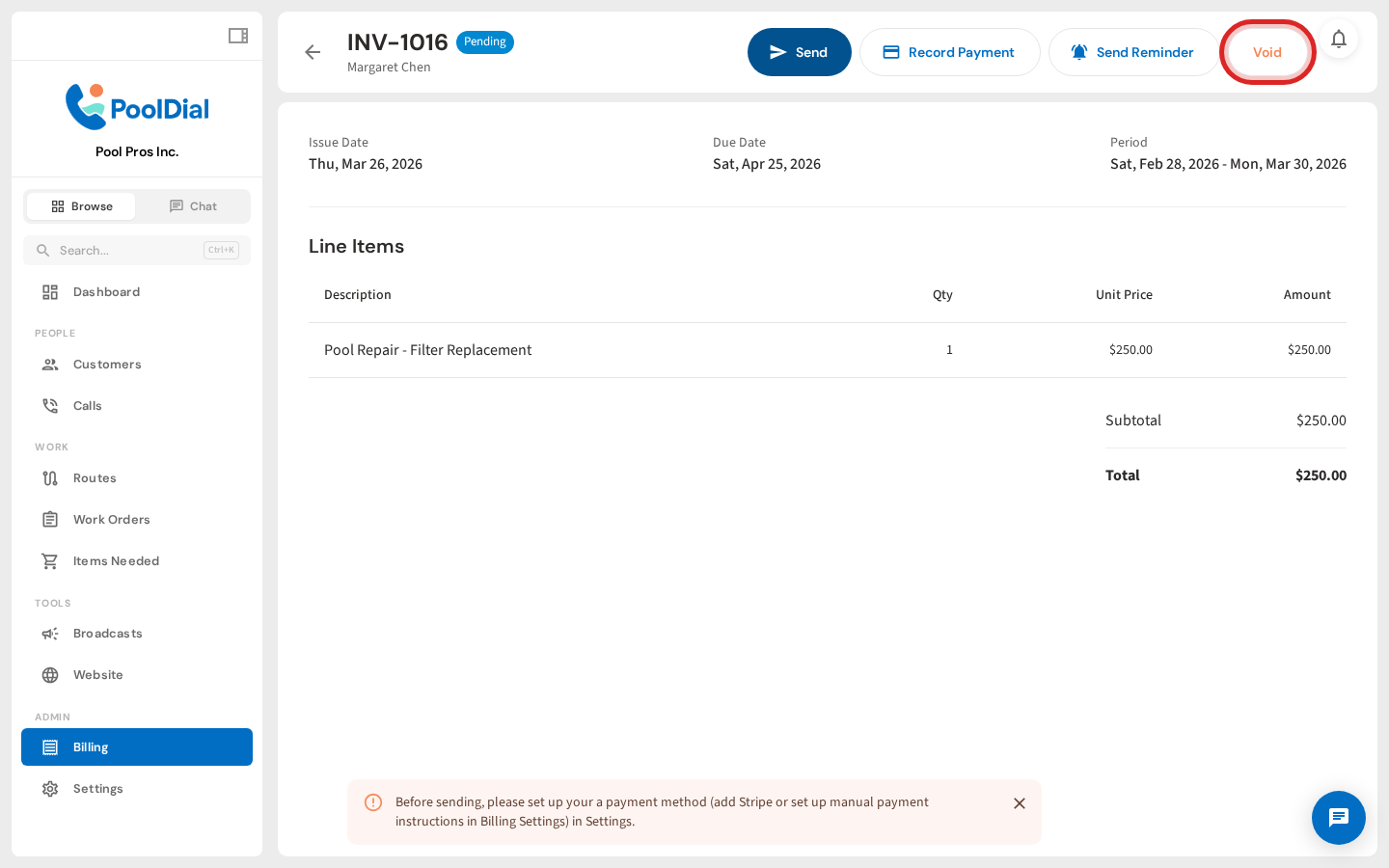
8. Click Void on a sent invoice
For invoices that have already been sent, open the invoice and click Void instead. Voided invoices stay in your records but are no longer payable.
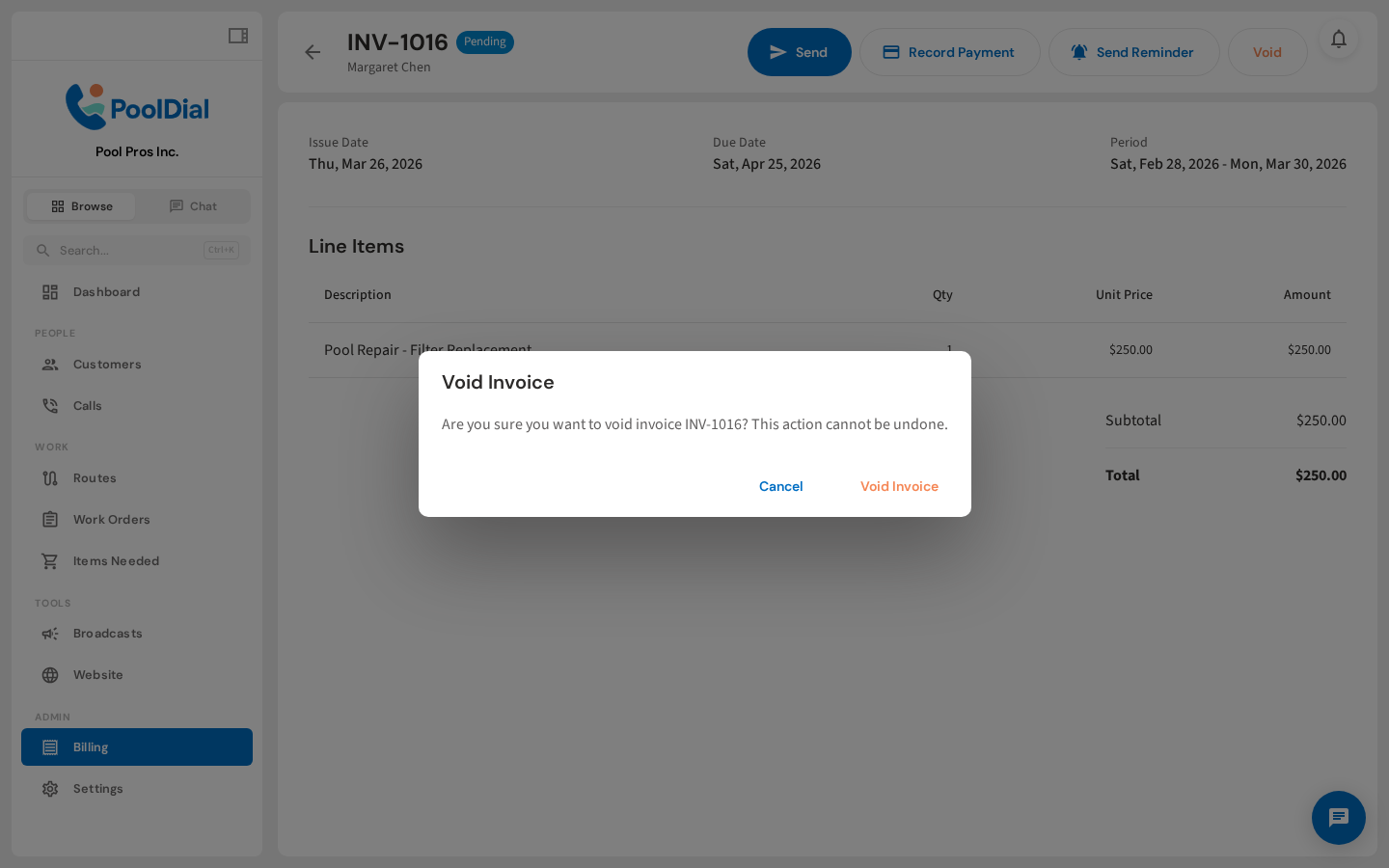
9. Confirm the void
Confirm the void. The invoice is marked as Void and can no longer be edited or paid.
Not using PoolDial yet?
Manage your customers, routes, billing, and more — all in one place.
Start Free Trial