
How to Invite a Team Member (Mobile App)


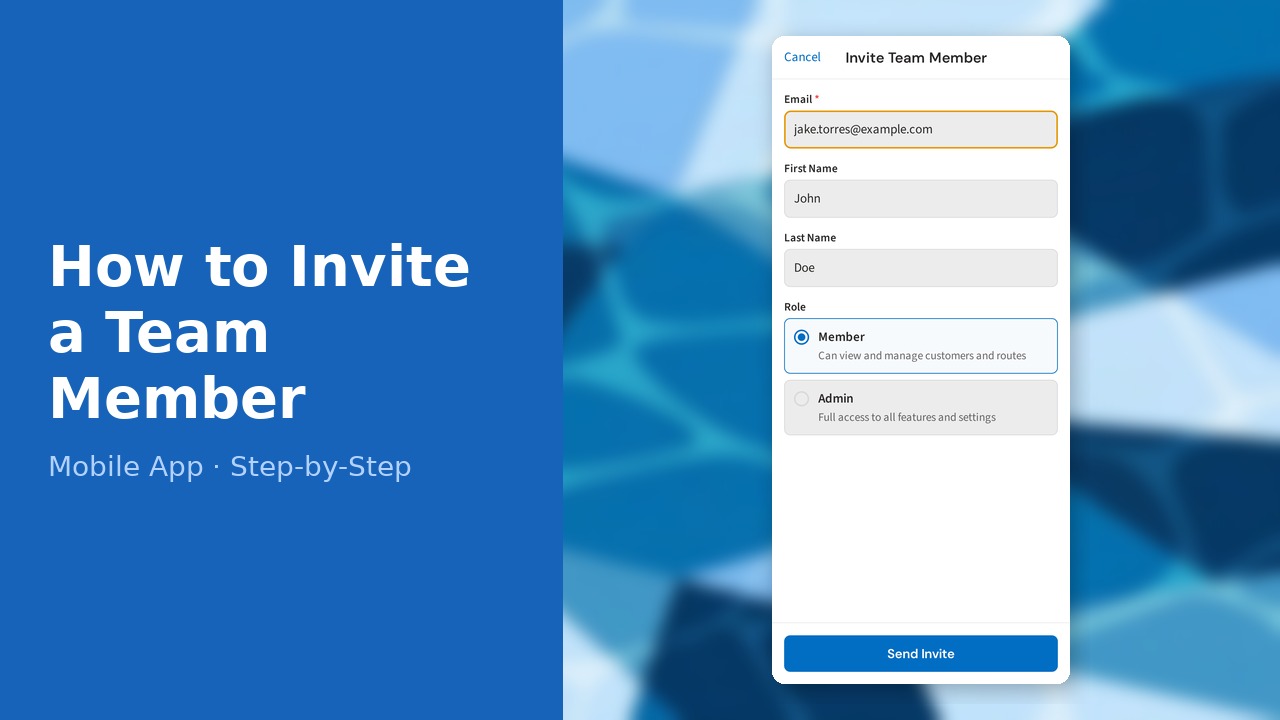
This guide walks you through how to invite a team member (mobile app) in PoolDial, step by step.
This guide covers 5 steps and takes about a minute to complete.
Video Walkthrough
Prefer to watch? Here's a full video walkthrough of How to Invite a Team Member (Mobile App).
1. Settings — Team screen
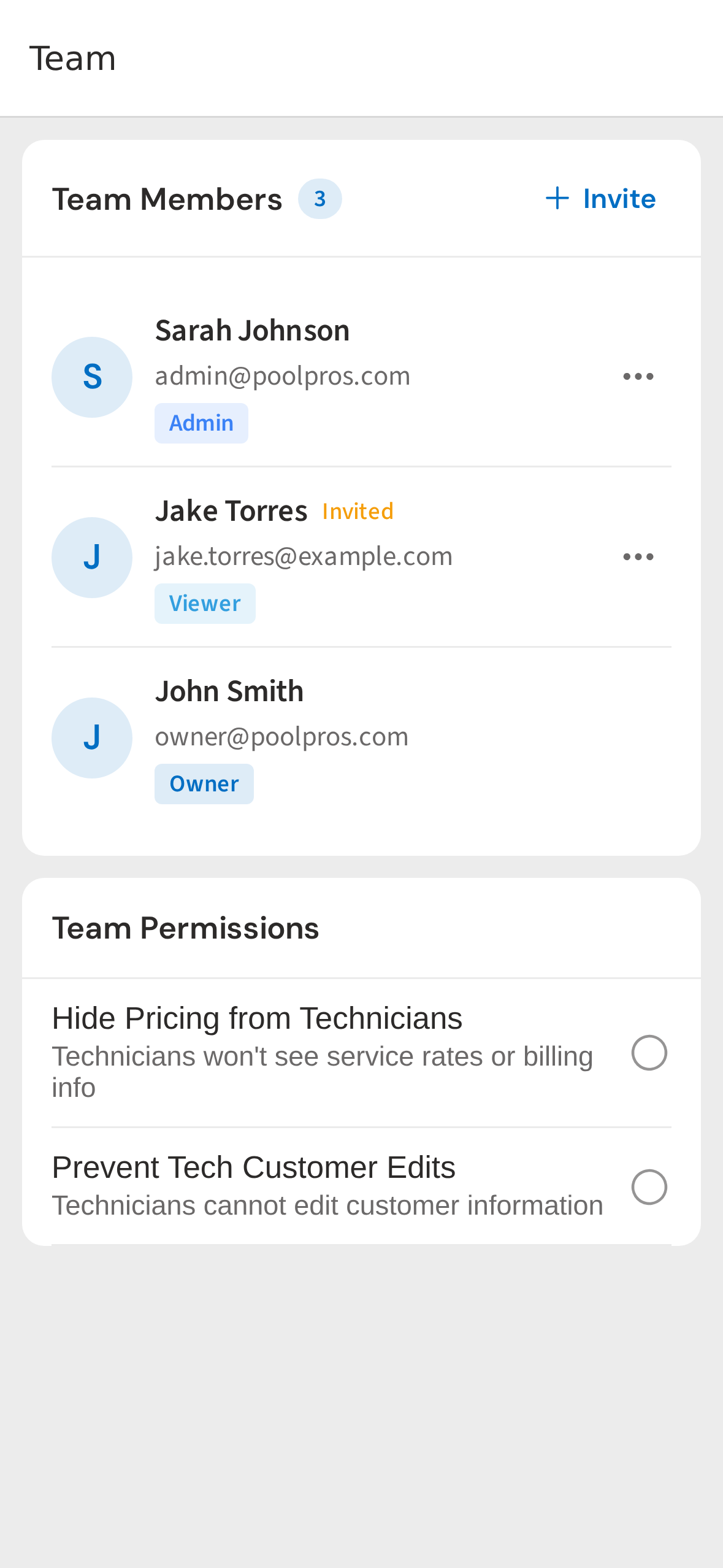
Tap the Settings tab, then tap Team to see your current team members.
2. Tap Invite Member to add someone new
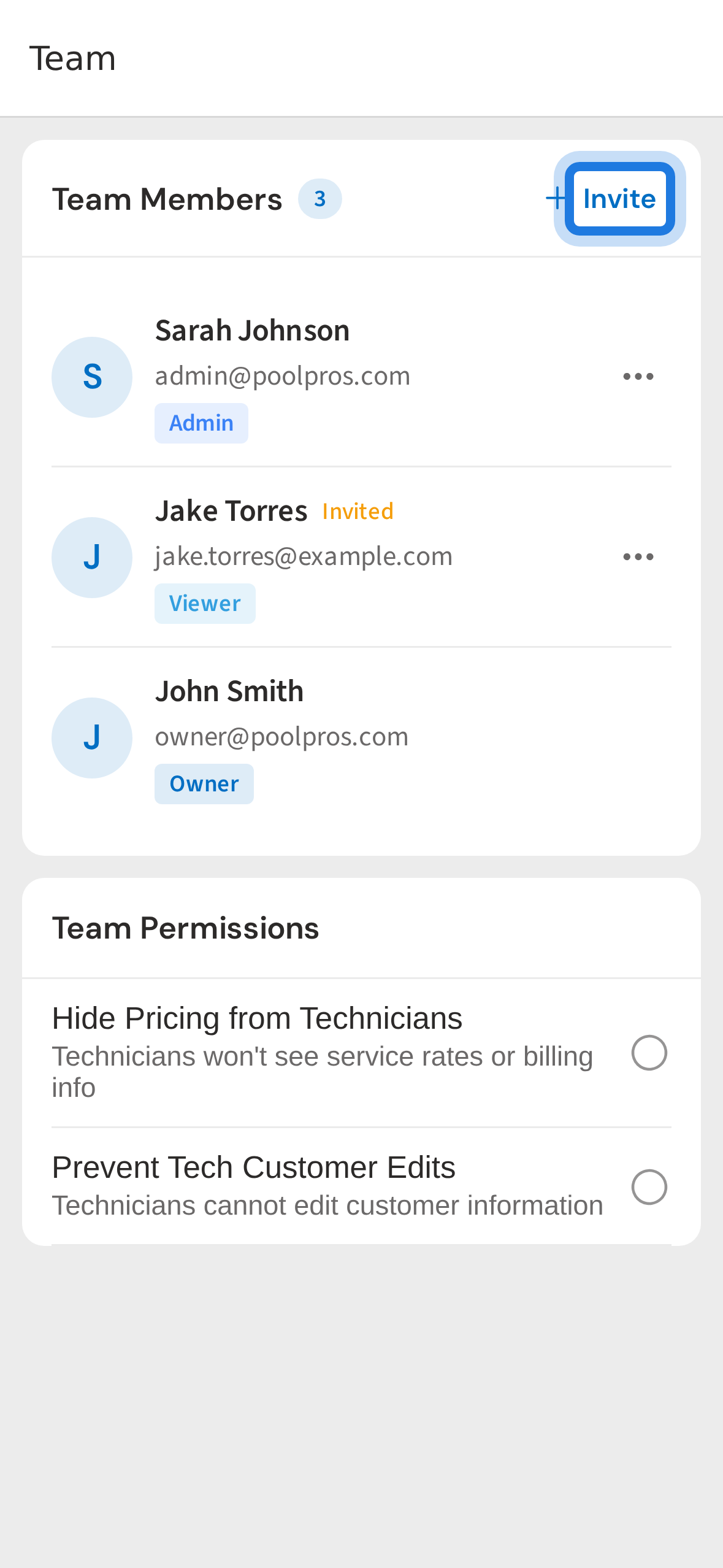
The Team screen lists everyone on your account. Tap Invite Member to add someone new.
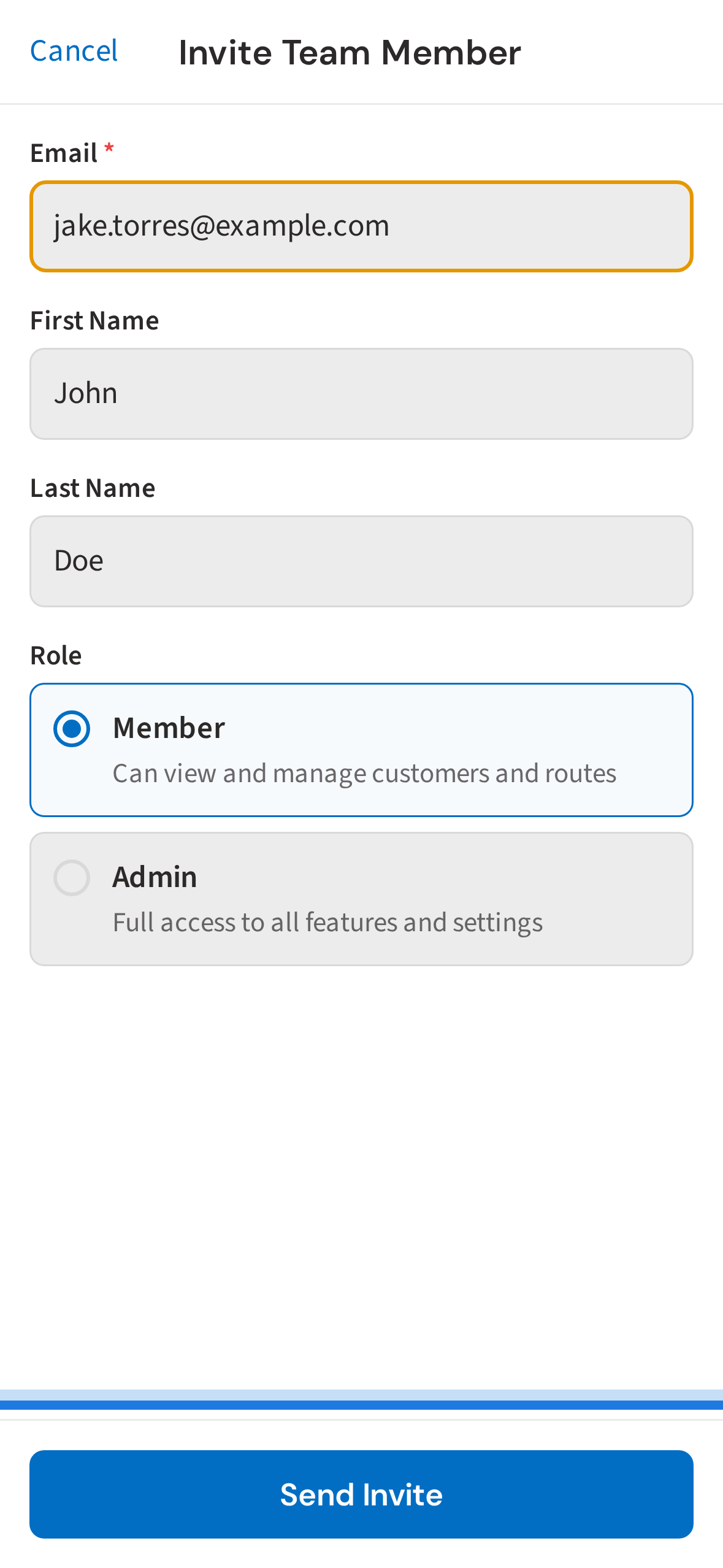
3. Enter email address and optional name
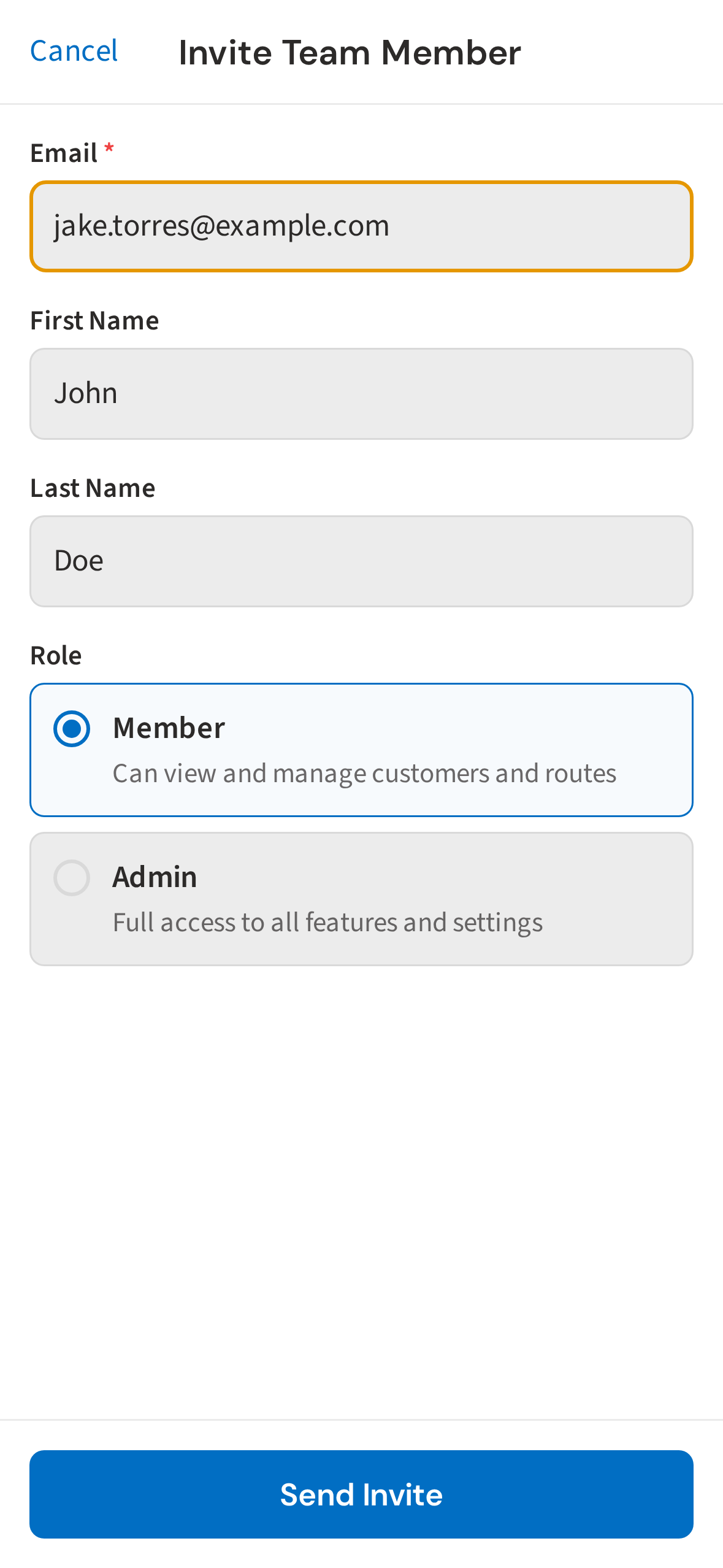
Enter their email address and optionally their first and last name so they show up recognized before they accept.
4. Choose a role for the new team member
Choose a role — Member for technicians who work routes, Admin for anyone who needs to manage the account.
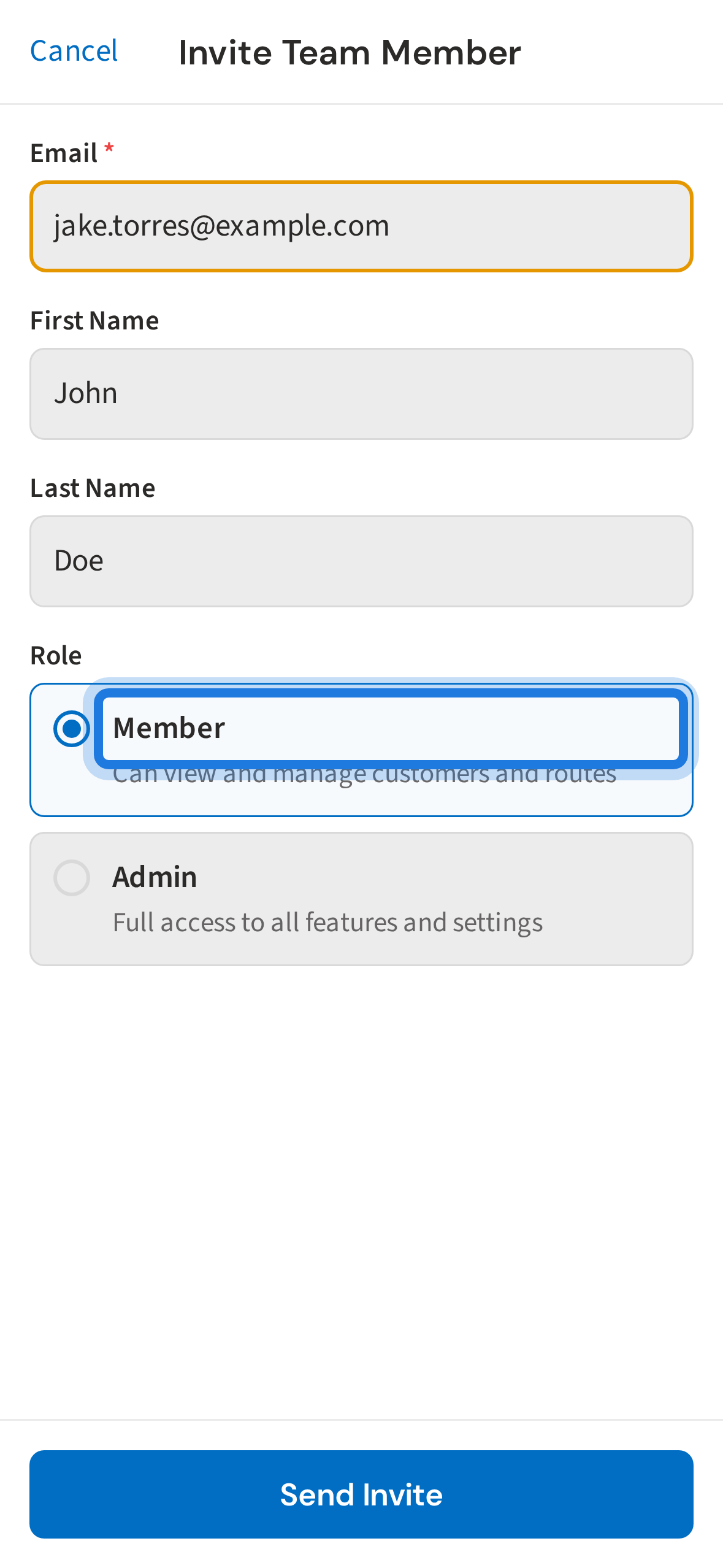
5. Tap Send Invitation — they receive an email link
Tap Send Invitation. They receive an email with a link to create their account and join your team. They show as Pending until they accept.
Not using PoolDial yet?
Manage your customers, routes, billing, and more — all in one place.
Start Free Trial