
How to Manage GPS Tracking Settings (Mobile)


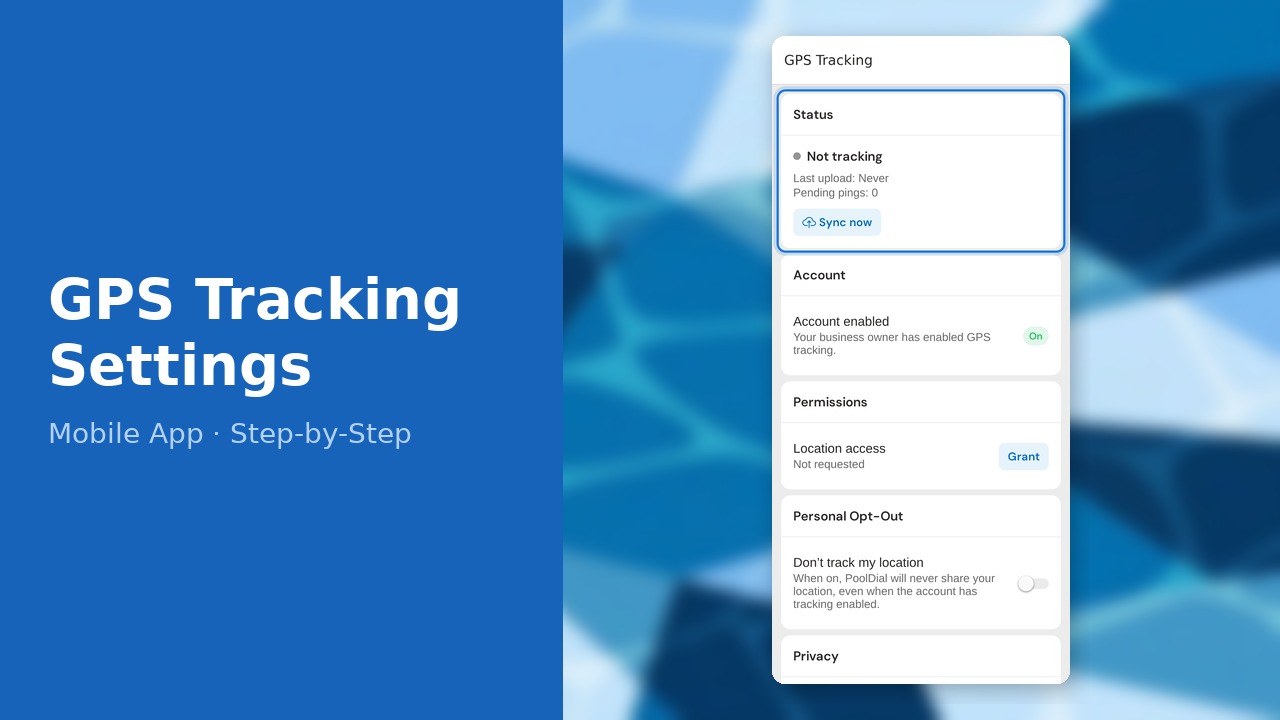
This guide walks you through how to manage gps tracking settings (mobile) in PoolDial, step by step.
This guide covers 6 steps and takes about a minute to complete.
Video Walkthrough
Prefer to watch? Here's a full video walkthrough of How to Manage GPS Tracking Settings (Mobile).
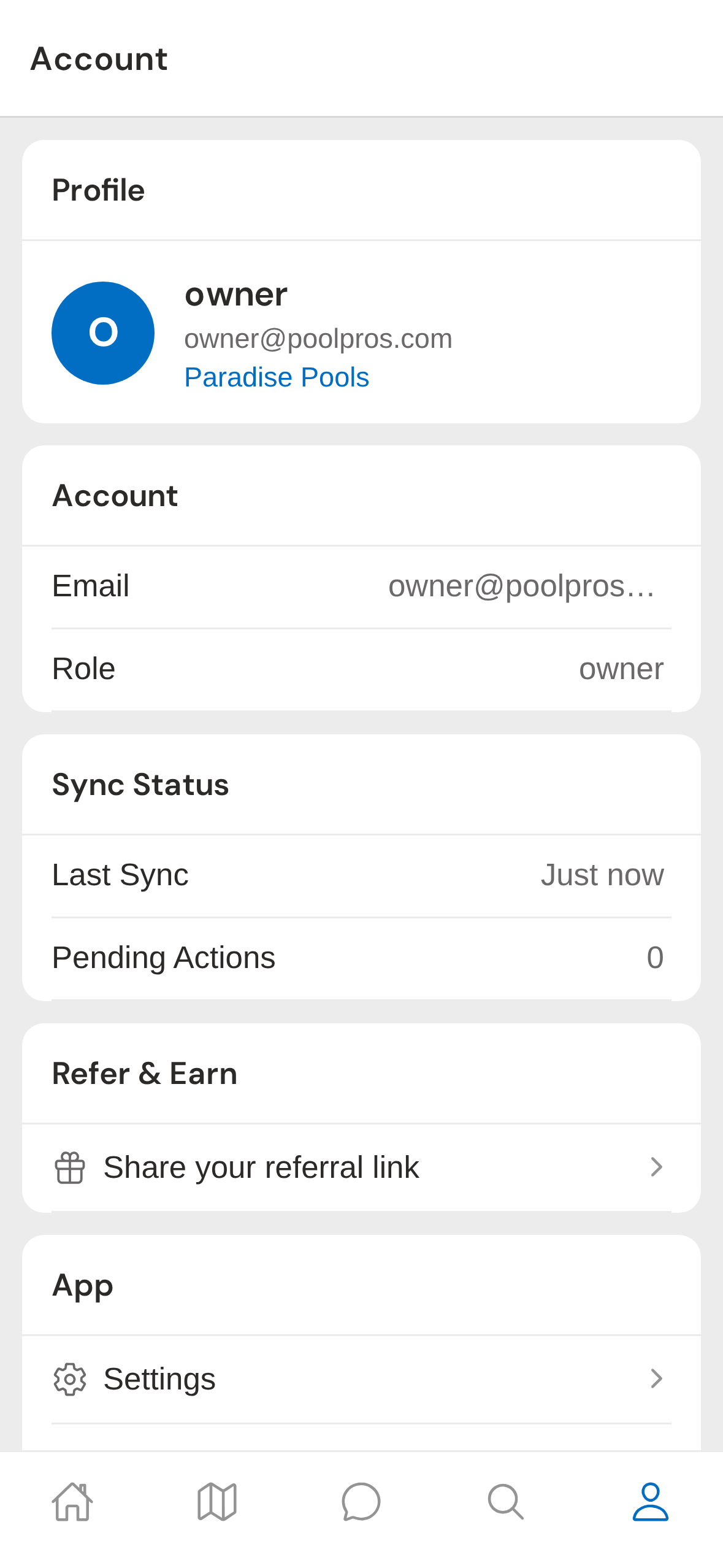
1. Open Account tab
Tap the Account tab in the bottom navigation bar to open your profile.
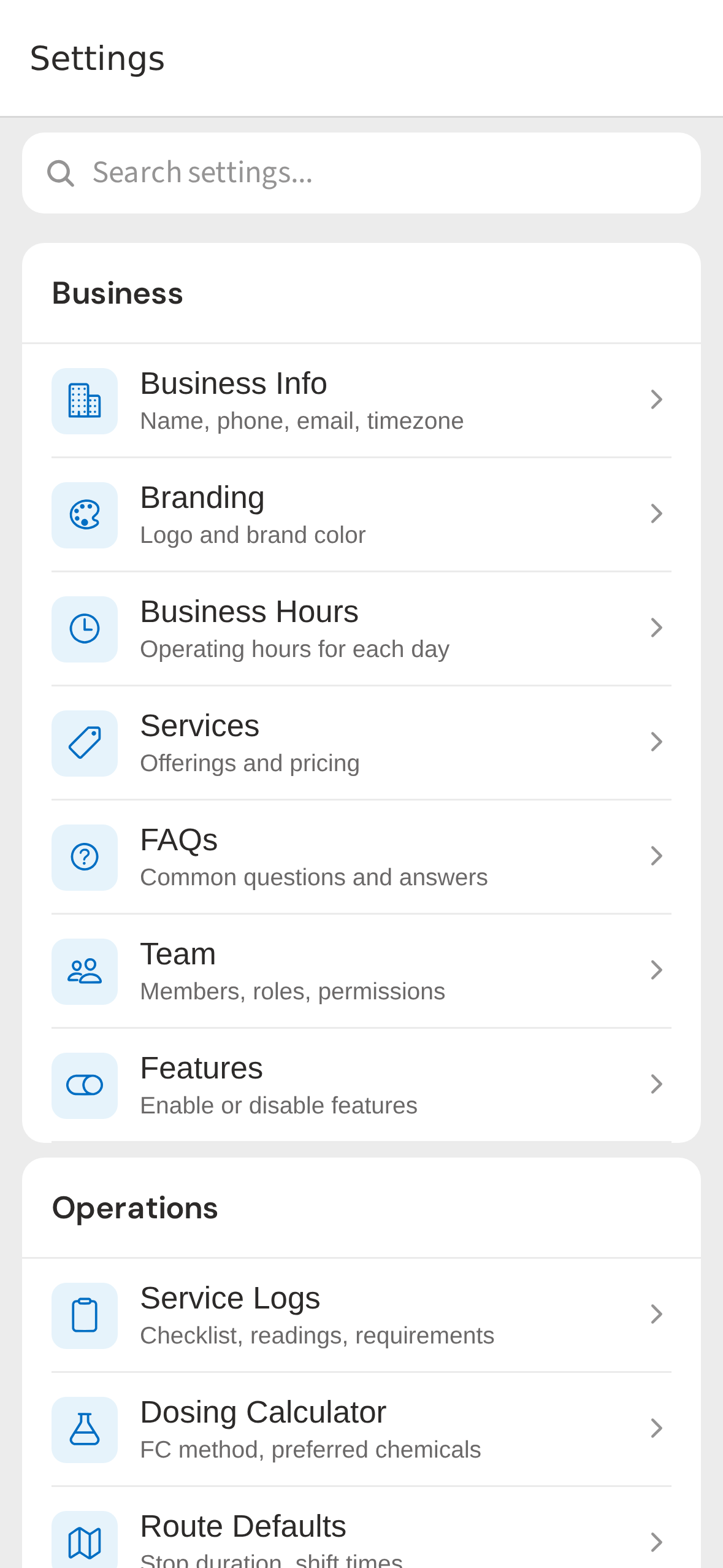
2. Tap GPS Tracking
Tap GPS Tracking to open the tracking settings screen.
3. Status section
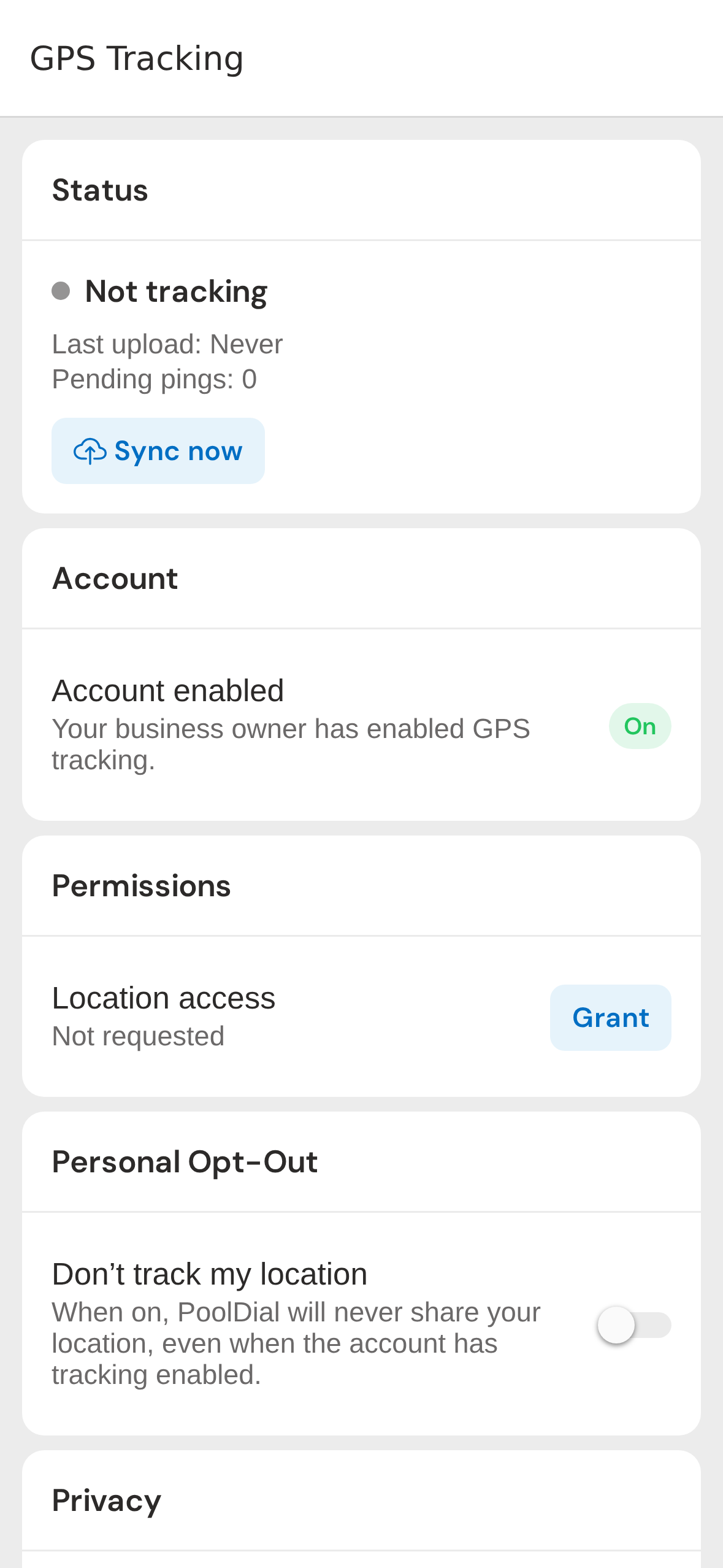
The Status section shows whether tracking is currently active, when the last location was uploaded, and how many pings are pending sync.
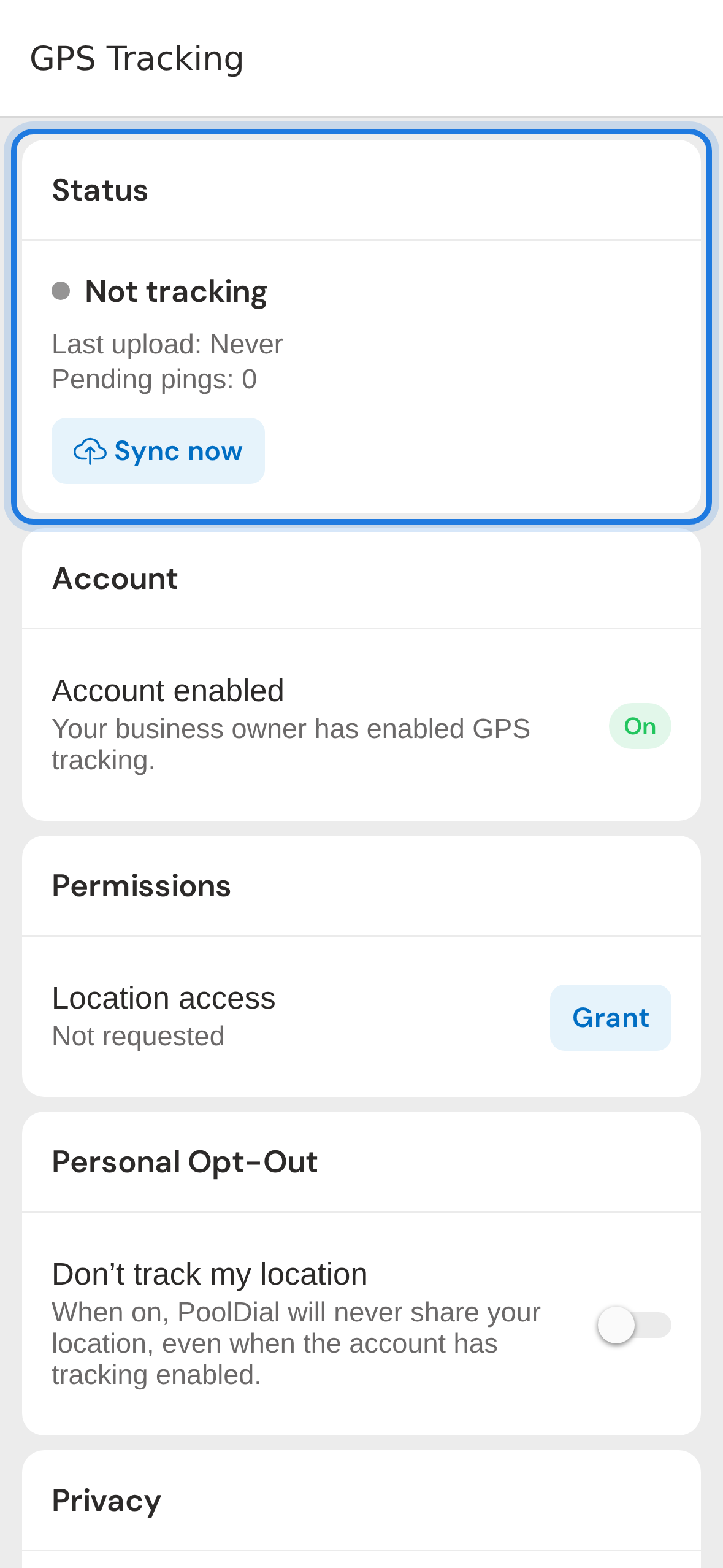
4. Account enabled section
The Account section shows whether your business owner has enabled GPS tracking for the account. If it says Off, ask an admin to enable it in Settings > Routes.
5. Permissions section
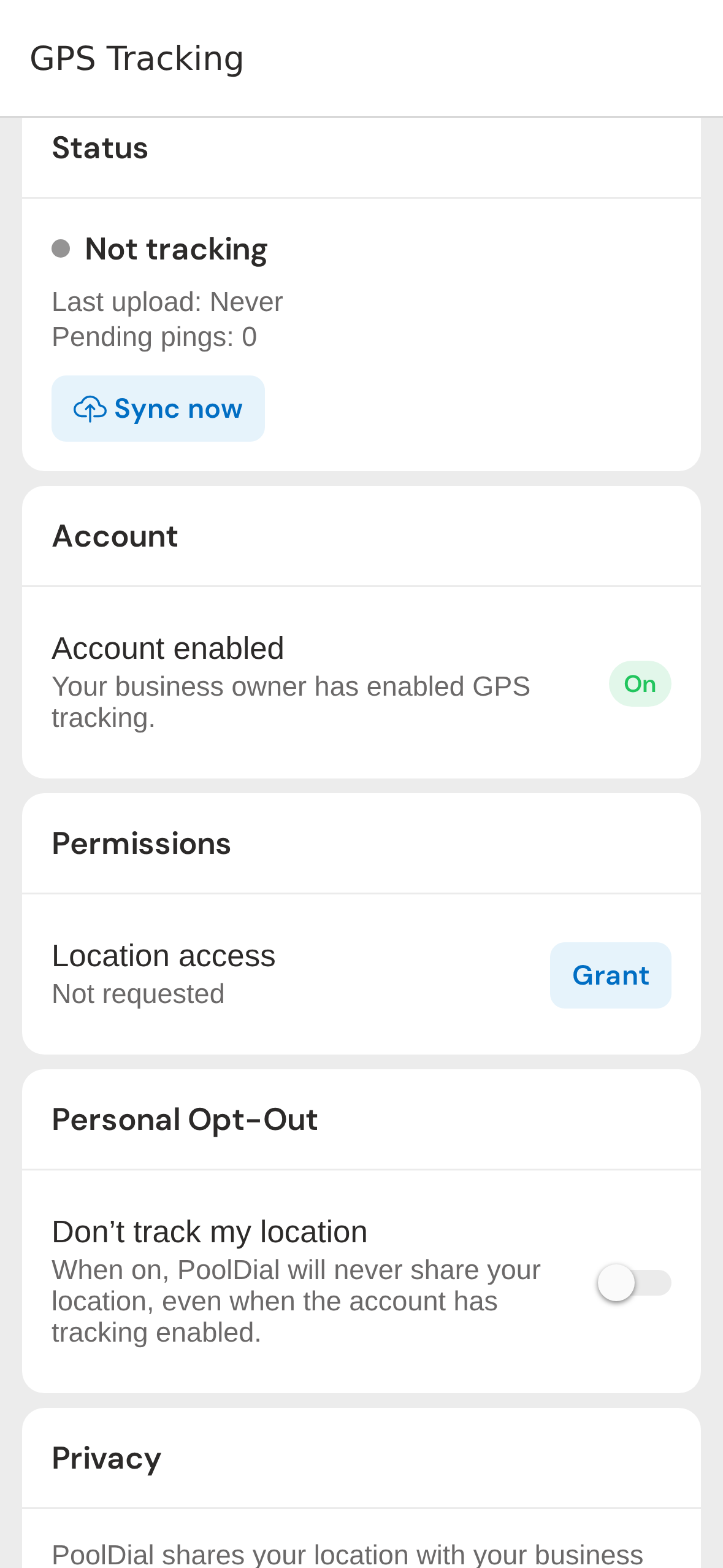
The Permissions section shows your current location access level. Tap Grant to allow location access, or Re-check if you have already granted it.
6. Personal Opt-Out toggle
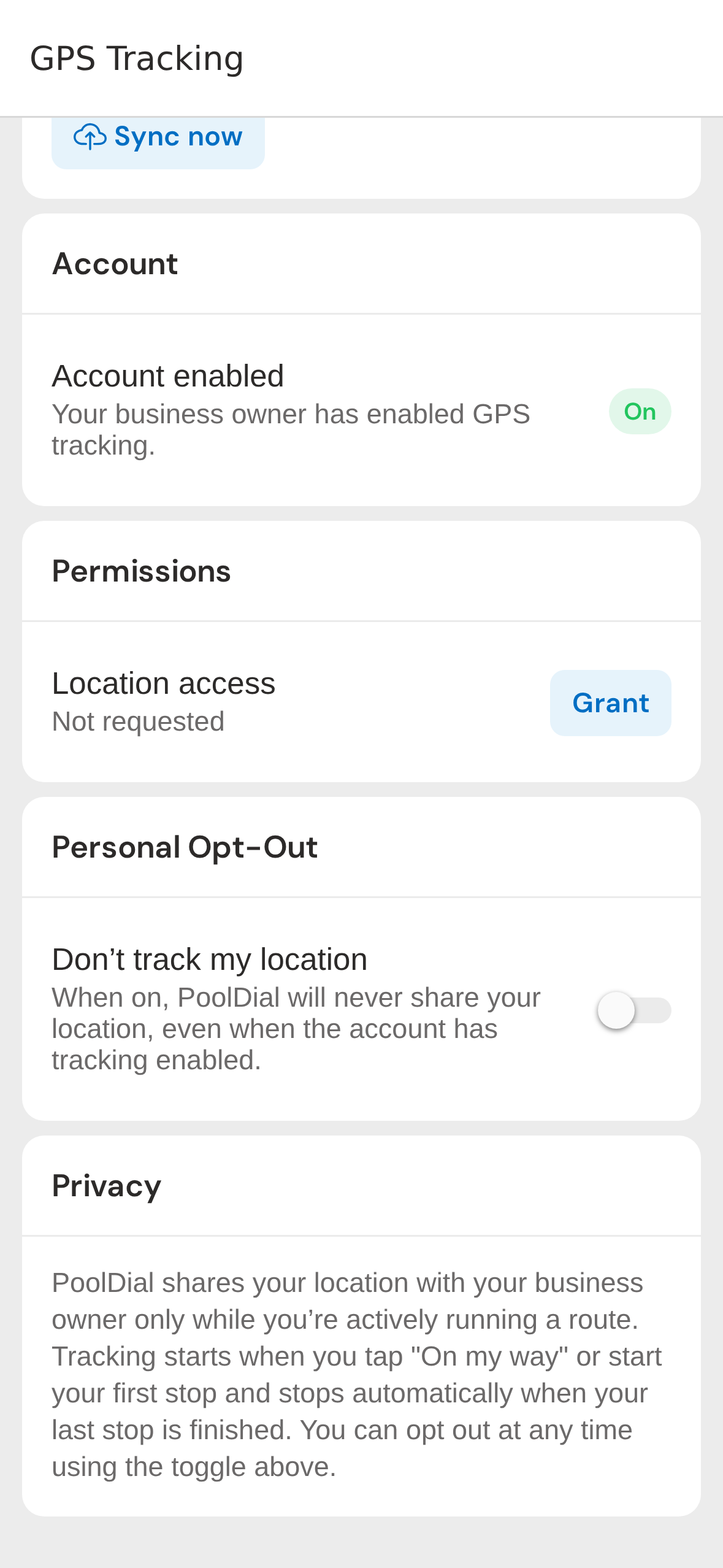
The Personal Opt-Out toggle lets you stop sharing your location entirely. When turned on, PoolDial will never track your location even if the account has tracking enabled.
Not using PoolDial yet?
Manage your customers, routes, billing, and more — all in one place.
Start Free Trial