
How to Create a Work Order (Mobile)


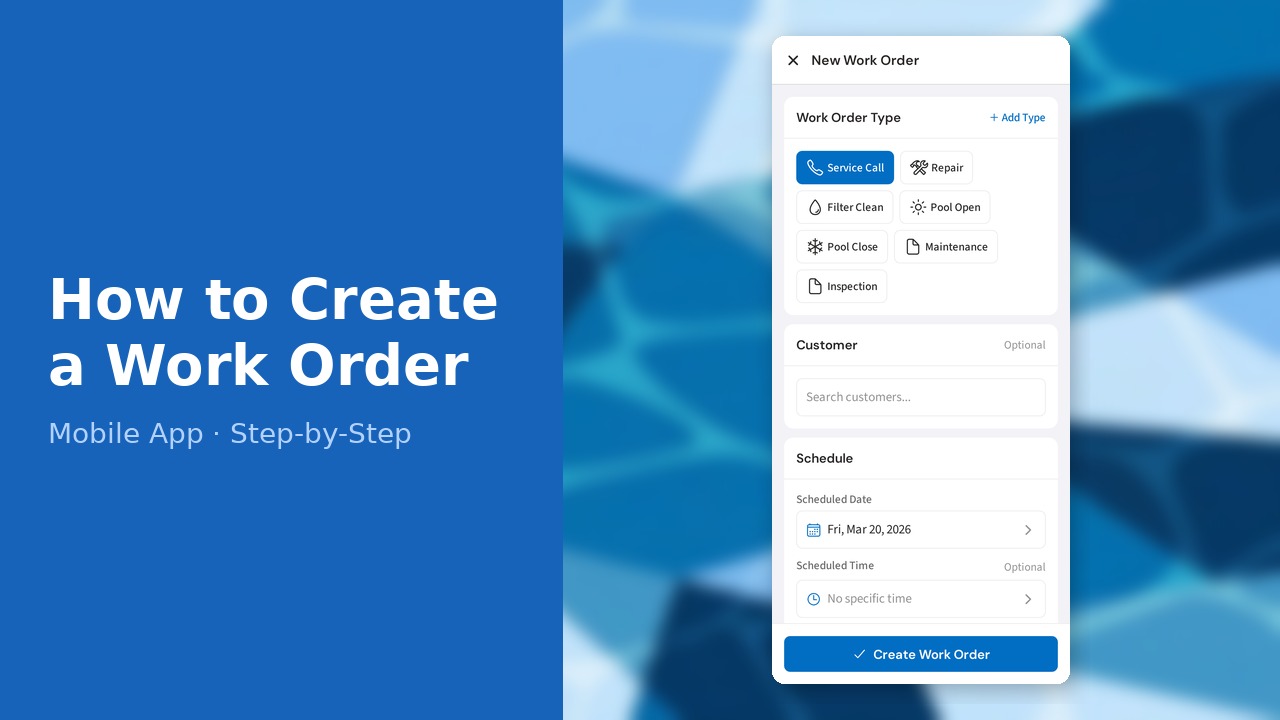
This guide walks you through how to create a work order (mobile) in PoolDial, step by step.
This guide covers 7 steps and takes about a minute to complete.
Video Walkthrough
Prefer to watch? Here's a full video walkthrough of How to Create a Work Order (Mobile).
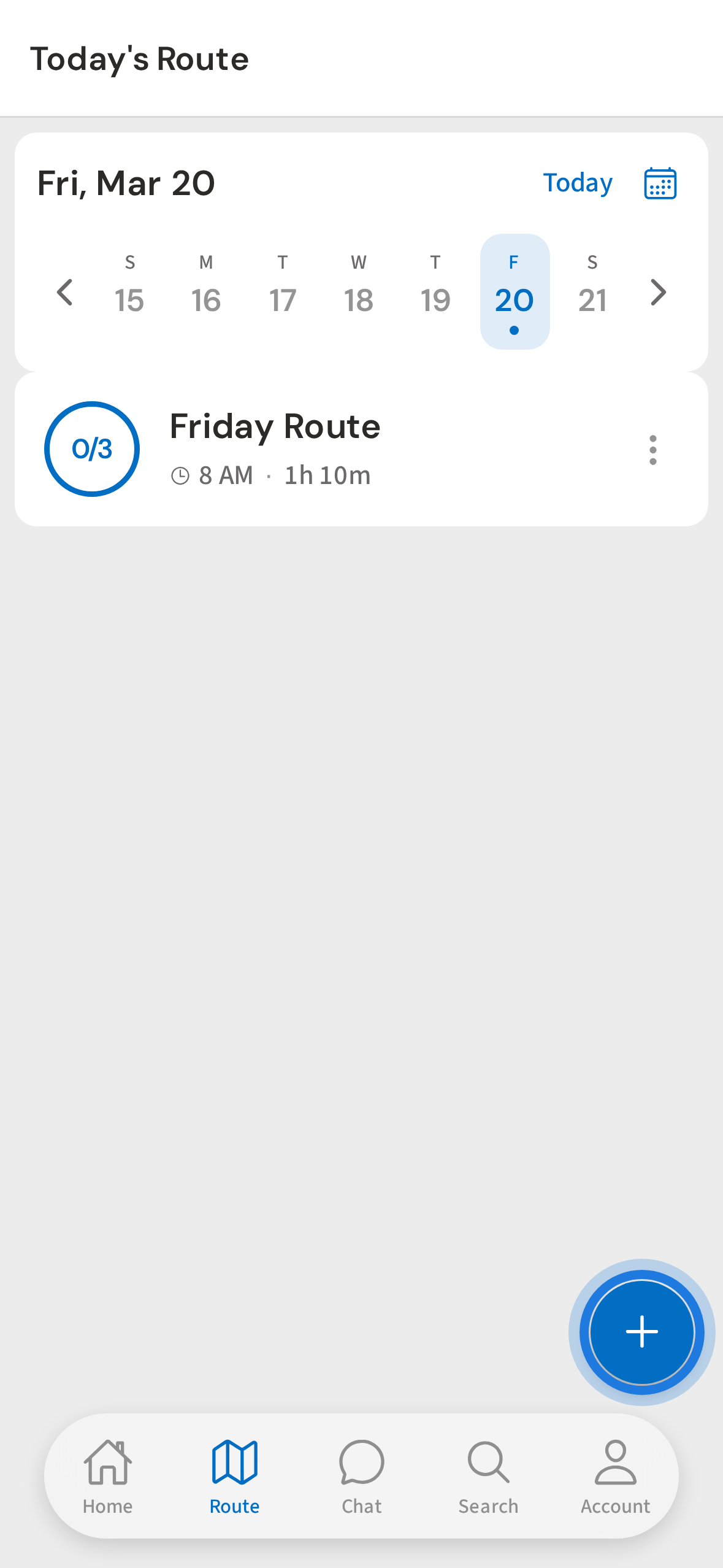
1. Tap + to open the quick-add menu
Tap the + floating button at the bottom right of any screen to open the quick-add menu.
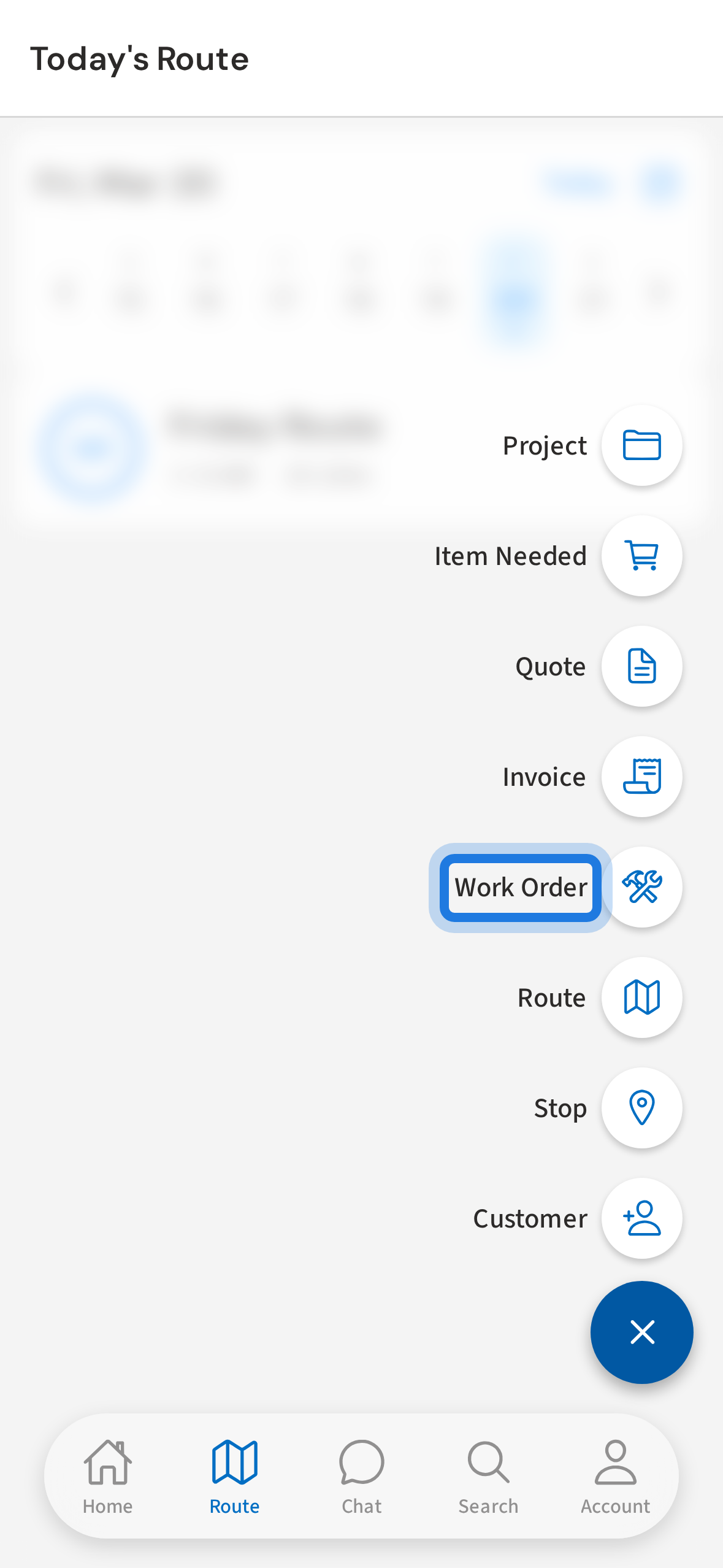
2. Tap Work Order in the menu
Tap Work Order in the menu to open the creation form.
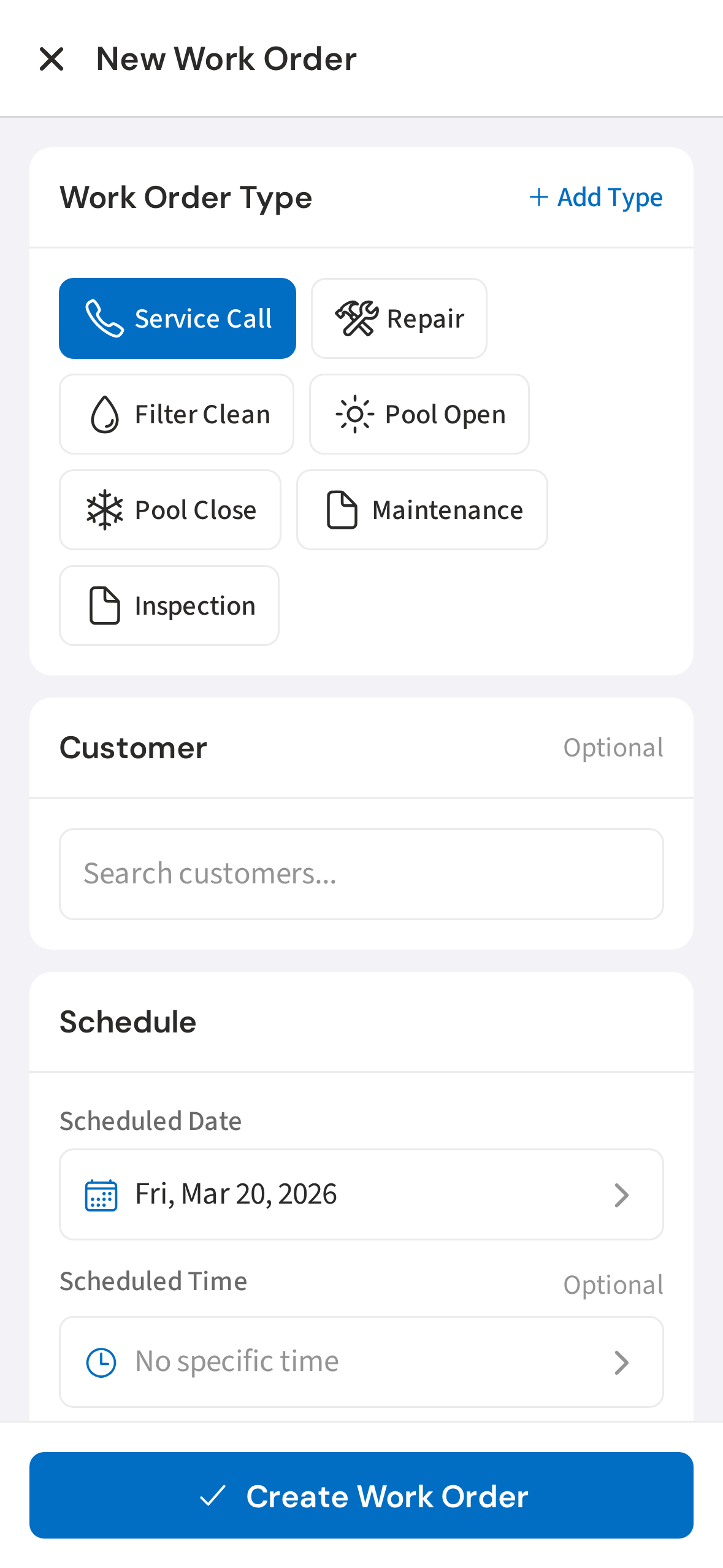
3. Select the work order type
Select the work order type — Service Call, Repair, Opening, Closing, and more. Tap the one that fits the job.
4. Search for a customer and tap to select
Type a customer name in the search box and tap their name to link the work order to their account.
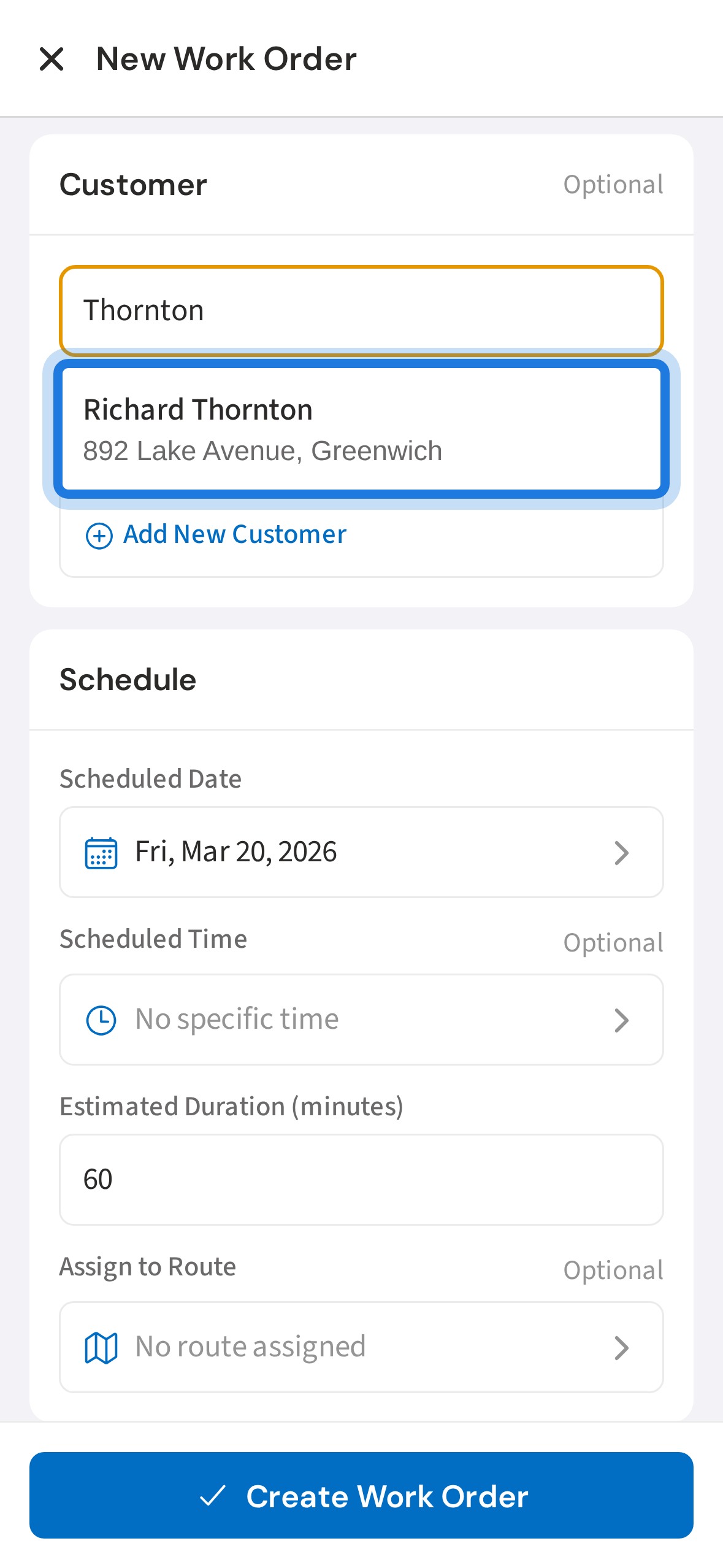
5. Set the scheduled date and estimated duration
Set the scheduled date and an optional time. You can also assign it to a route here.
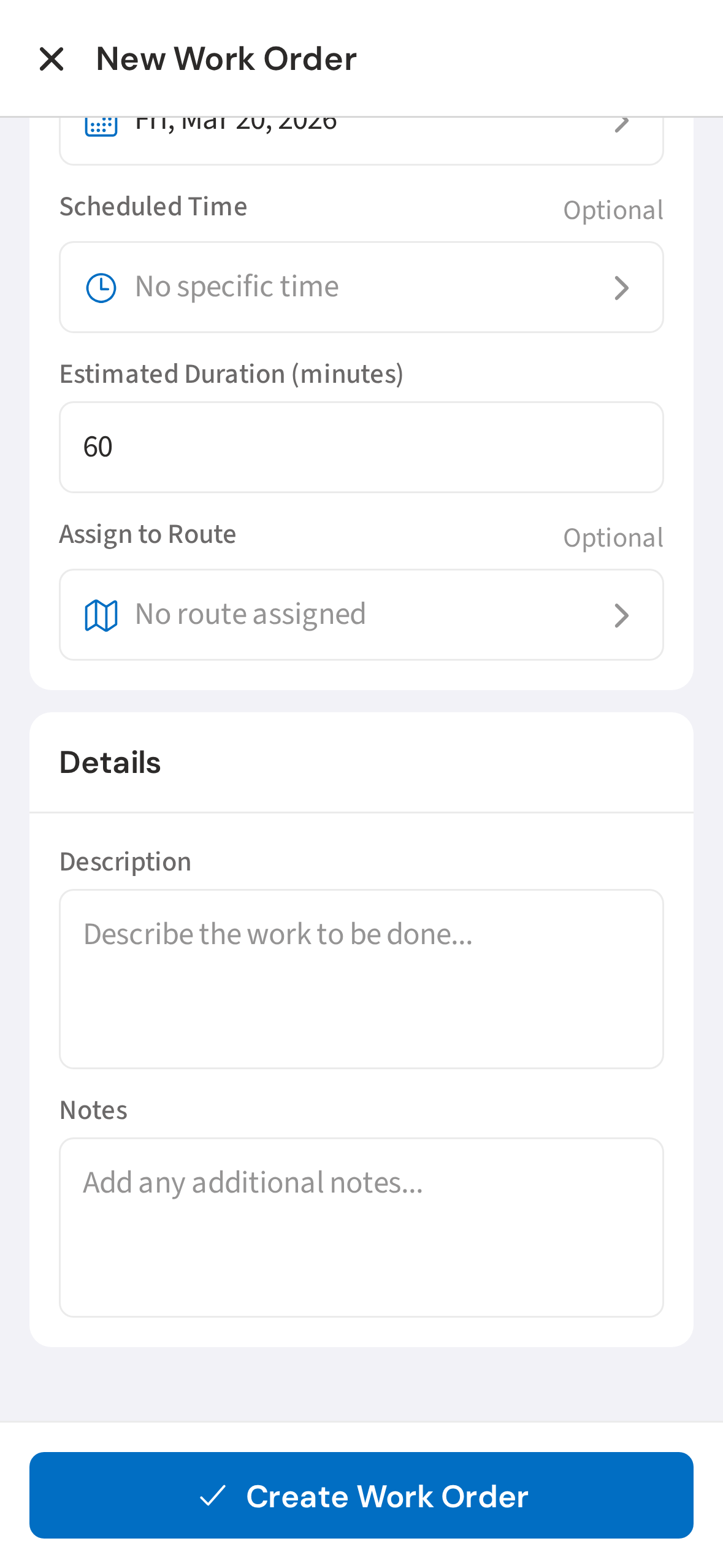
6. Add a description and internal notes
Add a description of the work and any internal notes the tech should see.
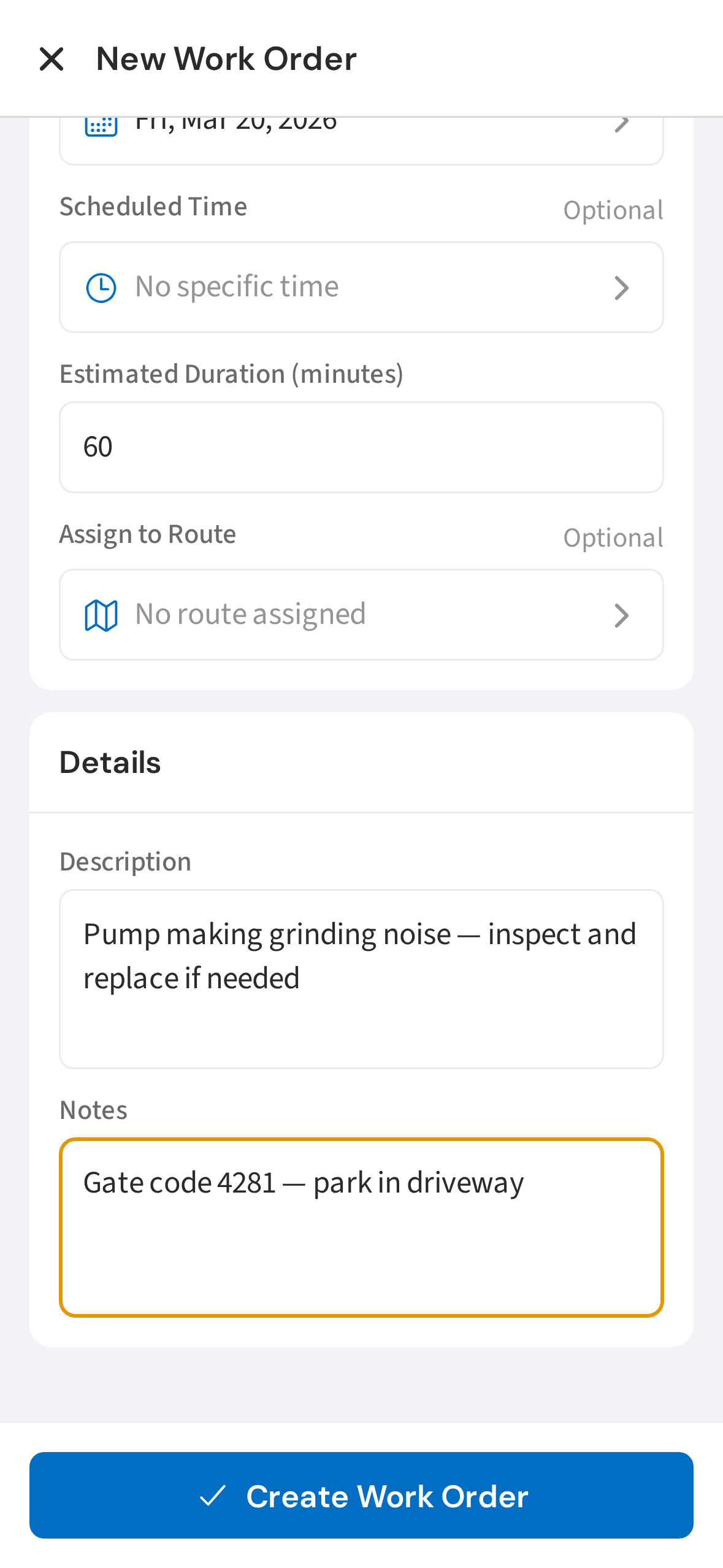
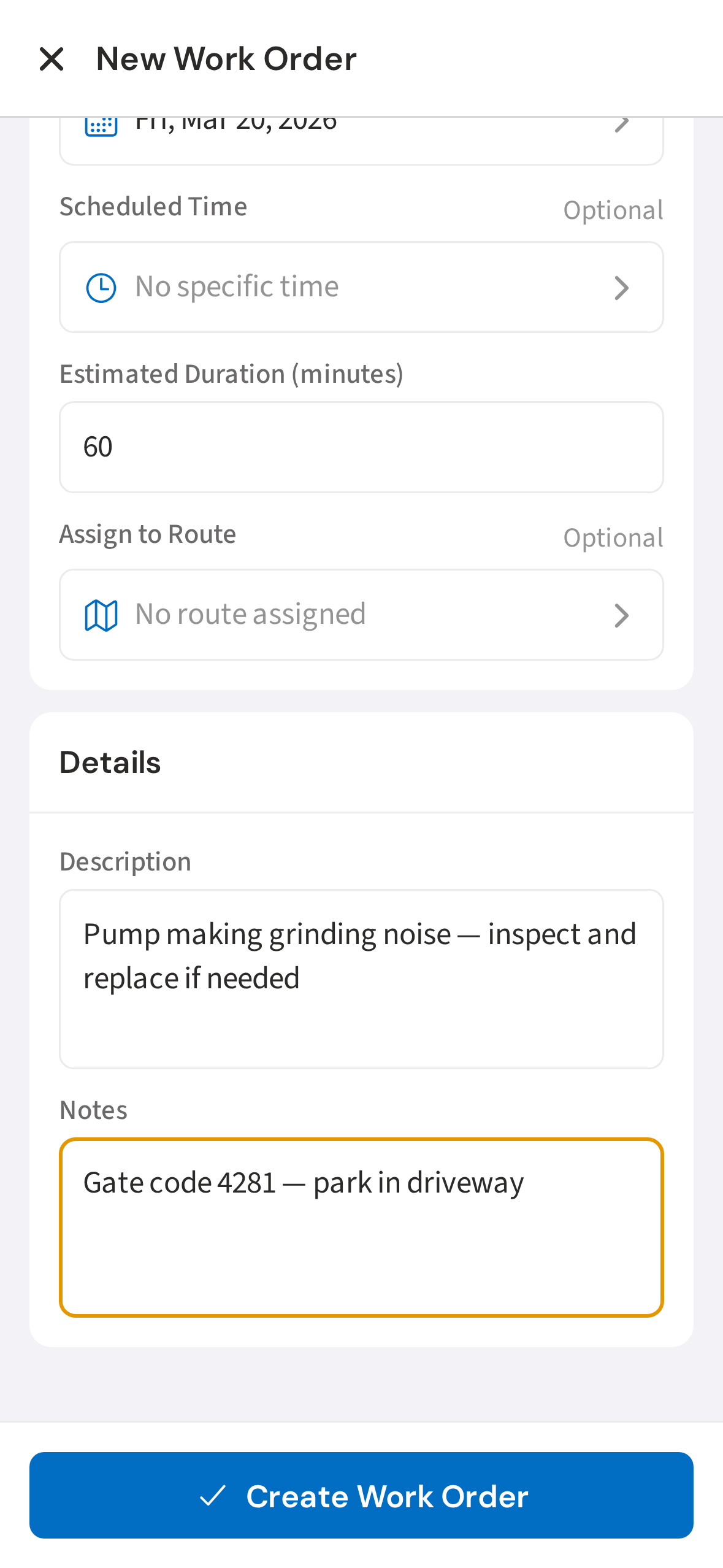
7. Tap Create Work Order to save
Tap Create Work Order to save. It will appear in the work orders list and on the technician's schedule.
Not using PoolDial yet?
Manage your customers, routes, billing, and more — all in one place.
Start Free Trial