
How to Create a Work Order (Web)


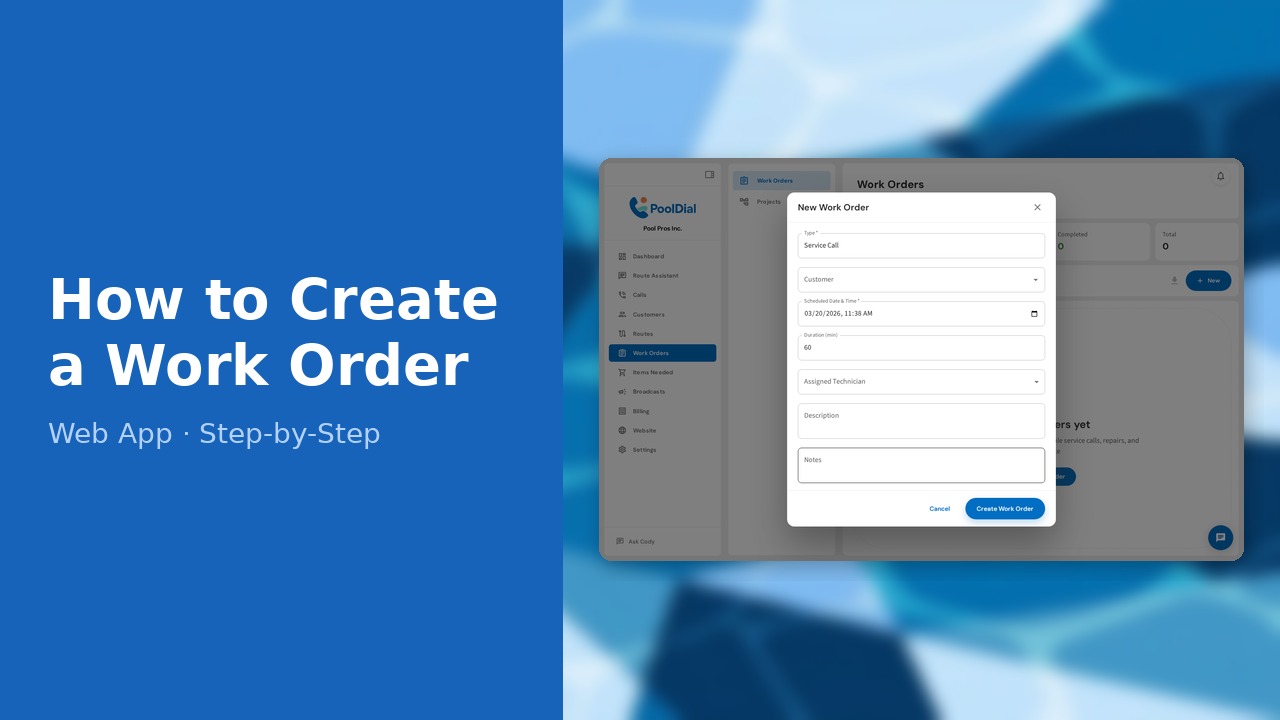
This guide walks you through how to create a work order (web) in PoolDial, step by step.
This guide covers 7 steps and takes about a minute to complete.
Video Walkthrough
Prefer to watch? Here's a full video walkthrough of How to Create a Work Order (Web).
1. Go to the Work Orders page
Click Work Orders in the left sidebar to open the work orders list.
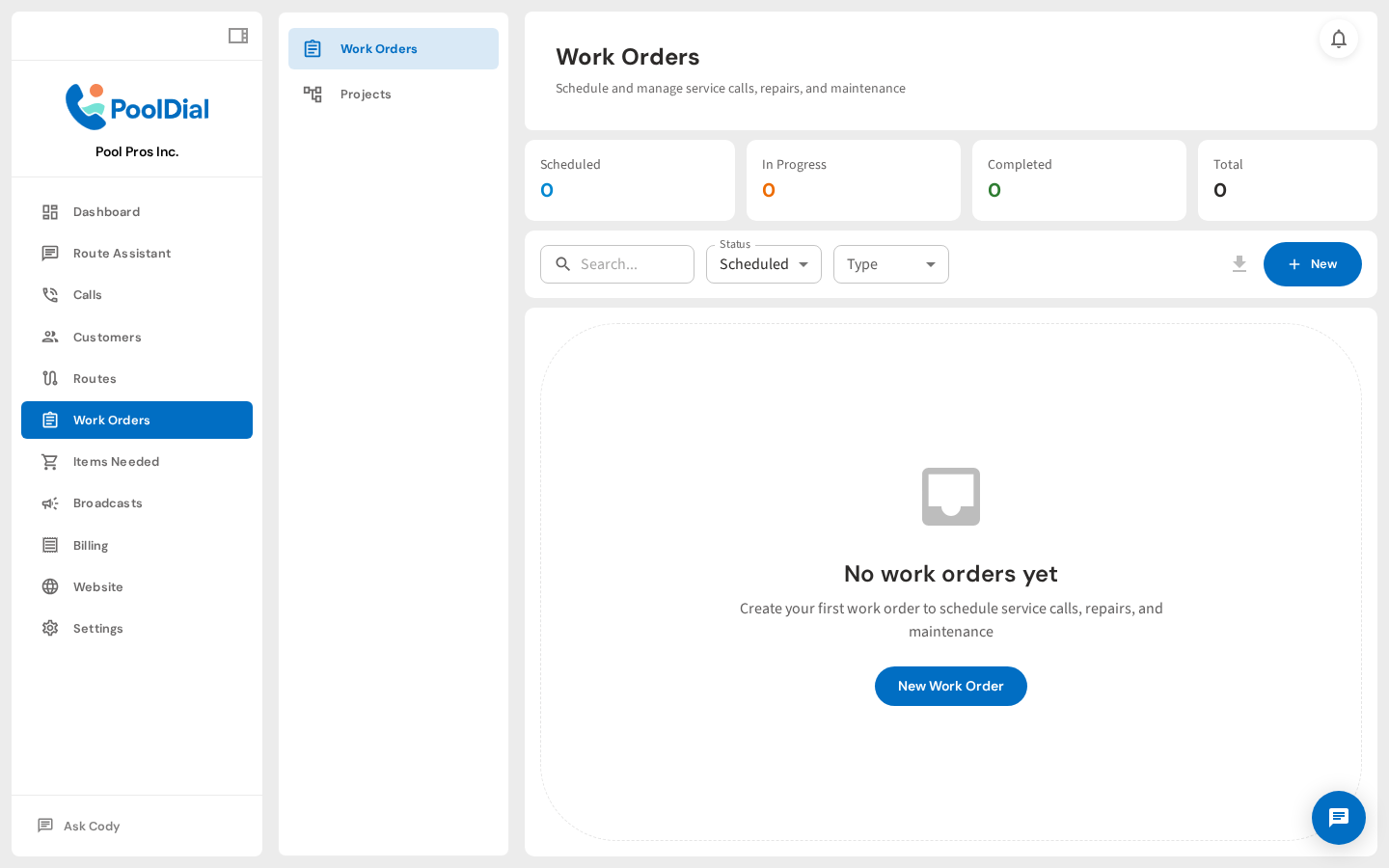
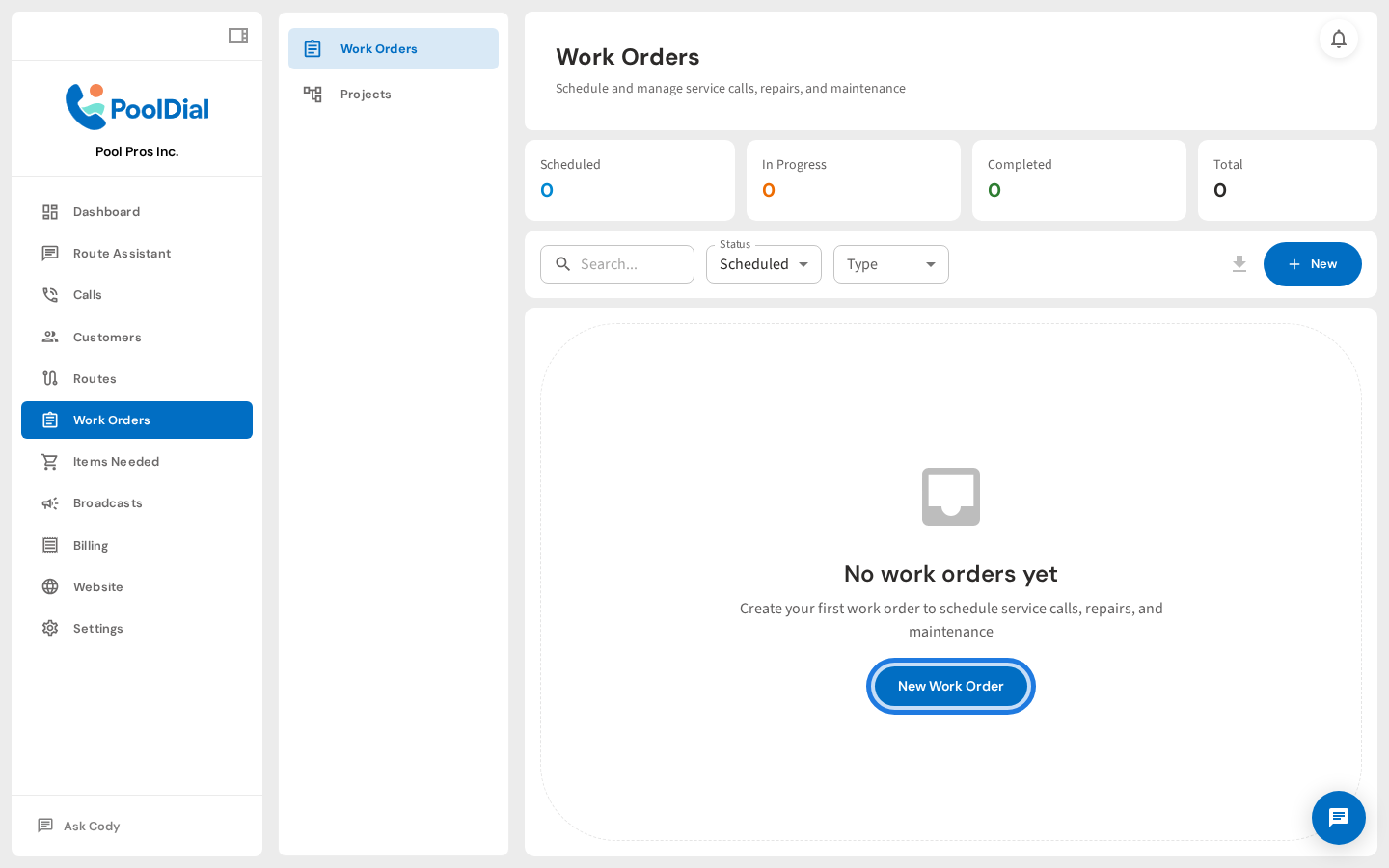
2. Click + New Work Order
Click + New Work Order in the top right to open the creation form.
3. New Work Order dialog — type defaults to Service Call
The New Work Order dialog opens. The type defaults to Service Call — change it here if needed.
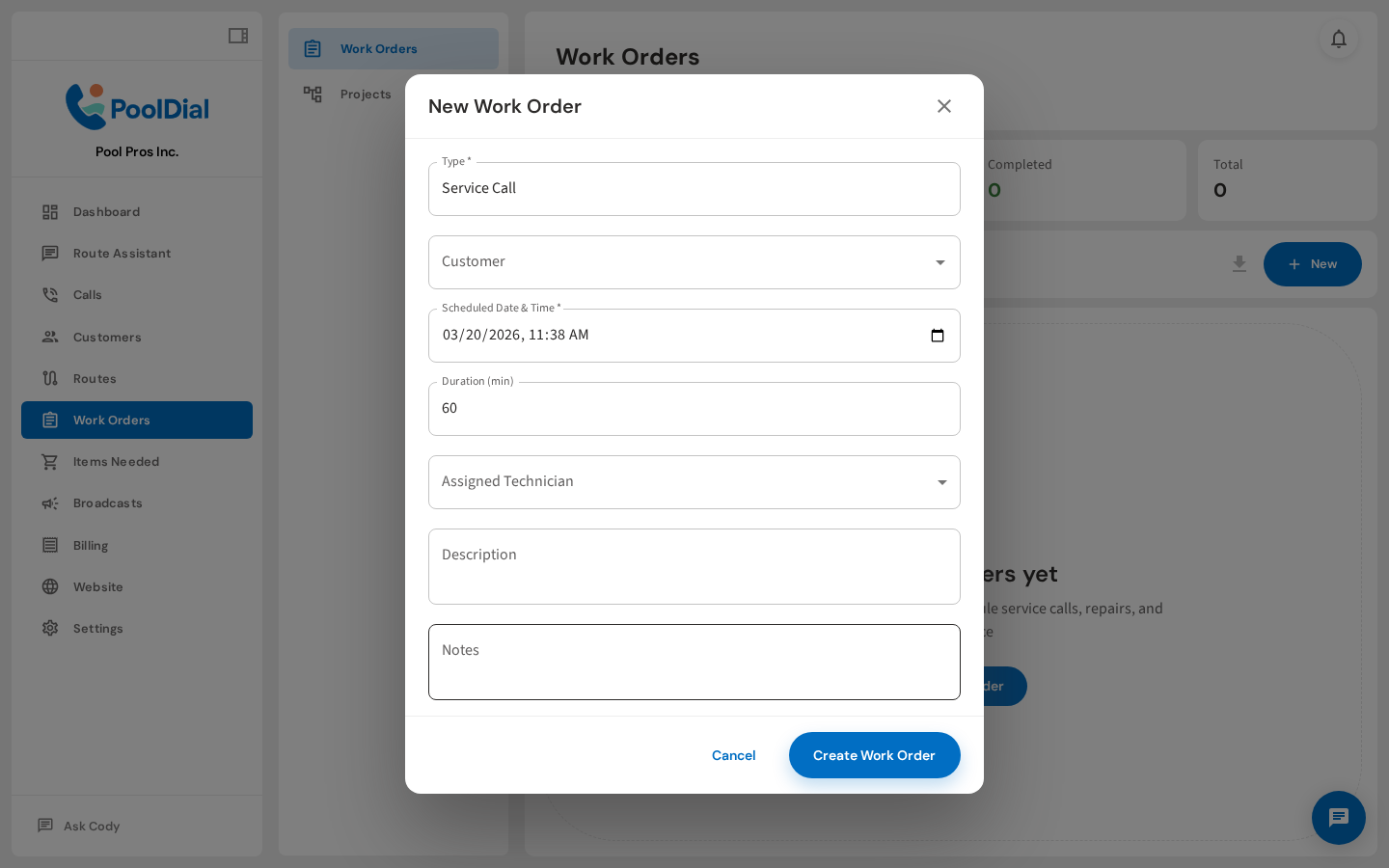
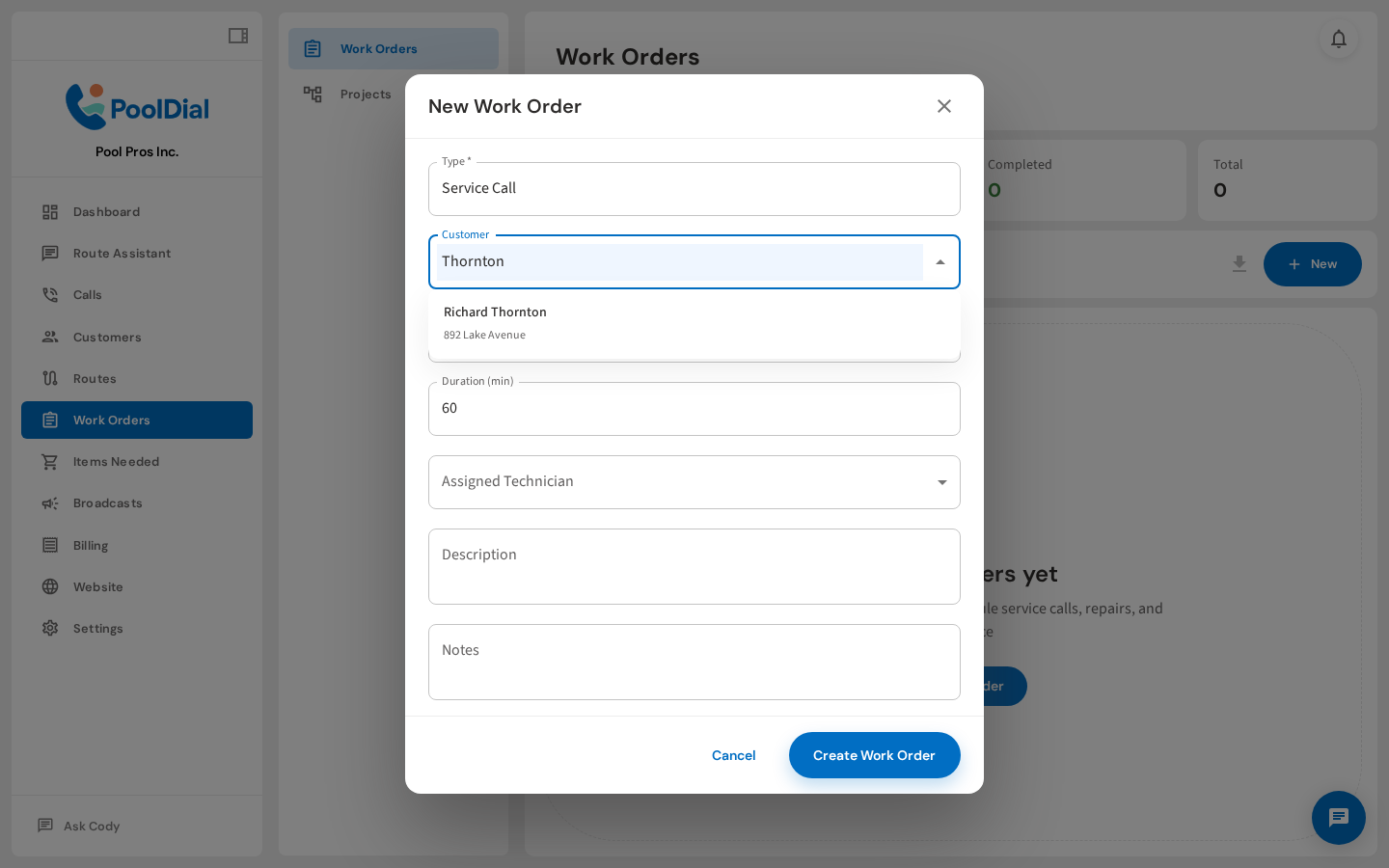
4. Search for a customer and select from the dropdown
Type a customer name in the Customer field and select from the dropdown. The property auto-fills if they have one on file.
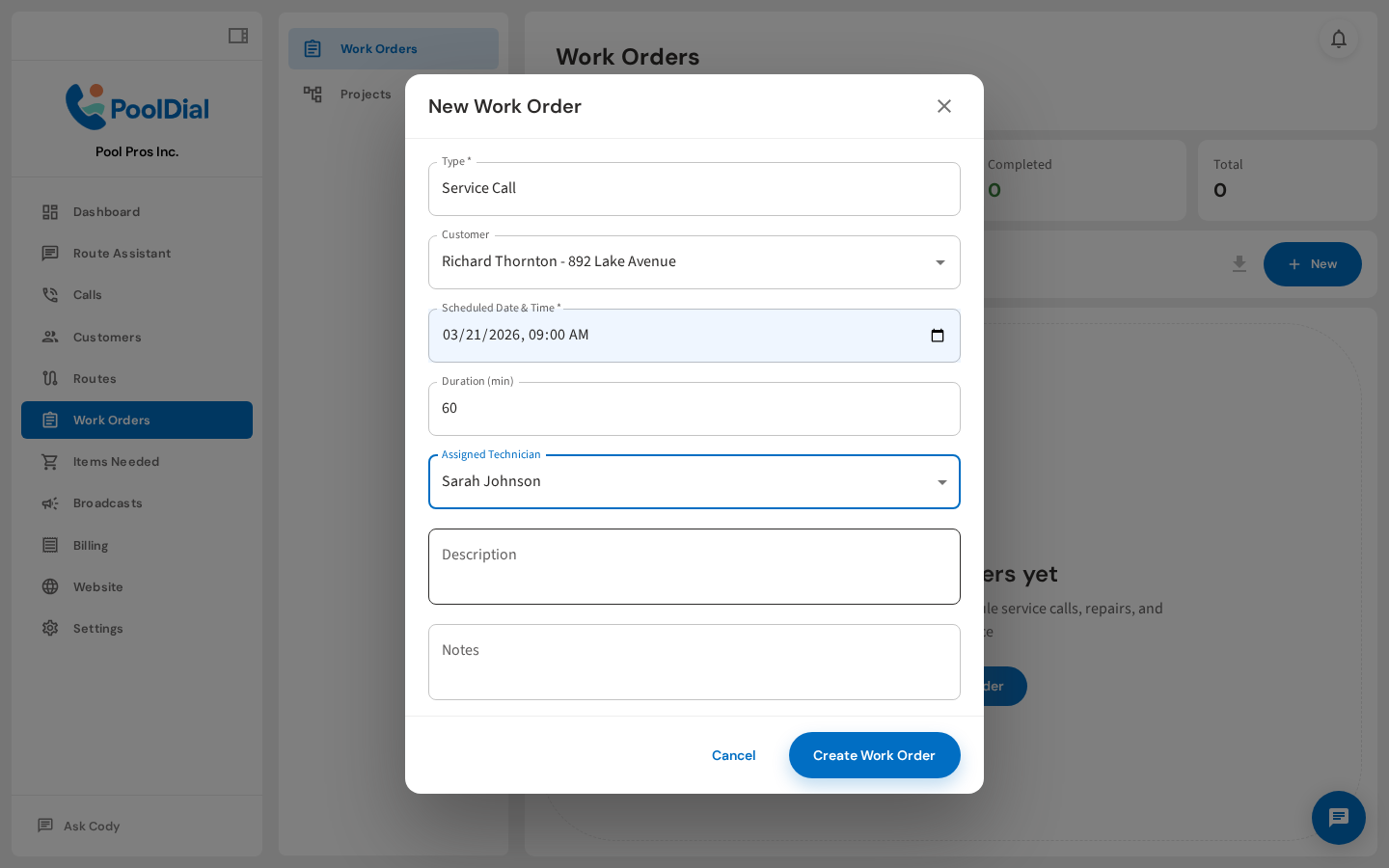
5. Set the scheduled date, time, and assign a technician
Set the Scheduled Date & Time, assign a technician, and adjust the estimated duration.
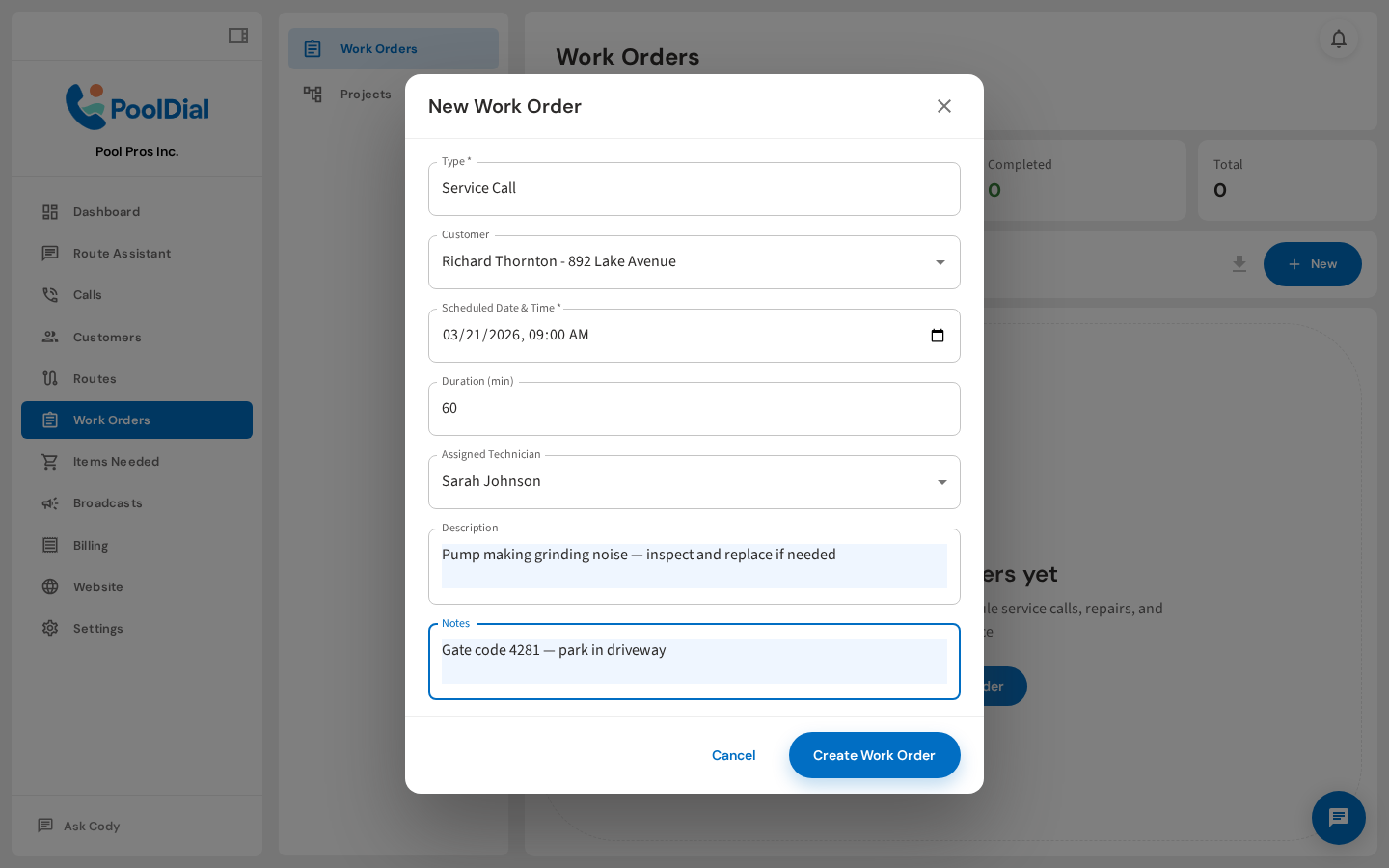
6. Add a description and internal notes
Add a Description of the work to be done and any internal Notes the tech should see.
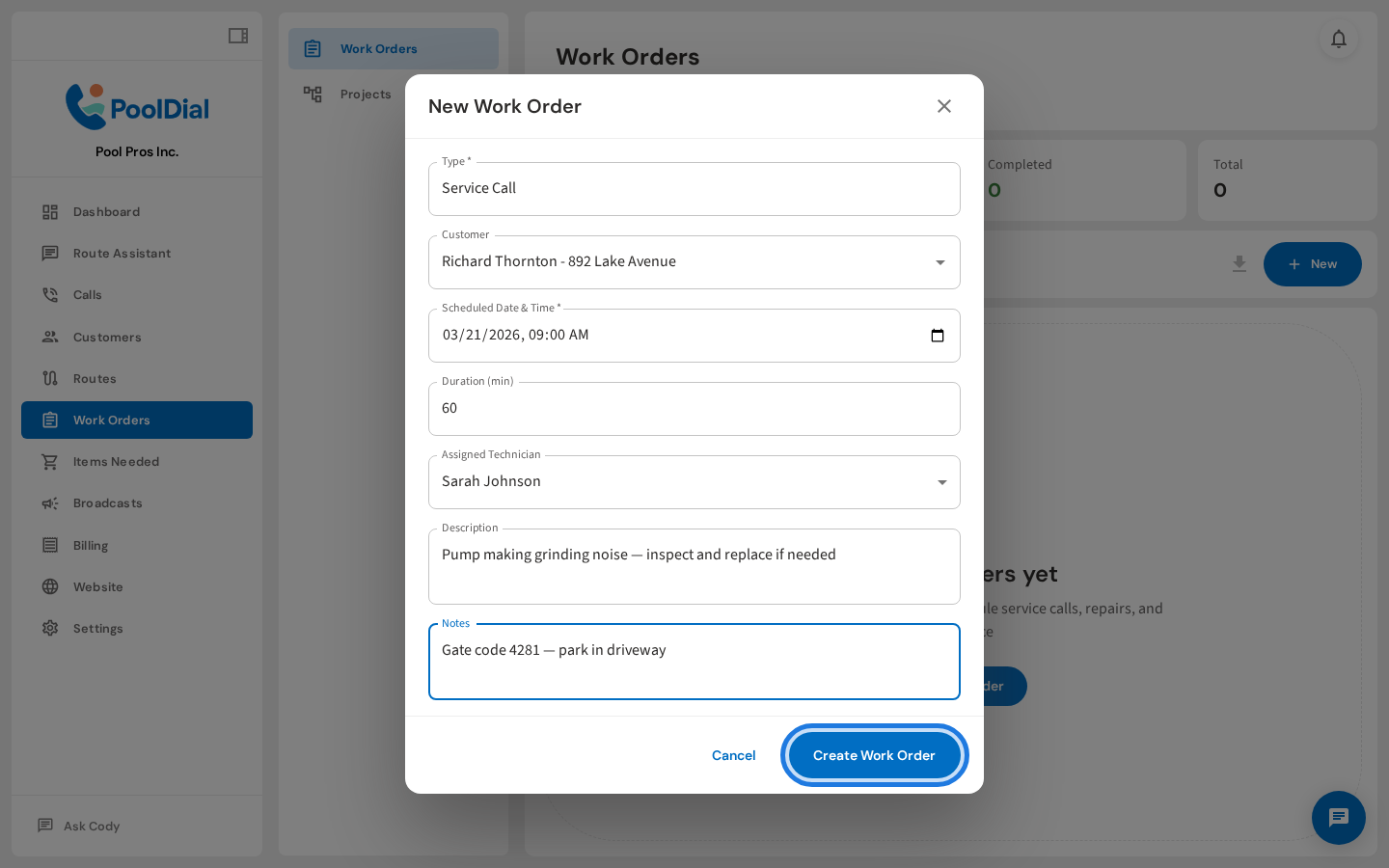
7. Click Create Work Order to save
Click Create Work Order to save. The new work order appears in the list immediately.
Not using PoolDial yet?
Manage your customers, routes, billing, and more — all in one place.
Start Free Trial