
How to Create a Route (Mobile App)


This guide walks you through how to create a route (mobile app) in PoolDial, step by step.
This guide covers 5 steps and takes about a minute to complete.
Video Walkthrough
Prefer to watch? Here's a full video walkthrough of How to Create a Route (Mobile App).
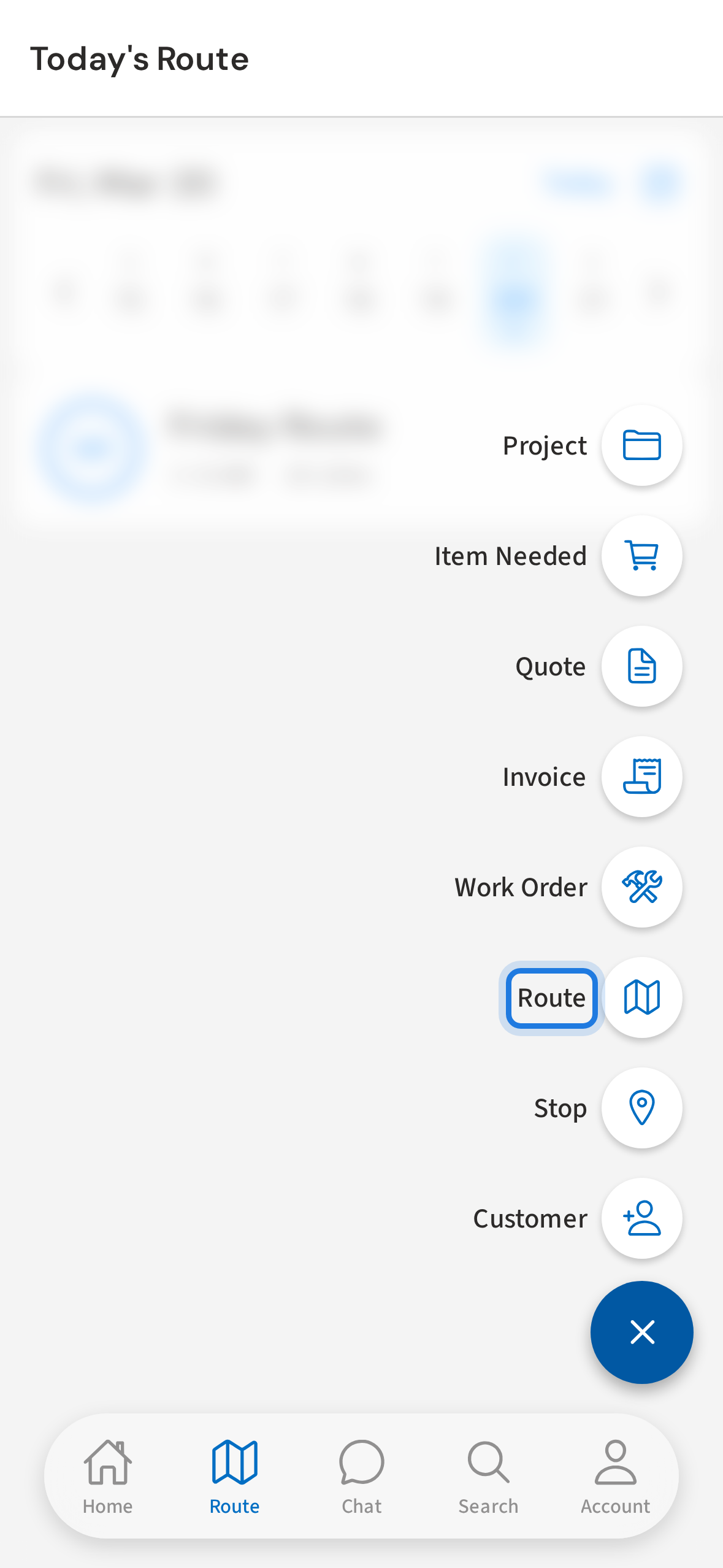
1. Tap + then tap Route from the speed dial
Tap the + button in the bottom right corner, then tap Route from the menu that appears.
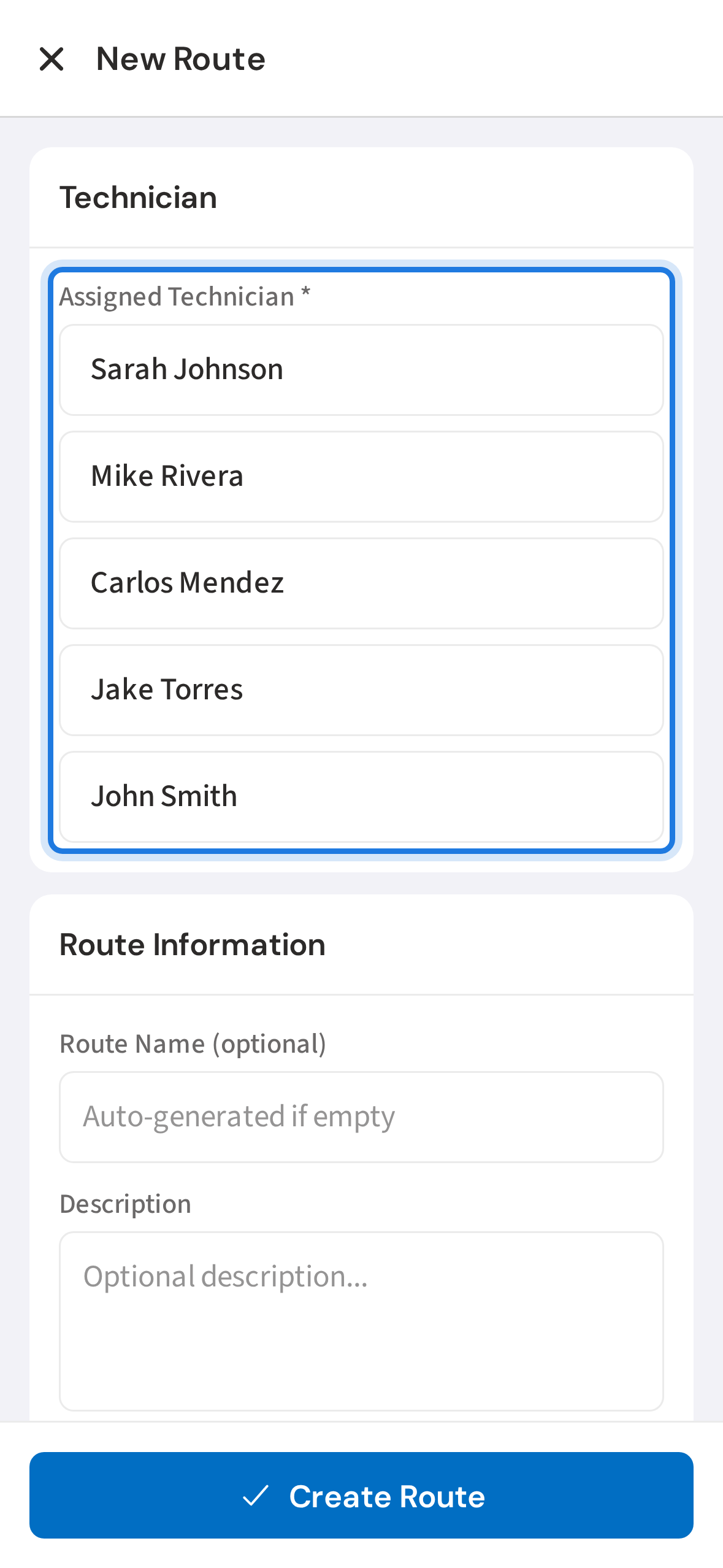
2. Select the technician for this route
Select which technician this route belongs to. Every route is assigned to one tech.
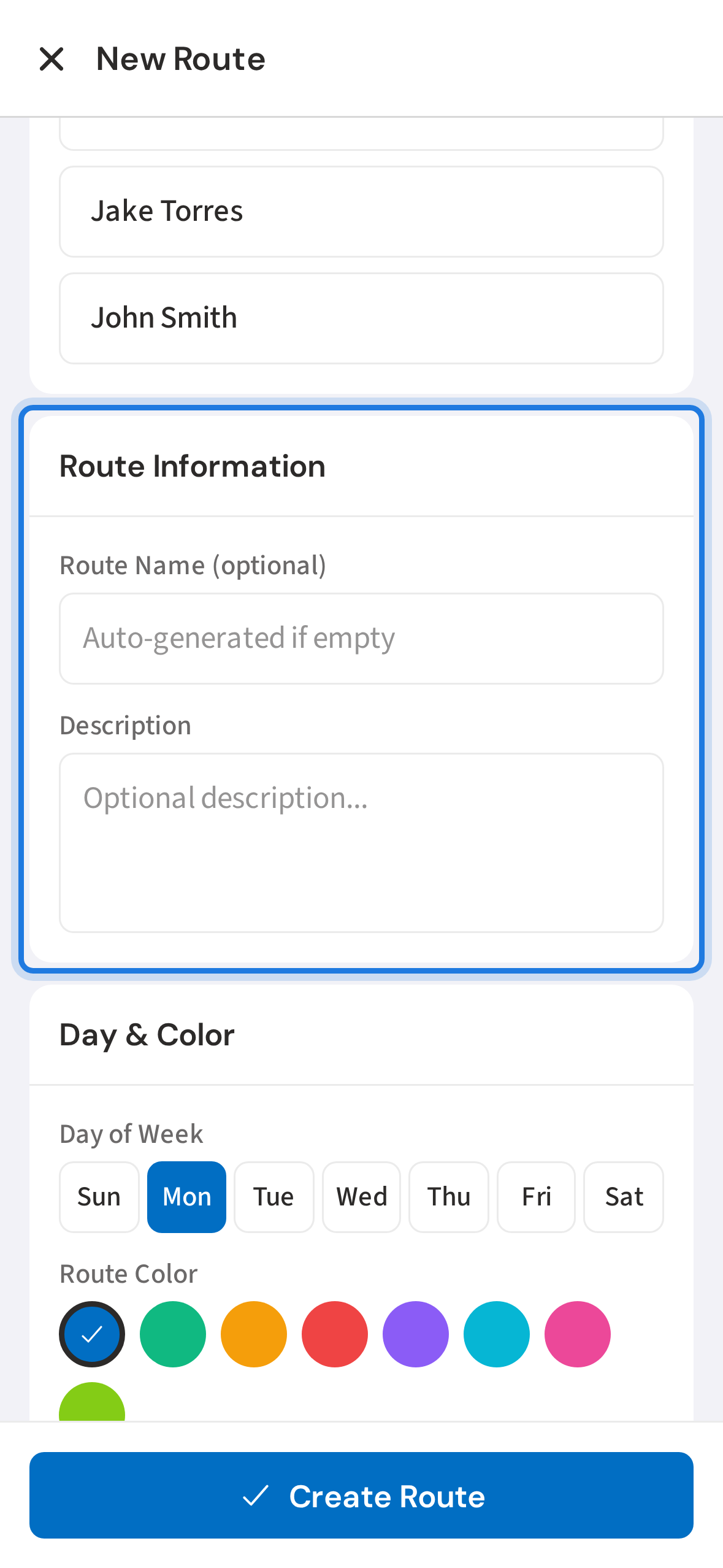
3. Name the route and add an optional description
Give the route a name and an optional description. If you leave the name blank, PoolDial auto-names it based on the technician and day.
4. Choose day of week and route color
Choose the day of the week and a color to identify this route on the schedule at a glance.
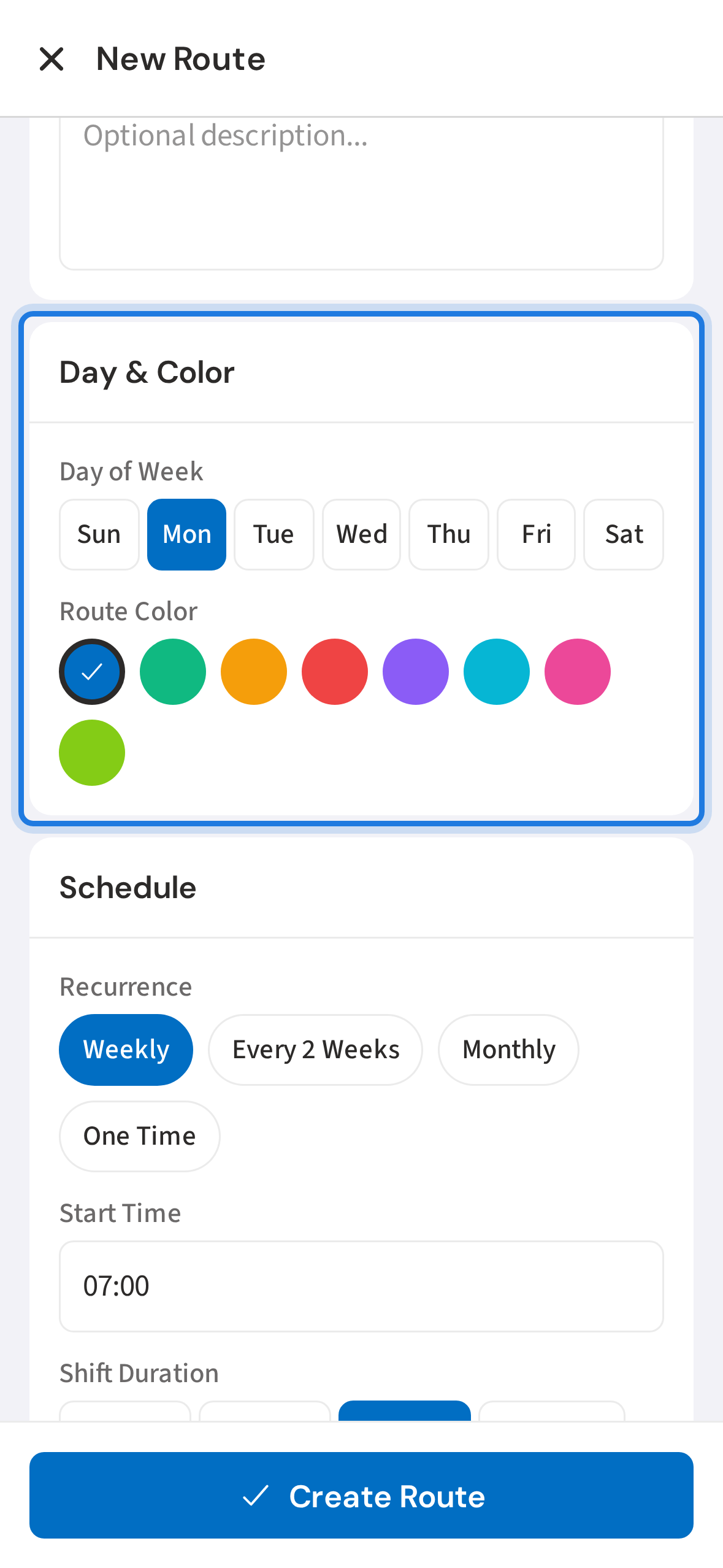
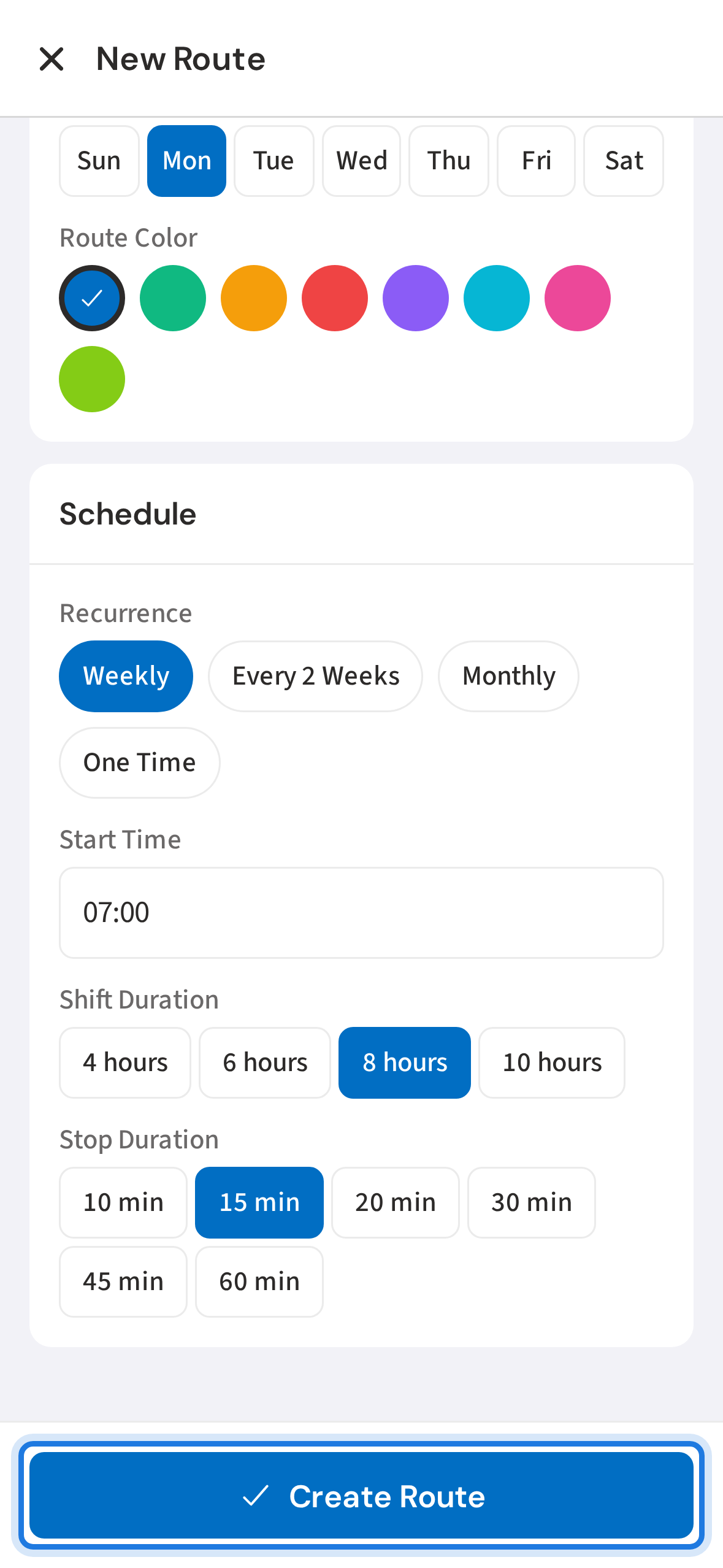
5. Set schedule then tap Create Route
Set the recurrence, start time, and shift length. PoolDial uses these to sequence stop times automatically. Tap Create Route when ready.
Not using PoolDial yet?
Manage your customers, routes, billing, and more — all in one place.
Start Free Trial