
How to Create a Quote (Mobile)


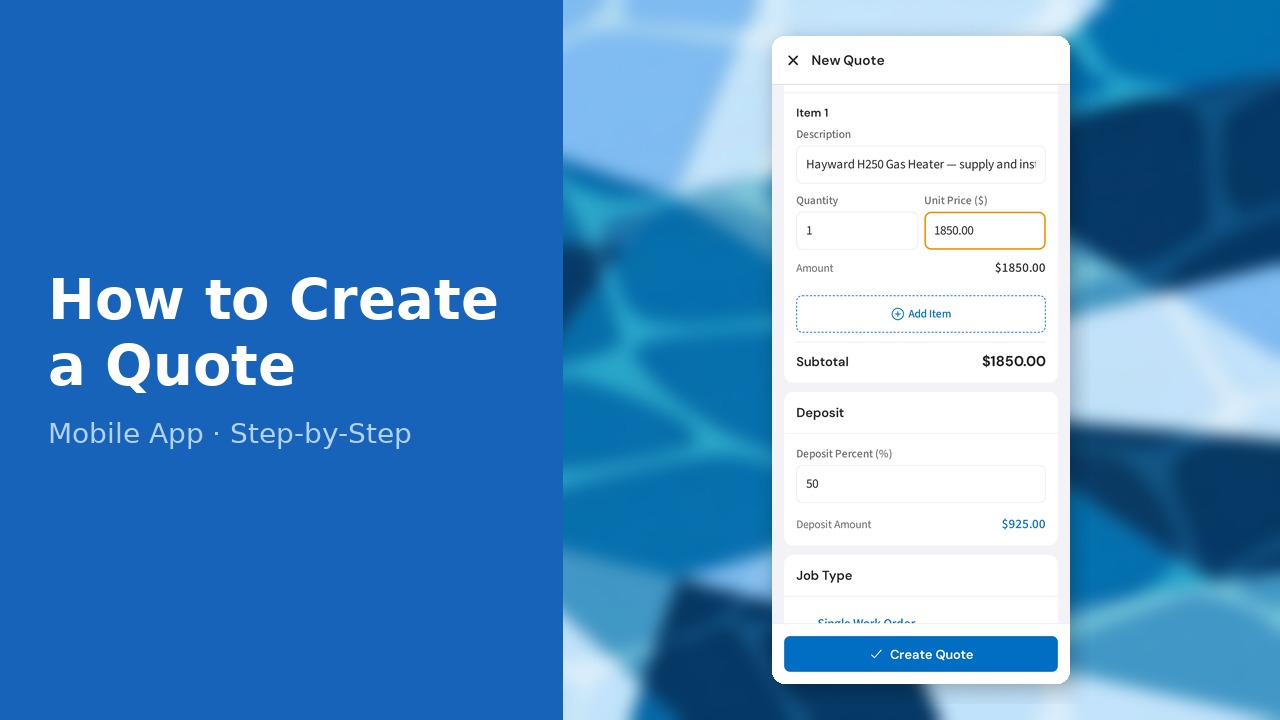
This guide walks you through how to create a quote (mobile) in PoolDial, step by step.
This guide covers 7 steps and takes about a minute to complete.
Video Walkthrough
Prefer to watch? Here's a full video walkthrough of How to Create a Quote (Mobile).
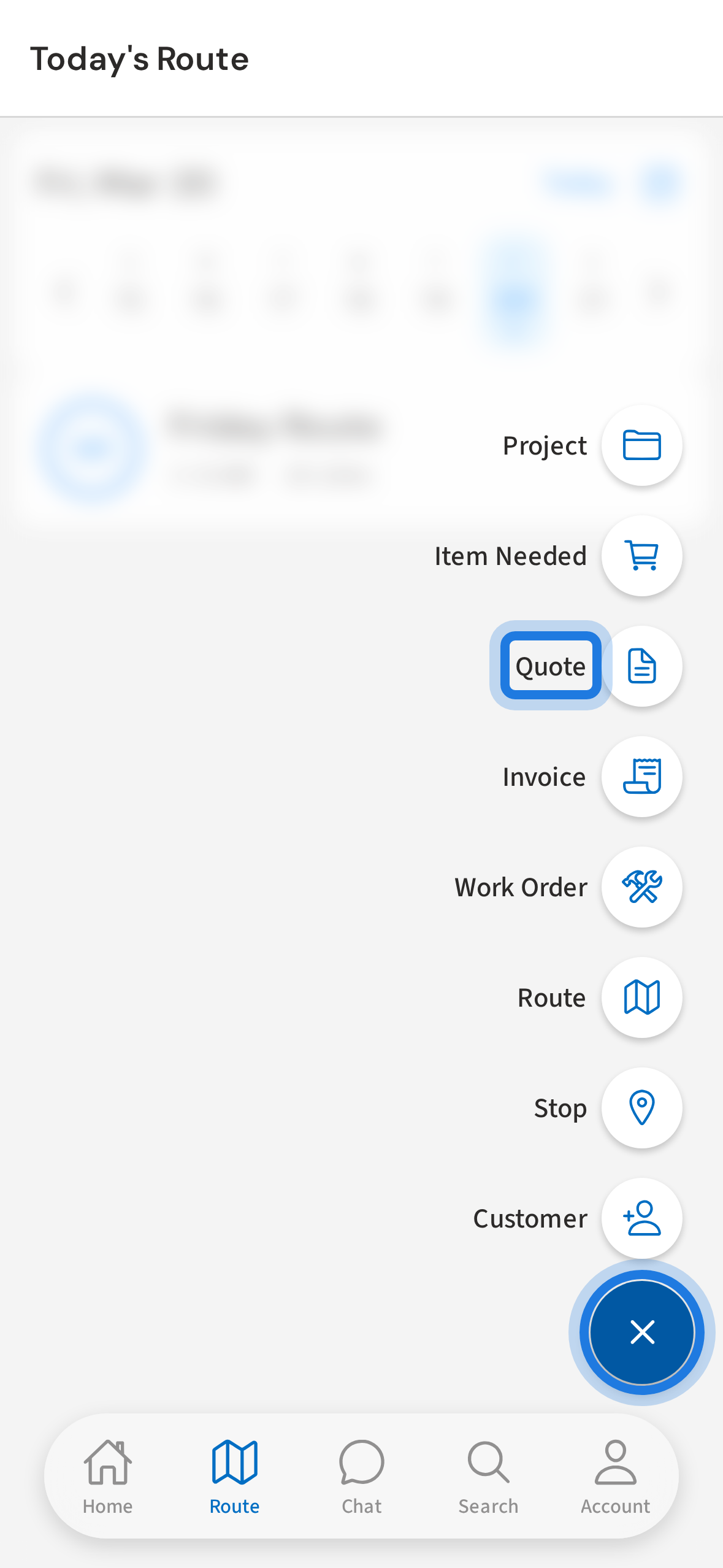
1. Tap + then Quote to open the quote form
Tap the + floating button and select Quote to open the quote creation form.
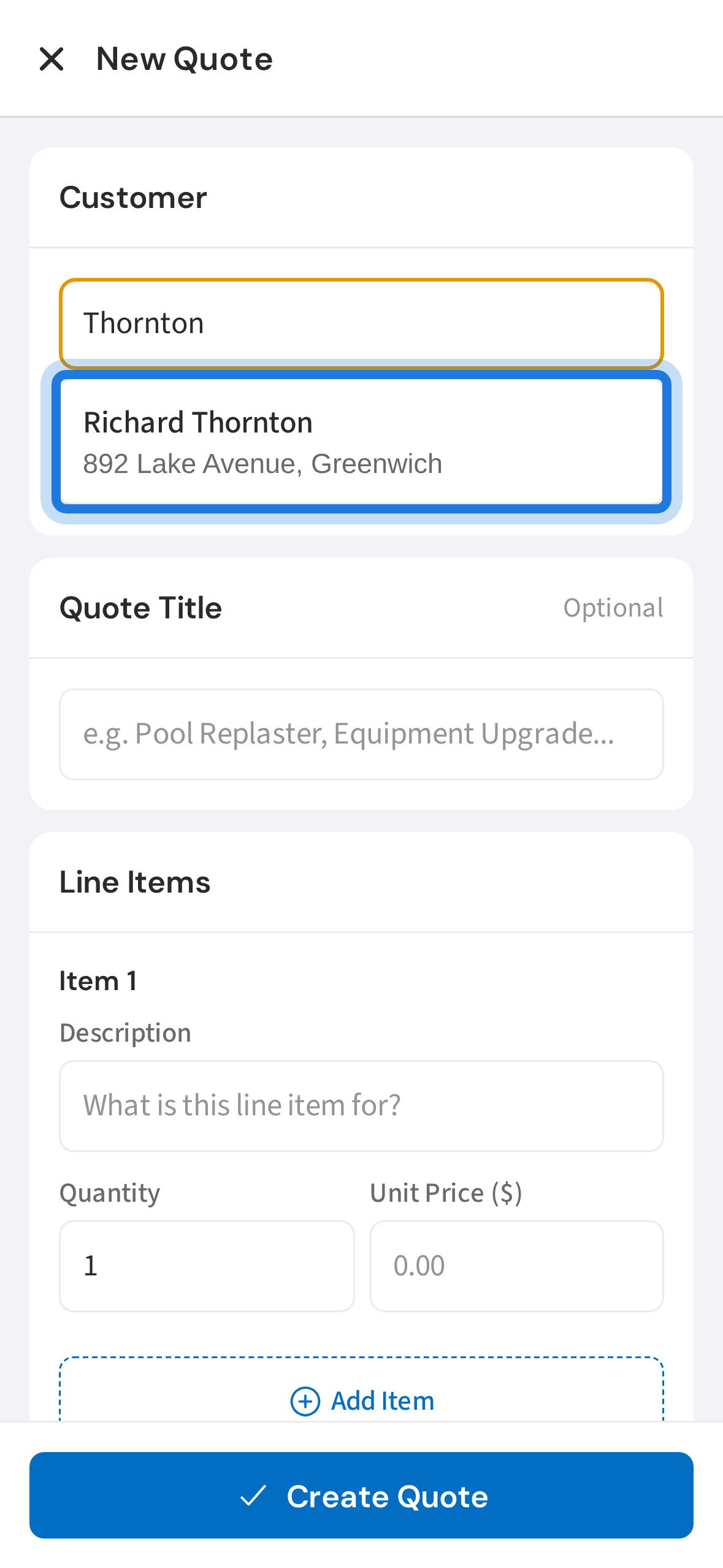
2. Search for a customer and tap to select
Search for the customer by name and tap their row to link the quote to their account.
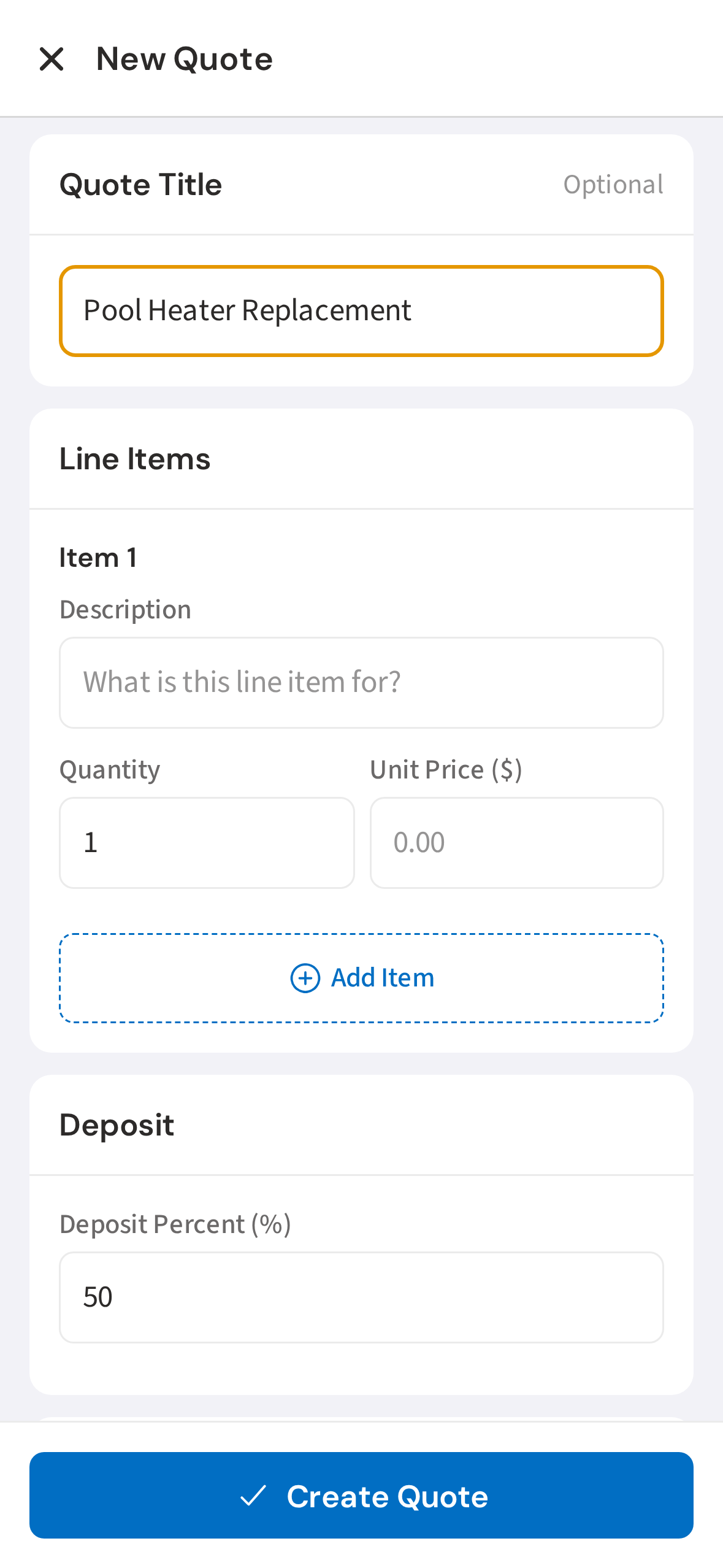
3. Enter a title for the quote
Give the quote a title that describes the job — this appears at the top of the quote the customer receives.
4. Add a line item with description and price
Add a line item with a description and price. Tap Add Item to add more. PoolDial shows a running subtotal.
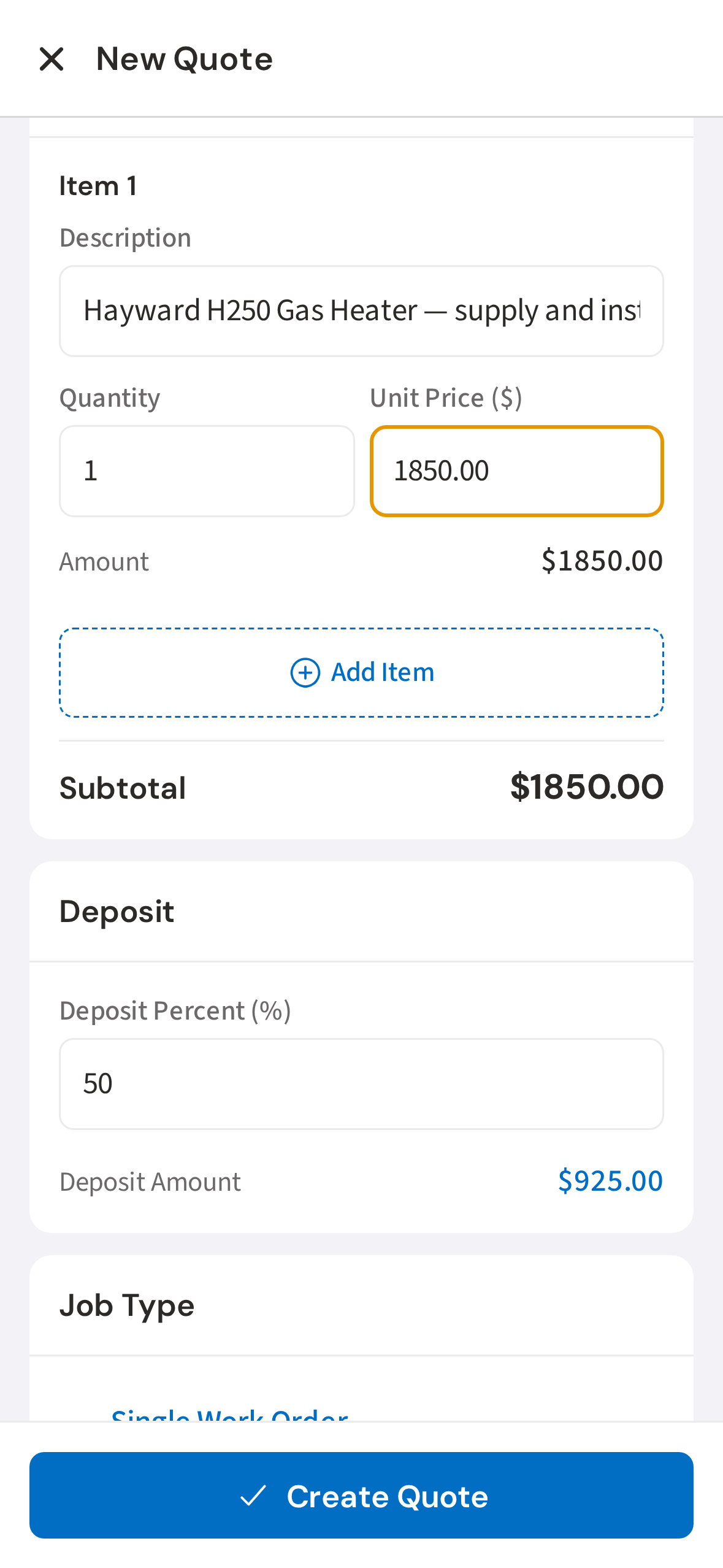
5. Set deposit percentage and job type
Set the deposit percentage required to approve, and choose the job type — single work order or multi-step project.
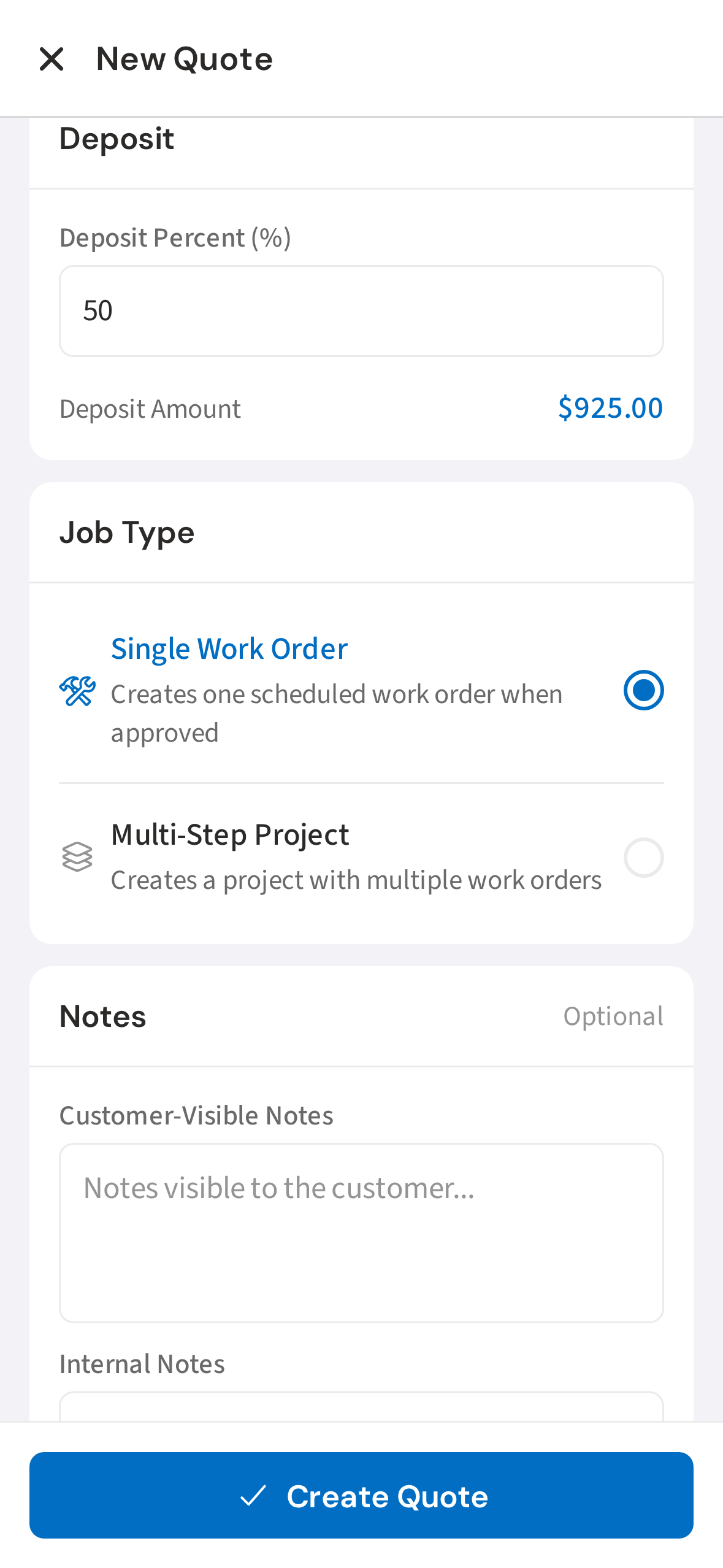
6. Add notes and toggle Send to customer
Add customer-facing notes and toggle Send to customer to email the quote on save.
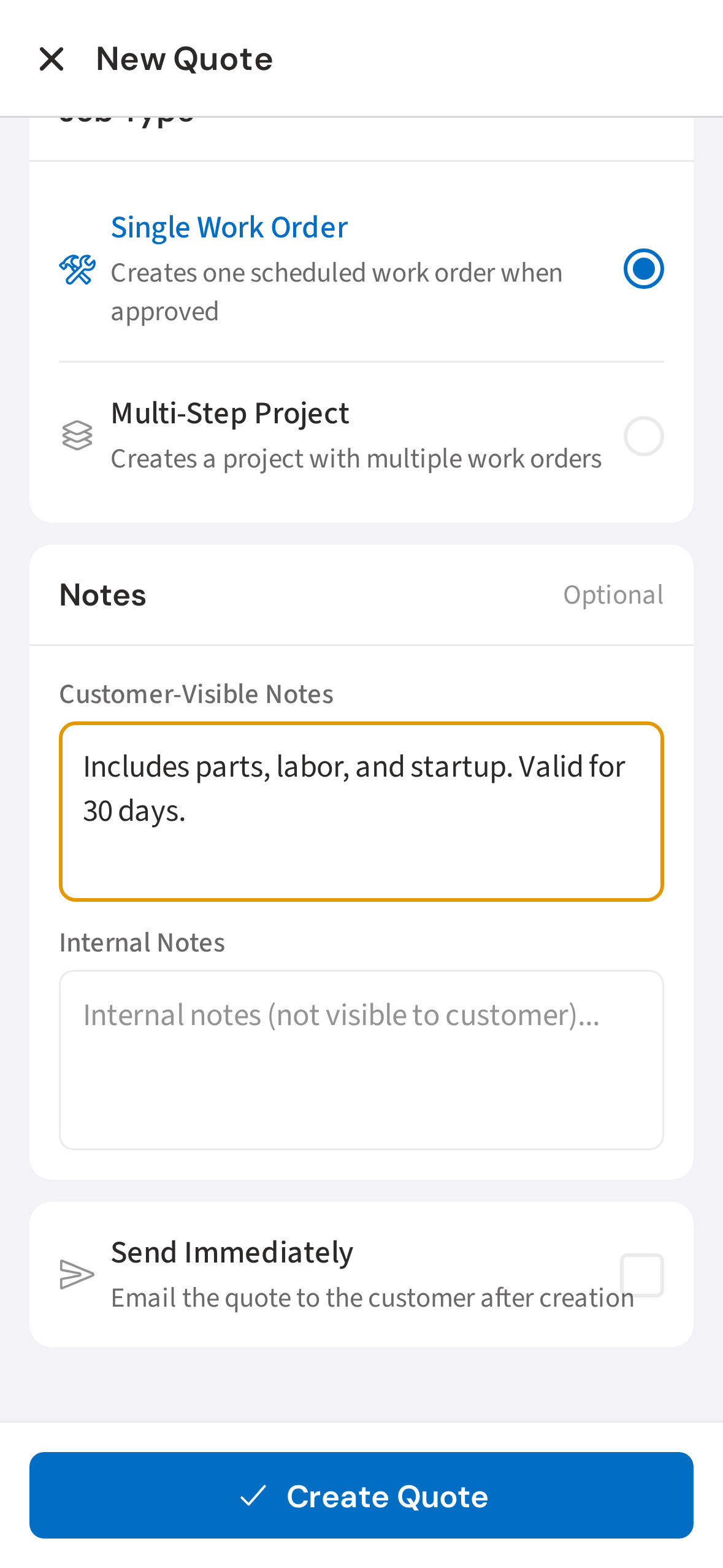
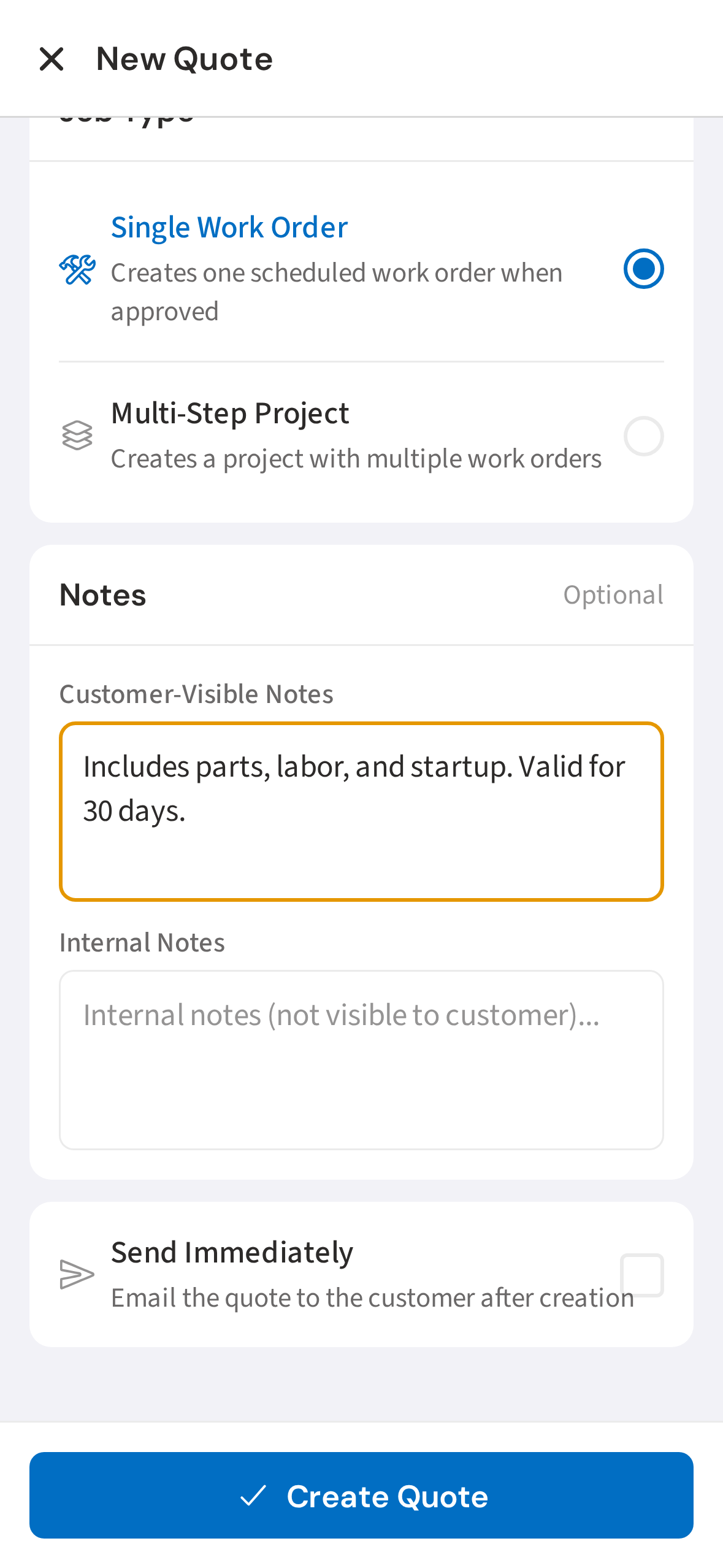
7. Tap Create Quote to save and send
Tap Create Quote. The customer receives a branded email with a link to review and approve it.
Not using PoolDial yet?
Manage your customers, routes, billing, and more — all in one place.
Start Free Trial