
How to Complete a Route Stop (Mobile App)


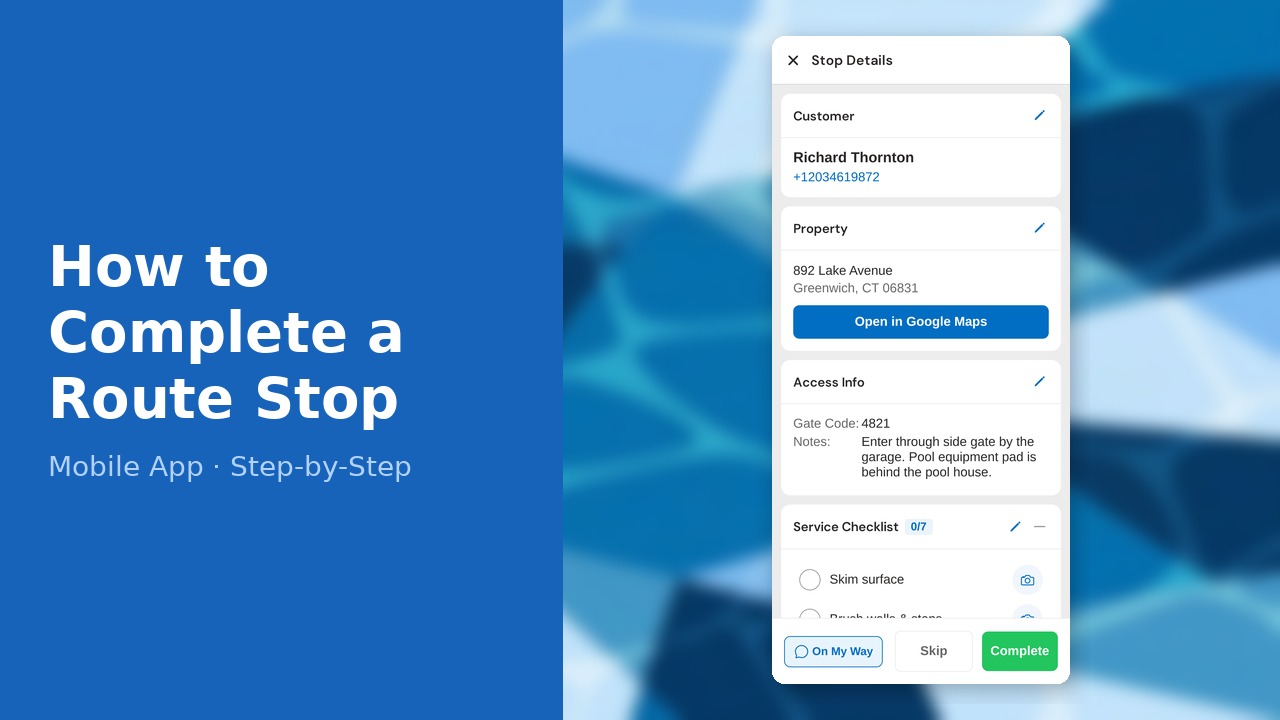
This guide walks you through how to complete a route stop (mobile app) in PoolDial, step by step.
This guide covers 9 steps and takes about a minute to complete.
Video Walkthrough
Prefer to watch? Here's a full video walkthrough of How to Complete a Route Stop (Mobile App).
1. Open the Route tab
Open the Route tab at the bottom of the screen — this shows all your stops for today, in order.
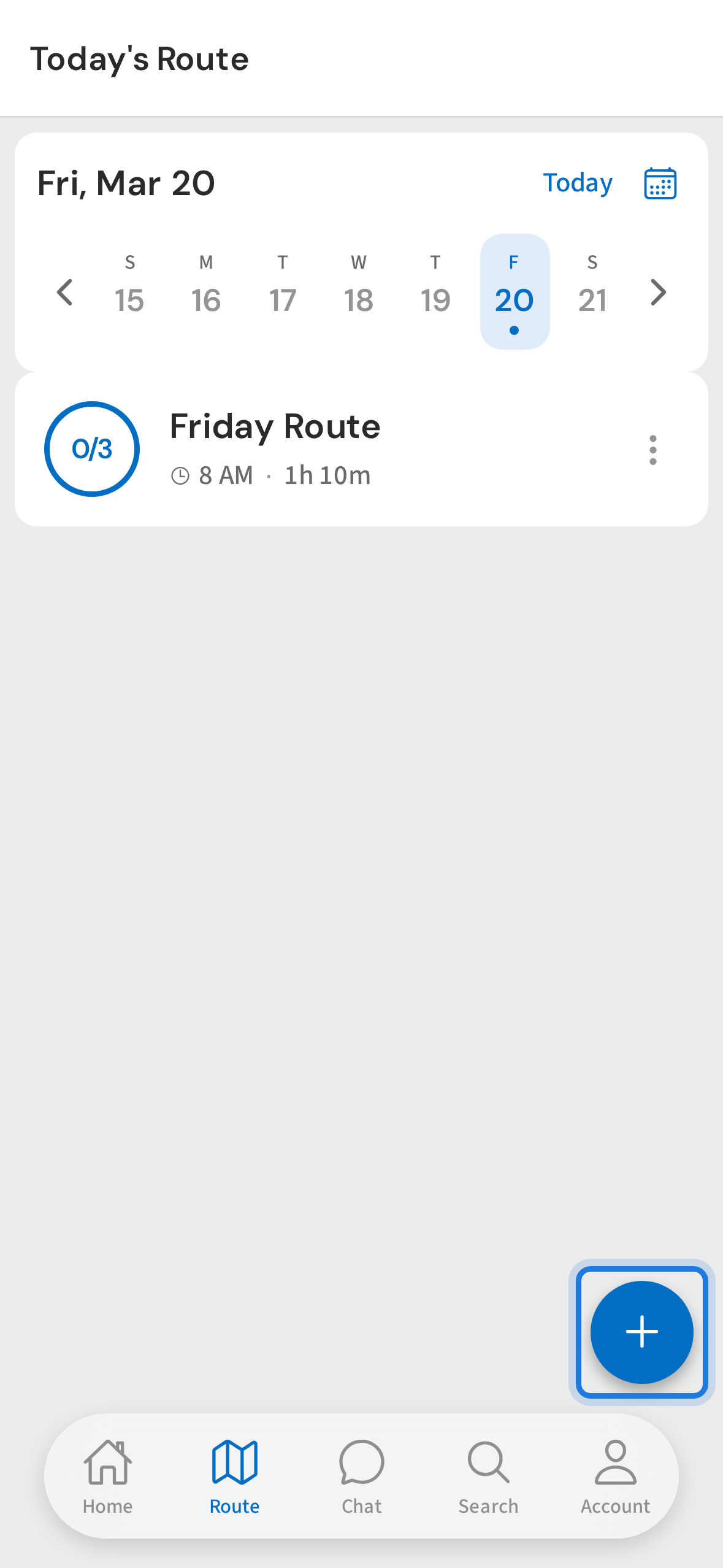
2. Tap a stop card to open it
Tap the route card to see today’s stops in order. Tap any stop card to open it and begin service.
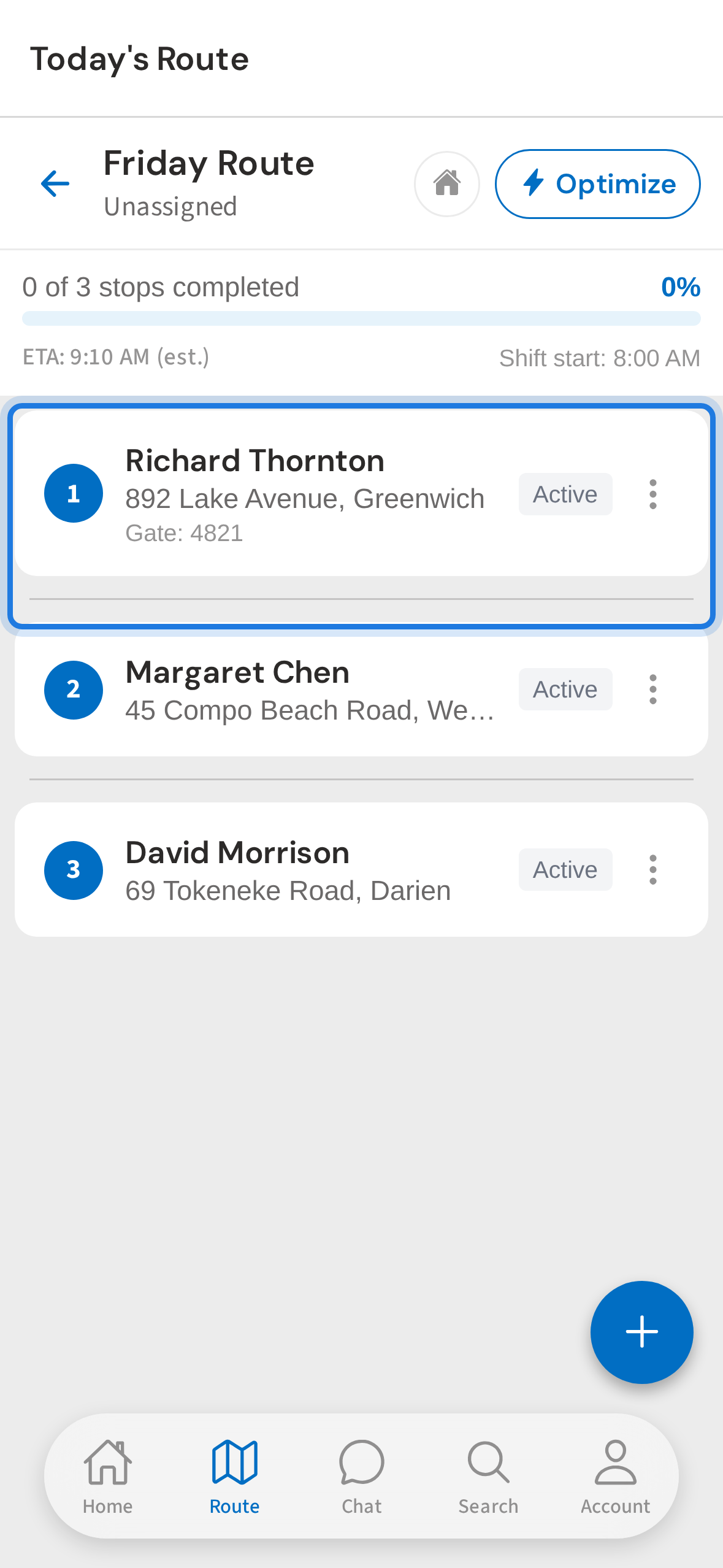
3. Stop detail — property info and access notes at a glance
The stop detail shows everything you need: the property address, access notes, gate code, and the customer’s pool setup.
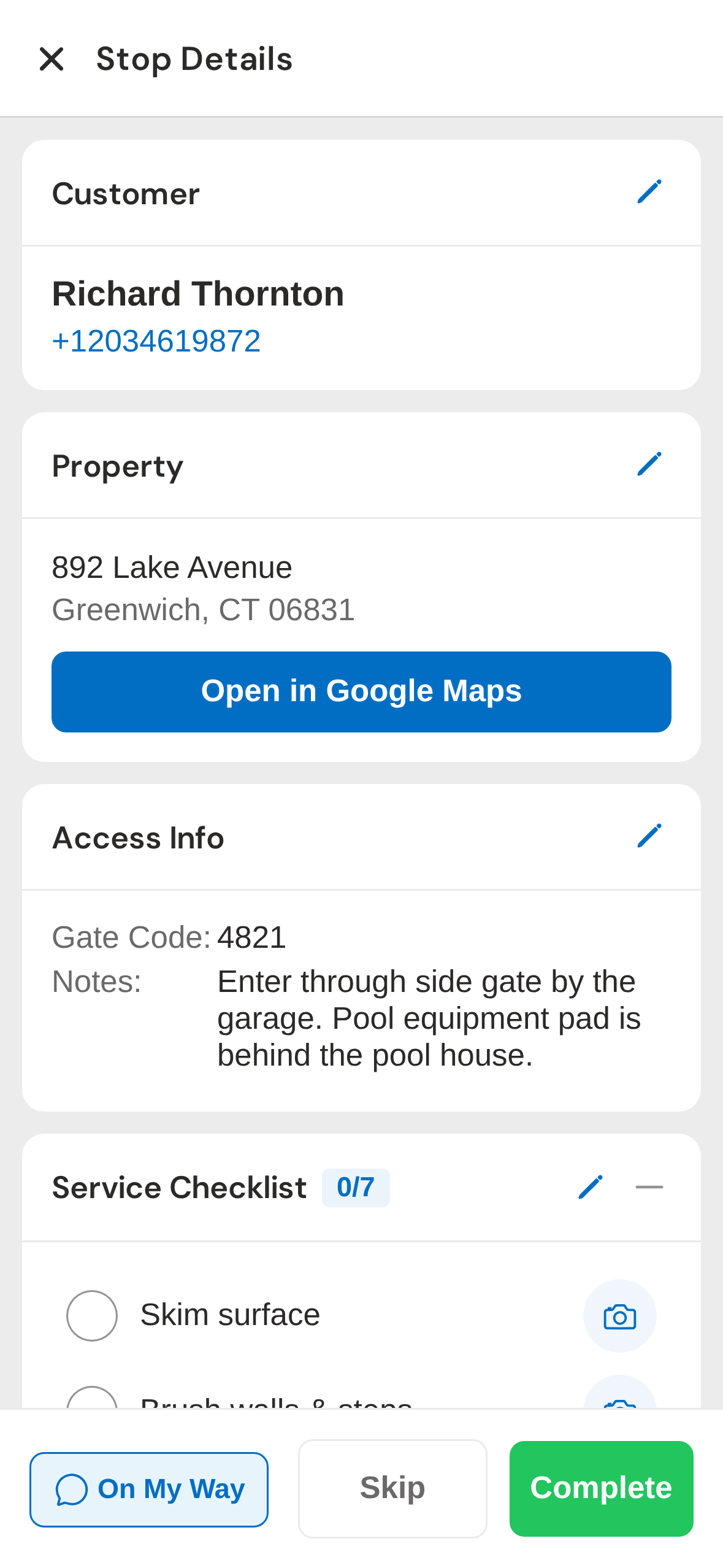
4. Tap On My Way to text the customer
Tap On My Way — PoolDial opens a pre-written text you can review and send with one tap. Your customer gets a heads-up that you’re on the way.
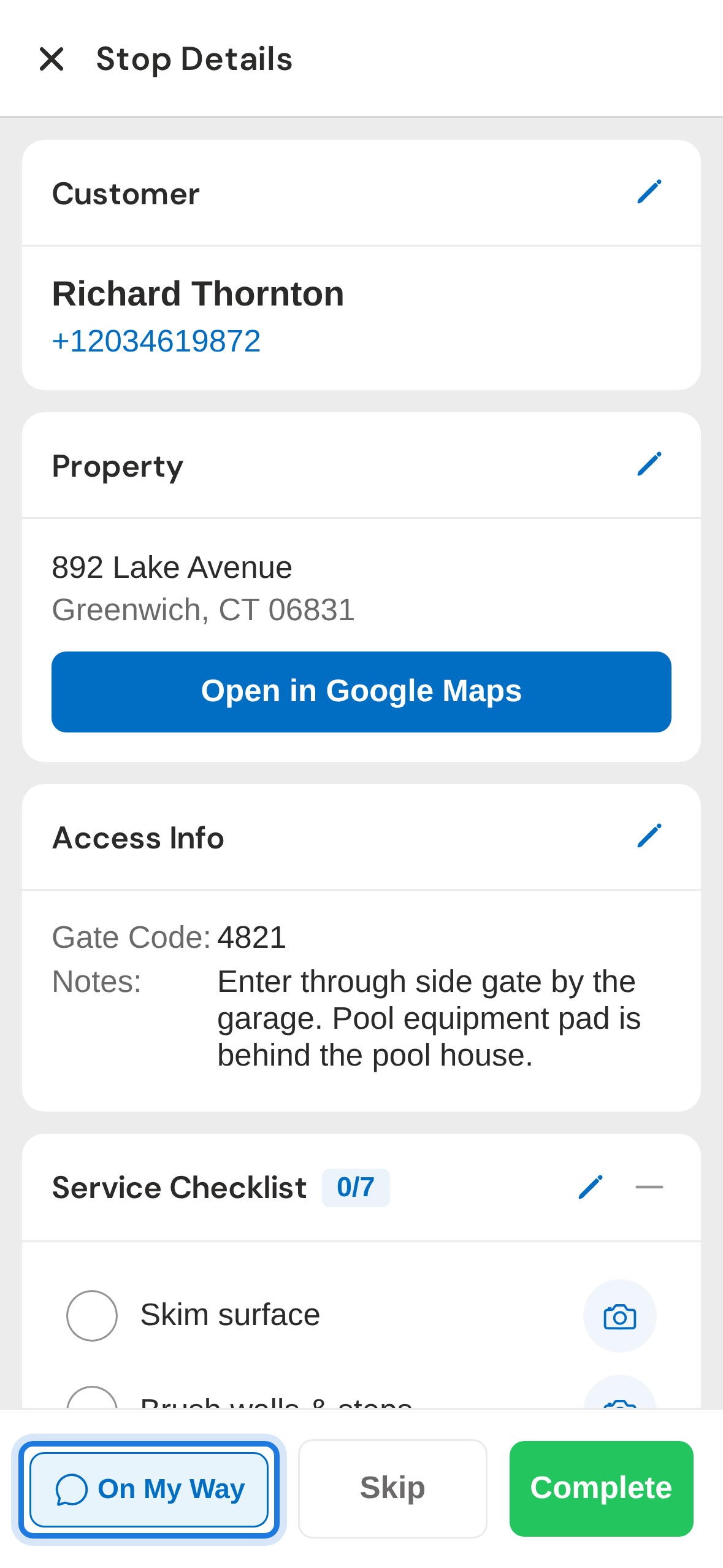
5. Chemical Readings — log your test results
Scroll down to Chemical Readings. Tap each value and swipe through the presets to log your test results — chlorine, pH, alkalinity, and more.
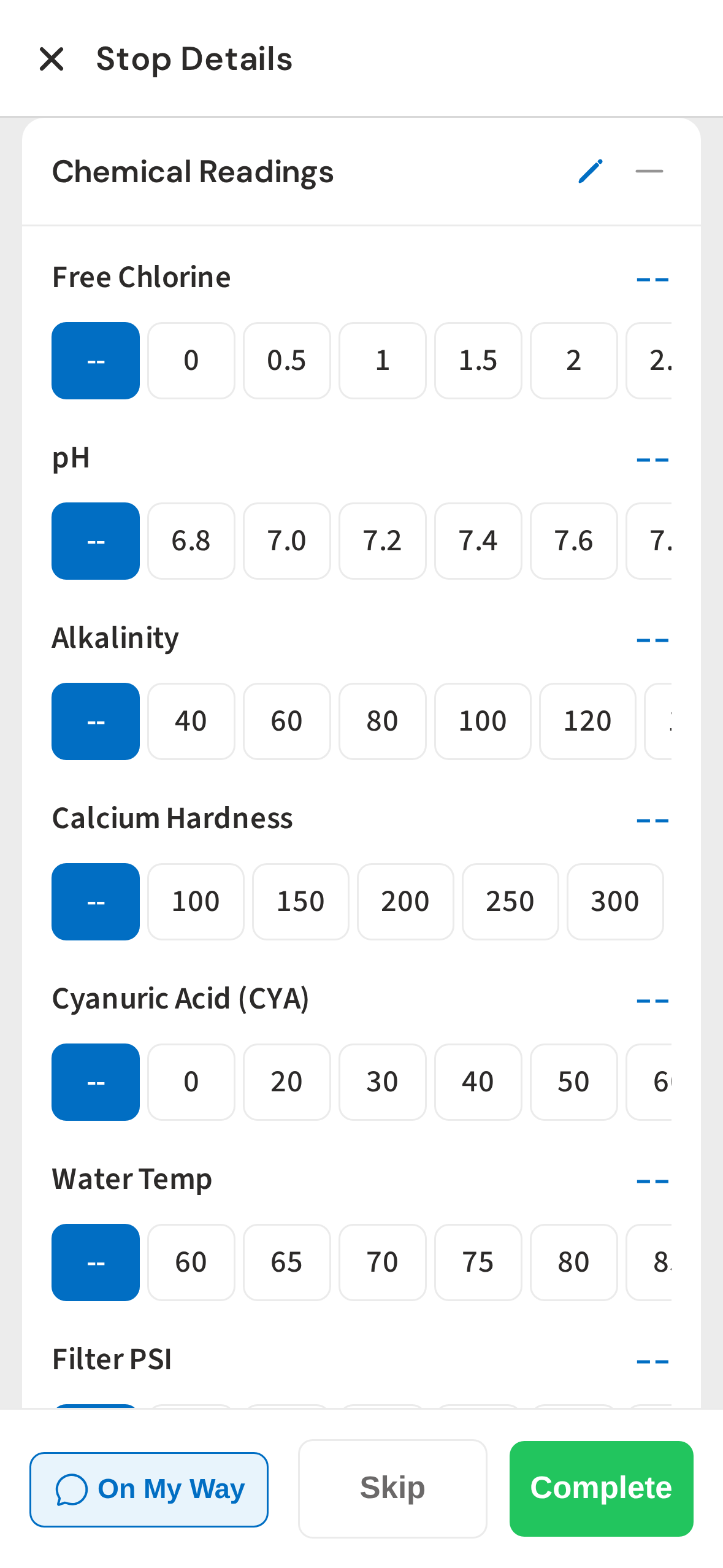
6. Items Needed and Service Notes sections
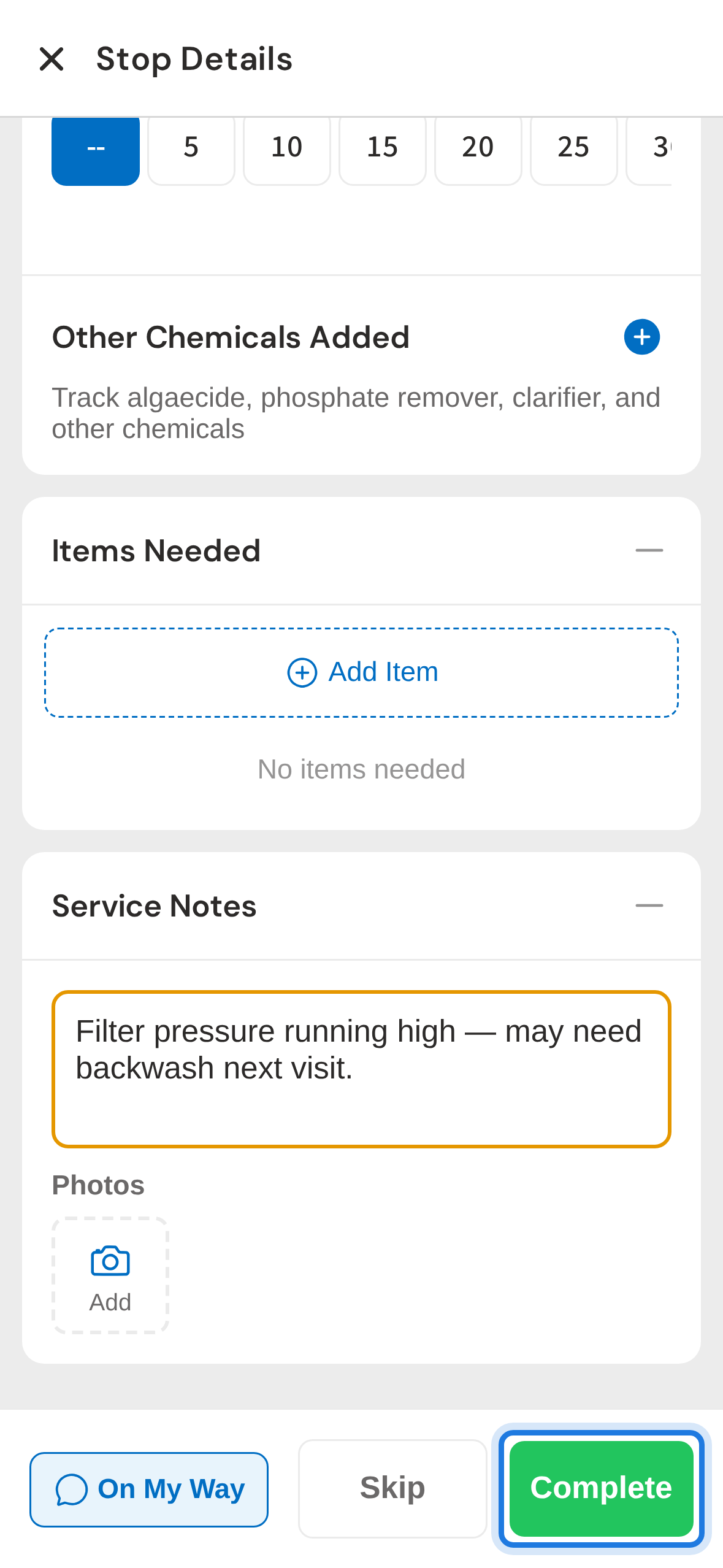
Keep scrolling to see Items Needed and Service Notes. Add anything the office or next tech should know — equipment issues, gate code changes, or chemical additions.
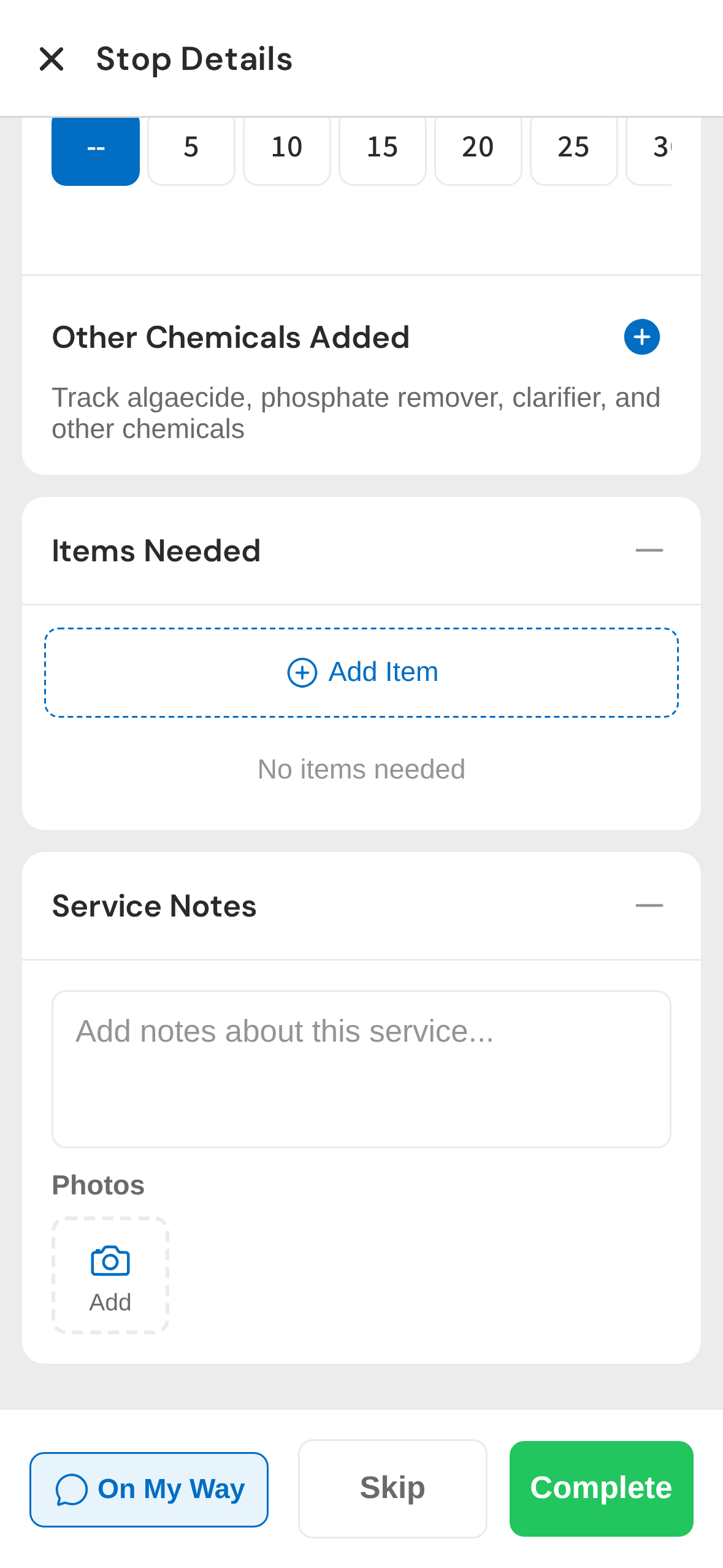
7. Service notes — log anything the team should know
Type your service notes directly into the text field. These go straight into the service report sent to your customer.
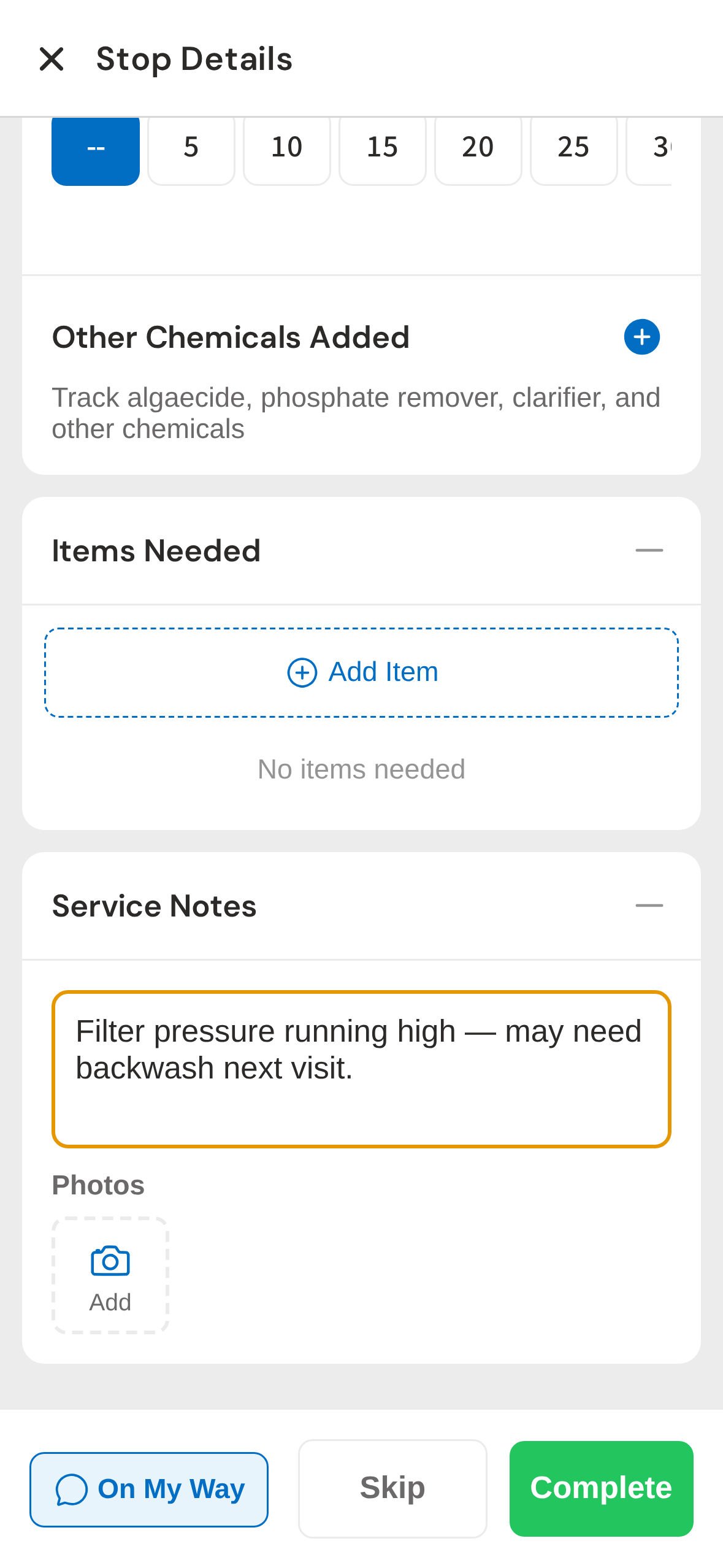
8. Tap Complete to finish the stop
When the service is done, tap Complete at the bottom. PoolDial saves the log, sends the customer a service report, and marks the stop done.
9. Stop marked complete — route progress updates
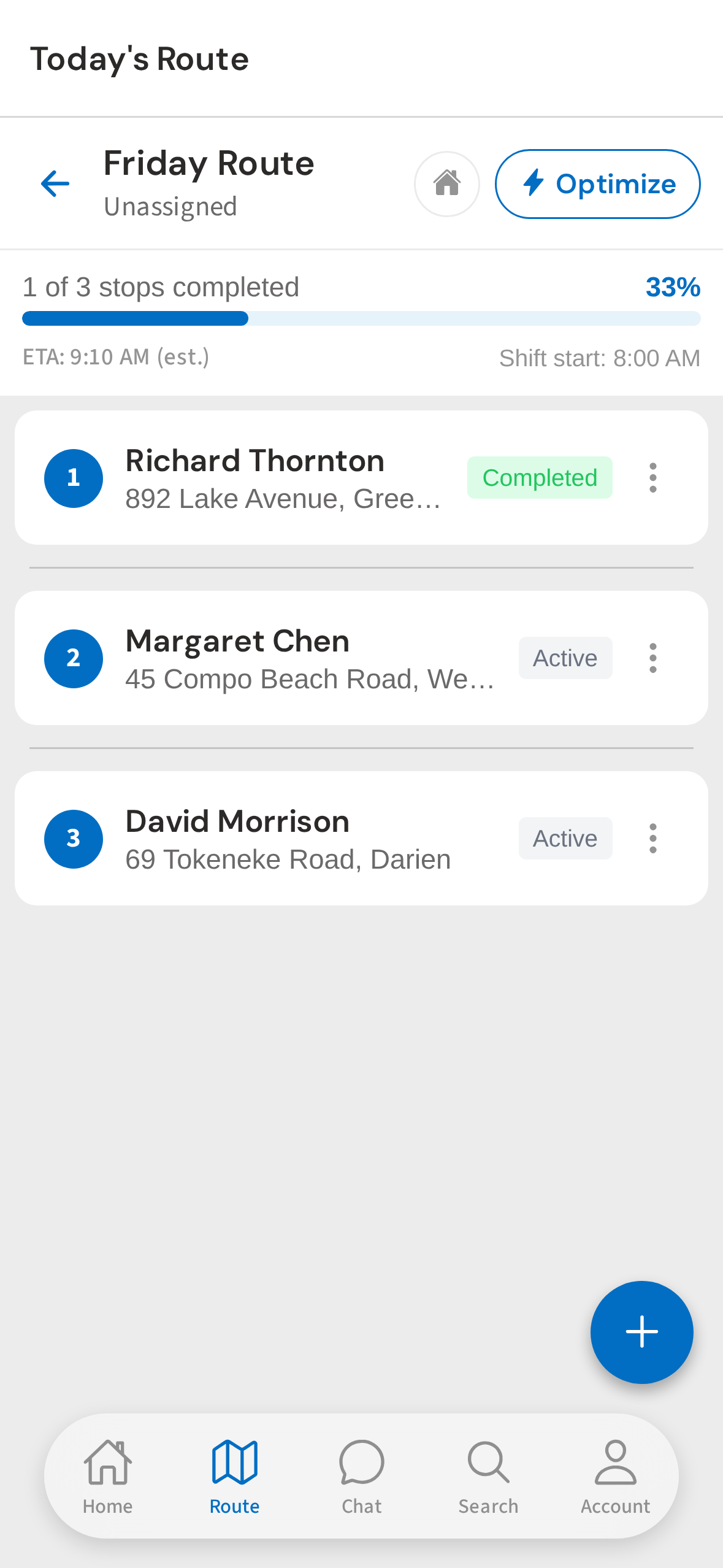
The stop is marked complete and your route progress updates. Tap the next stop to keep moving down your route.
Not using PoolDial yet?
Manage your customers, routes, billing, and more — all in one place.
Start Free Trial