
Help Guide
How to Change Your Name (Mobile App)


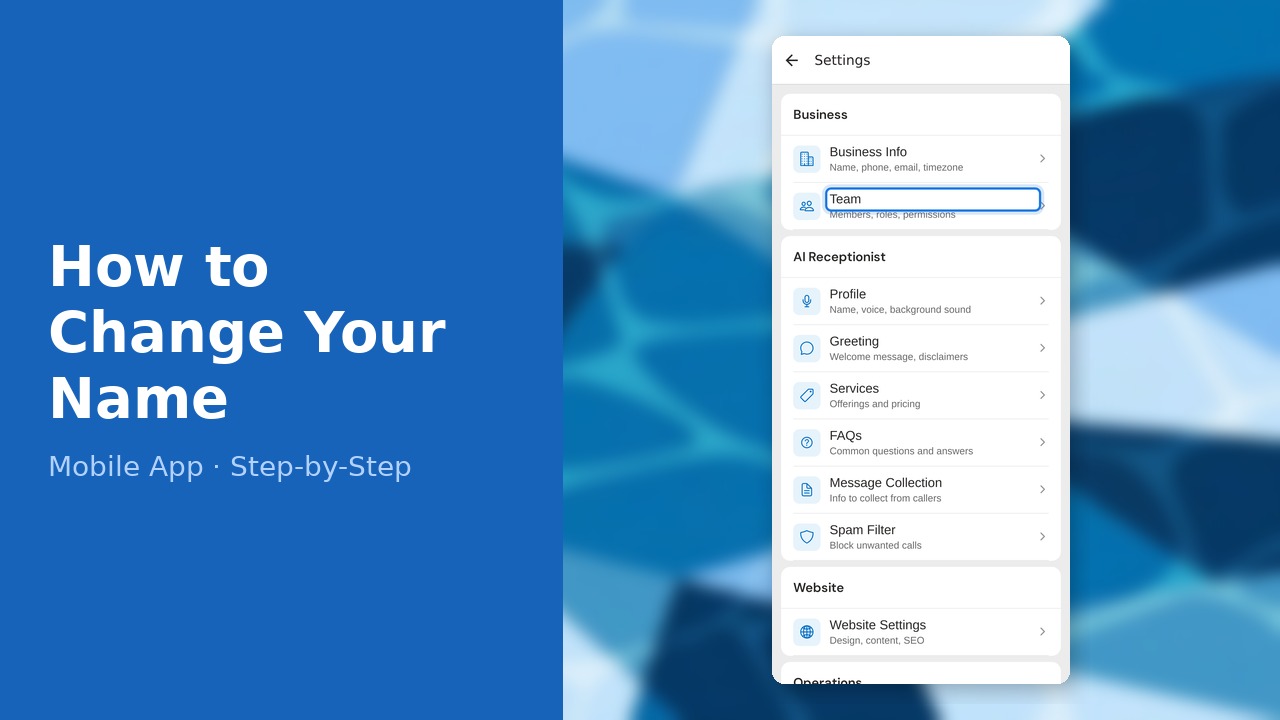
This guide walks you through how to change your name (mobile app) in PoolDial, step by step.
This guide covers 7 steps and takes about a minute to complete.
Video Walkthrough
Prefer to watch? Here's a full video walkthrough of How to Change Your Name (Mobile App).
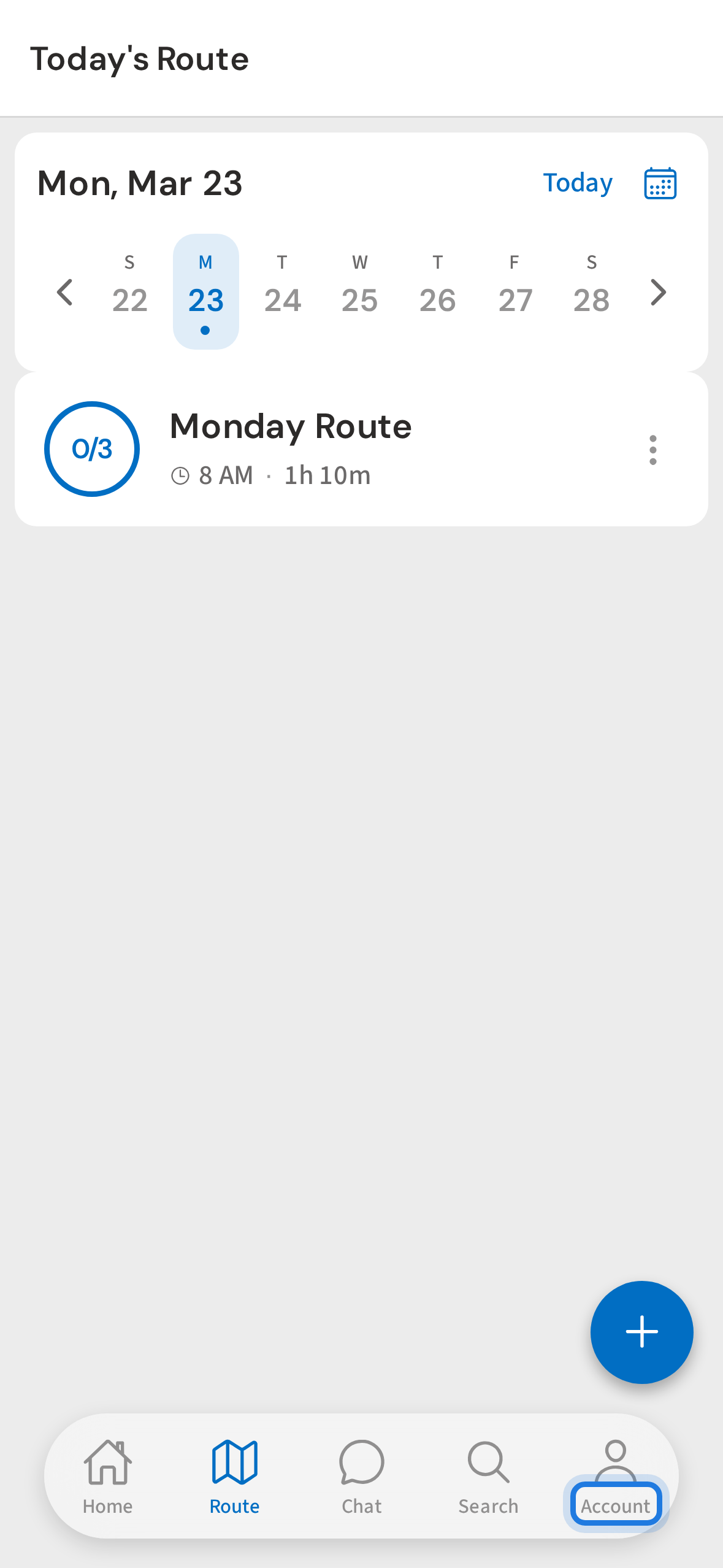
1. Tap the Account tab
Tap the Account tab at the bottom of the screen to open your account overview.
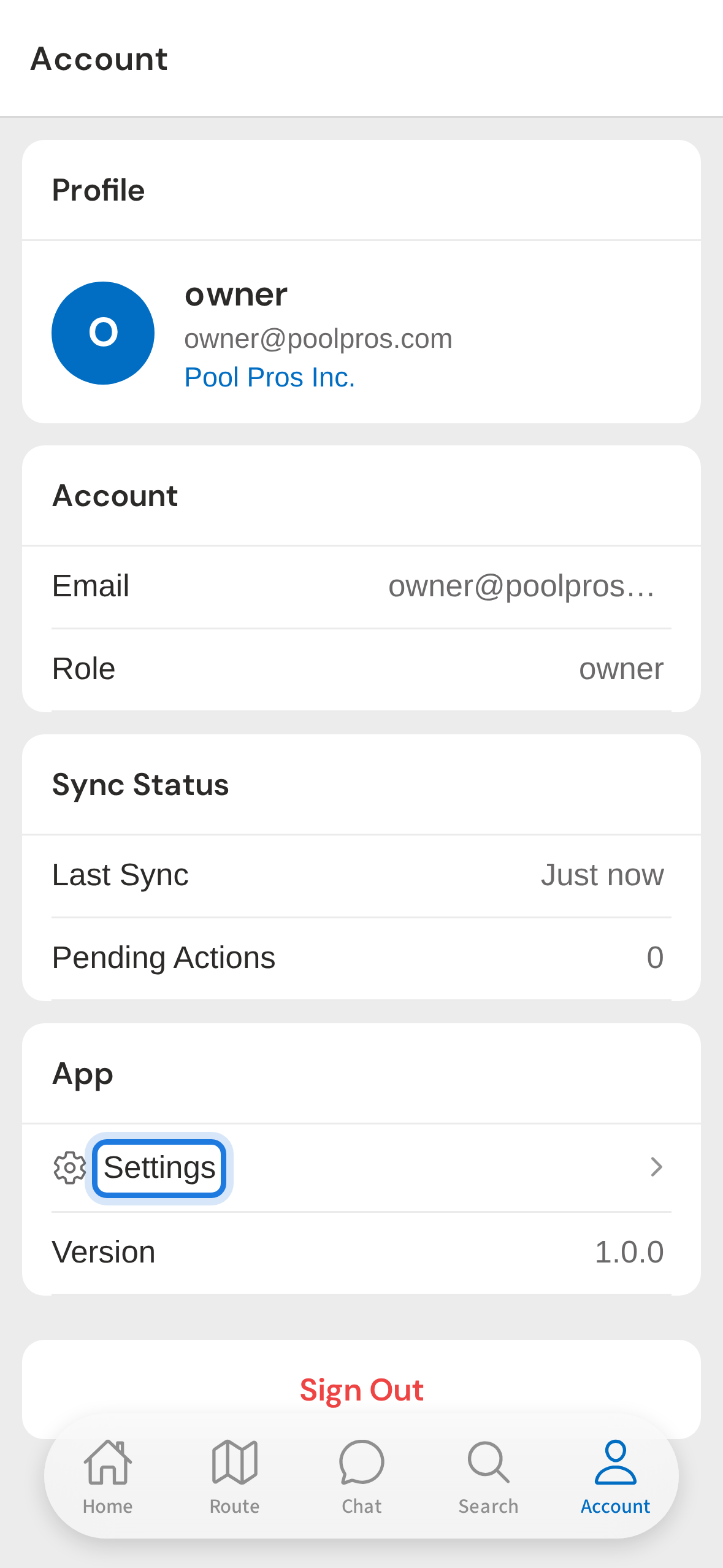
2. Tap Settings
Tap Settings to open the settings menu.
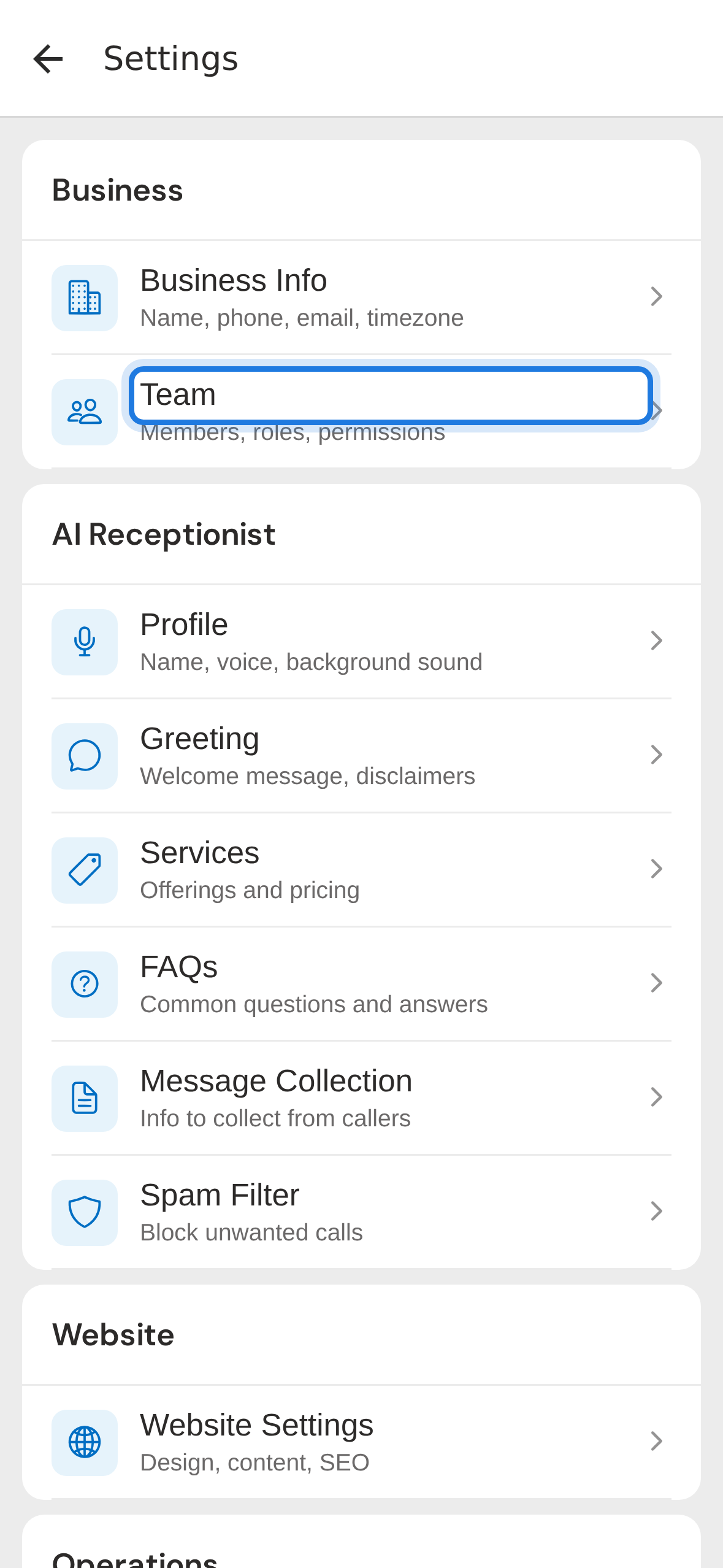
3. Tap Team in settings
Under the Business section, tap Team to see all team members.
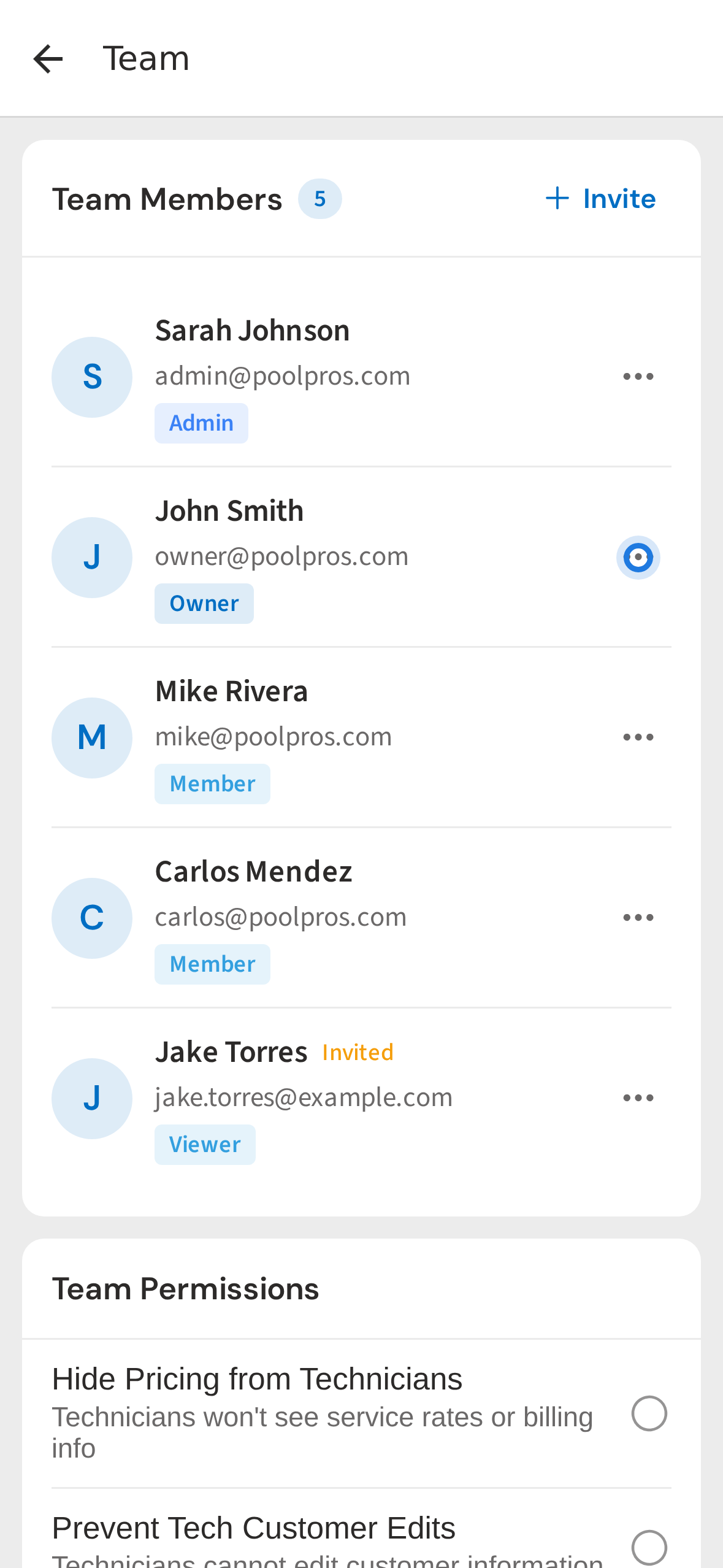
4. Tap the action menu on your own row
Find your own row in the list and tap the ⋯ menu on the right.
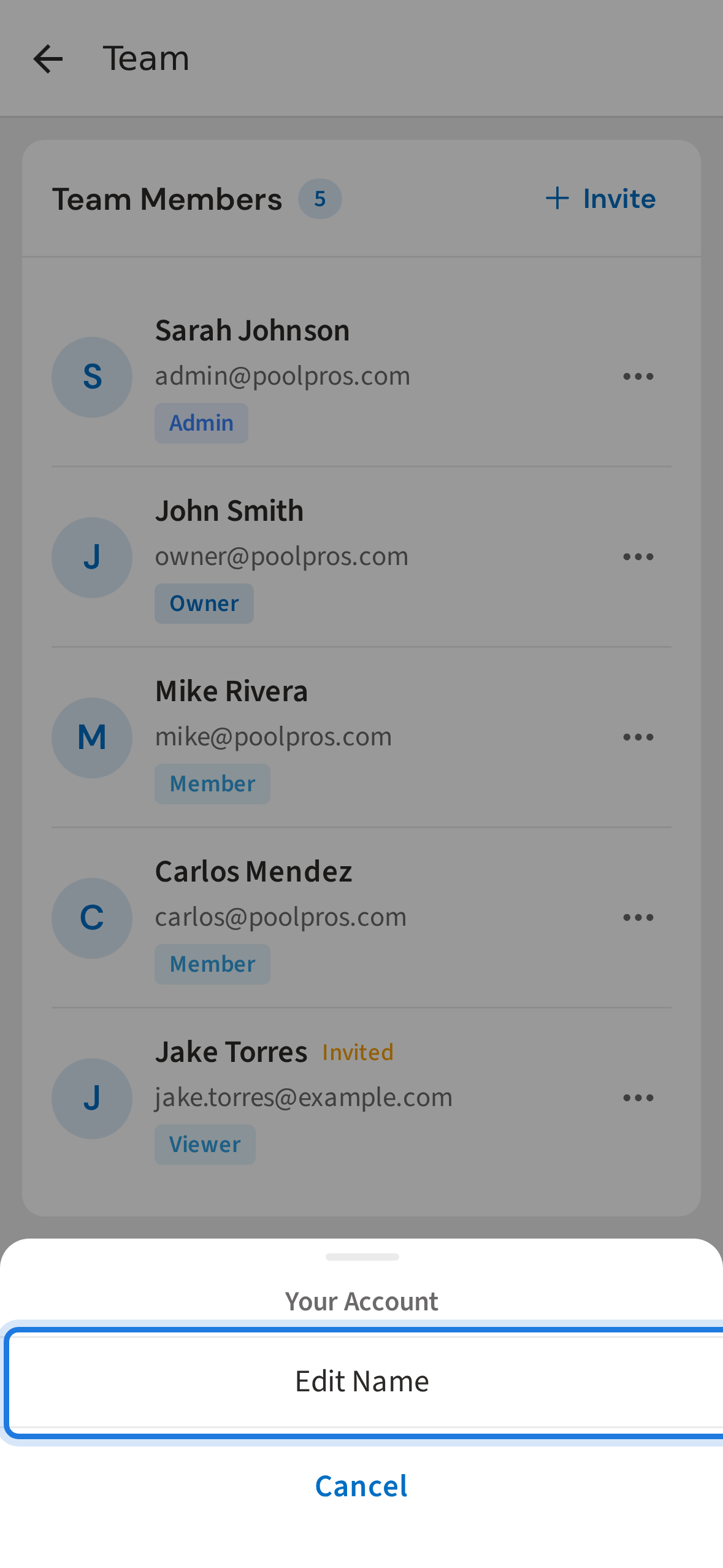
5. Tap Edit Name from the action sheet
Tap Edit Name from the action sheet.
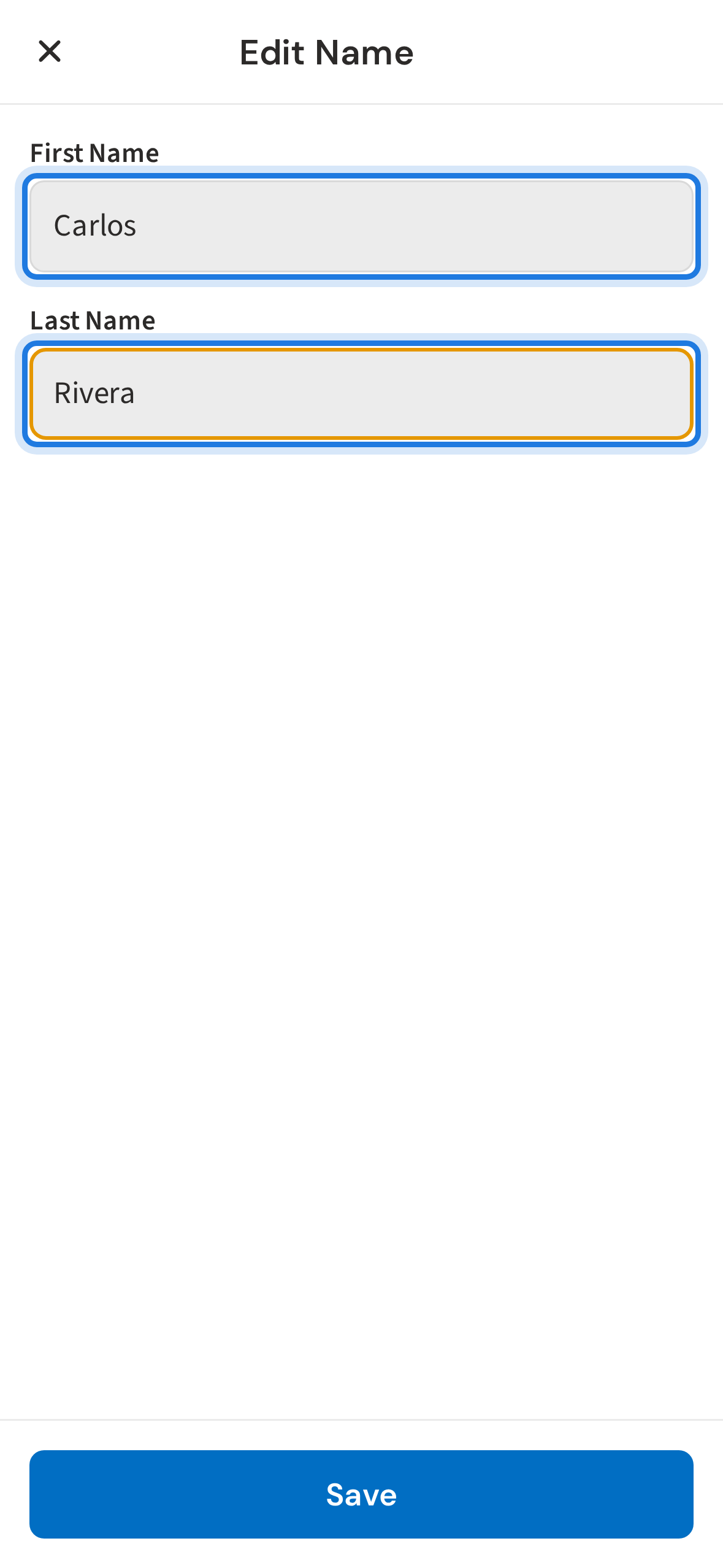
6. Enter your updated first and last name
Type your updated first and last name in the fields.
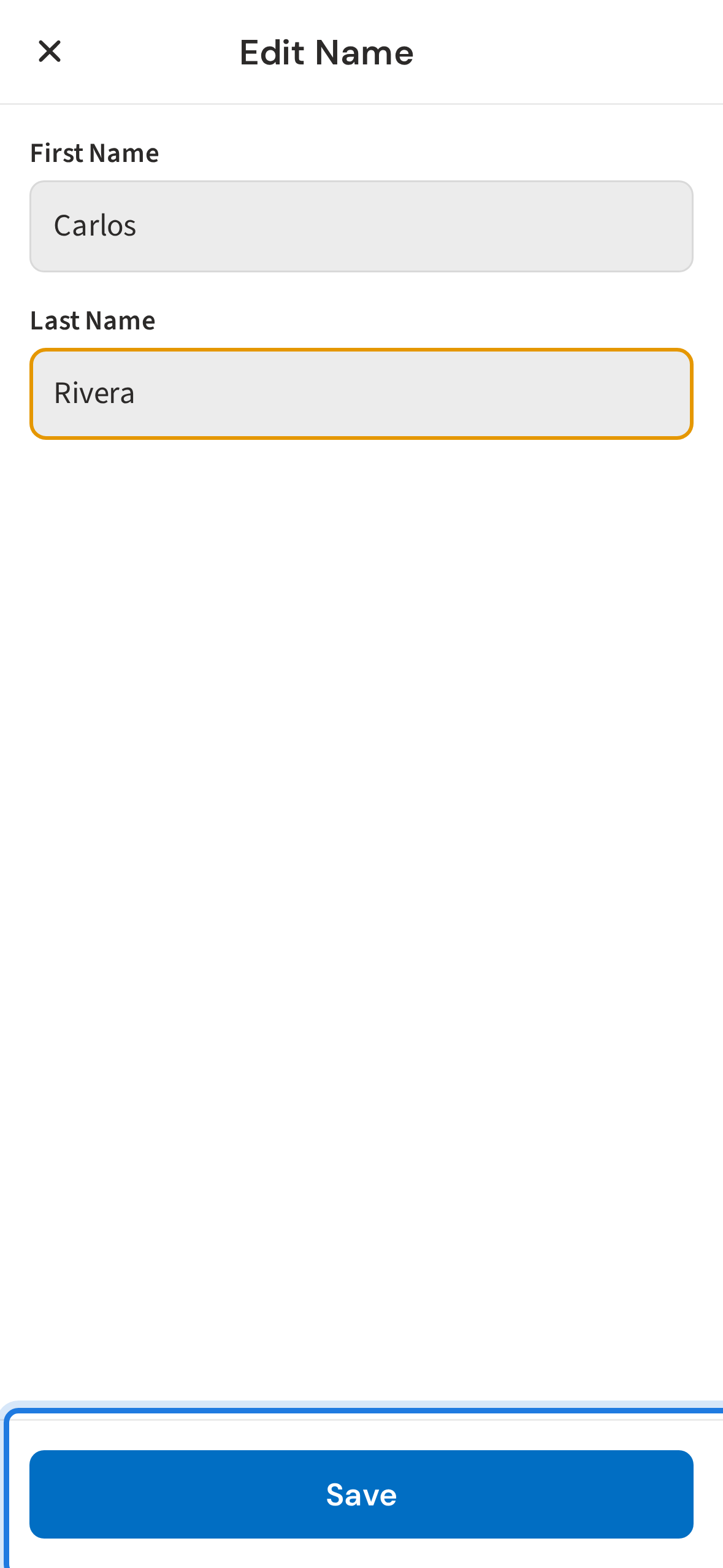
7. Tap Save to apply the name change
Tap Save. Your name updates instantly across the app.
Not using PoolDial yet?
Manage your customers, routes, billing, and more — all in one place.
Start Free Trial