
How to Change Your Password


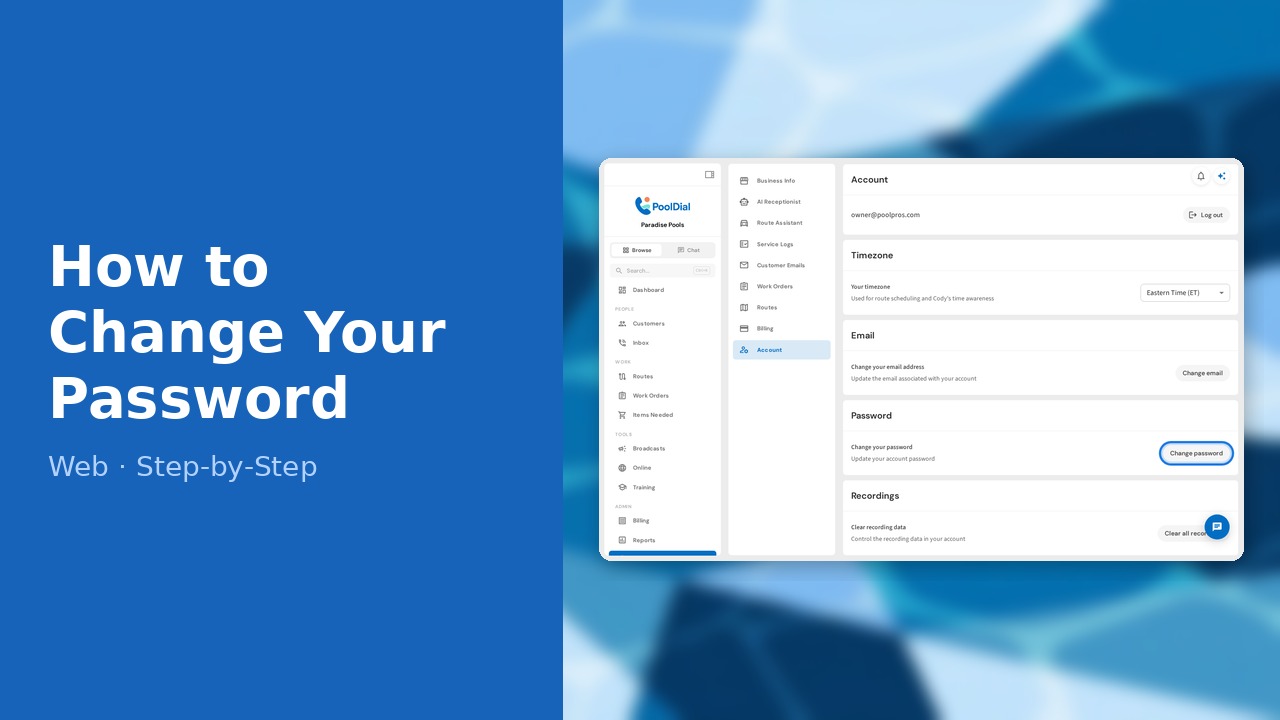
This guide walks you through how to change your password in PoolDial while you're signed in, step by step.
Forgot your password and can't sign in? See How to Reset Your Password instead.
This guide covers 6 steps and takes about a minute to complete.
Video Walkthrough
Prefer to watch? Here's a full video walkthrough of How to Change Your Password.
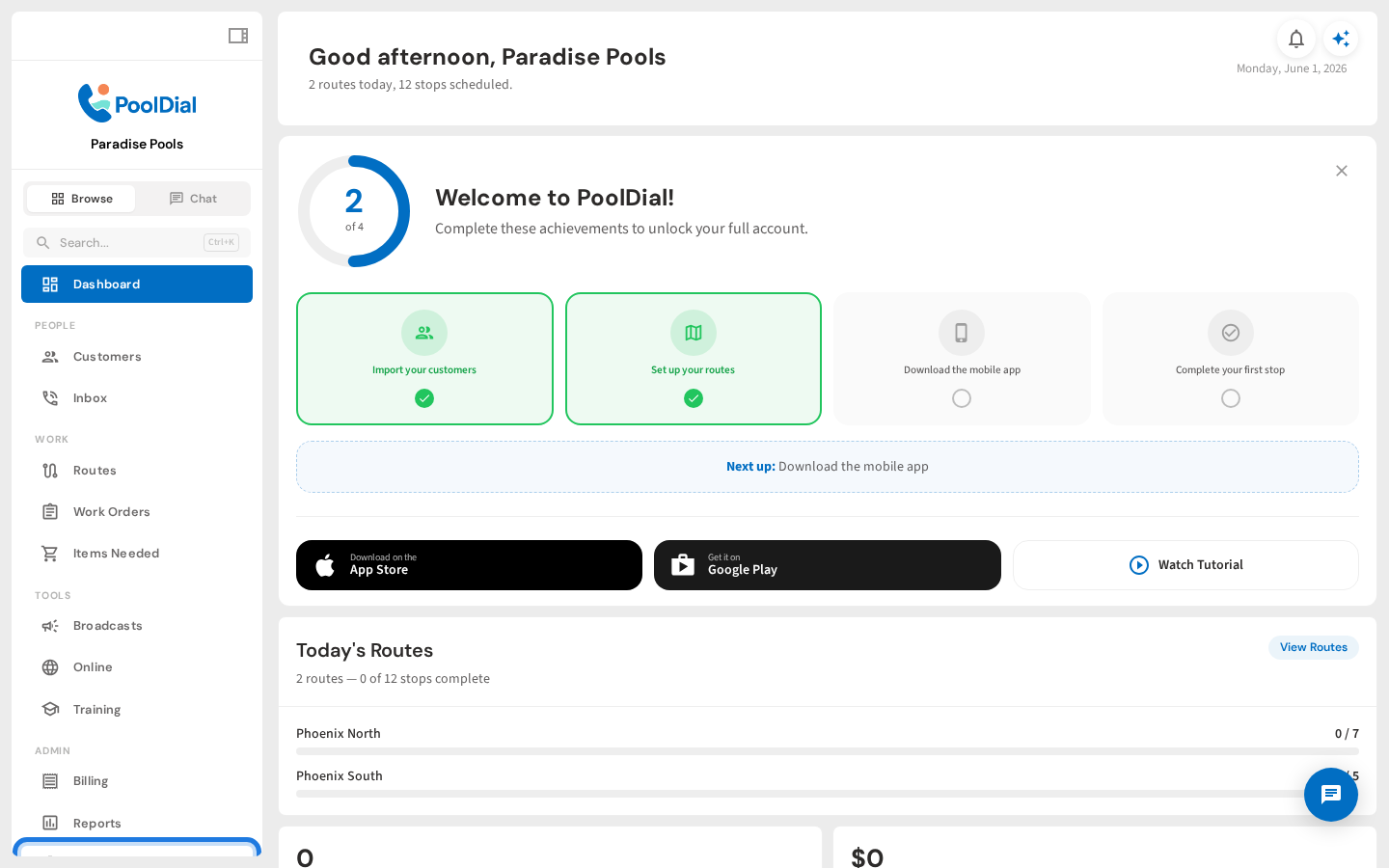
1. Click Settings in the sidebar
From any page, click the Settings gear icon in the left sidebar.
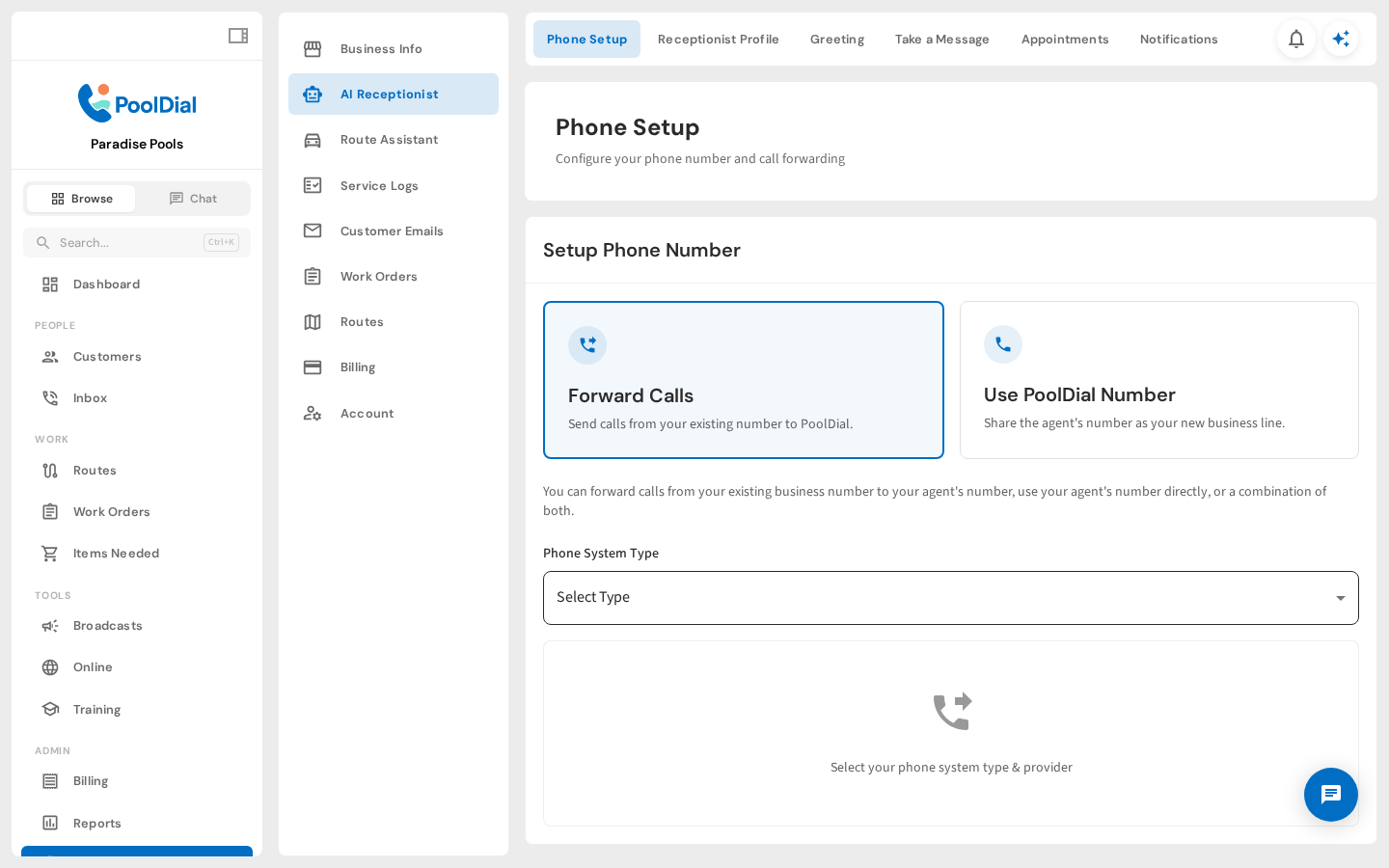
2. Click Account Settings
In the Settings page, click the Account Settings tab to open your account preferences.
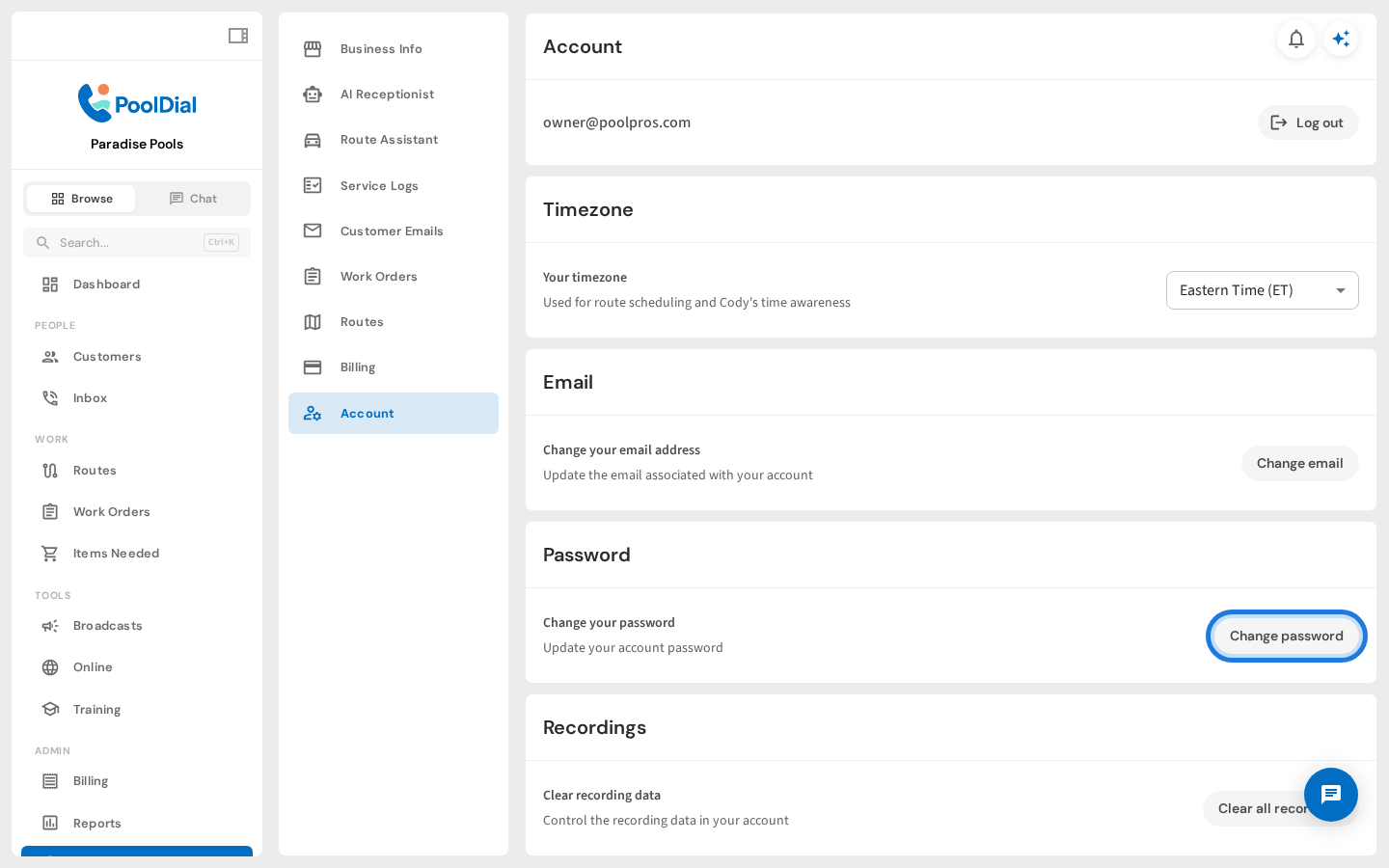
3. Click Change password
In the Password section, click the Change password button.
4. Enter your current password
Enter your current password to verify your identity.
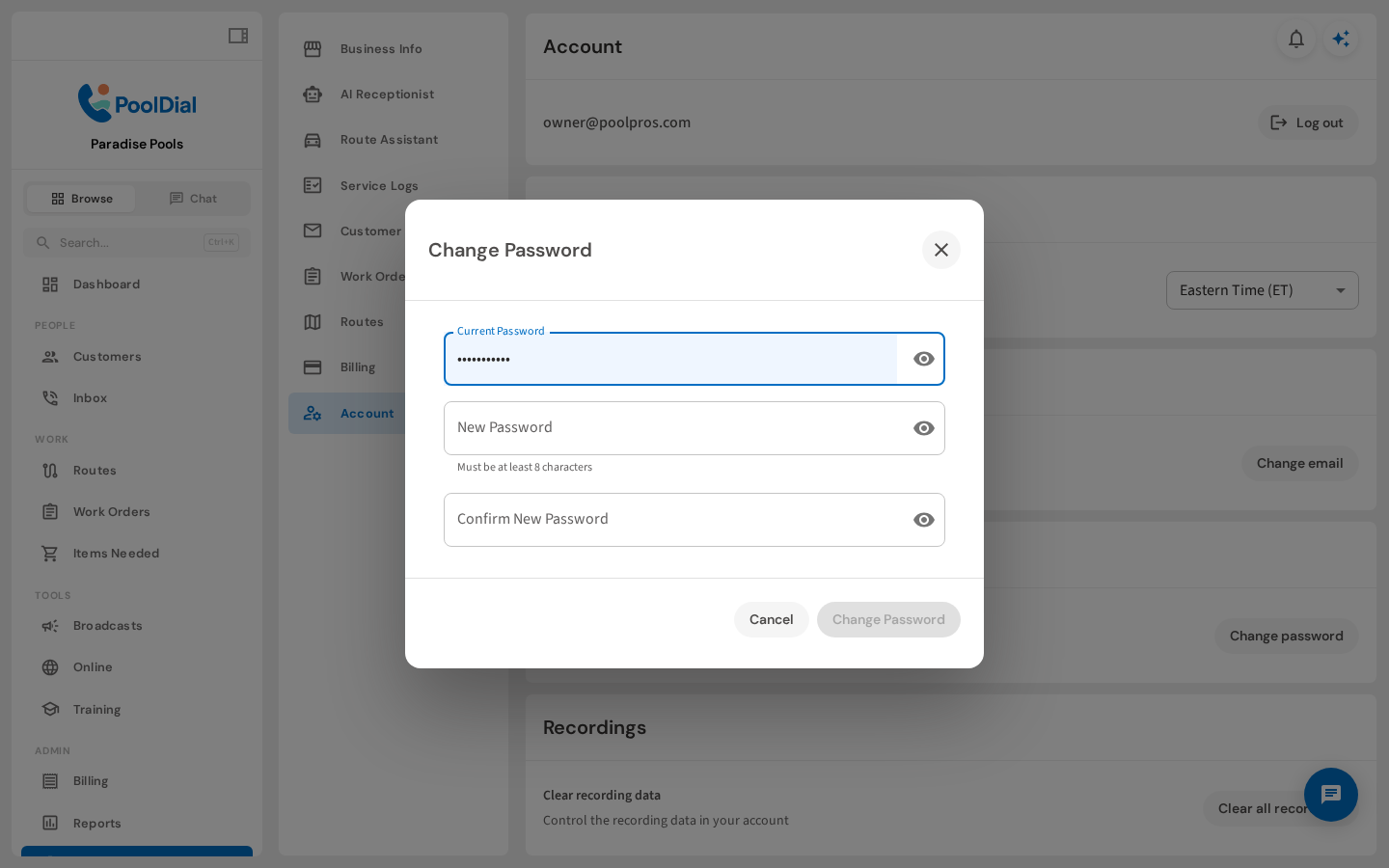
5. Enter and confirm your new password
Enter your new password and confirm it. Your password must be at least 8 characters and include an uppercase letter, a lowercase letter, and a number.
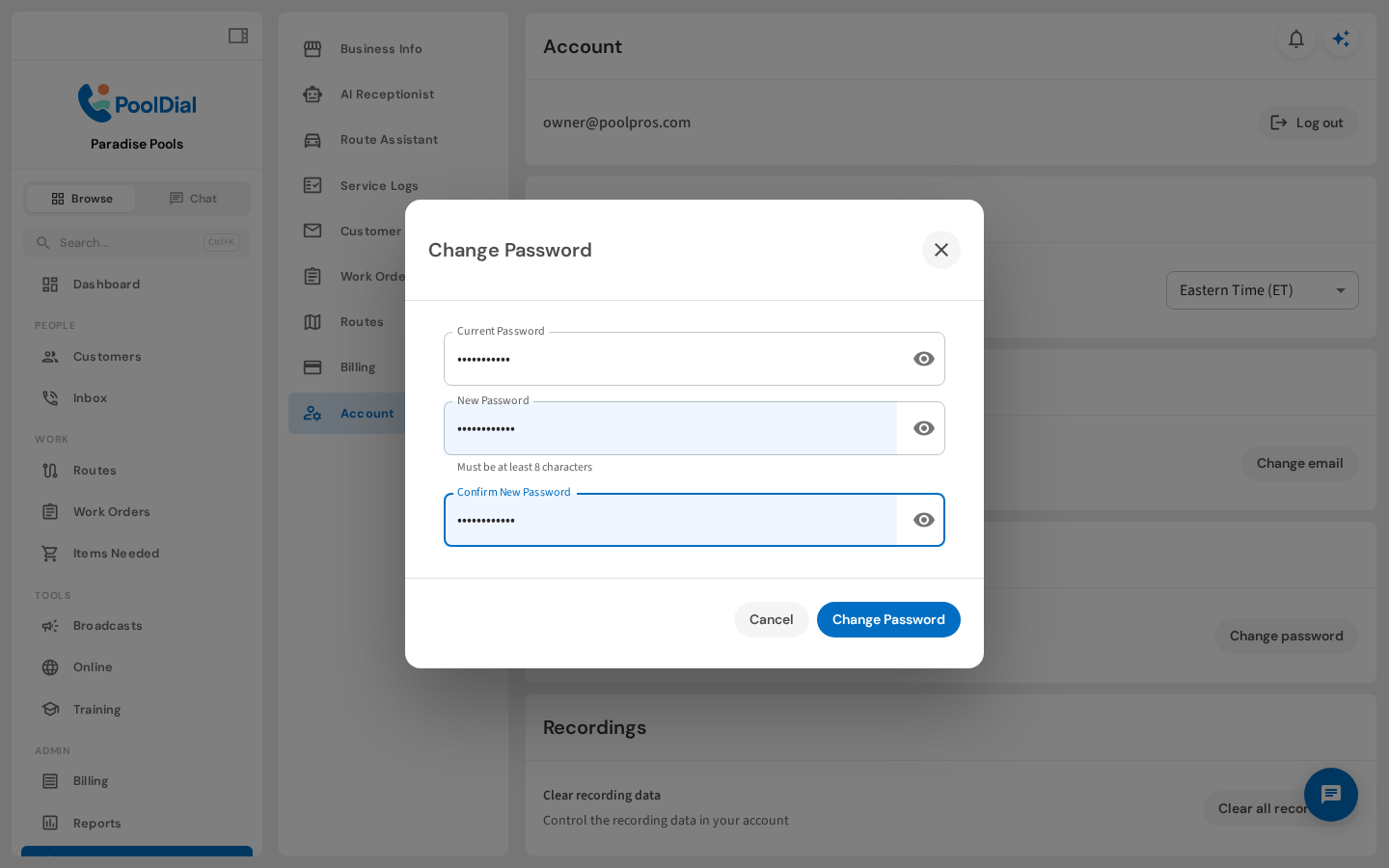
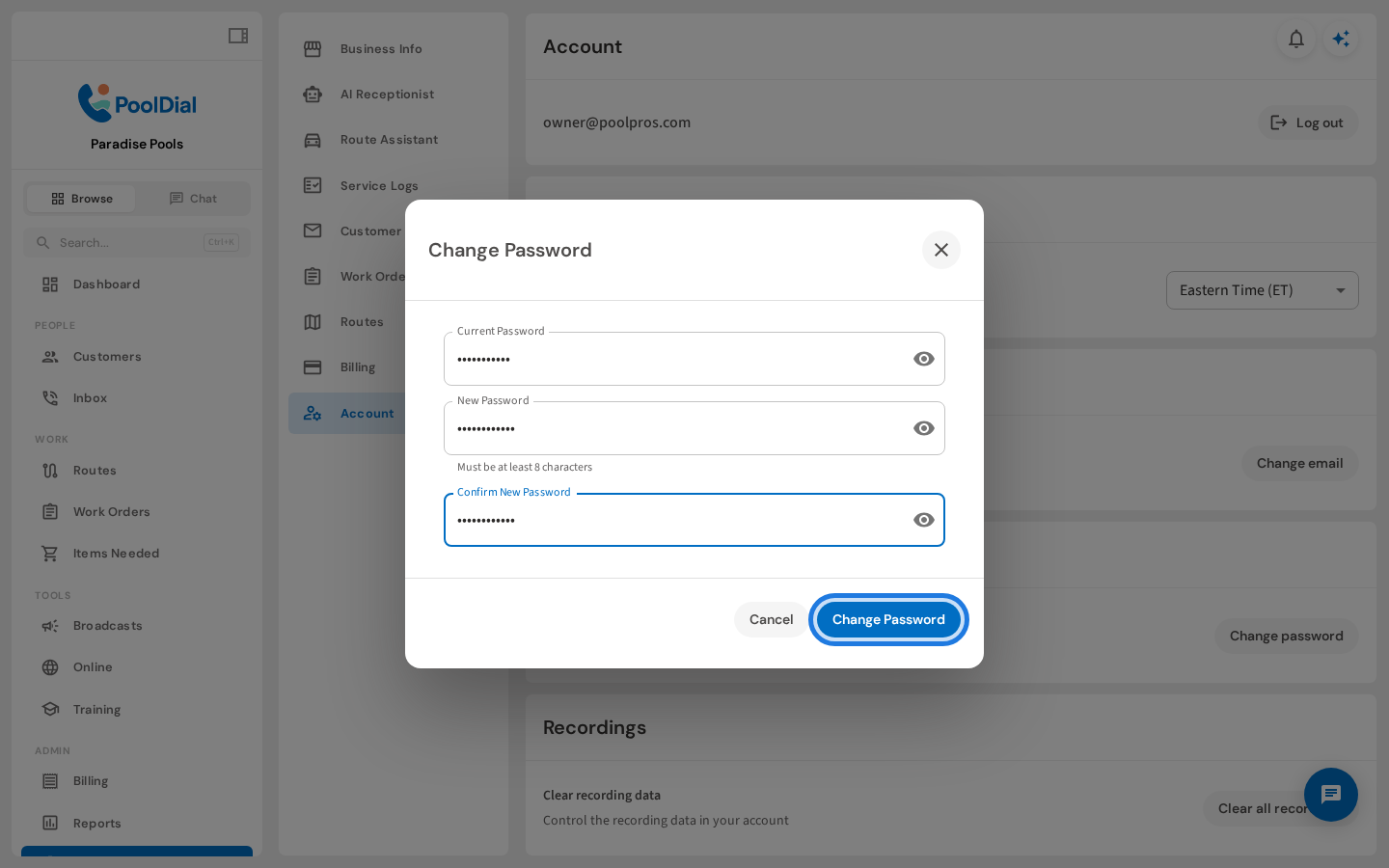
6. Click Change Password to save
Click Change Password to save your new password. You'll see a success message confirming the change.
Not using PoolDial yet?
Manage your customers, routes, billing, and more — all in one place.
Start Free Trial