
How to Send Bulk Portal Invitations

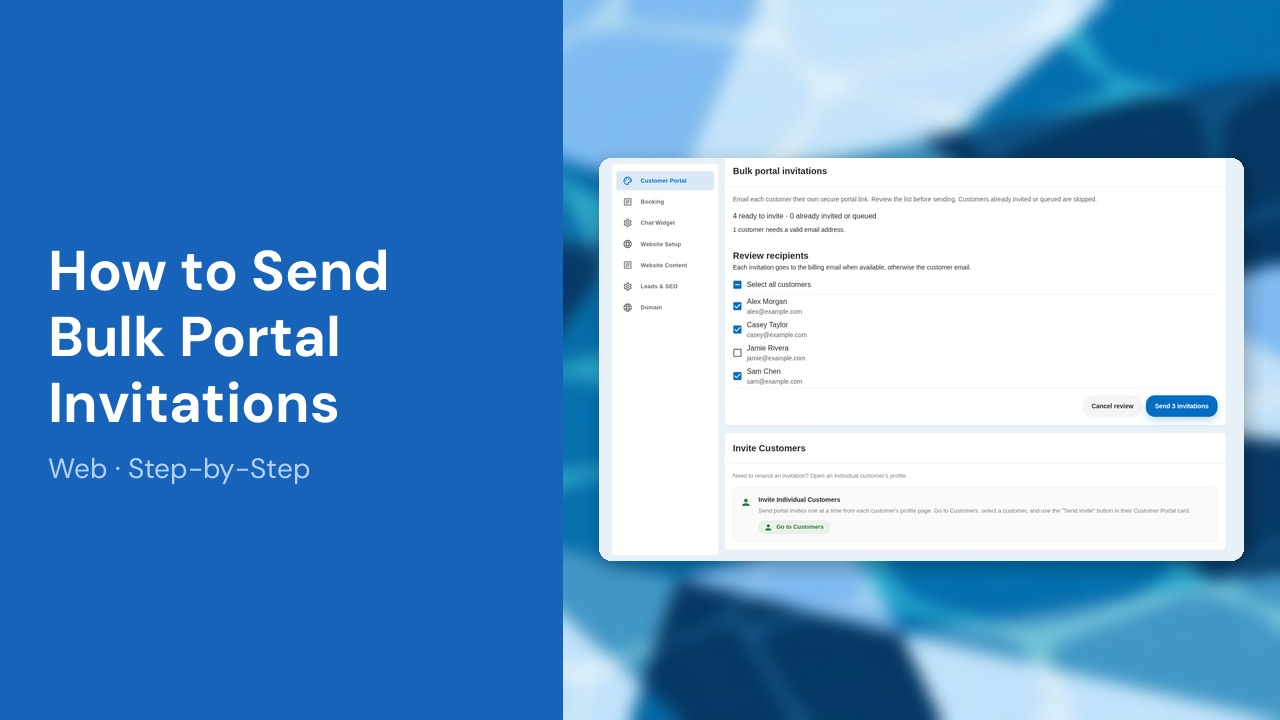
Invite your customers to their Pool Dial portal in one batch. Review the eligible customers, choose who receives an invitation, and track delivery while sending continues in the background.
This guide covers six steps. Sending continues in the background after you confirm.
Before you start
You must be an owner or administrator, have an active paid subscription, and have customer communications enabled. Invitations use your saved portal invitation message and send each customer a personal secure portal link.
On mobile, open Settings → Customers → Customer Portal → Bulk portal invitations, then follow the same review, selection, and confirmation steps below.
Video Walkthrough
Prefer to watch? Here's a full video walkthrough of How to Send Bulk Portal Invitations.
1. Open Customer Portal
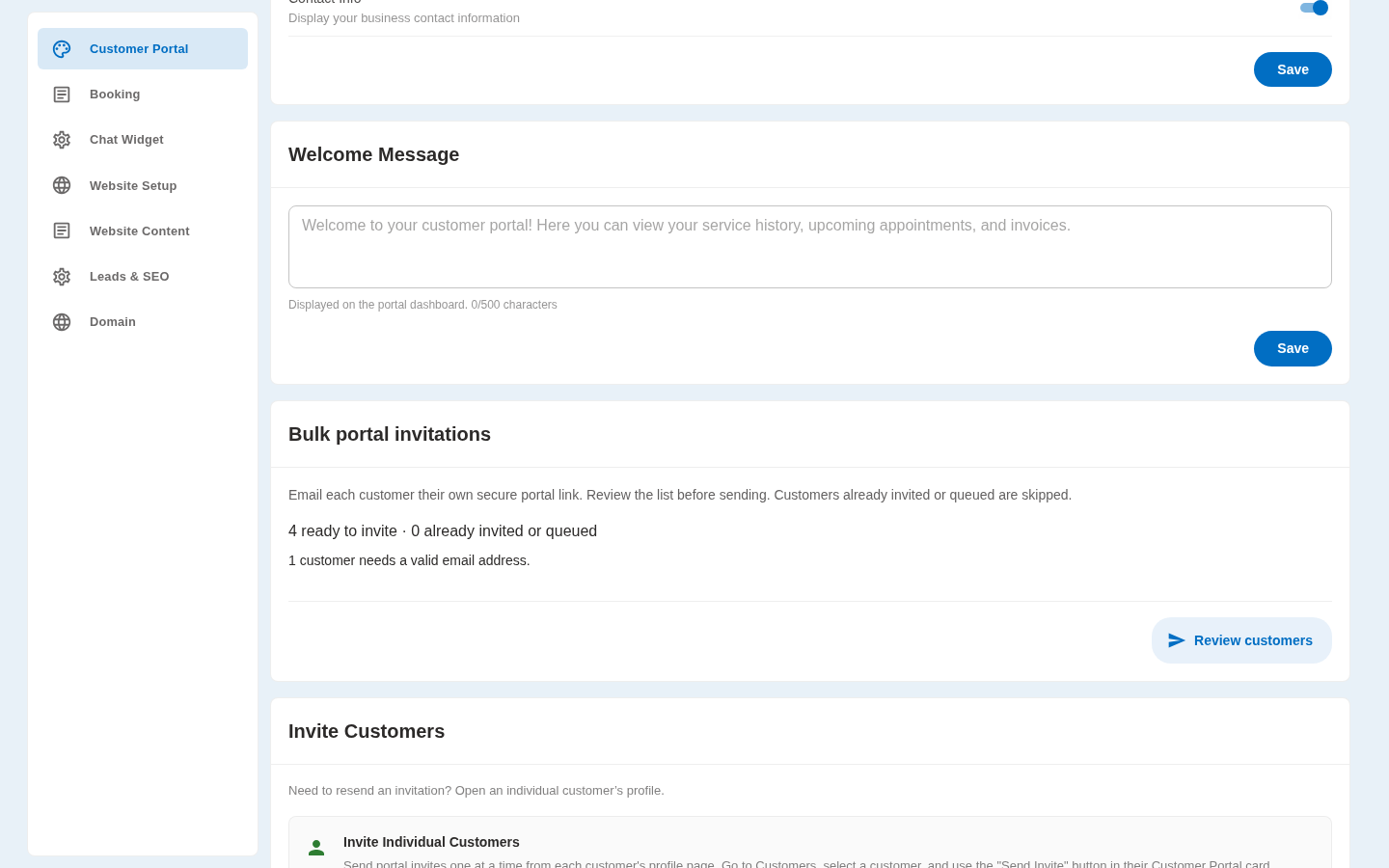
On desktop, open Website, then Customer Portal. Scroll to Bulk portal invitations. You must be an owner or administrator to send invitations.
2. Review eligible customers
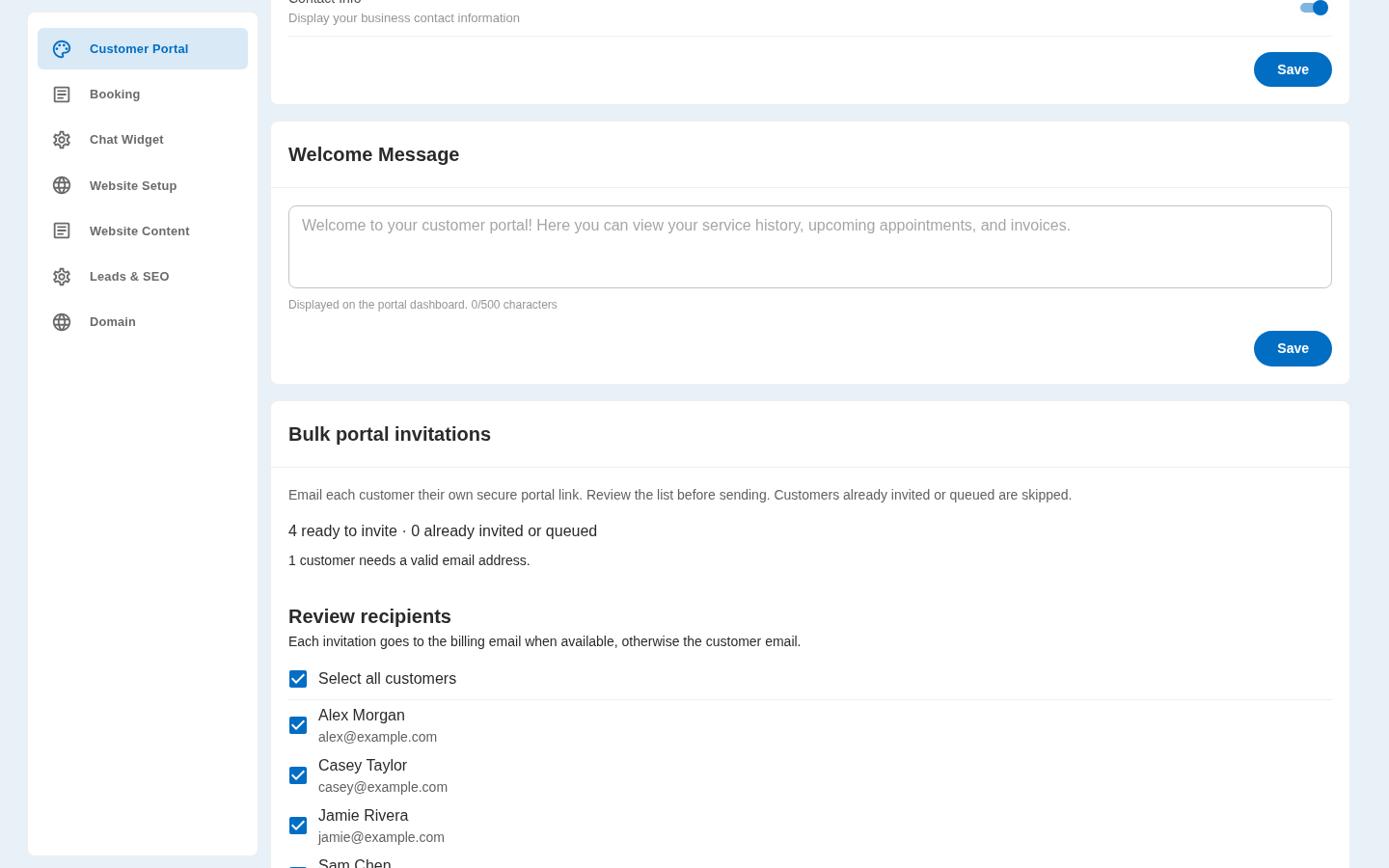
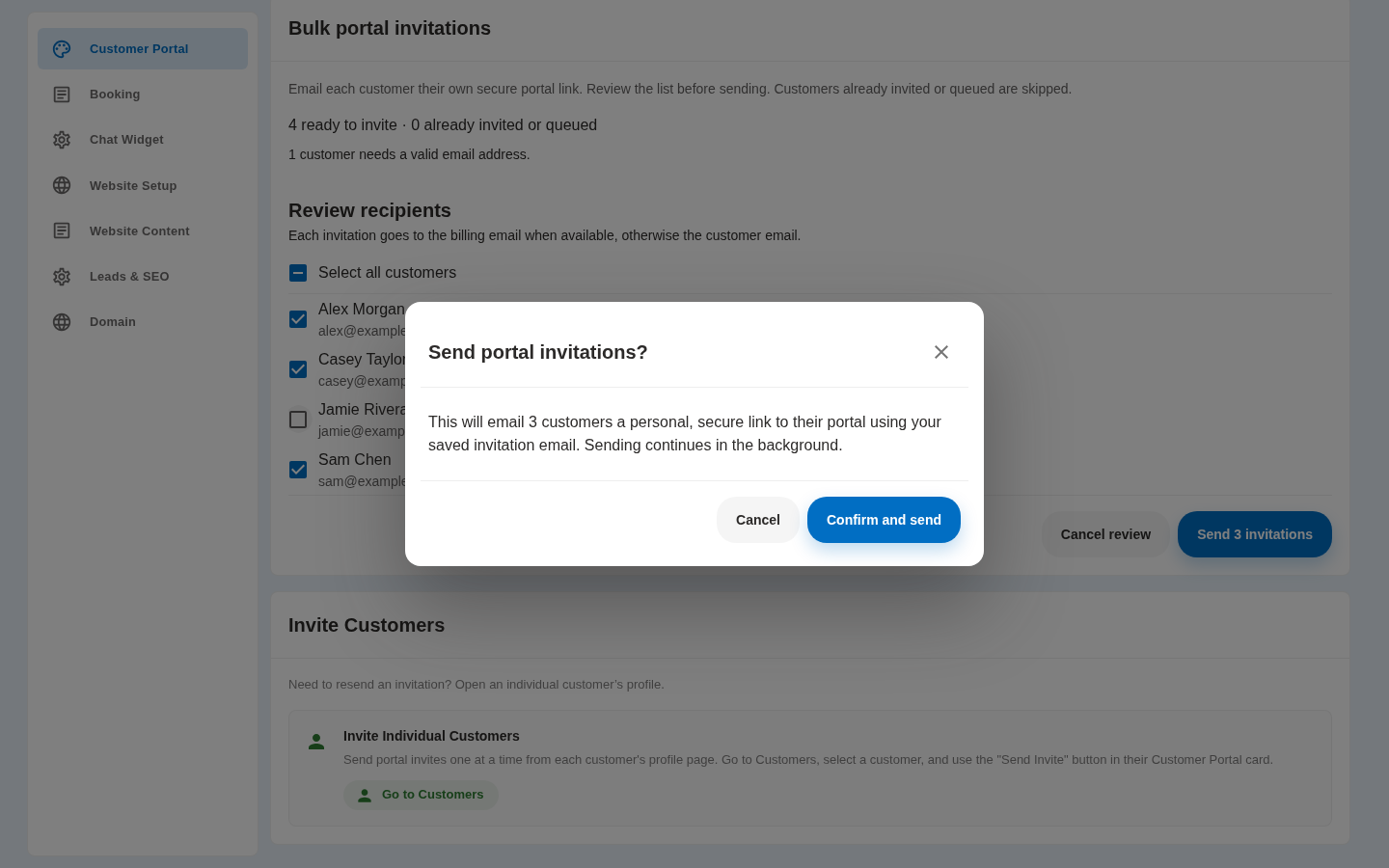
Choose Review customers. Pool Dial lists active customers with valid email addresses. Customers already invited or queued are skipped. Each invitation goes to the billing email when available, otherwise the customer email.
3. Choose who receives an invitation
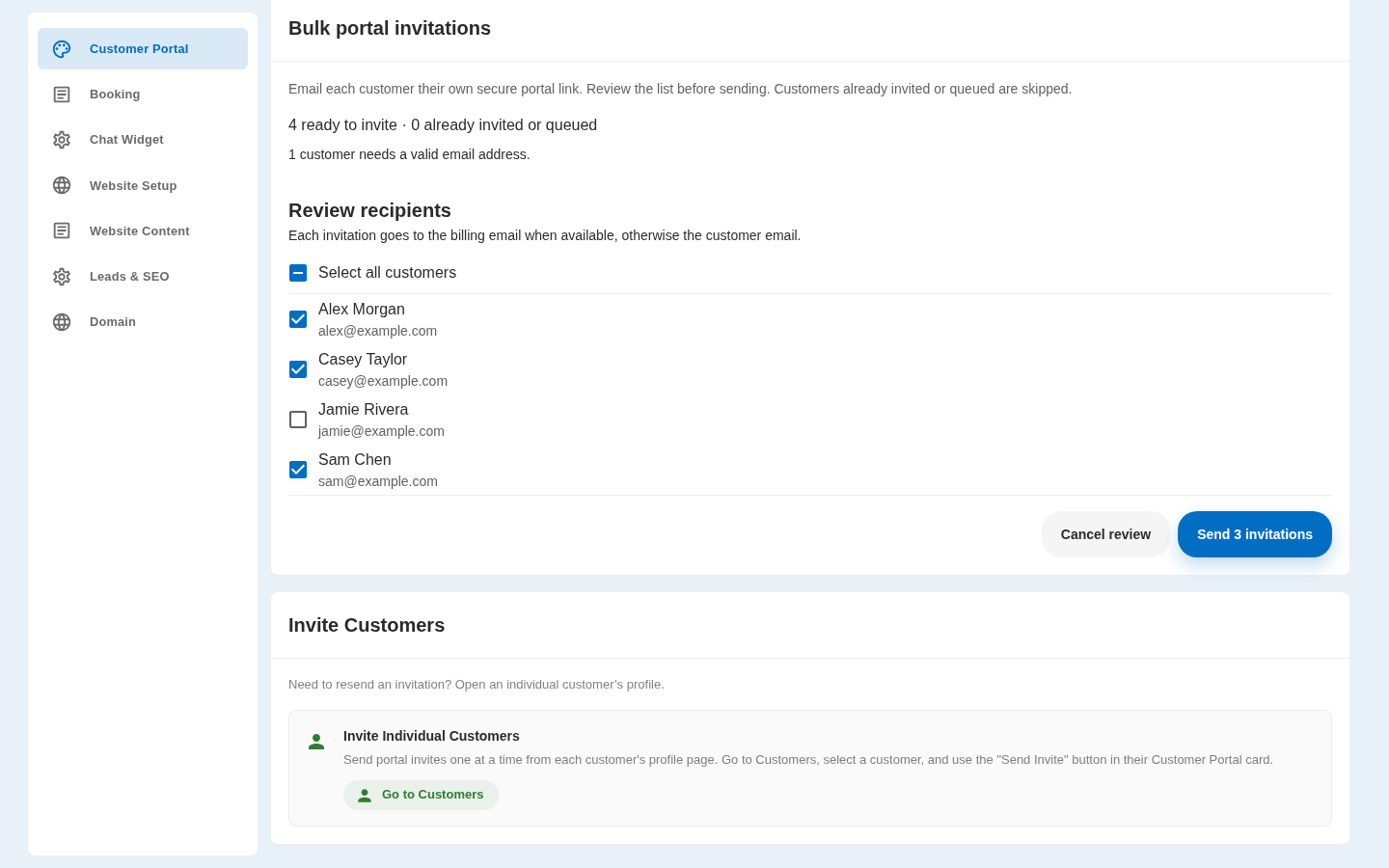
All eligible customers start selected. Uncheck anyone you want to leave out, or use Select all customers to change the whole list. Check the selected count before continuing.
4. Confirm the send
Select Send invitations, then review the confirmation. Choose Confirm and send to queue personal secure portal links for the selected customers. Cancel returns to the review without sending.
5. Track delivery progress
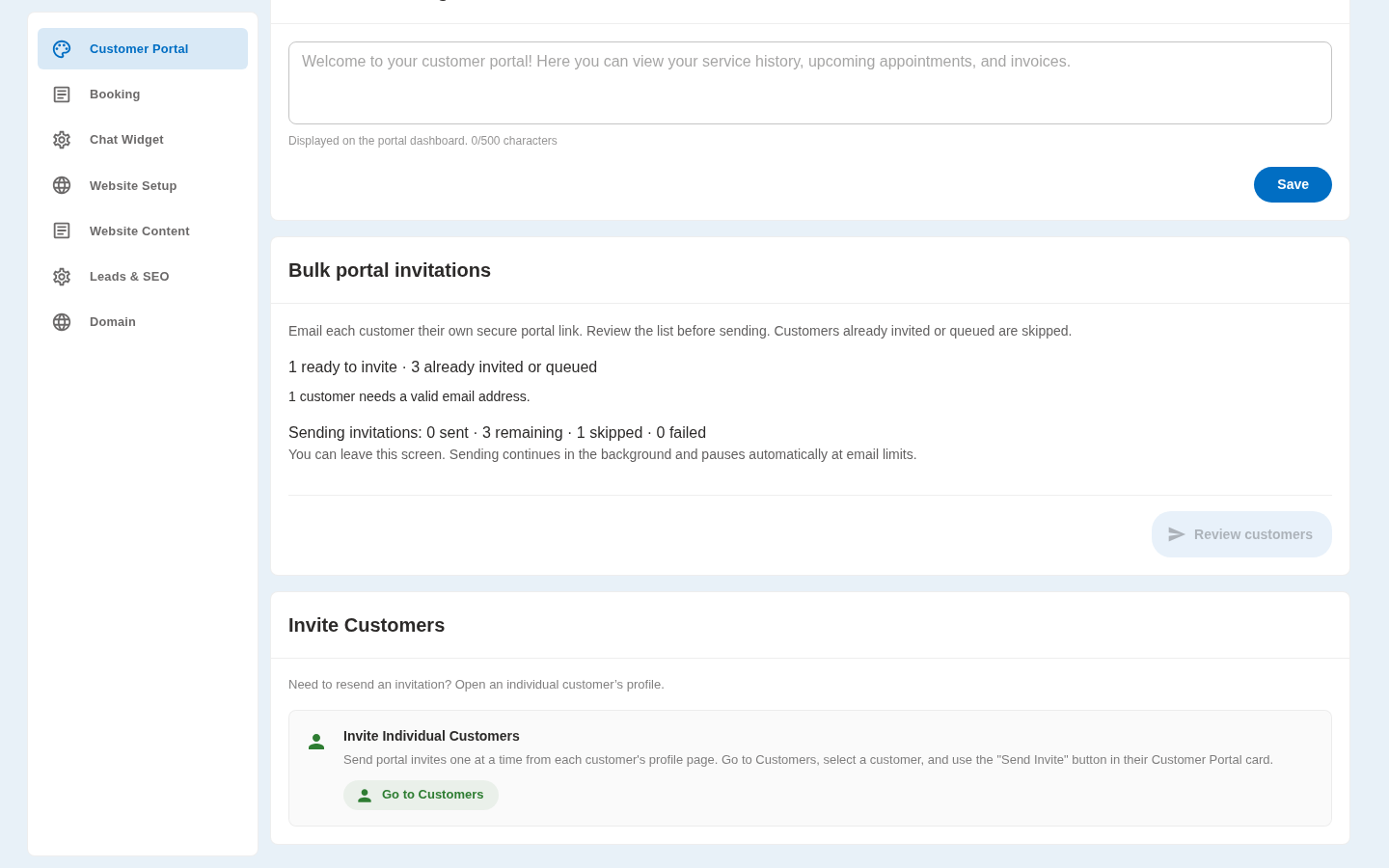
Sending continues in the background, even if you leave this screen. The progress shows sent, remaining, skipped, and failed invitations. If an email limit is reached, sending pauses and resumes automatically.
6. Check the result
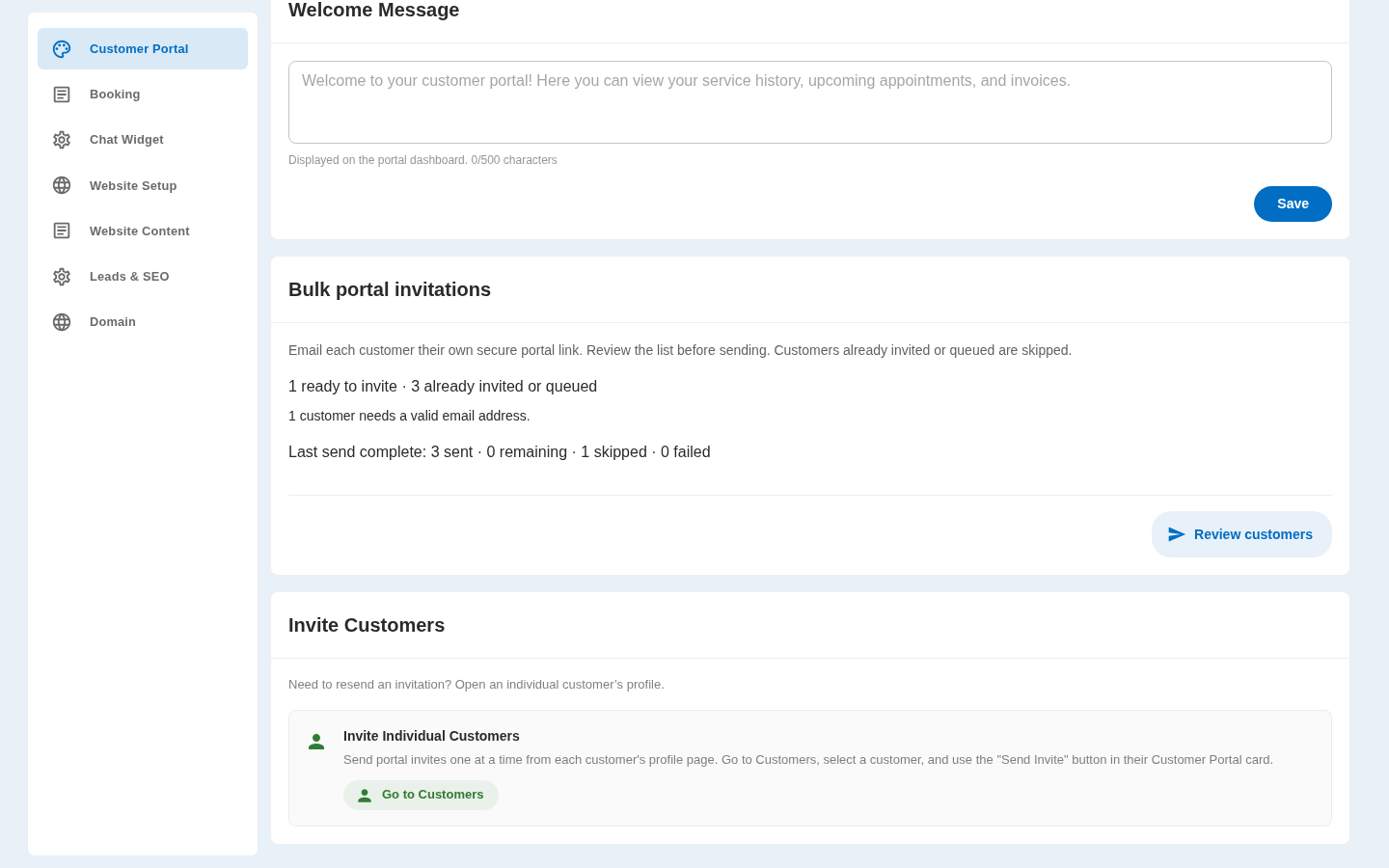
Return here to check the final result. If you need to resend an invitation to one customer, open their customer profile. On mobile, you can use the same review and send flow from Settings → Customers → Customer Portal.
If a customer is missing or an invitation fails
- Missing email: Add a valid billing email or customer email to the customer profile, then choose Review customers again. The billing email takes priority when available.
- Already invited: Customers with a current portal link or a prior bulk invitation are excluded. To resend an invitation, open that customer's profile.
- Review expired: Reviews expire after 30 minutes. Review customers again before sending.
- Skipped: A customer may be skipped if their email changes, they become inactive, or they receive a portal link before the queued invitation is sent.
- Paused: Email limits can pause a batch. Sending resumes automatically; you do not need to submit another batch.
- Failed: Check the customer and error shown in the results. Resolve the issue and use the customer's profile to resend when needed.
Not using PoolDial yet?
Manage your customers, routes, billing, and more — all in one place.
Start Free Trial