How to Send Invoices to Multiple Email Addresses

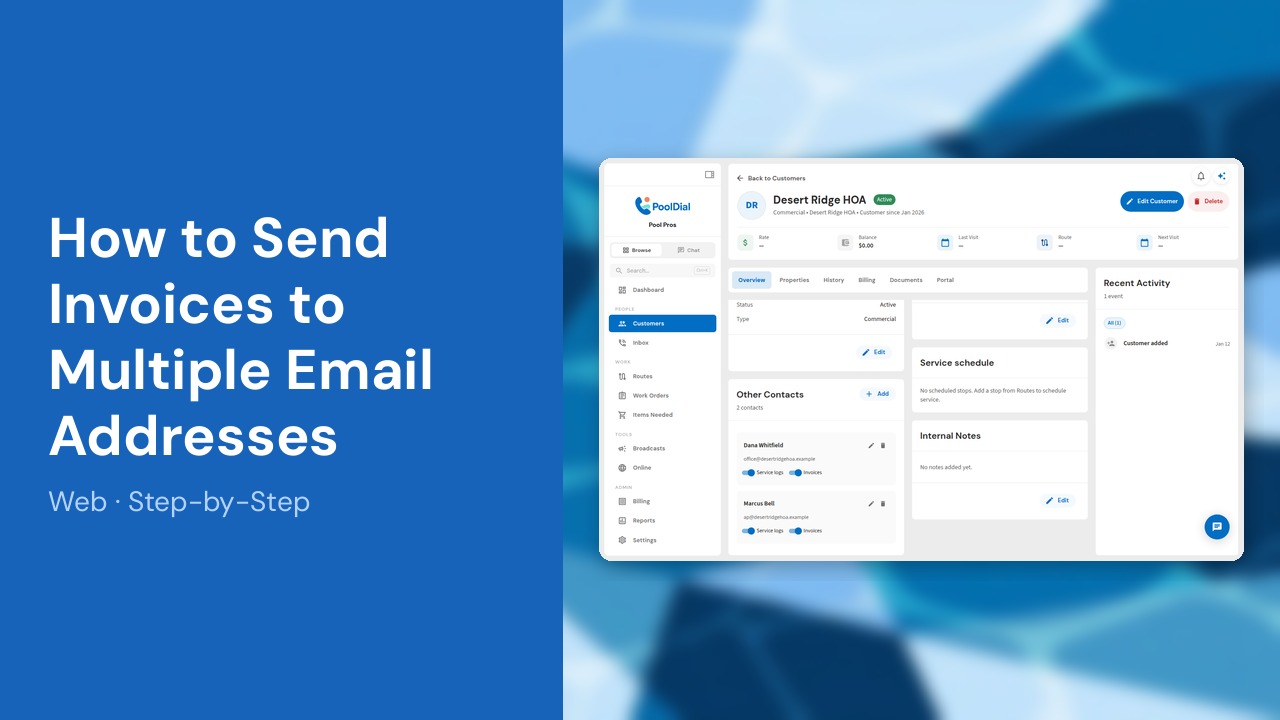
Commercial accounts, HOAs and property managers often want invoices to reach more than one inbox, such as the office and accounts payable. In Pool Dial, each address is added as a contact on the customer, and every contact with invoices turned on gets a copy.
This guide covers 5 steps and takes about a minute to complete.
Video Walkthrough
Prefer to watch? Here's a full video walkthrough of how to send invoices to multiple email addresses.
1. Open the customer
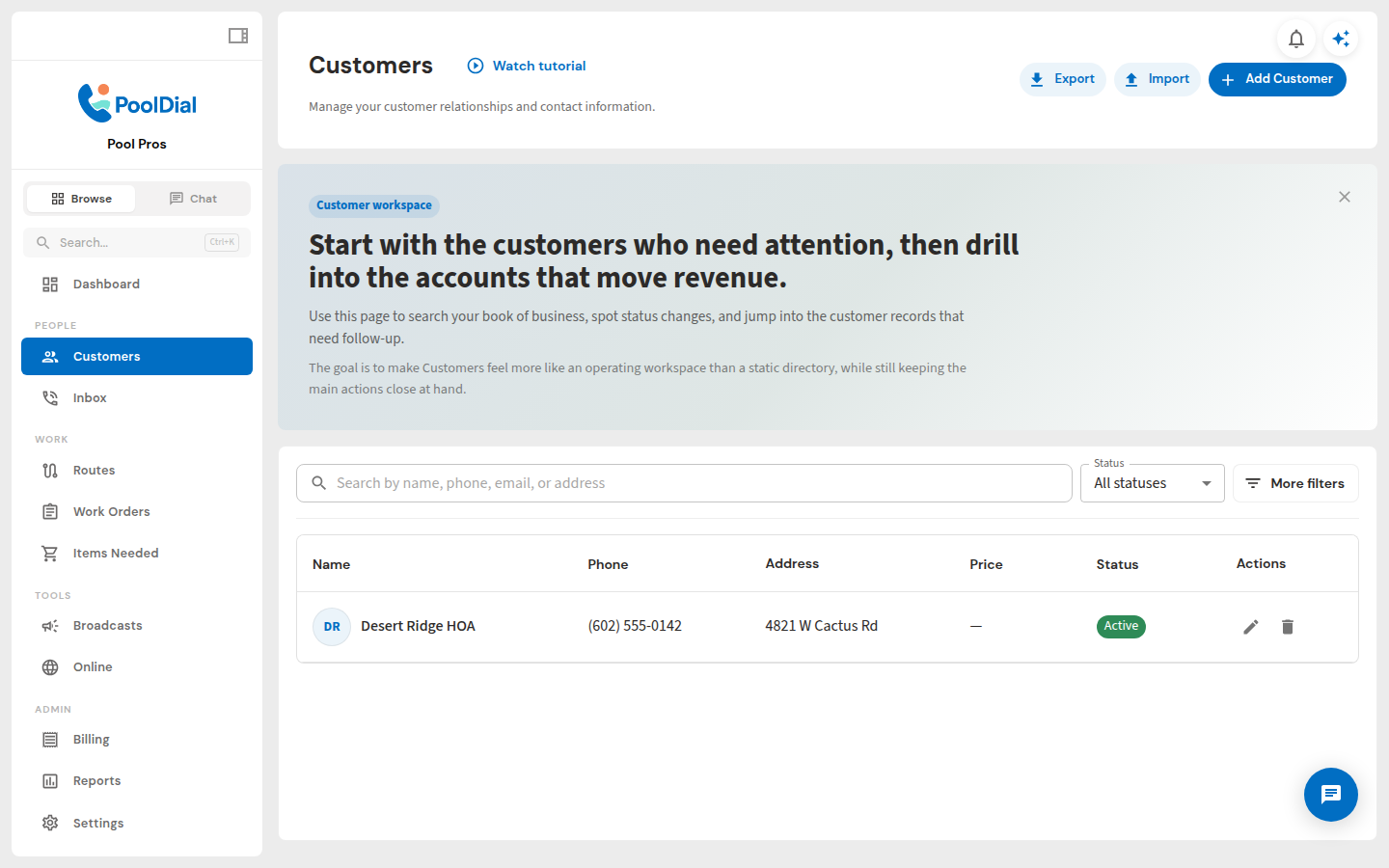
From the left sidebar, click Customers, then open the customer who wants their invoices sent to more than one address.
2. Click Add on the Other Contacts card
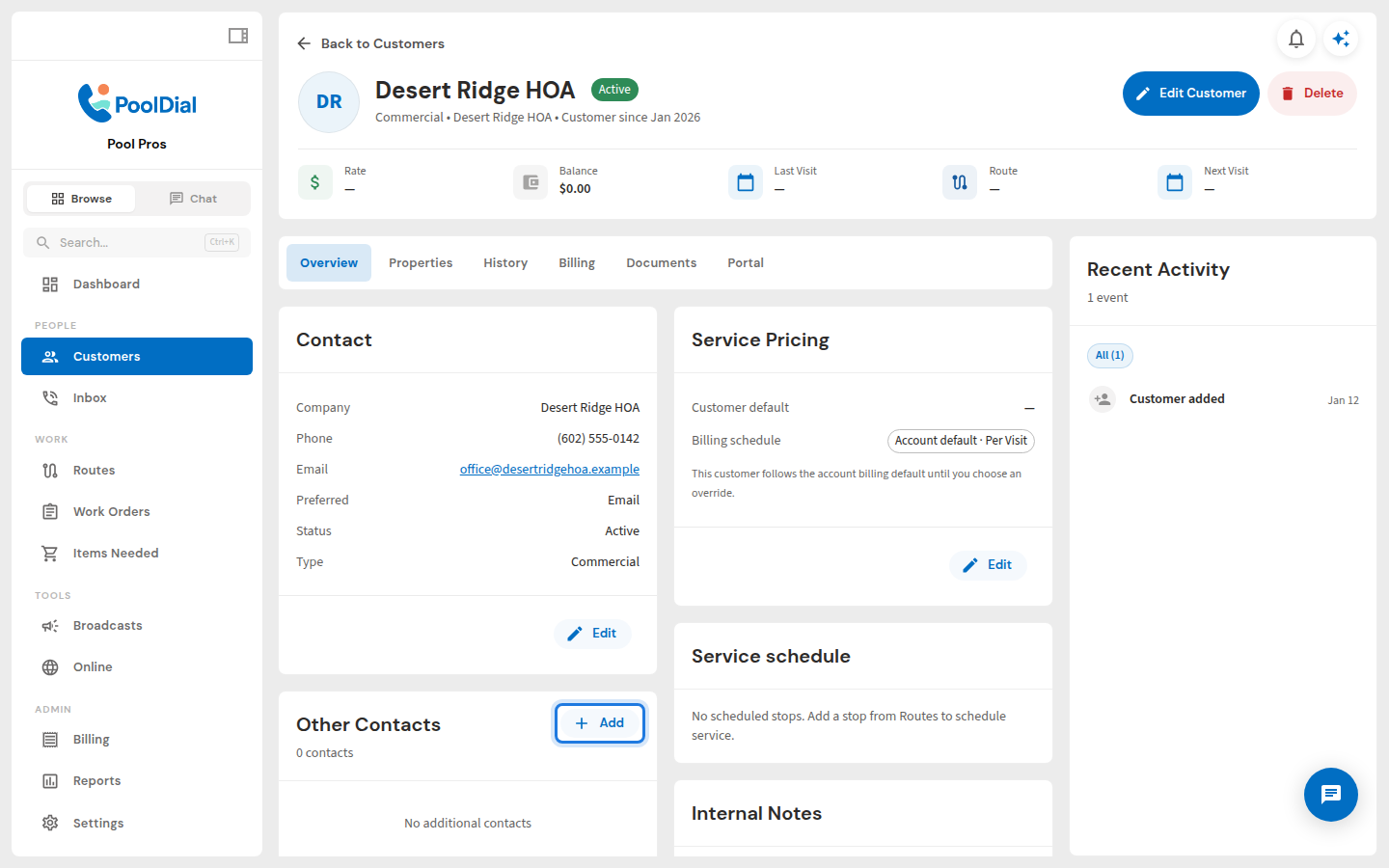
On the customer page, find the Other Contacts card and click Add.
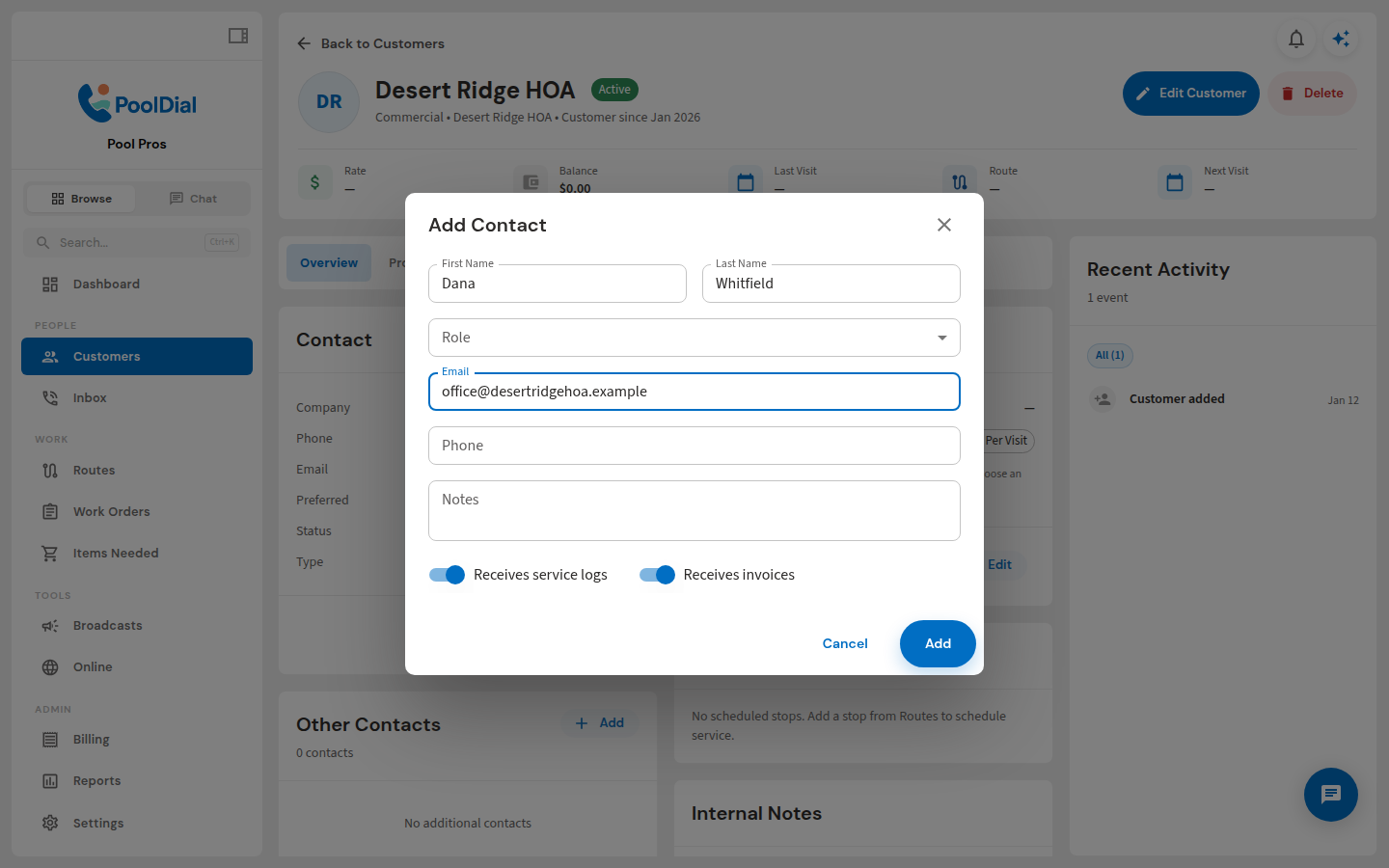
3. Add the first email address
Enter a name and the first email address. Leave Receives invoices on, then click Add. Add this address even if it is already the customer email, because that email stops receiving invoices once a contact has an email.
4. Add the second email address
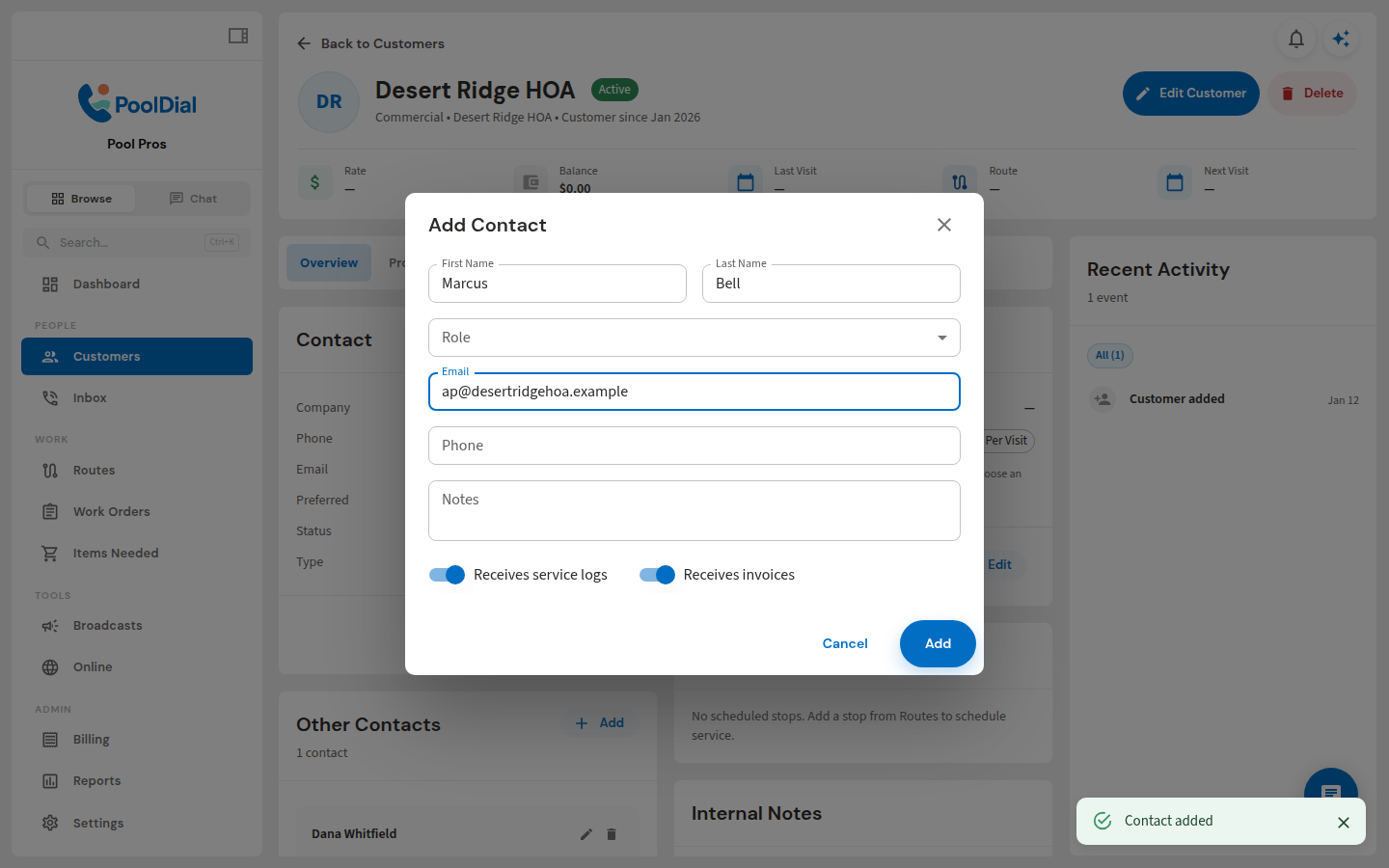
Click Add again and enter the second email address the same way, with Receives invoices on.
5. Confirm Invoices is on for both contacts
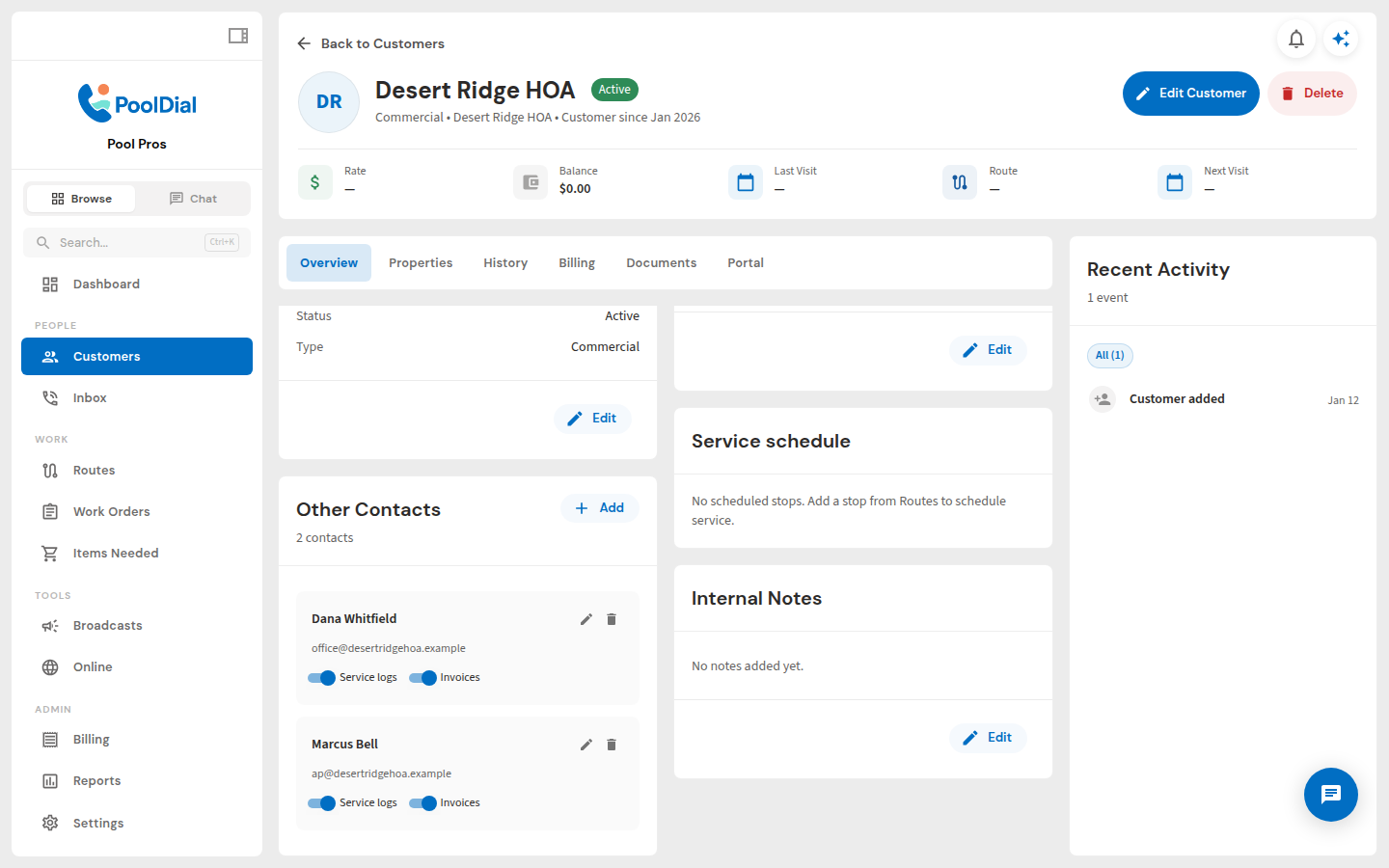
Both contacts now appear in the card. Check that the Invoices switch is on for each one. Pool Dial emails every contact with this switch on, so the same steps work for three or more addresses too.
Using the mobile app
You can do the same thing in the Pool Dial mobile app. Open the customer, go to Other Contacts and add a contact for each address. On mobile, Receives invoices starts turned off, so tap it on for each contact before you save.
Good to know
The customer email stops receiving invoices once a contact has an email. From then on, only contacts with invoices turned on get them. That includes the customer's main email and billing email, so add those as contacts if they should still get a copy.
To stop sending to one address, turn off the Invoices switch on that contact. The contact stays on the customer.
If every Invoices switch is off, the invoice won't send and Pool Dial shows a message asking you to turn on Receives invoices for a contact.
Not using PoolDial yet?
Manage your customers, routes, billing, and more — all in one place.
Start Free Trial