
How to Add a Stop

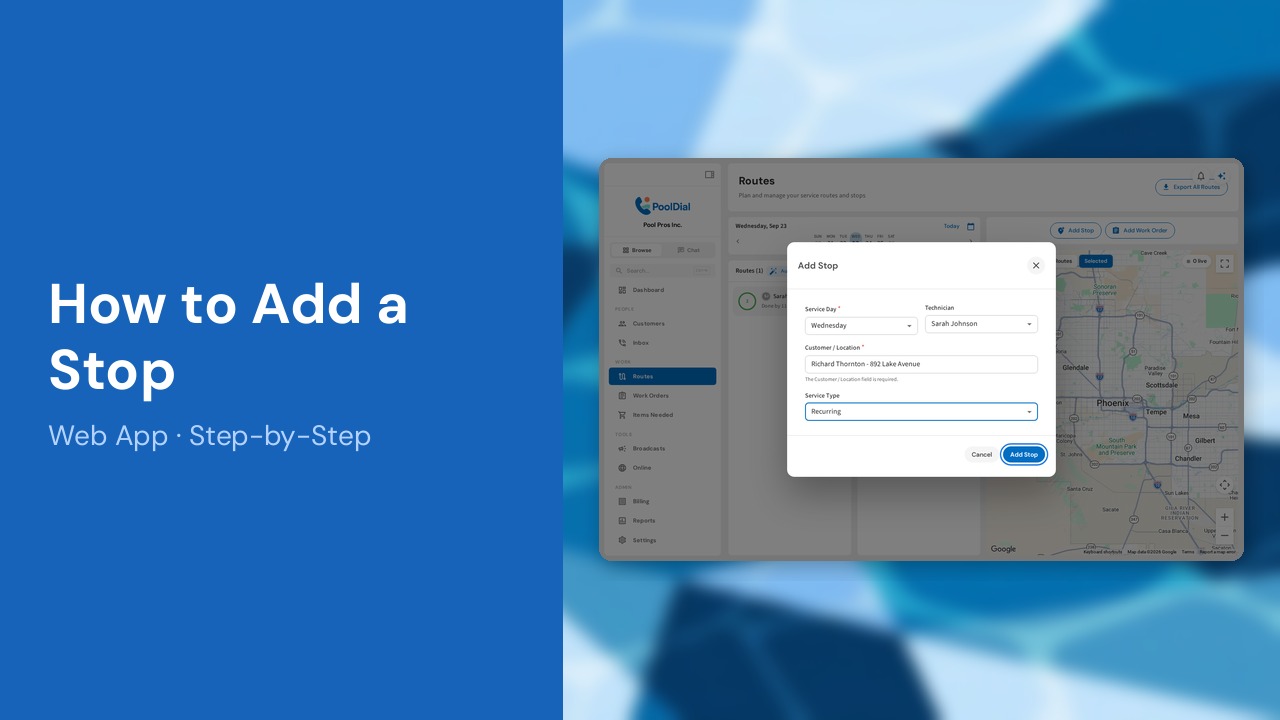
This guide walks you through how to add a stop in PoolDial, step by step.
This guide covers 7 steps and takes about a minute to complete.
Video Walkthrough
Prefer to watch? Here's a full video walkthrough of How to Add a Stop.
1. Open Routes and click Add Stop
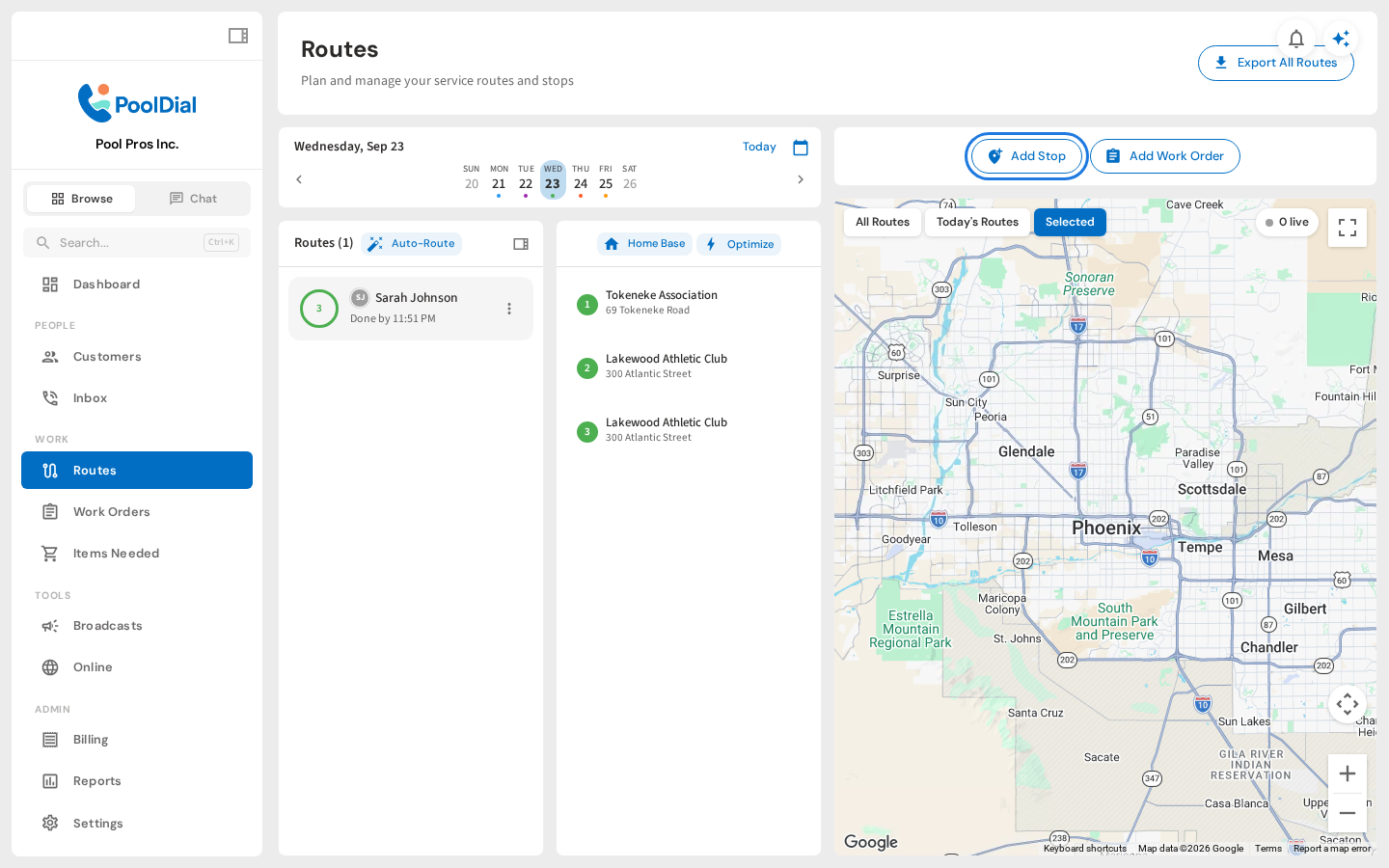
To add a service stop in PoolDial, open Routes from the sidebar. Click Add Stop above the map. You can add a stop without creating a route first.
2. Choose the service day
Choose the day of the week for this stop. In this example, we are adding a Wednesday visit.
3. Assign a technician
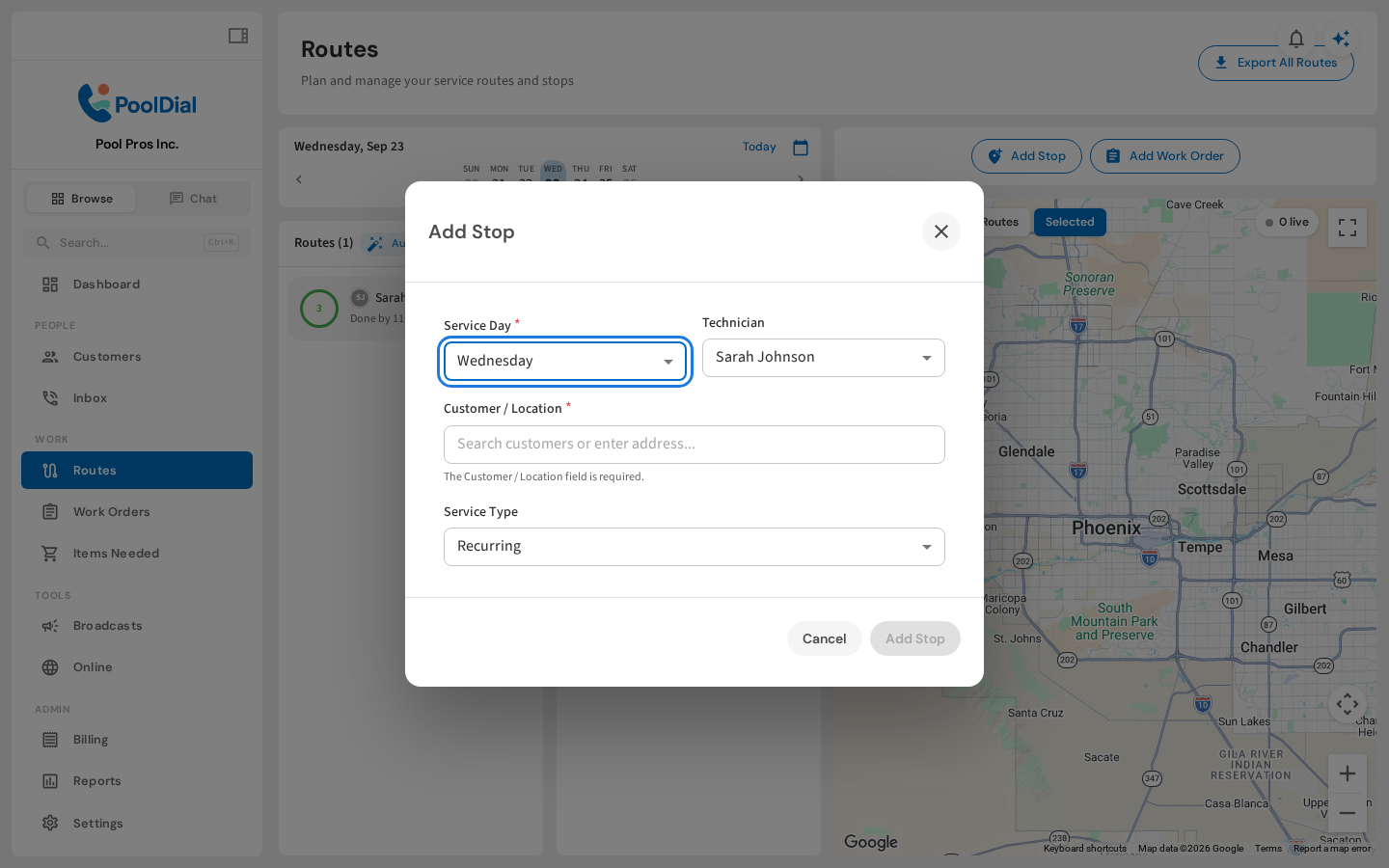
Select the technician who will service the pool. You can also leave No technician selected and assign the work later.
4. Find the customer
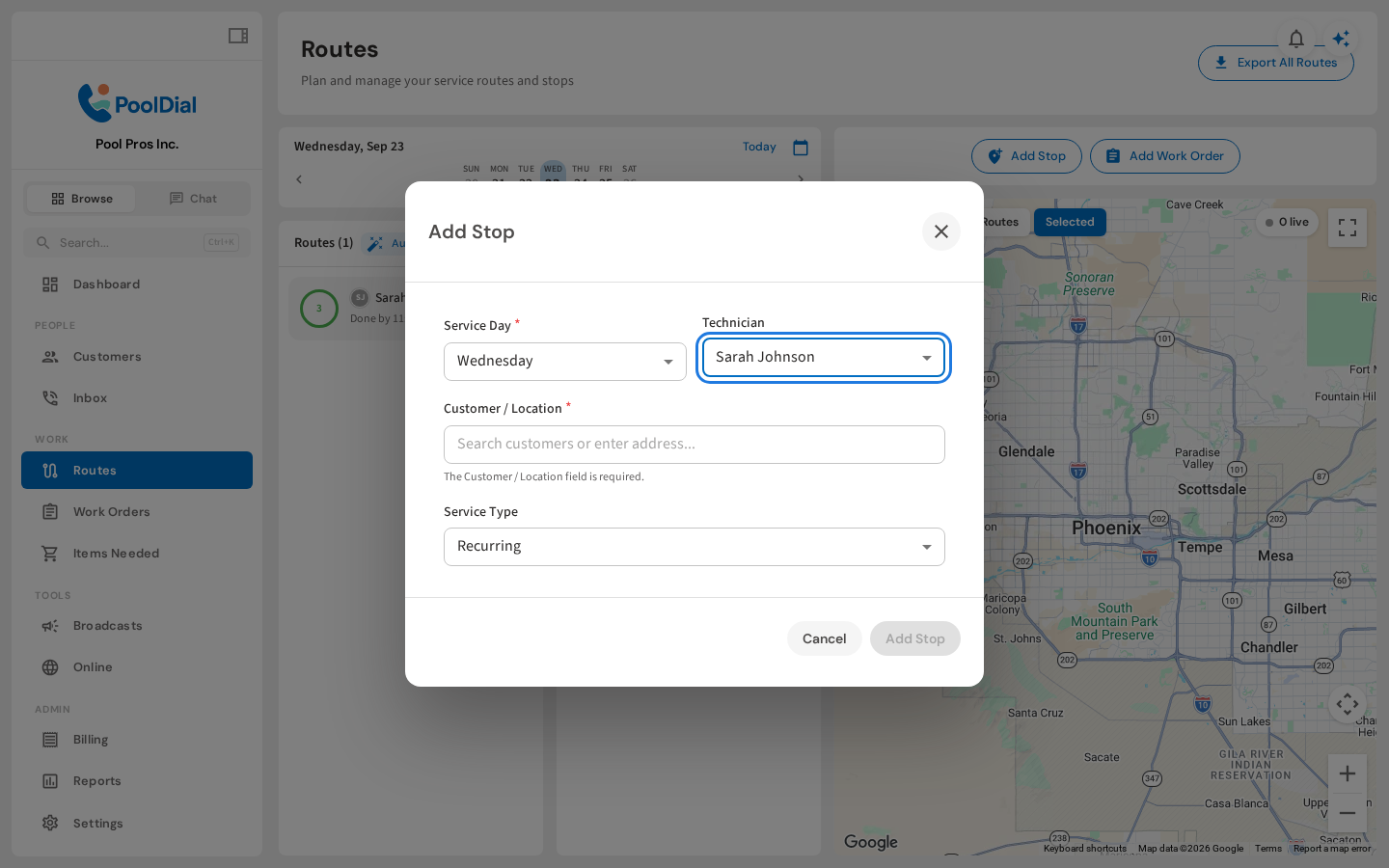
Search for an existing customer, then select the matching name and property address from the results.
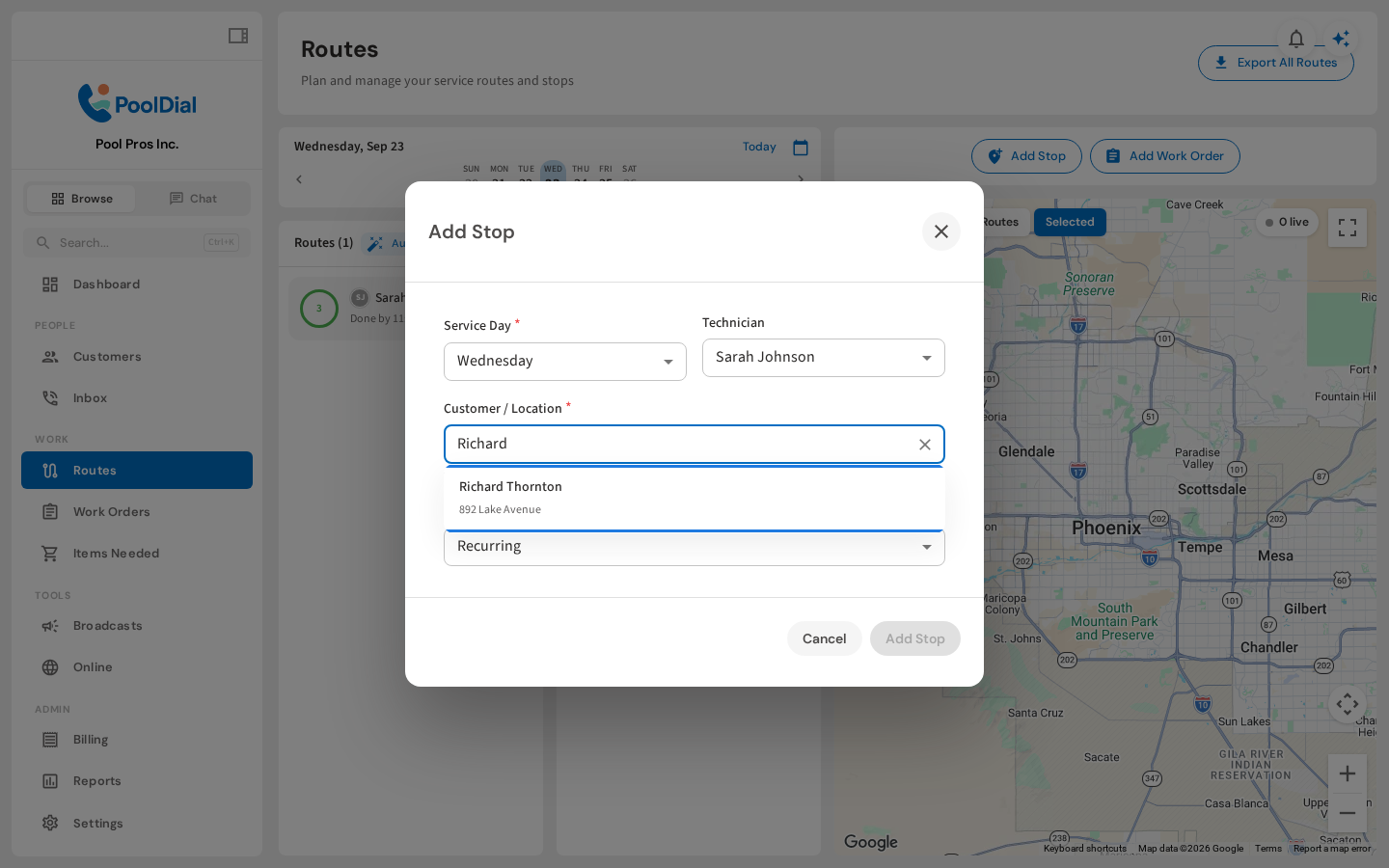
5. Choose recurring or one-time service
Choose Recurring for an ongoing stop, or One-time for a single visit. For a one-time stop, check the calendar week and service day. Here, we will keep Recurring.
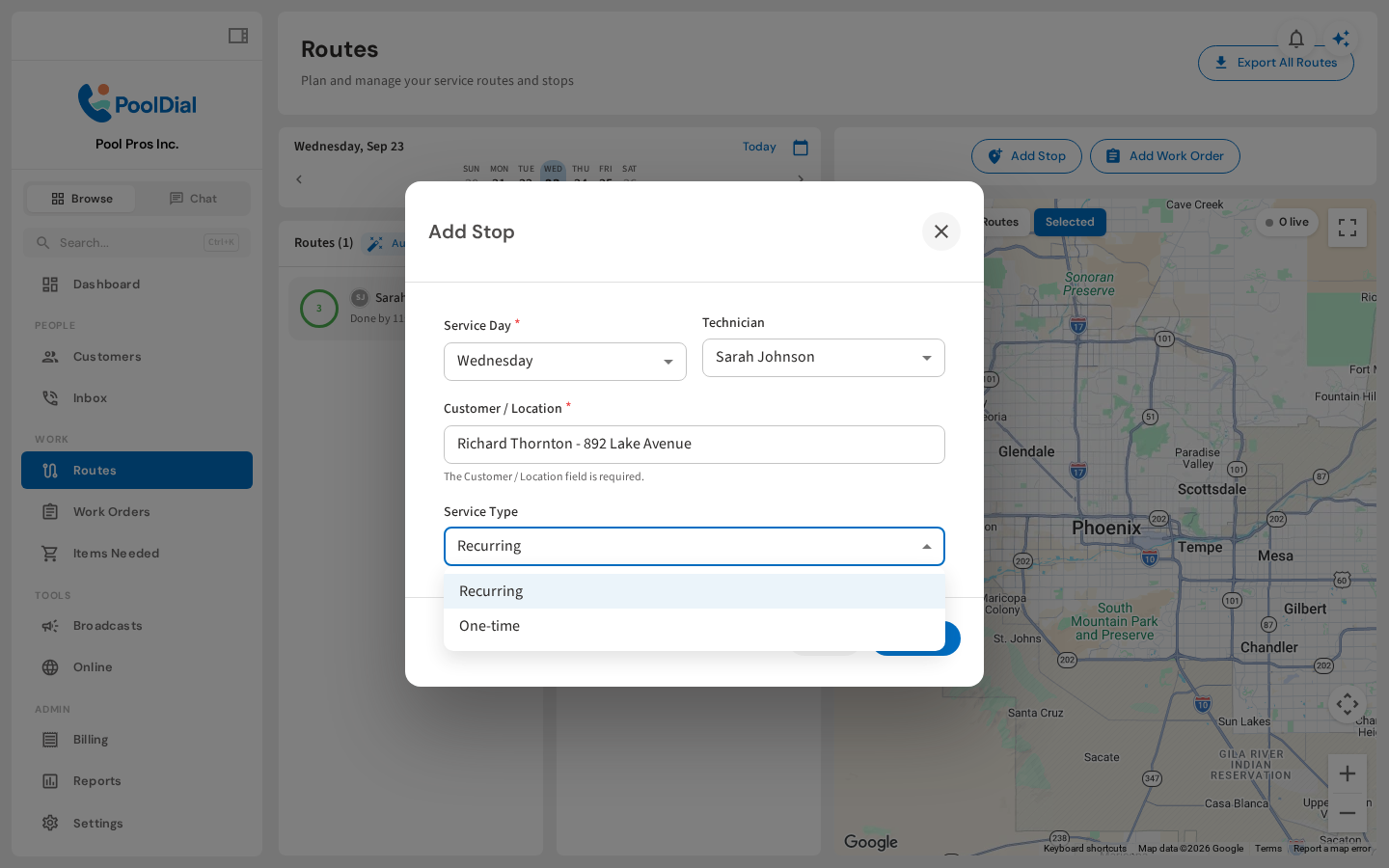
6. Review and add the stop
Review the service day, technician, and customer. Then click Add Stop to save. PoolDial places the stop on the matching route, or creates a route for that day and technician.
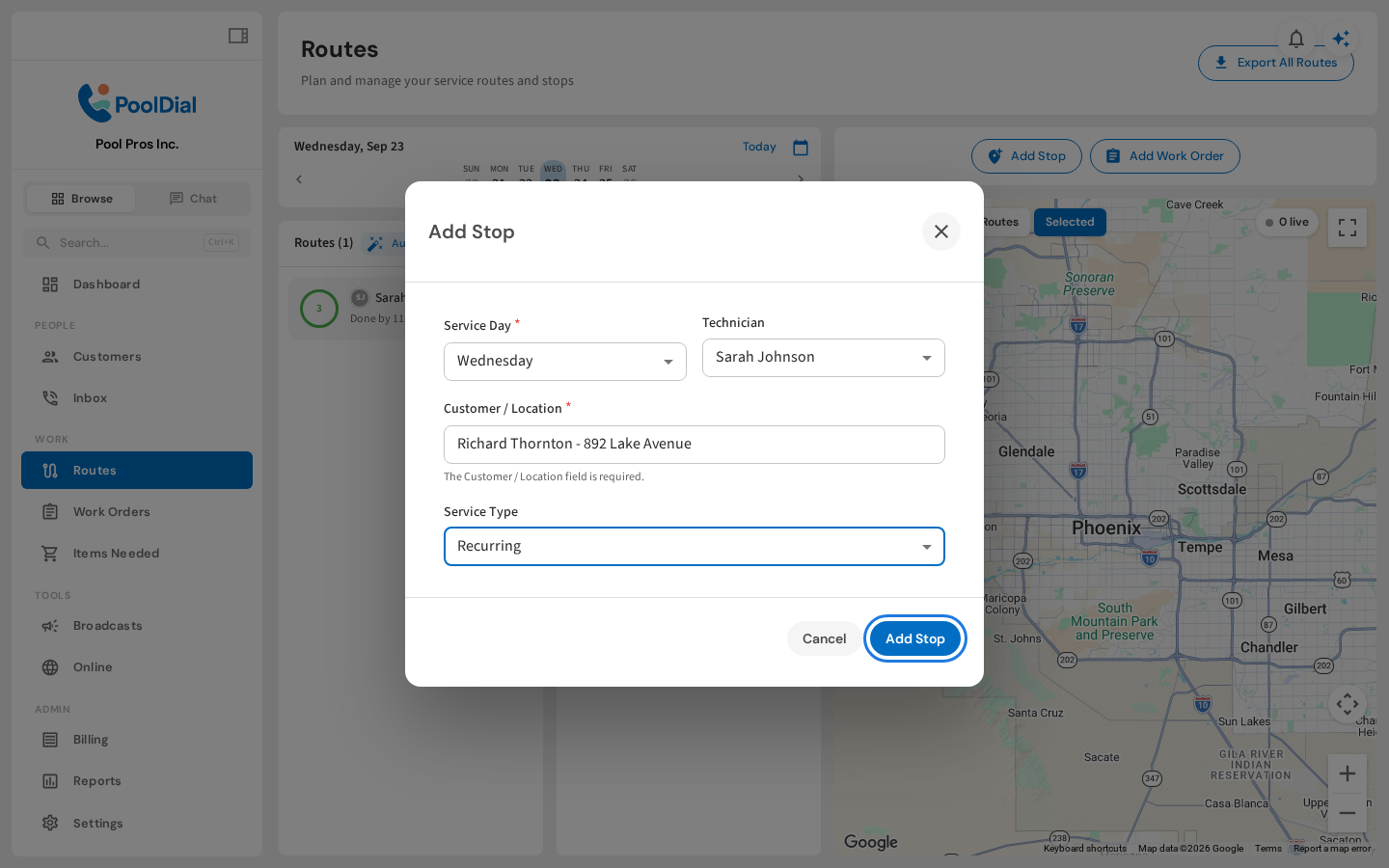
7. Confirm the stop on the route
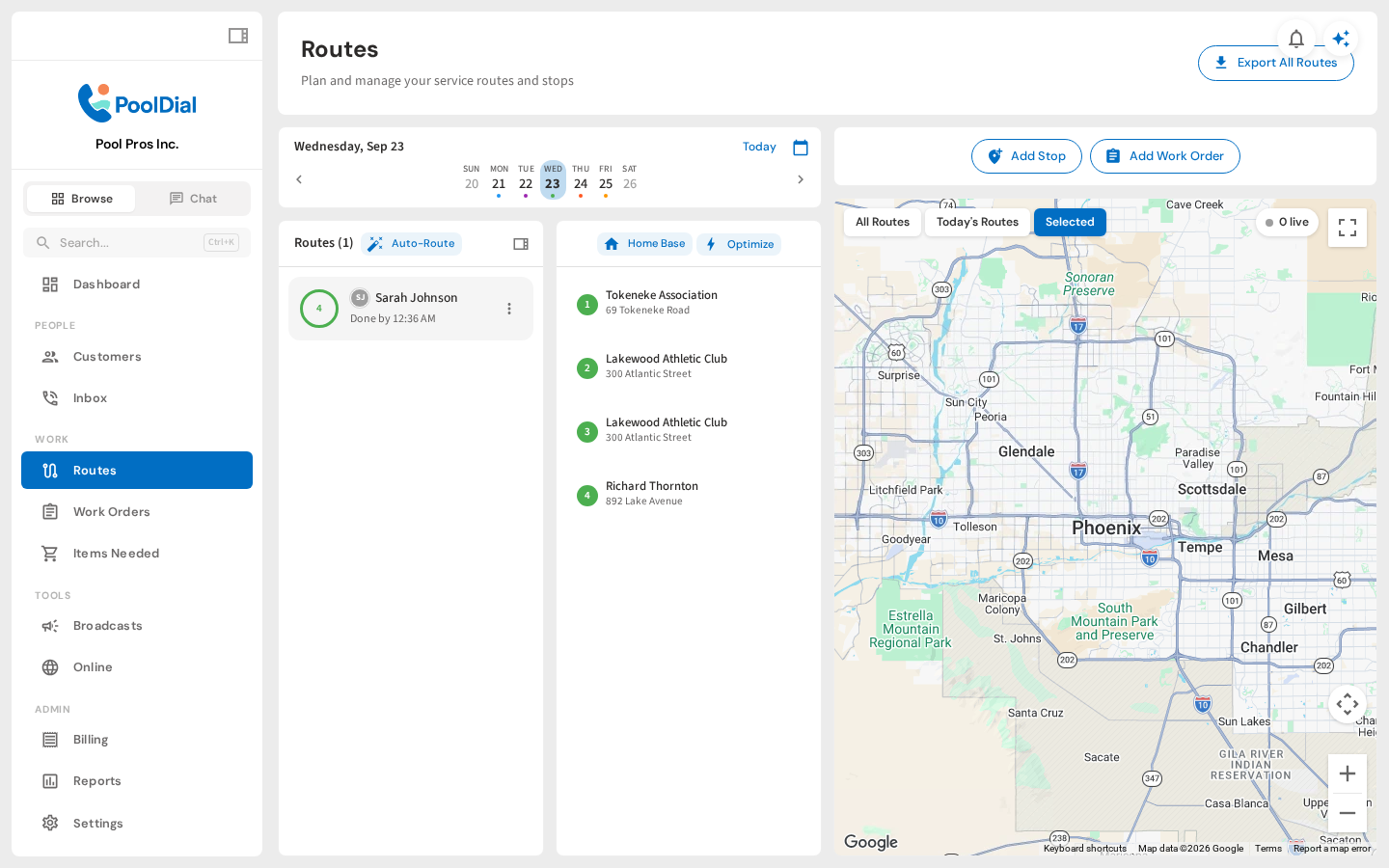
Your new stop now appears on the route. Check the customer and address in the stop list, and you are ready to go.
Not using PoolDial yet?
Manage your customers, routes, billing, and more — all in one place.
Start Free Trial